Spreadsheet Basics for Office Work
Learn how to enter, format, and organize data in a spreadsheet for everyday office tasks.
Video
Watch the lesson video, then complete the reading and challenge.
Presentation Slides
Review the slides below, then complete the reading and challenge.

Lesson Notes
Read through the key concepts before you try the challenge.
Real-World Scenario
The Anatomy of a Spreadsheet
Before you can do anything useful in a spreadsheet, you need to understand how it is structured. Every spreadsheet — whether in Microsoft Excel or Google Sheets — is built on the same three-part grid system:
- Columns — lettered vertically across the top of the sheet (A, B, C...). Each column holds one category of data — for example, column A might be Client Name and column B might be Phone Number.
- Rows — numbered horizontally down the left side of the sheet (1, 2, 3...). Each row holds one complete record — for example, row 2 might be all the information for a single client.
- Cells — the intersection of a column and a row. Cell A1 is column A, row 1. Cell C4 is column C, row 4. All data lives in cells — every piece of text, every number, every date, every formula.
- Row 1 is always your header row — label each column clearly in row 1 before entering any data. Headers like 'Client Name', 'Phone Number', and 'Contract Date' tell anyone reading the sheet exactly what they are looking at.
- Never leave row 1 blank or use it for data — a missing header row makes sorting, filtering, and formula-writing significantly harder and is a hallmark of an unstructured spreadsheet.
Formatting the Grid for Clarity
Raw data entered into a spreadsheet is not always readable or professional. Formatting transforms a messy grid of numbers and dates into a polished, scannable record that anyone can read at a glance. Three formatting rules apply to every professional spreadsheet:
- Currency formatting — select any column holding dollar amounts, then use Format > Number > Currency. This converts raw numbers like 1000 into professionally displayed values like $1,000.00. Inconsistent currency display (some cells showing '1000', others '$1,000') is a sign of an unfinished spreadsheet.
- Date formatting — select any date column and apply Format > Number > Date to lock in a consistent format like MM/DD/YYYY or YYYY-MM-DD across all rows. Without explicit formatting, dates may display differently depending on how they were typed — 01/05/2024 vs 1/5/24 vs January 5, 2024 — which breaks sorting.
- Text alignment — left-align all text columns and right-align all number and currency columns. This is standard spreadsheet convention and makes columns visually scannable without having to read every cell. Apply alignment from the toolbar or Format > Cells > Alignment.
- Column width — double-click any column border in the header to auto-fit its width to the longest entry. Columns that are too narrow cut off text and hide data; columns that are too wide waste screen space and make the sheet harder to scan.
- Header row formatting — bold the text in row 1 and apply a background color (blue or grey are standard). This visually separates headers from data and makes the structure obvious at first glance.
Dynamic Cell References
The most important concept in spreadsheet formulas is the difference between typing a number directly and referencing a cell. This distinction determines whether your spreadsheet stays accurate when data changes — or silently breaks:
- Static values — typing a number directly into a formula, like =150+200, is a static value. If the underlying data changes, the formula does not update. You must manually retype it every time, which introduces errors.
- Dynamic cell references — using a cell address in a formula, like =SUM(B2:B4), means the formula reads whatever is currently in those cells. Change a number in B3 and the total updates instantly with zero manual work.
- Always use cell references, never typed numbers — write =SUM(B2:B15) not =300. This is the single most important habit that separates spreadsheets that stay accurate from spreadsheets that lie.
- Range notation — A1:A10 means every cell from A1 down to A10. The colon (:) is read as 'through'. You can also reference a single cell (A1), two separate cells (A1,A5), or an entire column (A:A).
- Formula anatomy — every formula starts with an equals sign (=), which tells the spreadsheet you are calculating, not typing. Then comes the function name (SUM, COUNT, AVERAGE), then the range in parentheses: =SUM(A1:A10).
The Big Three Formulas
Three formulas cover the majority of everyday office data tasks. Learn these three and you can handle totals, counts, and averages — the building blocks of almost every tracking sheet, budget, and report you will encounter:
- =SUM(A1:A10) — The Adder. Adds up all values in the specified range. Use it to total a column of costs, quantities, hours, or any numeric data. Example: =SUM(C2:C16) totals all contract values from rows 2 through 16.
- =COUNT(A1:A10) — The Counter. Counts how many cells in the range contain a numeric value. Use it to find how many entries exist in a column — for example, how many clients are in a list, or how many invoices have been entered. Note: COUNT only counts numbers, not text; use COUNTA to count text entries.
- =AVERAGE(A1:A10) — The Balancer. Calculates the mean average of all numeric values in the range. Use it to find the average contract value, average hours worked, or average cost per item. It adds all values and divides by the count automatically.
- Placement — always place your formula results in a row below the last row of data, clearly labeled. For example, in cell A12 type 'Total:' and in B12 enter =SUM(B2:B11). This keeps formulas visually separated from raw data and easy to find.
- Extending formulas — once you write a formula in one cell, you can drag the small blue square at the bottom-right corner of the cell across adjacent cells to apply the same formula to neighboring columns automatically.
Organizational Tools: Sort, Filter & Freeze
As your spreadsheet grows from 10 rows to 100 or 1,000, three organizational tools become essential for keeping the data manageable and navigable:
- Sort — select your entire data range (including headers), then use Data > Sort to reorganize rows by any column in ascending or descending order. Always select the full range before sorting — sorting a single column while leaving others in place will scramble your records and corrupt your data.
- Filter — apply a filter via Data > Filter (or Data > Create a Filter in Google Sheets). This adds dropdown arrows to each header. Click a dropdown to show only rows that match a specific condition — for example, show only clients with a 'Pending' status, or only contracts from a specific month.
- Freeze Panes — as you scroll down through a long sheet, your header row disappears and you lose track of which column is which. Use View > Freeze > 1 Row (Google Sheets) or View > Freeze Panes > Freeze Top Row (Excel) to lock row 1 in place so it stays visible no matter how far you scroll.
- The correct order of operations — always set up your header row and freeze it first, then enter data, then sort. Sorting before freezing is a common mistake that produces confusing results.
Quick Reference: Mastering the Grid
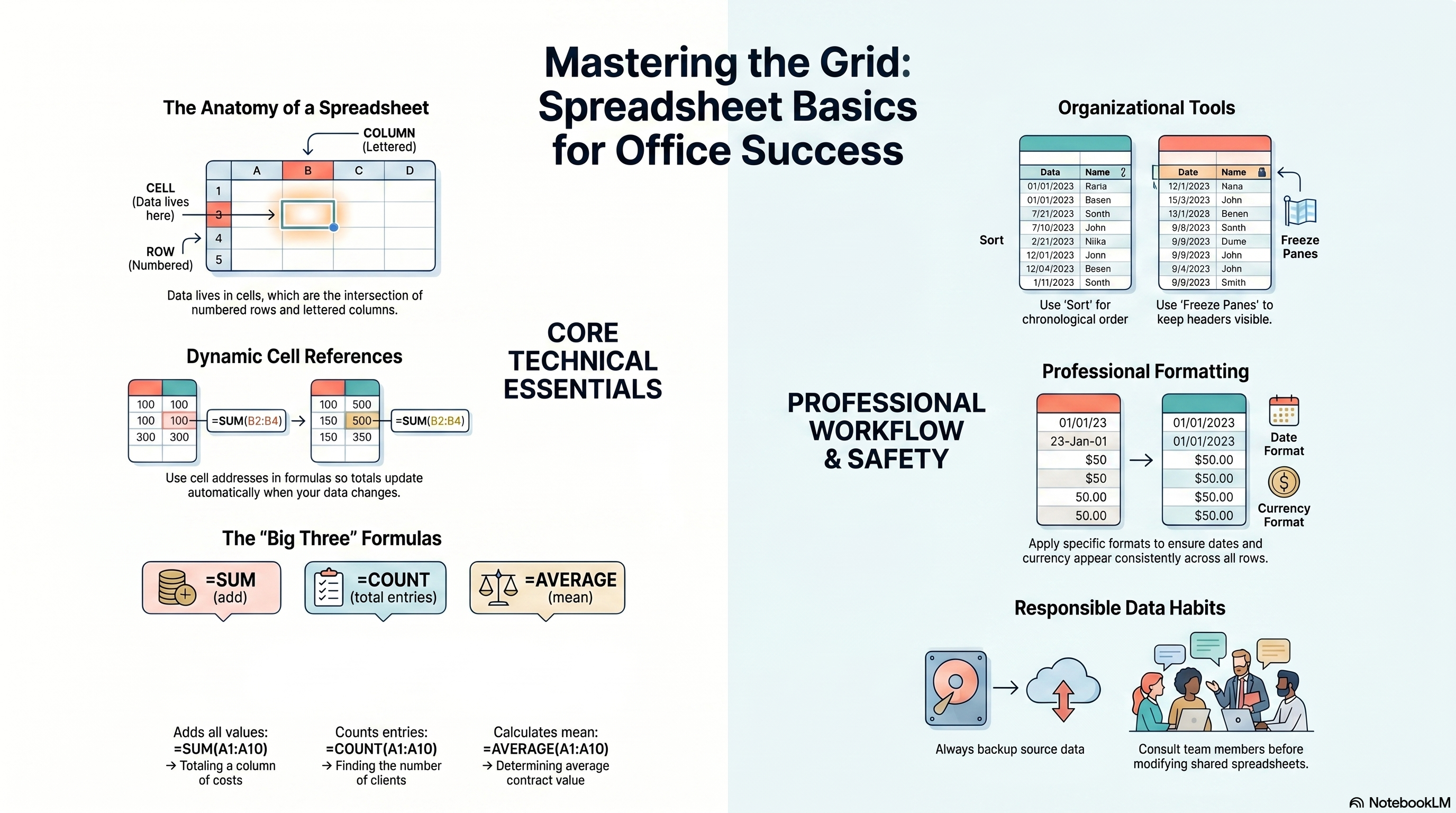
Mastering the Grid: Spreadsheet Basics for Office Success
Responsible Use
AI Assist
Knowledge Check
Which formula adds up all values in the range A1 through A10?
Challenge
Apply what you've learned in this lesson.
Apply everything you have learned to build a functional client tracking spreadsheet from scratch. Your spreadsheet must have at least 10 rows of fictional client data with all four required columns, and meet every specification below:
- Create columns for Client Name, Phone Number, Contract Start Date, and a fourth column of your choice — for example, Contract Value or Years Active
- Format the header row to stand out — bold text and a background color — and freeze it so it stays visible when scrolling
- Apply proper date formatting (MM/DD/YYYY) to the Contract Start Date column, then sort all data by that column from earliest to latest
- Add a row count below your data using =COUNT referencing your date column, clearly labeled 'Total Clients:'
- Add an =AVERAGE formula below your fourth column, clearly labeled, and write a 1–2 sentence note below the spreadsheet explaining what both formulas you used actually calculate
Practice Exercises
Apply what you've learned — complete the quick check and hands-on exercise below.
Quick Check
Test your understanding before the main exercise
You type the number 7500 directly into the total cell instead of writing a formula. What is the problem with this?
Formula Lab
Apply the right formula to the right situation
Total the expense column
The highlighted cell should display the sum of all expense amounts. Which formula belongs in cell B6?
| A | B | |
|---|---|---|
| 1 | Category | Amount |
| 2 | Supplies | $450 |
| 3 | Software | $1,200 |
| 4 | Travel | $875 |
| 5 | Meals | $320 |
| 6 | Total: | = ? |