Hands-On: Build a Tracking Sheet
Apply your spreadsheet skills to build a functional office supply tracker from scratch.
Video
Watch the lesson video, then complete the reading and challenge.
Presentation Slides
Review the slides below, then complete the reading and challenge.
Lesson Notes
Read through the key concepts before you try the challenge.
Real-World Scenario
The Fragile Tracker vs. The Functional Tracker
Most people build spreadsheet trackers by typing data into cells and calling it done. The result is a fragile tracker that falls apart the moment anyone uses it. A functional tracker is deliberately engineered. Here is what separates them:
- Fragile trackers capture inconsistent data — no rules mean every person types status values differently: 'received', 'Received', 'recieved', 'got it'. Filtering and sorting become useless.
- Fragile trackers suffer from typos and misspelled entries — a single inconsistent value breaks every filter that depends on it.
- Fragile trackers break when new rows are added — formulas that reference a fixed range like =SUM(B2:B8) silently stop counting the moment row 9 is added.
- Functional trackers capture exactly the right data — every column is planned in advance with a clear purpose and a defined format.
- Functional trackers enforce consistency through dropdowns — Data Validation limits status entries to a pre-approved list so no typo is ever possible.
- Functional trackers stay accurate as data grows — formulas reference complete columns rather than fixed ranges, and frozen headers keep orientation intact no matter how long the sheet becomes.
- Functional trackers provide clear status at a single glance — conditional formatting communicates every row's status visually so no one needs to read every cell to get the picture.
Phase 1 — Architecting the Column Structure
The most important step in building any tracker happens before you type a single value: planning what data you actually need to capture. Columns added impulsively mid-project break existing formulas and create structural debt. Plan first, build second:
- Item Name (Column A) — a short, clear name for the supply being ordered. Keep it concise: 'Printer Paper Ream', not 'the big box of paper from the store'.
- Quantity (Column B) — the number of units ordered. This is always a plain number — no units or labels in the cell, just the numeric value.
- Cost Per Unit (Column C) — the cost of a single unit formatted as currency ($). This column is the source for your =SUM formula.
- Date Ordered (Column D) — the order date formatted consistently as YYYY-MM-DD across every row. A consistent date format enables reliable chronological sorting.
- Status (Column E) — the current state of the order. This column gets a Data Validation dropdown: Ordered, Received, Out of Stock. No free-text entry allowed.
- Build the column structure by labeling each column in Row 1, then immediately apply a frozen header so the labels stay permanently visible as the sheet grows.
Phase 1 — Locking the Foundation with Frozen Headers
A header row that disappears when you scroll is not a header row — it is just a label that becomes useless the moment your tracker grows past the screen. Freeze it immediately after labeling your columns:
- Google Sheets — click View > Freeze > 1 Row. Row 1 locks in place and stays visible at the top of the screen no matter how far down you scroll.
- Excel — click View > Freeze Panes > Freeze Top Row. Same result: the header row is now permanently anchored.
- Always freeze the header row before entering any data — this ensures the structure is locked before the sheet grows.
- Verify it works: enter 20+ rows of test data and scroll to the bottom. The header row should remain fully visible at the top of the window.
- A frozen header is non-negotiable for any tracker shared with a team — without it, users scrolling through long lists have no way to know which column they are editing.
Phase 1 — Data Guardrails: Validation Dropdowns
The Status column is the most dangerous column in any tracker because it relies entirely on free-text entry — and humans are unreliable typists. Data Validation eliminates the problem by replacing the free-text field with a strict dropdown menu:
- Select the entire Status column (Column E), then navigate to Data > Data Validation (Google Sheets) or Data > Data Validation > Allow: List (Excel).
- Enter your allowed values: Ordered, Received, Out of Stock — separated by commas. These are the only values the column will accept.
- Set the validation to reject invalid data — in Google Sheets, choose 'Reject input' under On invalid data. This means typing anything outside the approved list will be blocked entirely.
- The result: every status entry is perfectly consistent. Filtering by 'Ordered' will find every ordered item because no one can type 'ordered', 'Orderd', or 'in progress' into that column.
- Data Validation also speeds up entry — users select from the dropdown instead of typing, which is faster and eliminates all possibility of error.
Phase 1 — Automated Intelligence: The =SUM Formula
A running total at the bottom of your cost column is the most essential formula in any supply tracker. Typing the total manually is not acceptable — a static number will silently become wrong the moment any cost value changes. Use =SUM:
- Place your =SUM formula in the first empty cell below your last row of data in the Cost Per Unit column. For example, if your data runs from C2 to C9, place your formula in C10.
- Write the formula as =SUM(C2:C9) — this adds every value in the Cost Per Unit column from row 2 to row 9 and displays the running total.
- Label the formula clearly — type 'Total Cost:' in the cell directly to the left (B10 in this example) so anyone reading the sheet immediately knows what the number represents.
- The formula updates automatically whenever any cost value in the range changes — no manual recalculation, no risk of a stale number.
- If you add new rows of data between your last data row and the formula row, update your =SUM range to include the new rows. For example, expand =SUM(C2:C9) to =SUM(C2:C12) after adding more items.
- Format the total cell as Currency ($) to match the values above it — a plain number in the total row looks inconsistent and unfinished.
Phase 2 — Visual Status via Conditional Formatting
A tracker with 50 rows of supply orders is useless if you have to read every Status cell to find which items are out of stock. Conditional Formatting makes status visible at a glance by automatically coloring cells based on their content:
- Select the entire Status column (Column E), then navigate to Format > Conditional Formatting (Google Sheets) or Home > Conditional Formatting > New Rule (Excel).
- Create a rule for 'Out of Stock' — set the condition to 'Text is exactly: Out of Stock' and choose a red background fill. Every cell containing 'Out of Stock' will turn red automatically.
- Create a second rule for 'Received' — set the condition to 'Text is exactly: Received' and choose a green background fill. Every delivered item will show green instantly.
- Leave 'Ordered' uncolored (white/default) so it is visually neutral — pending orders do not need a color signal until their status changes.
- The result: scanning a 50-row tracker for urgent items takes two seconds instead of two minutes. Red cells demand attention; green cells confirm completion.
- Conditional formatting applies automatically to every new row added to the column — you never need to manually reformat cells as the tracker grows.
Phase 2 — Establishing the Data Dictionary
A tracker shared with a team needs documentation. Without it, team members guess what each column means, enter data inconsistently, and break the structure you built. A Data Dictionary tab eliminates this problem:
- Add a second tab to your spreadsheet — right-click the sheet tab at the bottom and select 'Insert sheet'. Name it 'Notes'.
- Document every column in the Tracker tab with one clear entry in the Notes tab: the column name, what it means, and any formatting or entry rules.
- Example entries: 'Column A (Item Name): Short descriptive name of the supply item. Max 30 characters.' | 'Column C (Cost Per Unit): Cost of one unit in USD. Format as Currency. Do not include total costs.' | 'Column E (Status): Select from dropdown only. Options: Ordered, Received, Out of Stock.'
- Include the date the tracker was created and the name of the person who built it at the top of the Notes tab — this helps teammates know who to ask questions.
- A Data Dictionary is standard professional practice. It is what separates a personal spreadsheet from a team tool that anyone can maintain without breaking it.
Quick Reference: Pro-Level Spreadsheets
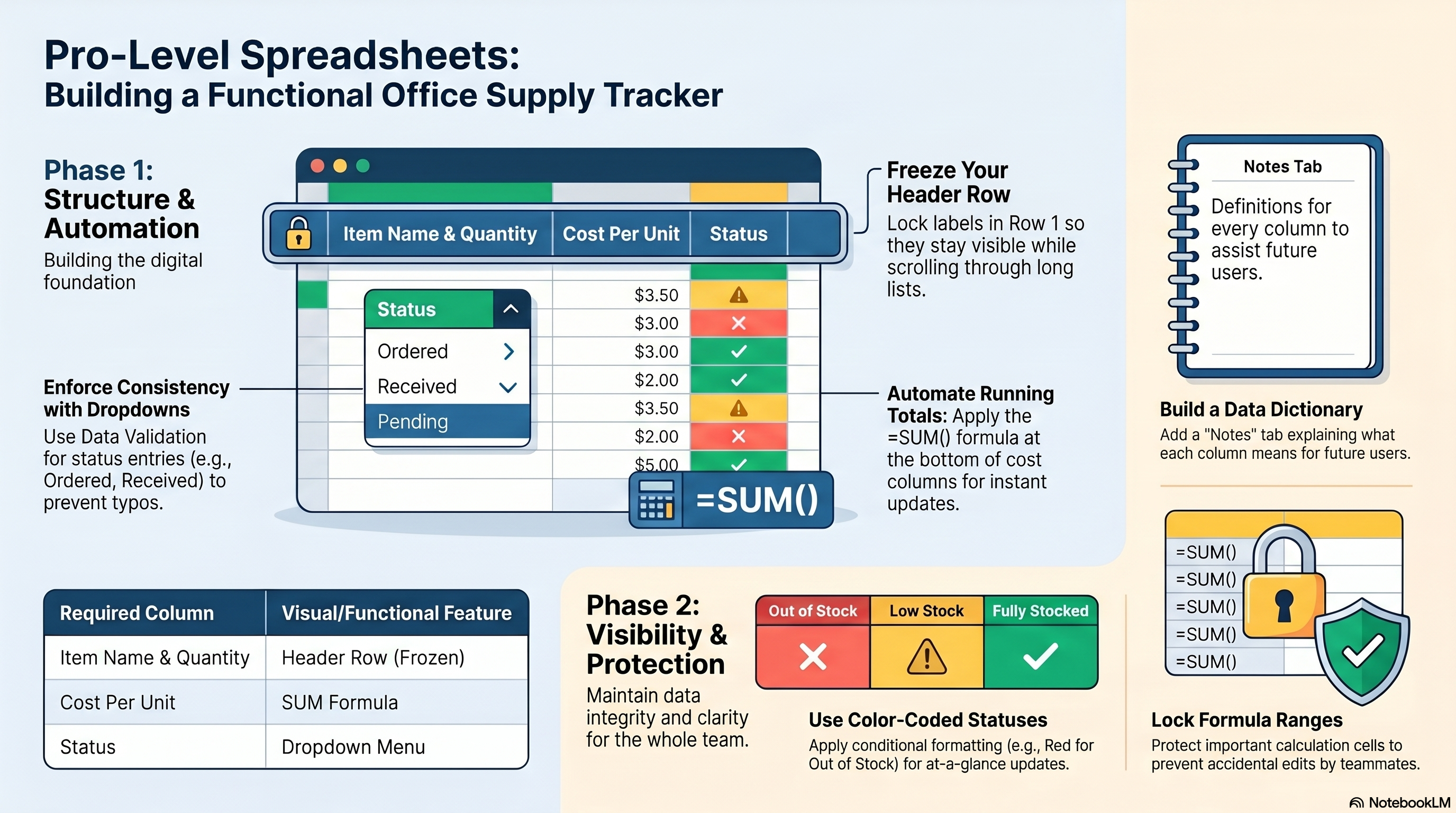
Pro-Level Spreadsheets: Building a Functional Office Supply Tracker
Responsible Use
AI Assist
Knowledge Check
What spreadsheet feature should you use to keep status entries consistent across all rows?
Challenge
Apply what you've learned in this lesson.
Build a completed Office Supply Tracker spreadsheet with at least 8 rows of data. Your tracker must meet all five specifications below:
- Include all 5 columns: Item Name, Quantity, Cost Per Unit, Date Ordered, and Status
- Add a total cost formula using =SUM at the bottom of the Cost Per Unit column, clearly labeled 'Total Cost:'
- Apply conditional formatting to the Status column — red background for 'Out of Stock', green background for 'Received'
- Freeze the header row so it stays visible when scrolling through the full list
- Add a second tab named Notes with a 1-sentence description of every column in the tracker
Practice Exercises
Apply what you've learned — complete the quick check and hands-on exercise below.
Quick Check
Test your understanding before the main exercise
You need to share your Office Supply Tracker with your whole team. Which step should you take BEFORE sharing to prevent accidental formula damage?
Tracker Troubleshooter
Real problems, real fixes — pick the right spreadsheet feature for each situation
Problem 1 of 4
You scroll past row 20 in your tracker and can't tell which column is which. You're accidentally entering data into the wrong columns.
Problem 2 of 4
You updated an item cost from $12.00 to $18.00, but the Total at the bottom of the Cost column still shows the old number.
Problem 3 of 4
Your teammate typed 'recieved' in the Status column. Your filter for 'Received' now misses that row entirely and the totals look wrong.
Problem 4 of 4
Your tracker has 60 rows of supply orders. Finding which items are Out of Stock requires reading every single Status cell one by one.