Line and Paragraph Spacing
Learn how to adjust line spacing and paragraph spacing for professional document formatting.
By the end of this lesson you can
- Set line spacing and space before and after paragraphs
- Explain why blank paragraphs are a poor way to create vertical space
- Choose spacing appropriate to the document's purpose
- Use Keep with next to stop headings being stranded at the foot of a page
Video
Watch the lesson video, then complete the reading and challenge.
Lesson Notes
Read through the key concepts before you try the challenge.
Press Enter twice and you have made a formatting problem
You are formatting a twelve-page policy document at Lakeside Medical Associates.
You separate paragraphs by pressing Enter twice throughout. Your supervisor asks for slightly tighter spacing. There is no setting to change — the spacing is made of empty paragraphs, so you must find and delete a hundred and forty of them by hand, and some of them are now stranded at the tops of pages.
Your task: Create vertical space with paragraph spacing settings, so it can be adjusted everywhere in one action.
Space Before and Space After are properties of a paragraph, set in the Paragraph dialog or under Layout > Spacing. Because they are properties, they can be changed globally — or built into a style, so every paragraph using that style updates at once. Blank paragraphs are content, and content has to be edited one instance at a time.
Empty paragraphs cause a second problem: they land at page boundaries. A blank paragraph pushed to the top of a page leaves an unexplained gap, and screen readers announce empty paragraphs, so a document padded this way is read aloud with meaningless pauses.
| Document | Line spacing | Paragraph spacing |
|---|---|---|
| Business letter | Single | 6-12 pt after |
| Academic paper | Double | 0 pt, first-line indent instead |
| Document for review | 1.5 lines | Extra room for handwritten notes |
| Dense reference table | Single | Minimal — the structure does the separating |
Using the Line Spacing Menu
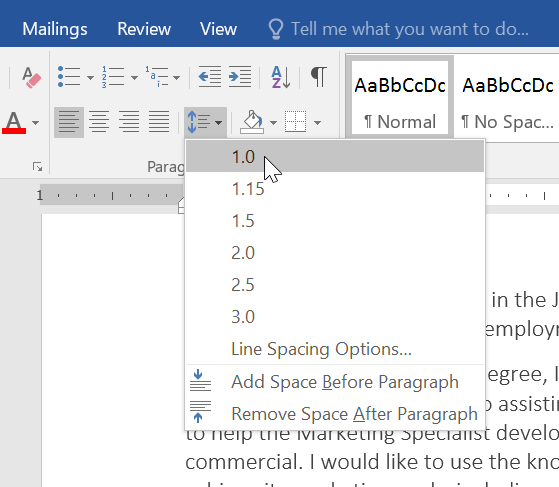
You can quickly change line spacing from the Line and Paragraph Spacing button in the Paragraph group on the Home tab.

Opening Line Spacing Options
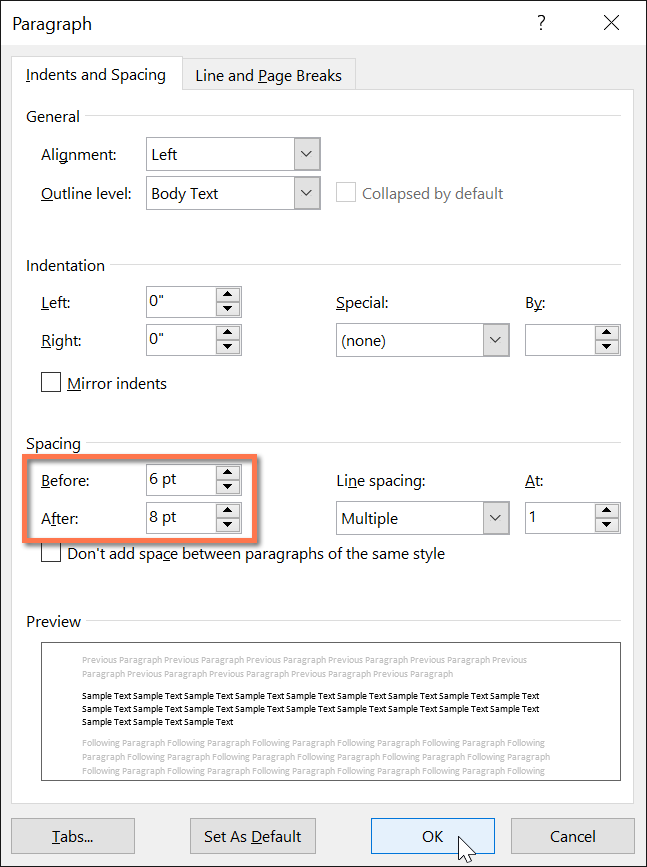
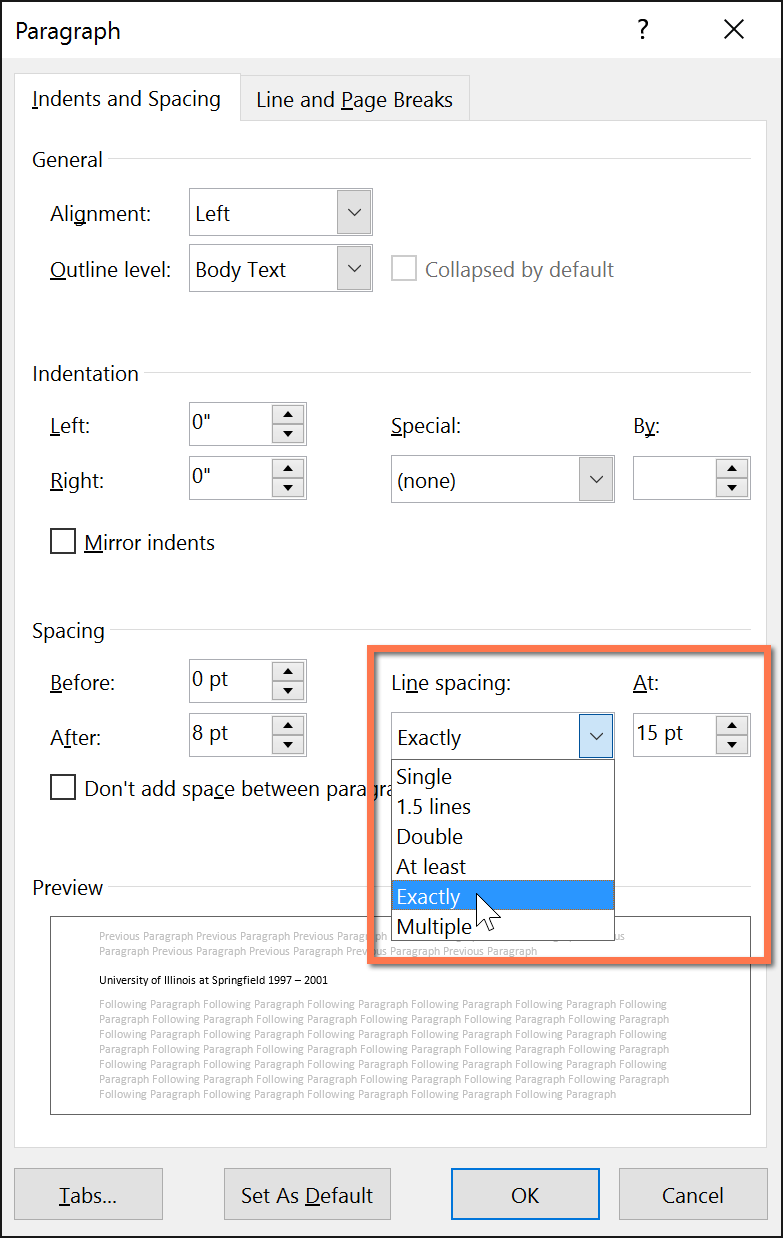
For advanced spacing control, open the Paragraph dialog box and use the Line spacing dropdown menu.
Spacing Before and After Paragraphs
Paragraph spacing adds space before or after entire paragraphs. This creates cleaner documents without using extra blank lines.

Professional Example
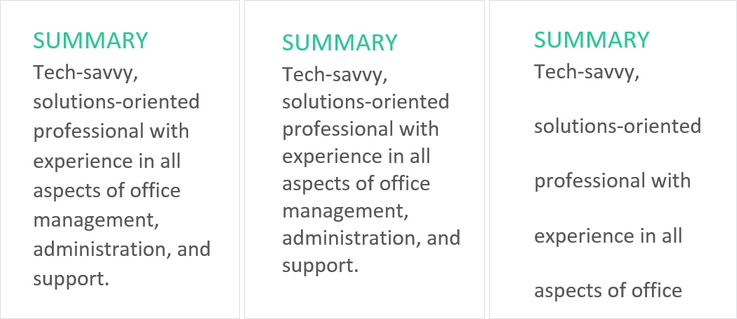
Proper spacing improves readability and gives letters and resumes a clean, professional look.

Knowledge Check
Which spacing setting adds extra space between paragraphs without using blank lines?
Practice File
Download this file and follow along with the lesson.
Challenge
Apply what you've learned in this lesson.
Using the provided practice file, complete the following tasks:
- Change the body text to 1.5 line spacing.
- Add spacing after each paragraph.
- Remove unnecessary blank lines created using Enter.
- Adjust the document to look professionally formatted.
Finished this lesson?
Progress is saved in this browser only. It is not a grade — official progress lives in Brightspace.