Breaks (Page, Column & Section)
Learn how to insert, manage, and delete page breaks, column breaks, and section breaks in Microsoft Word.
By the end of this lesson you can
- Insert page, column, and section breaks and explain how they differ
- Choose the right section break type for a layout change
- Reveal breaks with Show/Hide to diagnose layout problems
- Replace repeated Enter presses with a proper page break
Video
Watch the lesson video, then complete the reading and challenge.
Lesson Notes
Read through the key concepts before you try the challenge.
The difference between a page break and a section break
You are assembling the annual report at Lakeside Medical Associates.
The report is portrait, but the budget table in the middle needs a landscape page. You set orientation to landscape and every page in the document rotates. You undo, try again, and get the same result.
Your task: Learn which break creates an independent region of the document, because orientation applies to sections, not pages.
A page break simply moves the following content to the next page. Everything stays in the same section, so it keeps the same margins, orientation, headers, and page numbering. It is the right tool for starting a new chapter on a fresh page.
A section break creates a genuinely independent region that can have its own orientation, margins, columns, headers, and page numbering. That is why the landscape budget table needs section breaks before and after it: only then can that one region rotate while the rest of the report stays portrait.
| Break | Effect | Use for |
|---|---|---|
| Page | Content continues on the next page | Starting a chapter on a new page |
| Column | Content continues in the next column | Controlling where a column ends in a newsletter |
| Section: Next Page | New section starting on a new page | A landscape page inside a portrait document |
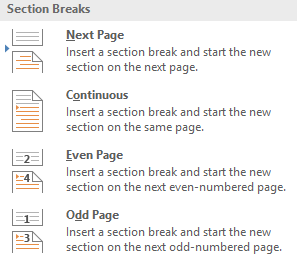
| Section: Continuous | New section on the same page | Changing column count partway down a page |
| Section: Even/Odd Page | New section on the next even or odd page | Chapters that must always start on a right-hand page |
Understanding Breaks
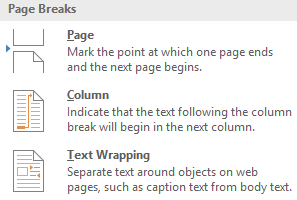
Breaks allow you to control how content flows in your document. You can force text onto a new page, start a new column, or create a new section with different formatting.
Inserting a Page Break
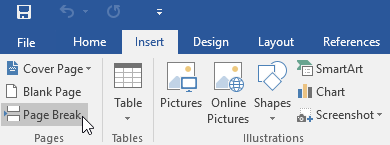
A page break forces content to begin on the next page. Go to the Insert tab and click Page Break, or press Ctrl + Enter.
Inserting a Section Break
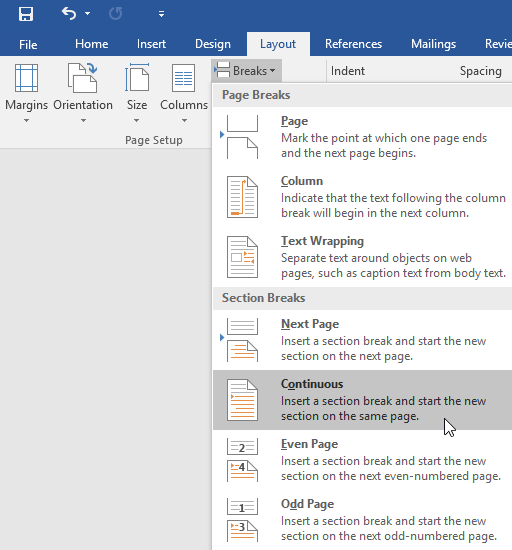
Section breaks allow different formatting in different parts of the document, such as changing columns, margins, or orientation.

Types of Section Breaks
Word provides several types of section breaks: Next Page, Continuous, Even Page, and Odd Page. Continuous section breaks are useful when changing formatting without starting a new page.

Column Breaks
A column break forces text to move to the next column. This is useful when working with multi-column layouts.
Viewing Breaks with Show/Hide
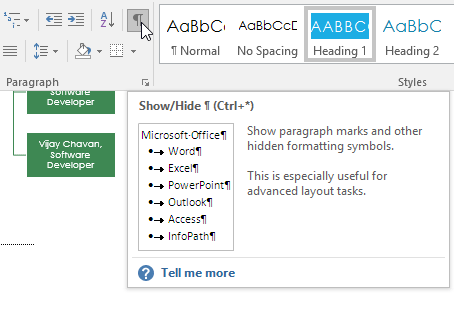
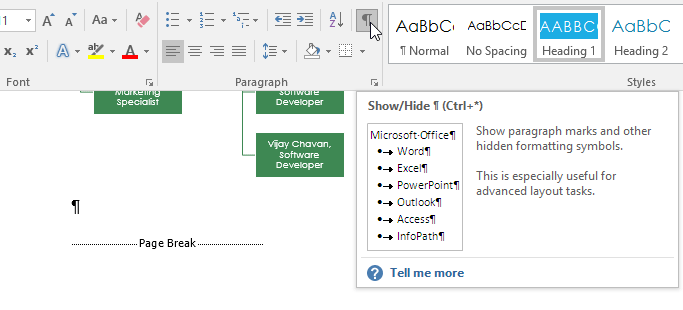
Breaks are invisible by default. Click the Show/Hide ¶ button on the Home tab to display formatting marks and see where breaks are located.
Deleting a Break
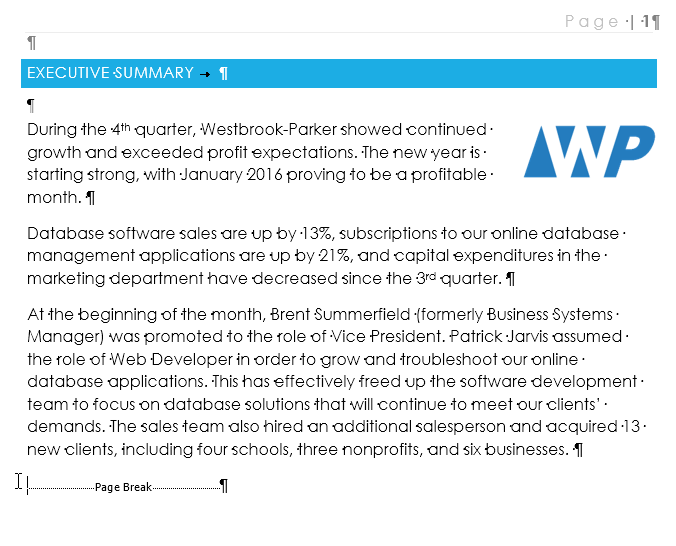
To delete a break, place your cursor directly before it and press Delete. Removing a section break may change formatting in your document.

Final Result
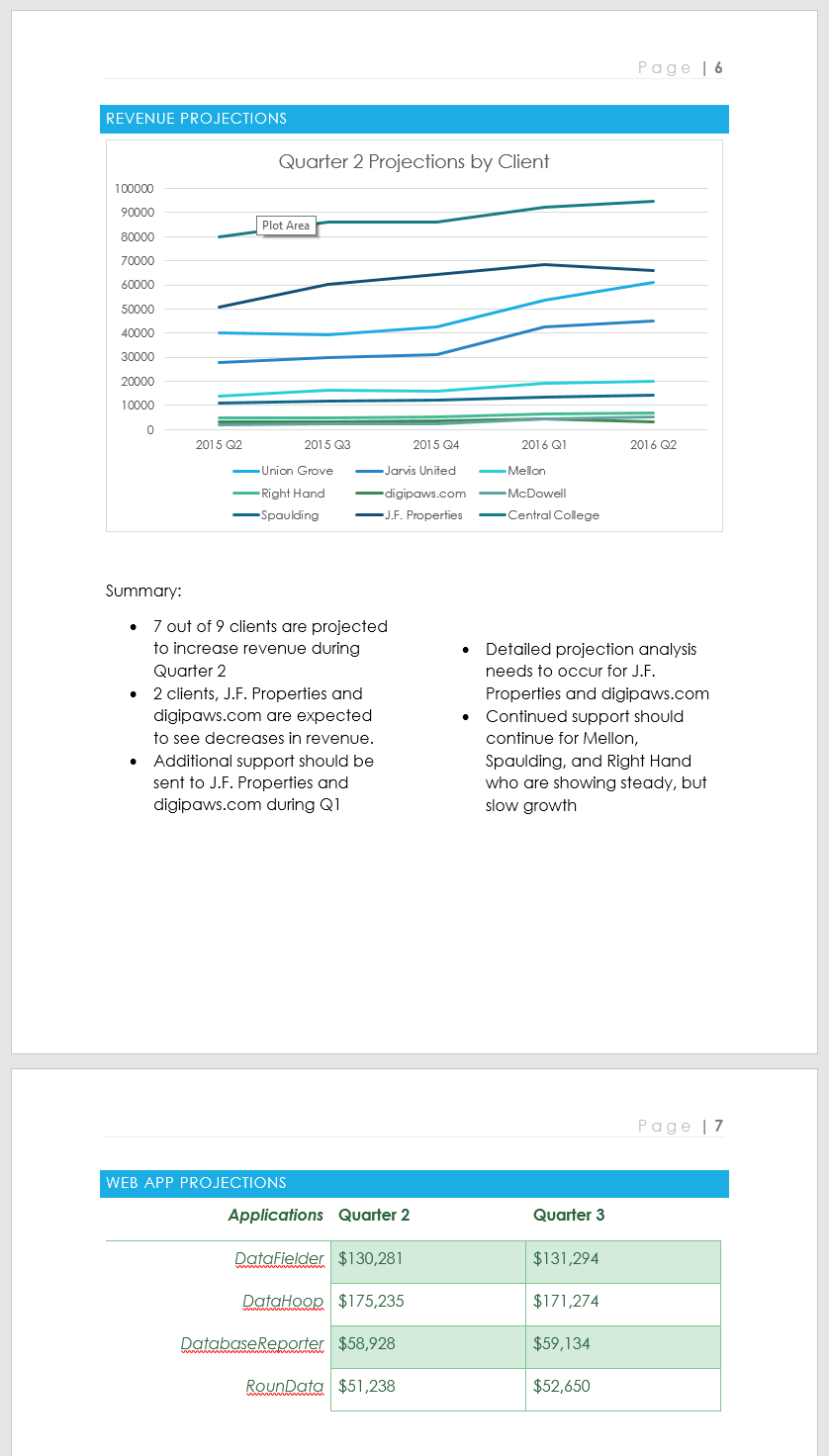
After inserting and managing breaks correctly, your document should have clean page transitions and properly formatted sections.
Knowledge Check
What type of break forces content to start on a new page?
Practice File
Download this file and follow along with the lesson.
Challenge
Apply what you've learned in this lesson.
Using the provided practice file, complete the following tasks:
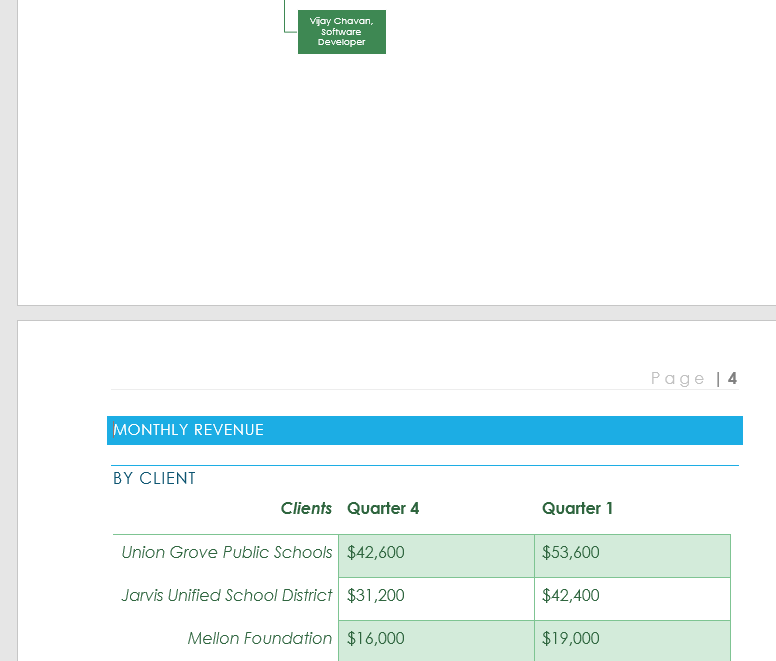
- Insert a page break before the 'Monthly Revenue' section.
- Insert a section break before the 'Clients Overview' section.
- Change one section to a two-column layout.
- Use Show/Hide to display formatting marks.
- Delete an unnecessary page or section break.
Finished this lesson?
Progress is saved in this browser only. It is not a grade — official progress lives in Brightspace.