Indents and Tabs
Learn how to use the ruler, tab selector, and indentation tools to control paragraph layout in Microsoft Word.
By the end of this lesson you can
- Set first-line and hanging indents using the ruler and the Paragraph dialog
- Explain what a hanging indent is for and where it is required
- Set and clear tab stops, including decimal and right-aligned tabs
- Recognize why spaces are never a substitute for tabs or indents
Video
Watch the lesson video, then complete the reading and challenge.
Lesson Notes
Read through the key concepts before you try the challenge.
Never align with the space bar
You are compiling a reference list for a staff training packet at Lakeside Medical Associates.
You align the second line of each reference with spaces until it looks right. You then change the font from Calibri to Times New Roman, and every alignment collapses, because the new font's space character is a different width. Forty references, all wrong.
Your task: Use indents and tab stops, so alignment is a property of the paragraph and survives every font change.
The distinction is worth stating plainly. A space is a character whose width depends on the font. An indent is a measured property of the paragraph. A tab stop is a defined position on the ruler. Indents and tab stops are exact and stable; spaces are approximate and break the moment anything changes.
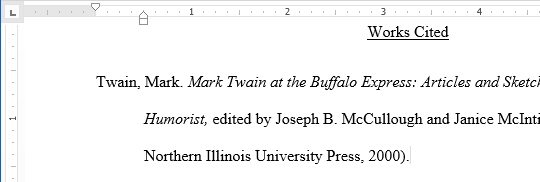
A hanging indent puts the first line at the margin and indents every subsequent line. It is what citation styles require for reference lists, because it makes the author surnames line up down the left edge so a reader can scan them. Set it in Paragraph > Indentation > Special > Hanging, or by dragging the lower triangle on the ruler.
| Type | Aligns text | Use for |
|---|---|---|
| Left | Left edge at the stop | Ordinary columns of text |
| Center | Centered on the stop | Column headings |
| Right | Right edge at the stop | Page numbers in a contents list |
| Decimal | Decimal points at the stop | Columns of currency or measurements |
| Bar | Draws a vertical line | A visual divider between columns |
Using the Ruler
The ruler allows you to visually control indents and tab stops. If it is not visible, go to the View tab and check Ruler.

Adjusting Indents
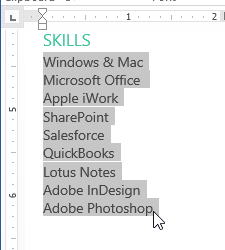
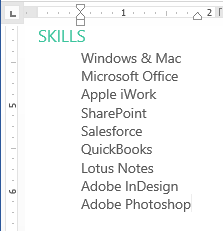
Indentation moves text inward from the margin. You can adjust the left indent, right indent, first-line indent, or hanging indent using the ruler or the Layout tab.
First-Line Indent
A first-line indent moves only the first line of a paragraph inward. This is commonly used in essays and formal writing.

Hanging Indent
A hanging indent moves all lines except the first inward. This format is commonly used for Works Cited or reference pages.
Using Tab Stops
Tab stops allow you to align text precisely. You can set left, center, right, or decimal tabs using the tab selector and ruler.


Real-World Example
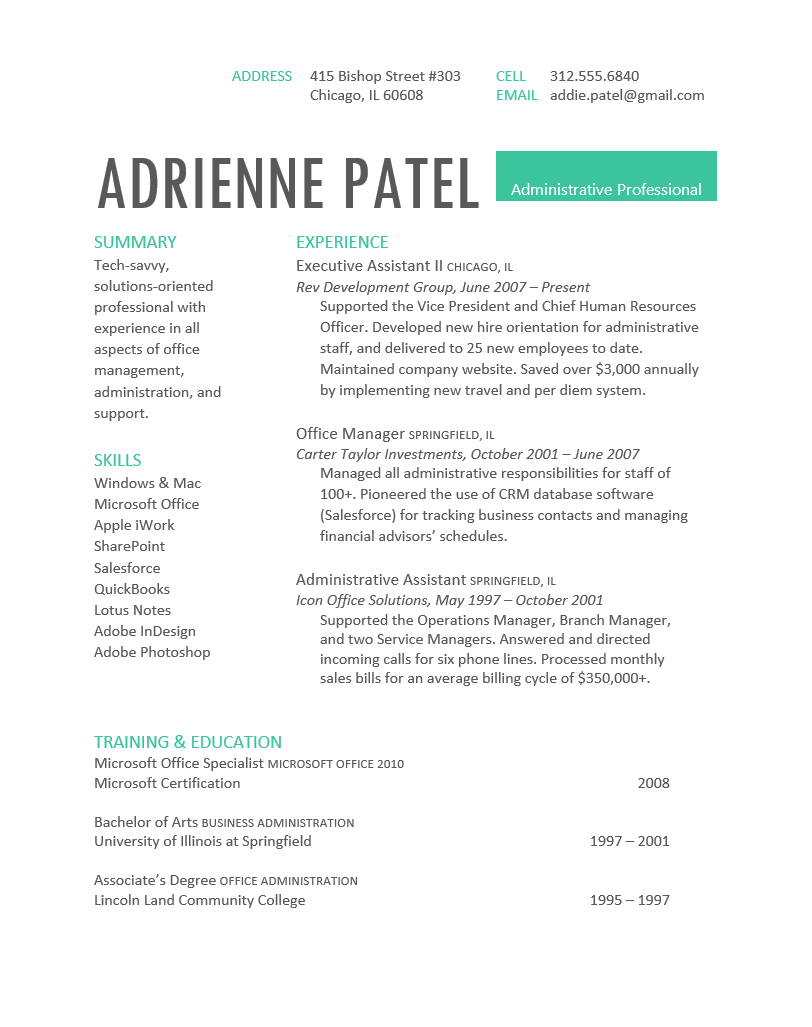
Below is an example of a professionally formatted resume section using indents and tab stops.

Knowledge Check
What is a hanging indent?
Practice File
Download this file and follow along with the lesson.
Challenge
Apply what you've learned in this lesson.
Using the provided practice file, complete the following tasks:
- Enable the ruler.
- Apply a first-line indent to the body paragraph.
- Create a hanging indent for the Works Cited section.
- Use tab stops to align dates to the right margin.
- Adjust left and right indents for the Skills section.
Finished this lesson?
Progress is saved in this browser only. It is not a grade — official progress lives in Brightspace.