Page Layout
Learn how to adjust margins, orientation, paper size, and use the Page Setup dialog box in Microsoft Word.
By the end of this lesson you can
- Set margins, orientation, and paper size for a specific purpose
- Explain when landscape orientation is genuinely the right choice
- Use the Page Setup dialog for settings not on the Ribbon
- Account for binding and hole-punching when setting margins
Video
Watch the lesson video, then complete the reading and challenge.
Lesson Notes
Read through the key concepts before you try the challenge.
Margins are a reading decision
You are producing the staff handbook at Lakeside Medical Associates.
To save paper you set every margin to half an inch. The handbook is then three-hole punched for binders, and the punch removes the first character of every line on odd pages. Sixty pages, reprinted.
Your task: Set margins for how the document will physically be used, not only for how it looks on screen.
Margins do three jobs: they leave room for hands and binding, they give the eye a rest at the end of each line, and they control line length. Very wide text is genuinely harder to read, because the eye loses its place traveling back to the start of the next line. The one-inch default is a reasonable compromise for most documents, not an arbitrary number.
Orientation should follow the content. Portrait suits text, because it produces comfortable line lengths. Landscape suits wide tables, timelines, and charts that do not fit across a portrait page. A landscape page of body text has lines so long they are tiring to read — if you are reaching for landscape to fit text, the real fix is usually columns.
| Purpose | Setting | Note |
|---|---|---|
| Standard letter or report | 1 inch all round | Word's default; safe for any printer |
| Bound or hole-punched | Gutter margin 0.5 in, left | Page Setup > Margins > Gutter adds space for binding without shifting the text block |
| Double-sided binding | Mirror margins | Inside margins face each other so binding space lands correctly on both sides |
| Maximum content per page | 0.5 in | Only for documents that stay flat and unbound |
Changing Margins
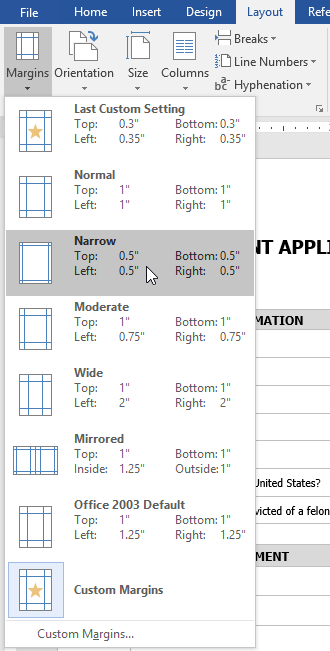
Margins control the space between your text and the edge of the page. To change margins, go to the Layout tab and click Margins.

Custom Margins
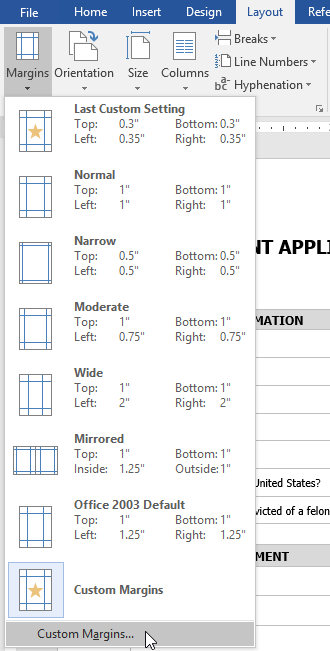
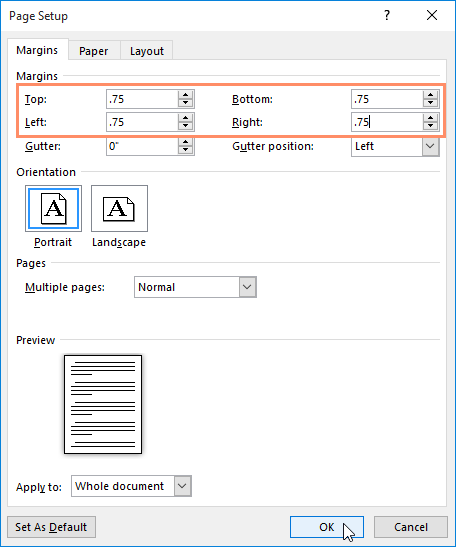
For precise control, click Custom Margins to open the Page Setup dialog box. Here you can manually adjust top, bottom, left, and right margins.
Changing Page Orientation
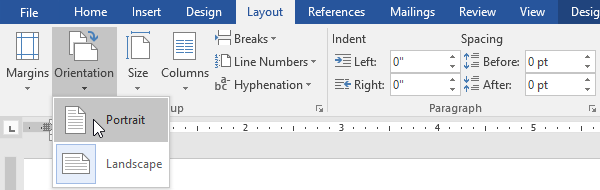
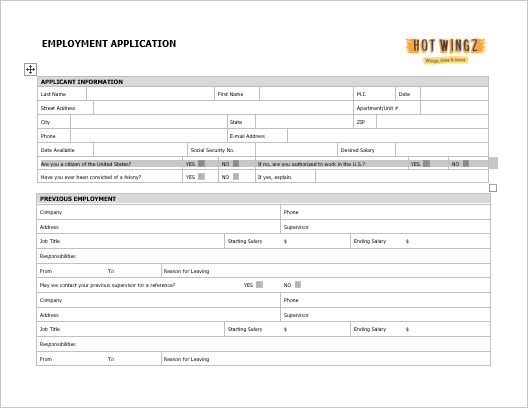
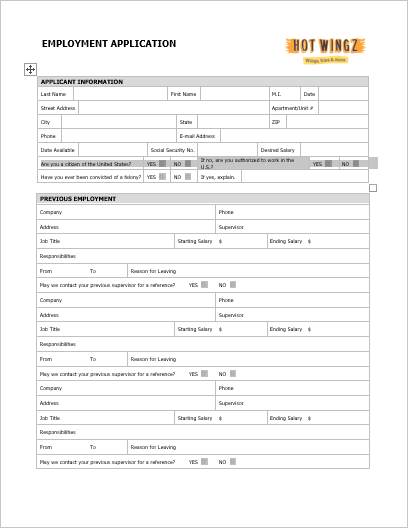
Orientation determines whether your document prints vertically (Portrait) or horizontally (Landscape).

Changing Paper Size
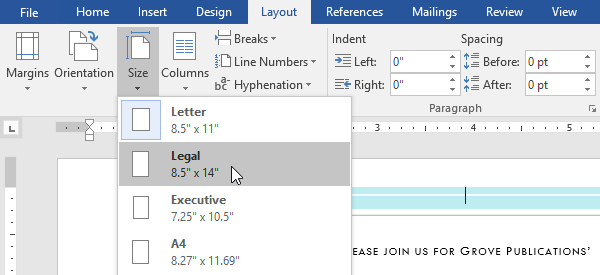
You can change the paper size from the Layout tab by clicking Size. Word provides preset sizes such as Letter, Legal, and A4.

Custom Paper Size
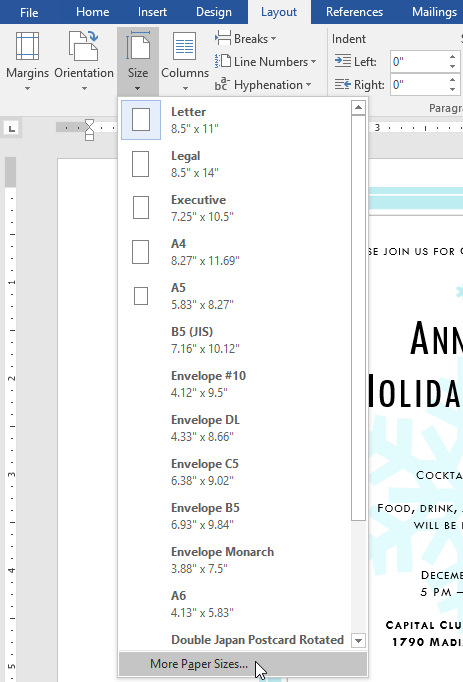
To define a custom paper size, click More Paper Sizes to open the Page Setup dialog box and manually enter width and height.
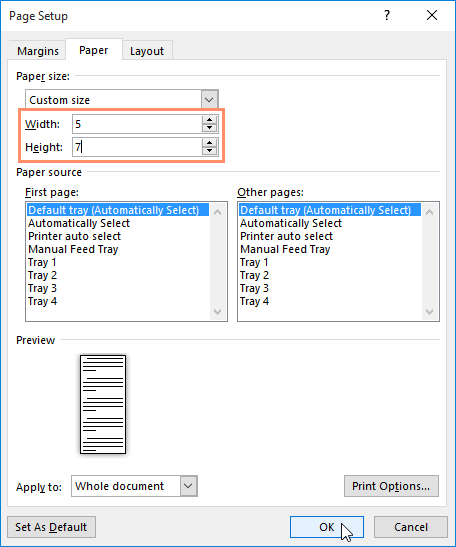
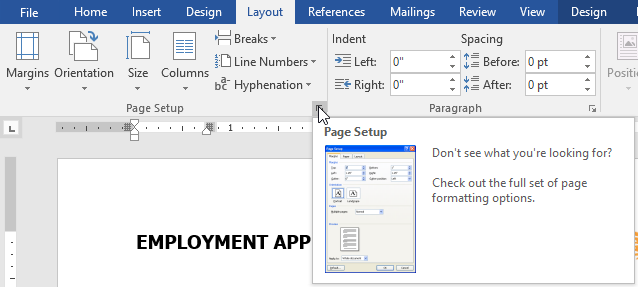
Using the Page Setup Dialog Box
The Page Setup launcher provides full control over margins, paper size, orientation, and layout options in one place.
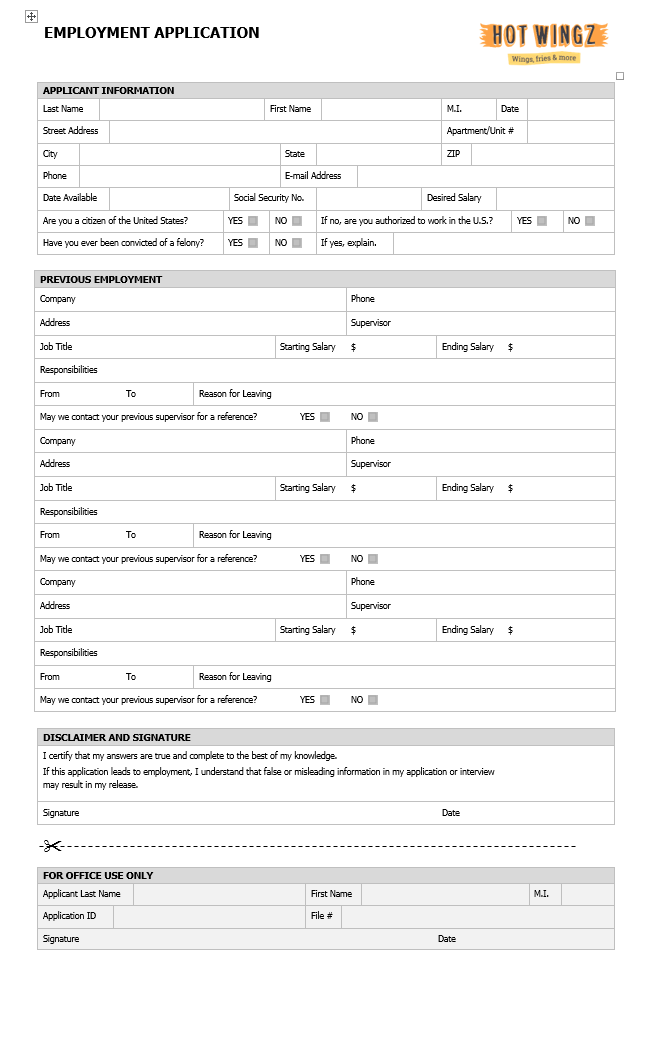
Final Result
After adjusting margins, orientation, and paper size, your completed document should look like this:
Knowledge Check
Which page orientation makes the page wider than it is tall?
Practice File
Download this file and follow along with the lesson.
Challenge
Apply what you've learned in this lesson.
Using the provided practice file, complete the following tasks:
- Change the margins to Narrow.
- Set orientation to Landscape.
- Change the paper size to Legal.
- Create custom margins of 0.75 inches on all sides.
- Open the Page Setup dialog box and review all layout settings.
Finished this lesson?
Progress is saved in this browser only. It is not a grade — official progress lives in Brightspace.