Columns
Learn how to create, customize, and remove columns in Microsoft Word, including how to use column breaks and adjust column spacing.
By the end of this lesson you can
- Apply a multi-column layout to a whole document or a selection
- Control where a column ends with a column break
- Choose a column count and width appropriate to the page
- Explain why columns are a readability tool
Video
Watch the lesson video, then complete the reading and challenge.
Lesson Notes
Read through the key concepts before you try the challenge.
Columns exist to shorten the line
You are laying out the patient newsletter at Lakeside Medical Associates.
Your first draft runs the text full width across the page. Readers report it feels like hard work, though they cannot say why. The sentences are fine. The lines are simply too long — the eye keeps losing its place traveling back to the start of the next one.
Your task: Use columns to bring the line length into the range people read comfortably.
Typographers generally aim for roughly 50 to 75 characters per line. Beyond that, the return sweep from the end of one line to the start of the next becomes unreliable and readers lose their place. On a letter-size page at 11 point, full-width text runs closer to 100 characters, which is why newsletters and magazines are almost always set in columns.
Apply columns from Layout > Columns. Applied with nothing selected, it affects the whole section; with text selected, Word adds continuous section breaks around the selection so only that part becomes multi-column. This is how a newsletter has a full-width masthead above two-column body text.
Adding Columns
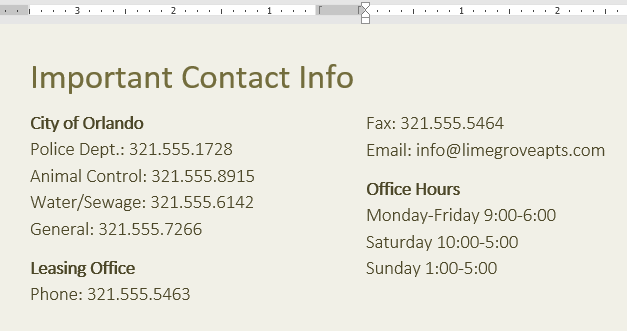
Columns allow text to flow from top to bottom in one column, then continue at the top of the next column—similar to newspapers or newsletters.
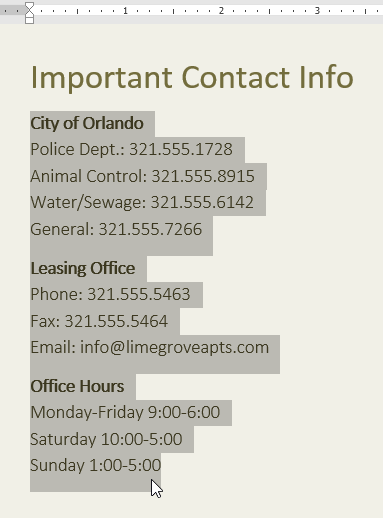
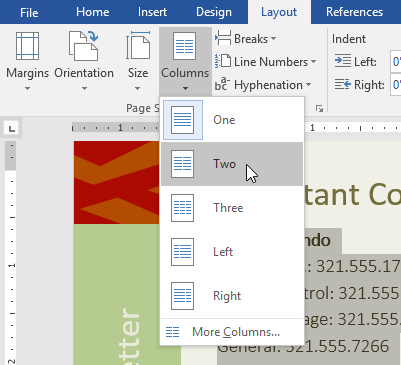
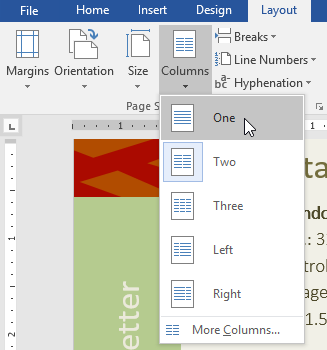
To add columns, select your text, go to the Layout tab, and click Columns. Then choose Two, Three, or another preset option.
Inserting a Column Break
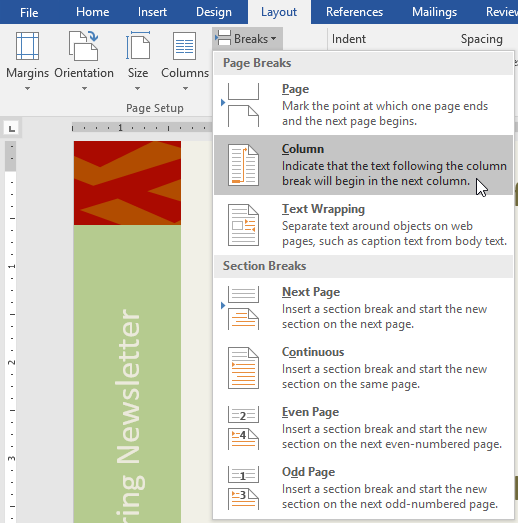
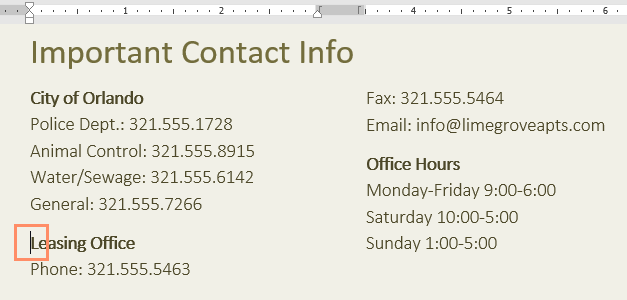
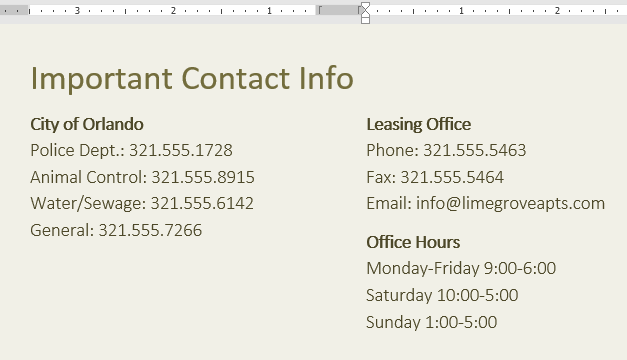
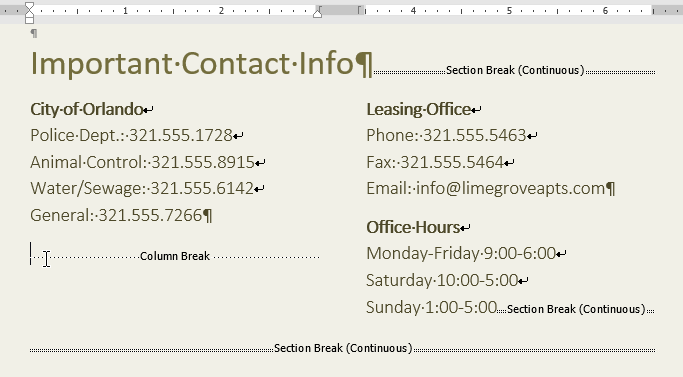
A column break forces text to move to the top of the next column immediately.
Place your insertion point where you want the new column to begin. Then go to Layout → Breaks → Column.
Customizing Columns
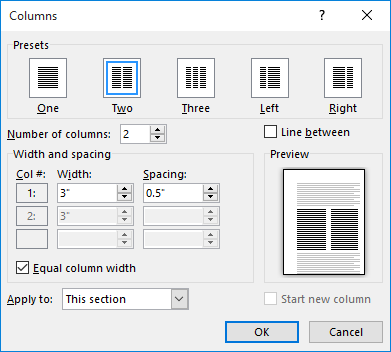
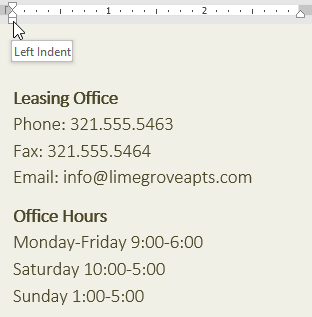
To adjust column width or spacing, click Columns and choose More Columns.
From the Columns dialog box, you can change the number of columns, adjust spacing, and add a line between columns.
Removing Columns
To remove columns, select the text and go to Layout → Columns → One.
Removing a Column Break
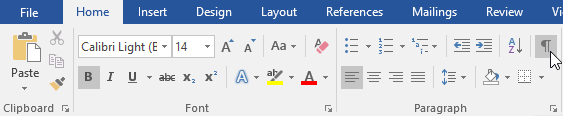
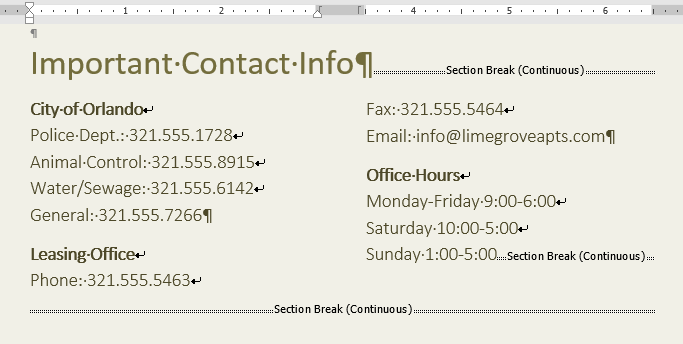
To delete a column break, turn on Show/Hide (¶) to reveal formatting marks. Then place your insertion point before the break and press Delete.
Final Result
After applying columns and adjusting spacing properly, your newsletter should look clean, balanced, and professionally formatted.

Knowledge Check
What is a column break used for?
Practice File
Download this file and follow along with the lesson.
Challenge
Apply what you've learned in this lesson.
Using the provided practice file, complete the following tasks:
- Convert the Community Reminders section into two columns.
- Insert a column break after the first bullet.
- Adjust spacing between columns using More Columns.
- Add a line between columns.
- Remove the column break.
- Return the section to one column.
Finished this lesson?
Progress is saved in this browser only. It is not a grade — official progress lives in Brightspace.