Text Boxes
Learn how to insert built-in text boxes, draw custom text boxes, resize, move, format, apply styles, and change shapes in Microsoft Word.
By the end of this lesson you can
- Insert built-in and custom text boxes and position them precisely
- Format text box fills, borders, and internal margins
- Explain when a text box is the right tool and when a table or paragraph is better
- Keep text boxes accessible for screen reader users
Video
Watch the lesson video, then complete the reading and challenge.
Lesson Notes
Read through the key concepts before you try the challenge.
A text box breaks text out of the flow
You are designing a patient information sheet at Lakeside Medical Associates.
The sheet needs a bordered box in the margin holding the after-hours number, visible no matter which paragraph a patient is reading. Ordinary paragraphs cannot do that — they sit in the flow and move as text is added above them.
Your task: Use a text box to place content precisely, and know when not to reach for one.
A text box is a container that floats independently of the main text flow, so you can put words anywhere on the page — in a margin, over an image, in a sidebar. That independence is the whole point, and also the reason to be careful with it.
| You want | Use | Why |
|---|---|---|
| A pull quote or sidebar | Text box | Needs to sit outside the flow, in a fixed place |
| Aligned rows and columns of data | Table | Tables handle alignment and stay accessible |
| An indented block quotation | Paragraph with indents | Stays in the flow and in the reading order |
| A label over a screenshot | Text box, In Front of Text | Must sit on top of an image at an exact spot |
Inserting a Built-In Text Box
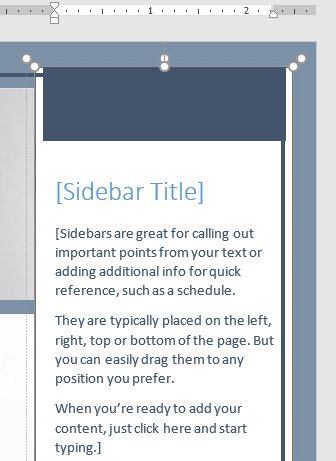
Go to the Insert tab and click Text Box. Choose from the built-in text box gallery to quickly add styled text areas to your document.

Drawing a Custom Text Box
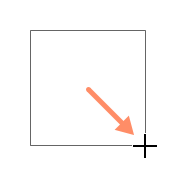
Select Draw Text Box from the Text Box dropdown. Click and drag anywhere in the document to create a custom-sized text box.
Typing and Formatting Text
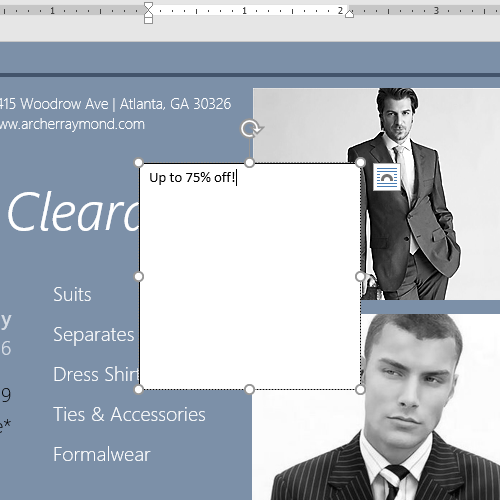
Click inside the text box and begin typing. Use the Home tab to change font style, size, color, and alignment.

Moving and Resizing Text Boxes
Click the border of the text box to select it. Drag from the border to move it. Use the corner sizing handles to resize proportionally.


Applying Shape Styles
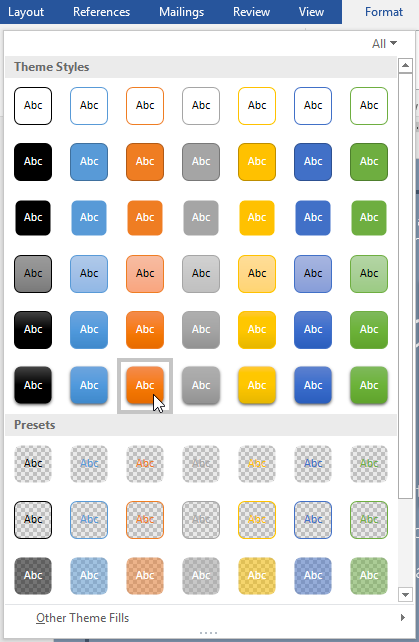
When a text box is selected, the Format tab appears. Use Shape Styles to quickly apply preset fill, outline, and effect combinations.


Changing the Text Box Shape
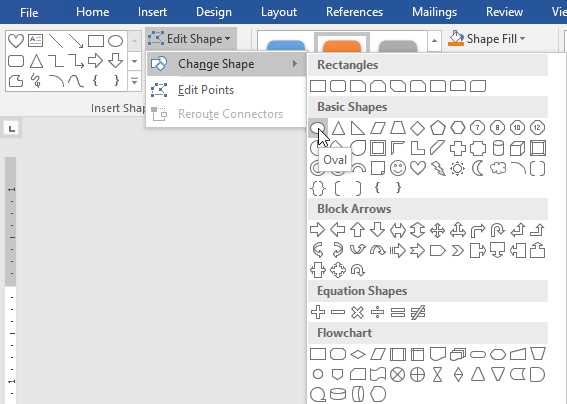
You can convert a text box into another shape. Go to Format → Edit Shape → Change Shape and select a new shape.


Final Example
After inserting, styling, resizing, and changing shapes, your final promotional layout might look like this:

Knowledge Check
What is the purpose of a text box in Word?
Practice File
Download this file and follow along with the lesson.
Challenge
Apply what you've learned in this lesson.
Using the practice file, complete the following tasks:
- Insert a built-in text box.
- Resize and position it over the image.
- Change the fill color to orange.
- Change the text to: Up to 75% off!
- Apply a Shape Style from the gallery.
- Change the text box shape to an Oval.
Finished this lesson?
Progress is saved in this browser only. It is not a grade — official progress lives in Brightspace.