Shapes
Learn how to insert, resize, rotate, reorder, and format shapes in Microsoft Word, including fill, outline, styles, and special effects.
By the end of this lesson you can
- Insert and resize shapes, and constrain proportions while drawing
- Add and format text inside a shape
- Apply fills, outlines, and effects consistently across several shapes
- Understand stacking order and how it affects what is visible
Video
Watch the lesson video, then complete the reading and challenge.
Lesson Notes
Read through the key concepts before you try the challenge.
Shapes are for showing relationships
You are documenting the referral process at Lakeside Medical Associates.
The referral workflow has six steps and two decision points. Written as a paragraph, it takes four readings to follow. Drawn as six boxes with arrows and two diamonds, it takes about eight seconds — and new staff stop asking which form goes where.
Your task: Use shapes to make a process visible instead of describing it.
A diagram earns its place when the relationship between things is the point. A sequence, a hierarchy, a decision with branches — these are genuinely hard to hold in your head from prose and immediately obvious as a drawing. A shape added because the page looked plain earns nothing and costs the reader attention.
Text goes directly inside a shape: click the shape and start typing. There is no need to lay a separate text box over it, and doing so creates two objects that must be moved together and inevitably drift apart. Text typed inside the shape moves with it, wraps within it, and stays centered automatically.
| Shape | Means | Example |
|---|---|---|
| Rectangle | A step or action | Verify insurance eligibility |
| Diamond | A decision with branches | Referral requires prior authorization? |
| Rounded rectangle / oval | Start or end point | Referral received |
| Arrow | Flow from one step to the next | Connects each step in order |
| Parallelogram | Input or output — a document or form | Completed referral form |
Inserting a Shape
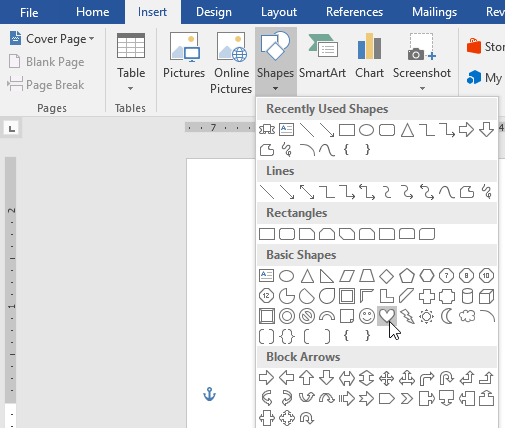
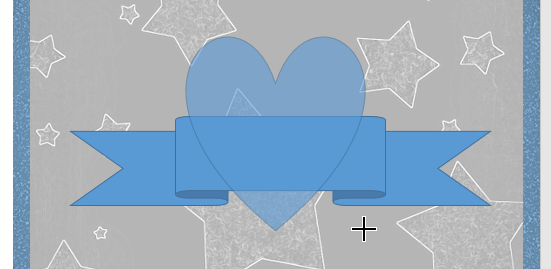
To insert a shape, go to the Insert tab and click Shapes. Choose a shape from the dropdown menu, then click and drag on the page to draw it.
Adding Text to a Shape
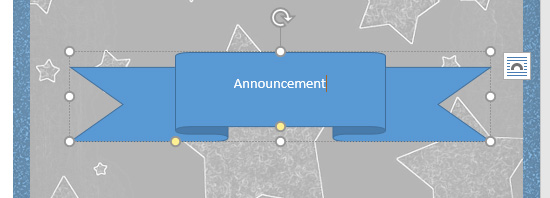
You can type directly inside most shapes. After inserting the shape, simply begin typing. Use the Home tab to adjust font, size, color, and alignment.
Resizing and Rotating Shapes
Select a shape to display sizing handles. Drag corner handles to resize proportionally. Use the circular rotation handle at the top to rotate the shape.
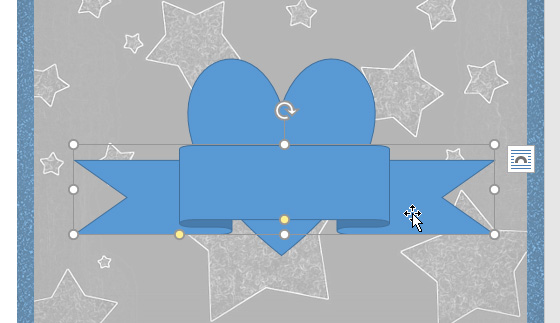
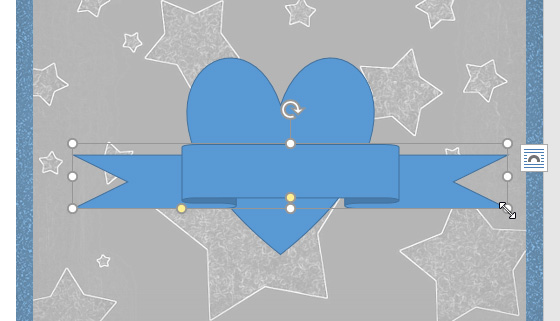
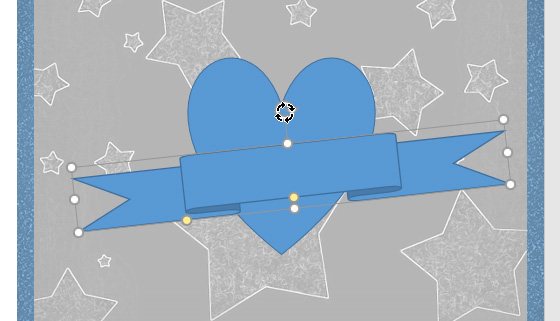
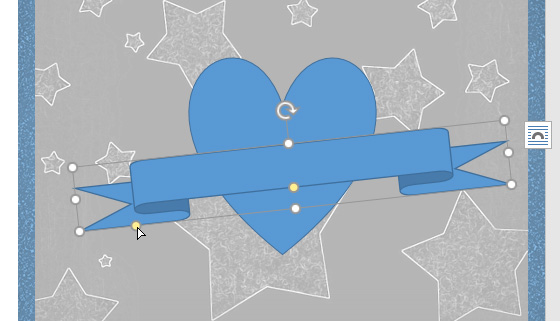
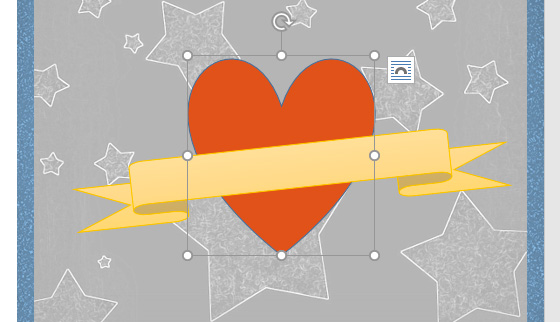
Some shapes include yellow adjustment handles. These allow you to modify specific parts of the shape, such as banner folds.
Changing Shape Order
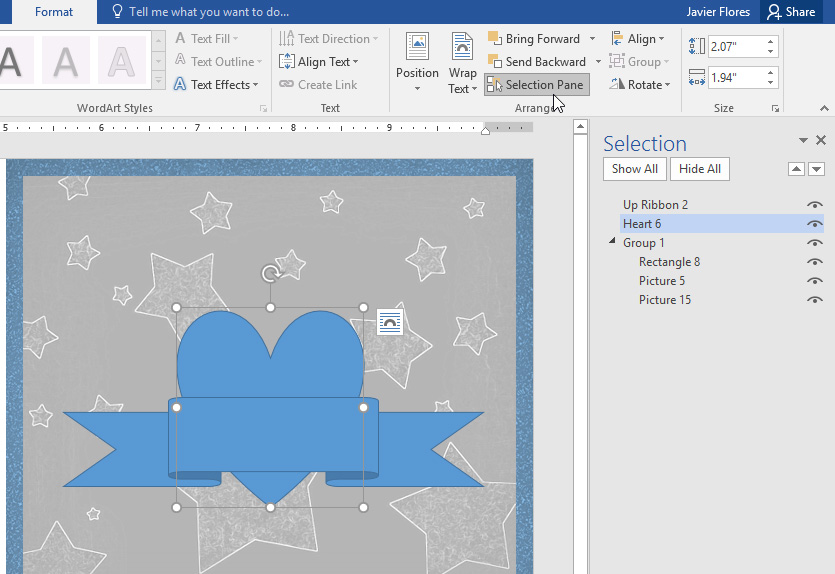
When shapes overlap, you can control which appears in front. Right-click the shape and choose Bring to Front or Send to Back.
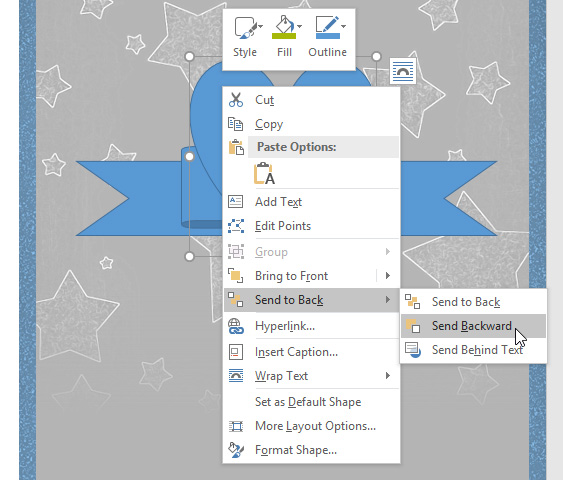
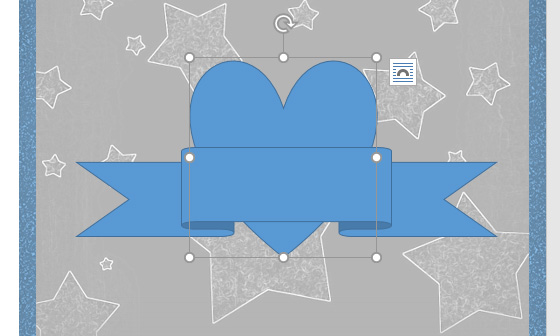
For complex documents, use the Selection Pane (Format tab → Selection Pane) to select and manage overlapping shapes.
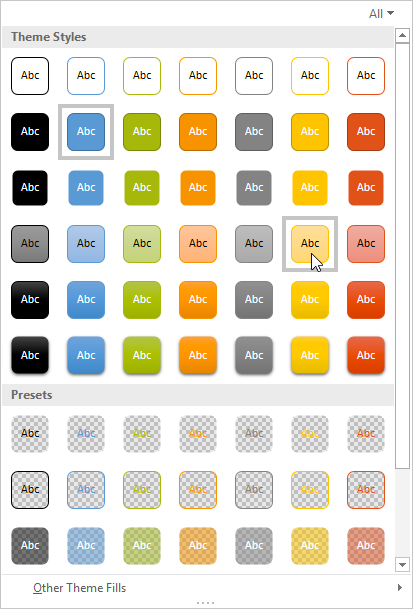
Applying Shape Styles
Use Shape Styles on the Format tab to quickly apply preset combinations of fill, outline, and effects.

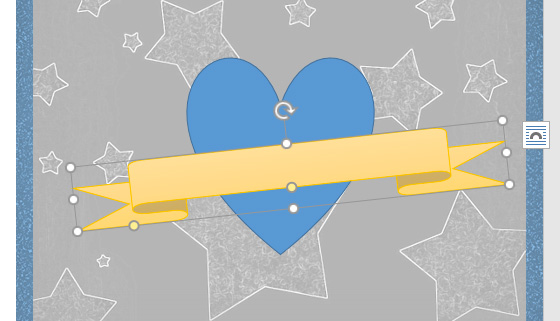
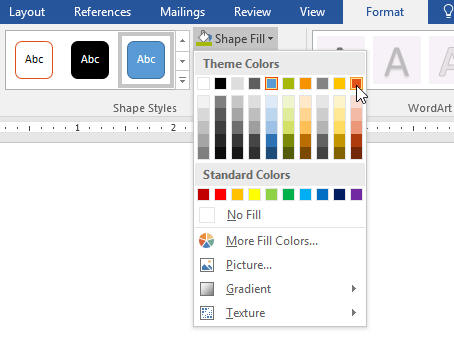
Changing Shape Fill
Click Shape Fill to change the interior color of a shape. You can choose theme colors, gradients, textures, or select No Fill for transparency.
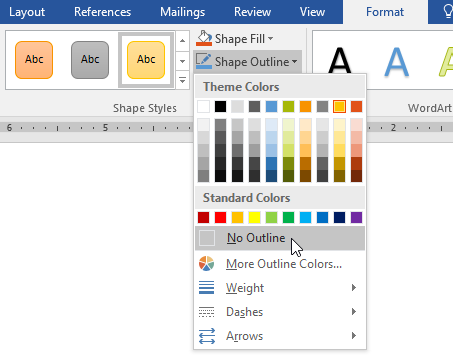
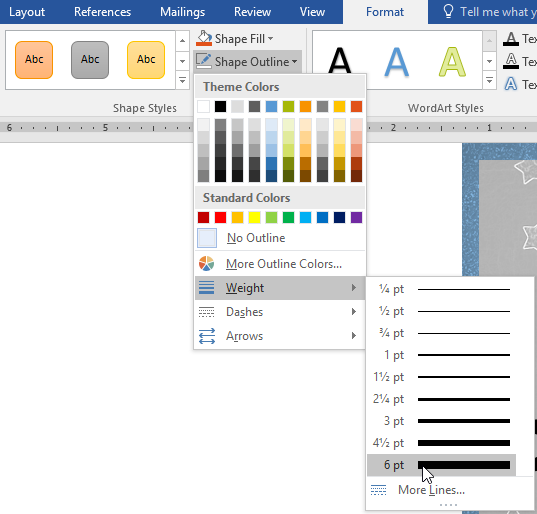
Changing Shape Outline
Use Shape Outline to change border color, thickness (weight), dashes, or remove the outline entirely.
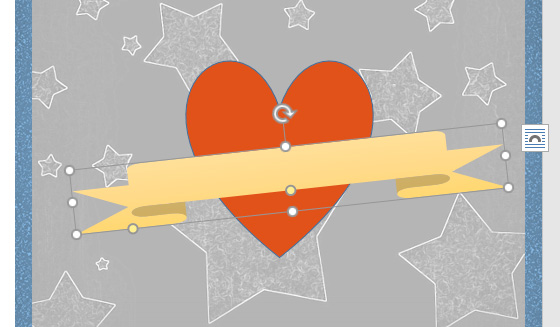
Adding Shape Effects
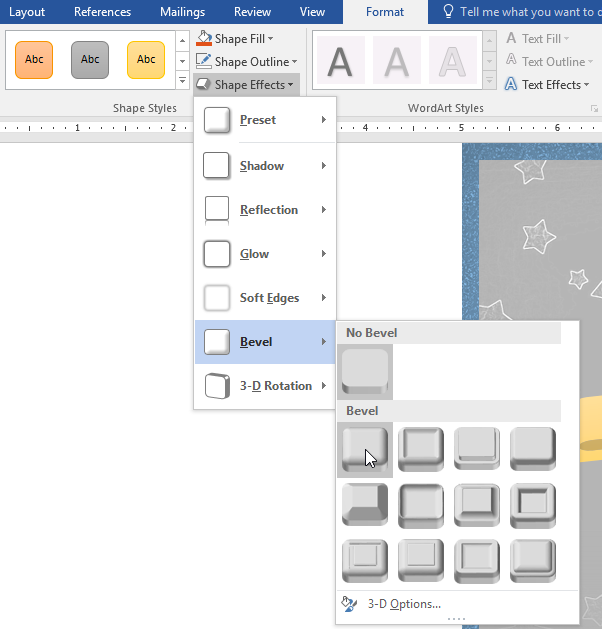
Select Shape Effects to add shadows, reflections, glow, bevel, or 3-D rotation effects.

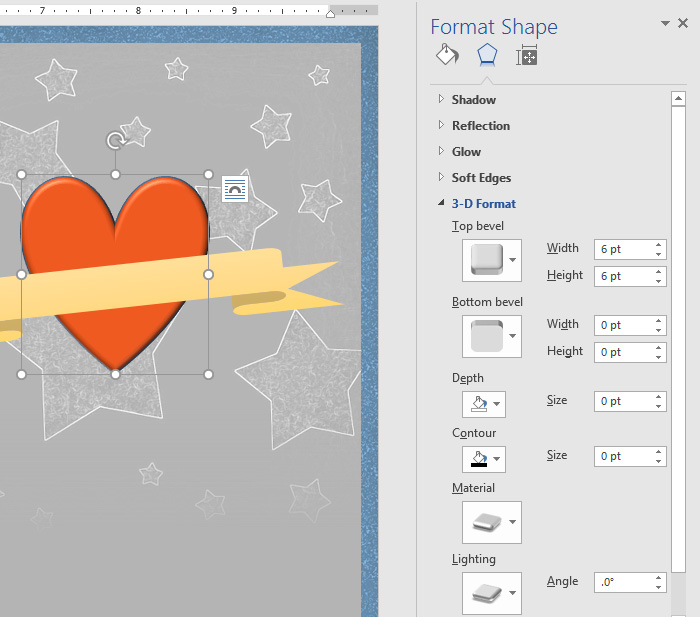
For advanced customization, open the Format Shape pane to fine-tune bevel size, depth, lighting, and more.
Changing to a Different Shape
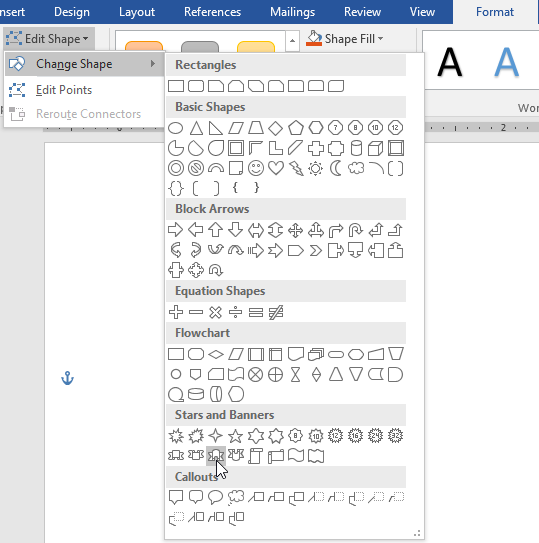
You can convert one shape into another without deleting it. Go to Format → Edit Shape → Change Shape and choose a new option.
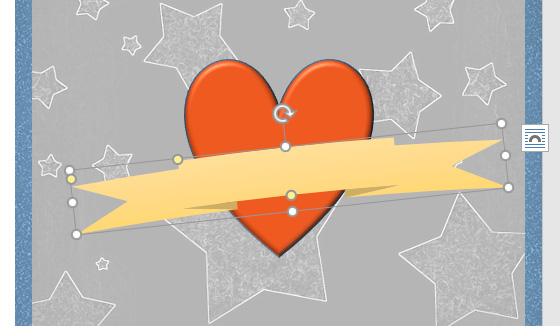
Final Example
After inserting, formatting, layering, and applying effects, your completed design might look like this:
Knowledge Check
What must you do to add text inside a shape in Word?
Practice File
Download this file and follow along with the lesson.
Challenge
Apply what you've learned in this lesson.
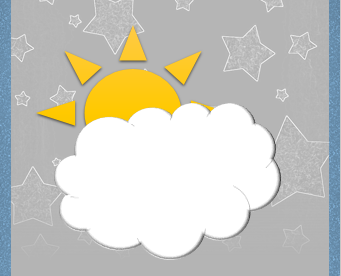
Using the provided practice file, complete the following tasks. Your finished result should resemble the example shown below:
- Insert a Cloud shape on the right side of the page.
- Change the shape fill to white.
- Change the outline color to gray.
- Apply a Circle Bevel effect from Shape Effects.
- Insert a Sun shape and apply a Gold style.
- Send the Sun backward so it appears behind the Cloud.
- Adjust positioning so the sun peeks out from behind the cloud.
Finished this lesson?
Progress is saved in this browser only. It is not a grade — official progress lives in Brightspace.