Align, Order & Group Objects
Learn how to align objects, distribute spacing, change object order, flip images, group items, and use the Selection Pane in Microsoft Word.
By the end of this lesson you can
- Align and distribute multiple objects precisely instead of by eye
- Control stacking order with Bring Forward and Send Backward
- Use the Selection pane to find and select objects that are hidden behind others
- Group objects so they move and scale as a unit
Video
Watch the lesson video, then complete the reading and challenge.
Lesson Notes
Read through the key concepts before you try the challenge.
Aligning by eye is why layouts look almost right
You are finishing the referral workflow diagram at Lakeside Medical Associates.
Six process boxes, positioned by dragging. On screen at 100% they look fine. Printed and pinned by the front desk, three of them are visibly two millimetres out of line, and the diagram reads as sloppy — which is what people then assume about the process it describes.
Your task: Use the alignment tools so the layout is actually correct rather than approximately correct.
Human eyes are good at detecting misalignment and bad at preventing it. Select several objects, then Shape Format > Align > Align Left, and Word puts every left edge on precisely the same coordinate. Align > Distribute Horizontally makes the gaps between them mathematically equal. Both take one click and are exact in a way dragging never is.
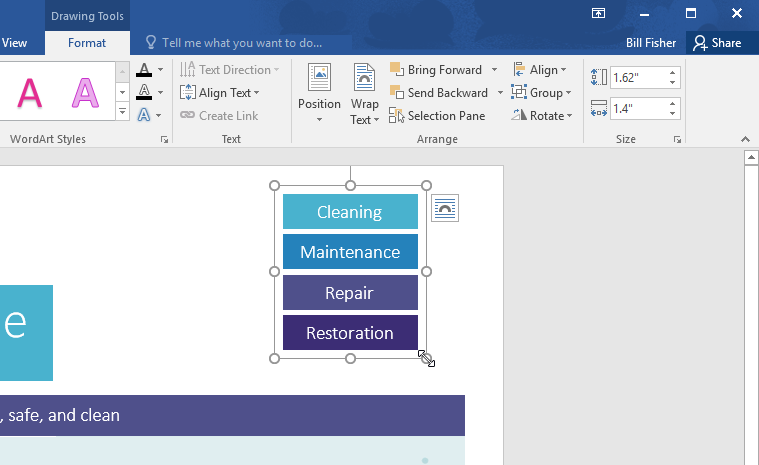
Grouping is the follow-up. Once a diagram is aligned, select every piece and press Ctrl+G to group them into a single object. From then on, moving or resizing the group preserves every internal relationship. Without grouping, moving a six-box diagram means moving six objects and re-aligning them at the destination.
Turning six dragged boxes into a clean diagram
Take six roughly positioned process boxes and make them exactly aligned, evenly spaced, and movable as one object.
- 1
Click the first box, then Shift+click the other five.
Shift+click adds to a selection rather than replacing it. Every alignment command works on the current selection, so getting all six selected is the prerequisite for everything that follows.
- 2
Shape Format > Align > Align Left.
Word moves every selected object so its left edge sits at the leftmost edge in the selection. This is exact to the pixel, which is the difference between a diagram that looks intentional and one that looks hand-placed.
- 3
Shape Format > Align > Distribute Vertically.
This equalizes the vertical gaps between all six. Distribution needs at least three objects to be meaningful, and it fixes the uneven spacing that dragging always produces.
- 4
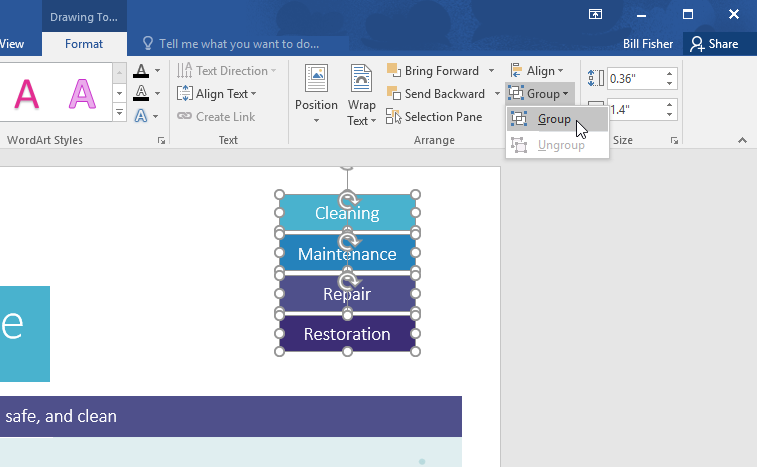
With all six still selected, press Ctrl+G to group.
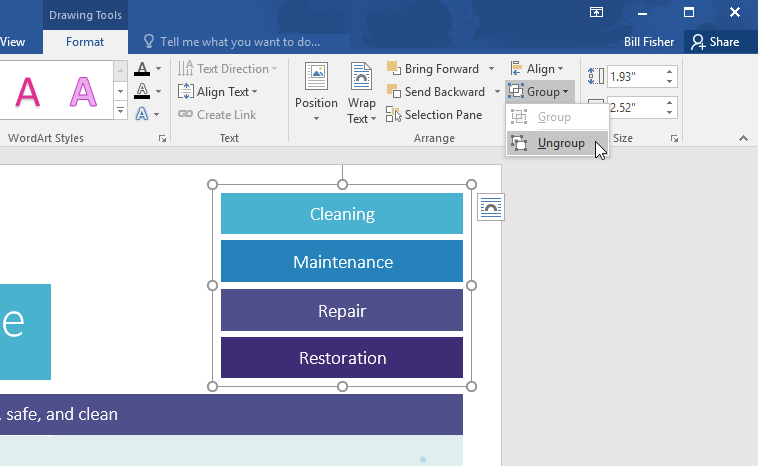
The diagram becomes one object. It can now be moved, resized, or wrapped as a unit without any internal drift. Ctrl+Shift+G ungroups again when you need to edit an individual box.
Result: A precisely aligned, evenly distributed diagram that behaves as a single object.
Align, distribute, then group. Three commands convert an approximate layout into an exact one, and stop it from degrading the next time someone edits the page.
Aligning Objects
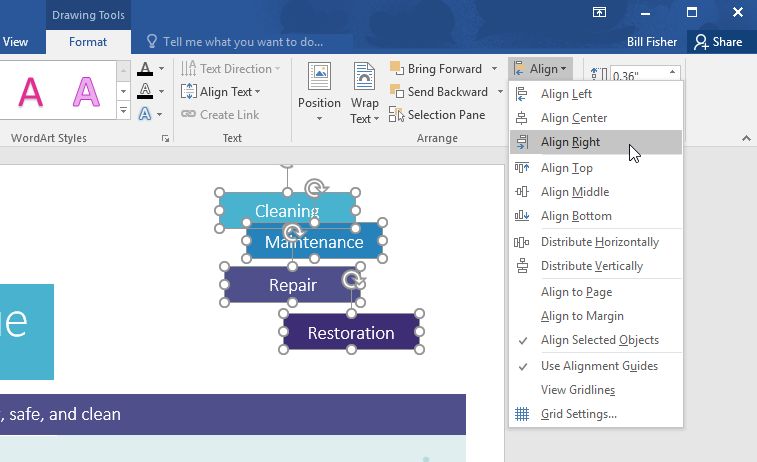
Select multiple objects by holding Ctrl and clicking each one. Go to Format → Align to align objects left, center, right, top, middle, or bottom.


Distributing Objects Evenly
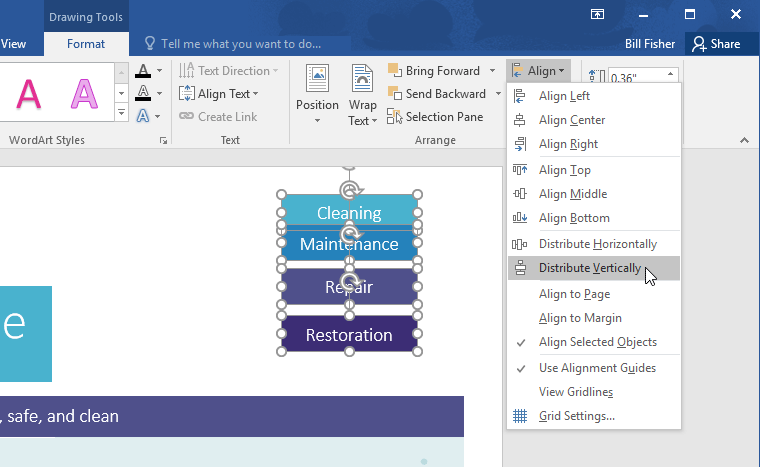
Use Distribute Horizontally or Distribute Vertically to evenly space selected objects.

Flipping and Rotating Objects
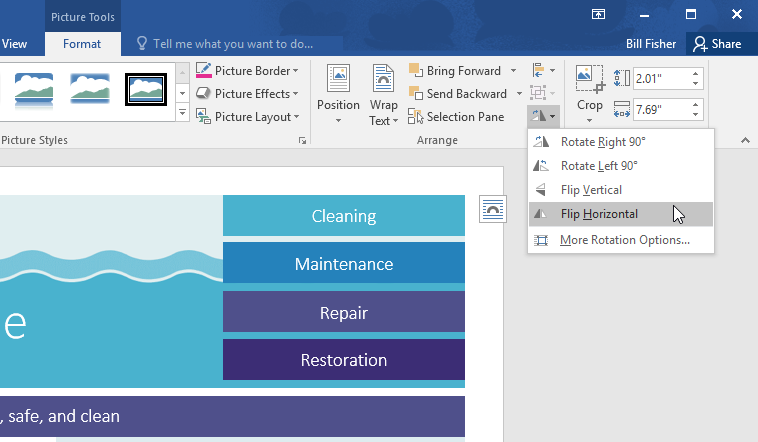
Use the Rotate dropdown in the Format tab to rotate or flip objects horizontally or vertically.
Changing Object Order
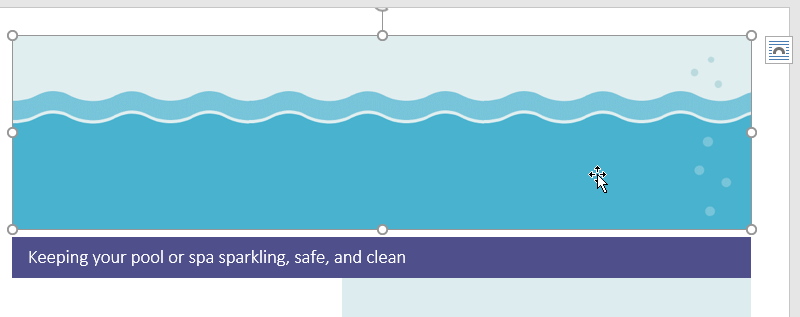
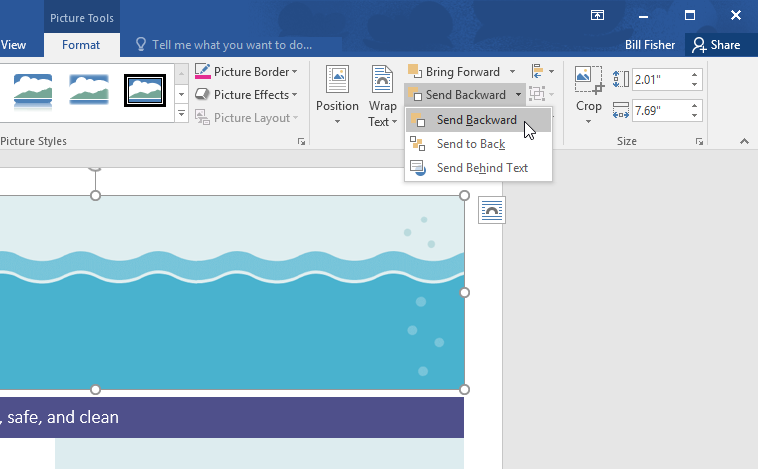
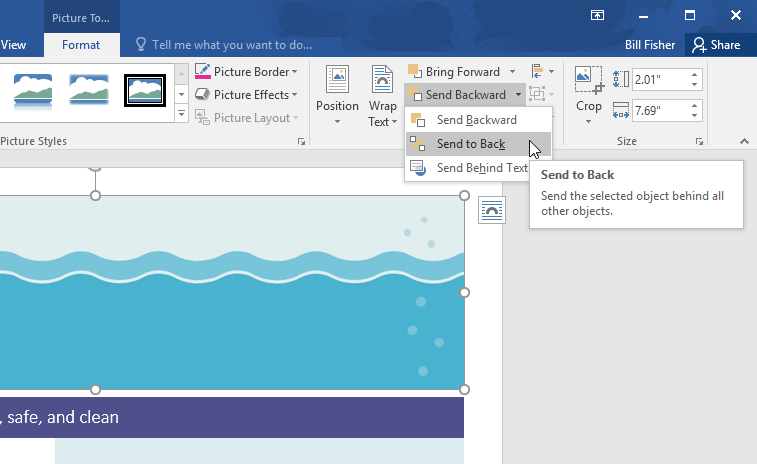
When objects overlap, use Bring Forward, Send Backward, Send to Back, or Bring to Front to control layering.
Using the Selection Pane
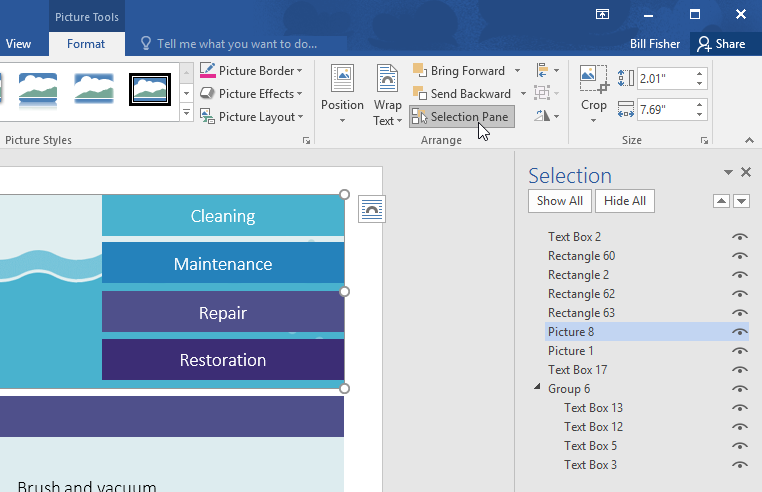
Open the Selection Pane (Format → Selection Pane) to view, rename, hide, or reorder objects easily.
Grouping and Ungrouping Objects
Select multiple objects and click Group to combine them into one unit. Use Ungroup to separate them again.

Final Example
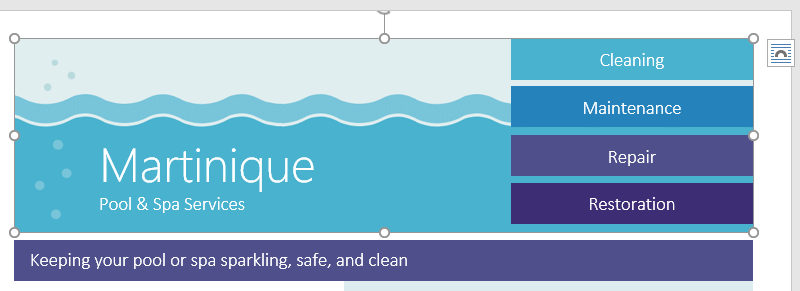
After aligning, ordering, and grouping objects, your completed layout should look clean, balanced, and professional.

Knowledge Check
What does grouping multiple objects do in Word?
Practice File
Download this file and follow along with the lesson.
Challenge
Apply what you've learned in this lesson.
Using the practice file, complete the following tasks:
- Select the four service buttons and align them to the right.
- Distribute the buttons vertically so spacing is even.
- Group the four buttons together.
- Flip the banner image horizontally.
- Send the background image to the back.
- Use the Selection Pane to confirm object order.
Finished this lesson?
Progress is saved in this browser only. It is not a grade — official progress lives in Brightspace.