Lists (Bulleted, Numbered & Multilevel)
Learn how to create, customize, and manage bulleted, numbered, and multilevel lists in Microsoft Word.
By the end of this lesson you can
- Choose between a bulleted and a numbered list based on whether order matters
- Build a multilevel list and promote or demote items with Tab and Shift+Tab
- Restart or continue numbering when Word guesses wrong
- Explain why manually typed numbers cause problems that list formatting avoids
Video
Watch the lesson video, then complete the reading and challenge.
Lesson Notes
Read through the key concepts before you try the challenge.
The choice between bullets and numbers is a meaning choice
You are writing front-desk procedures at Lakeside Medical Associates.
You document the check-in process as a bulleted list. A new hire reads it, verifies insurance before confirming the patient's identity, and discloses coverage details to the wrong person. The steps were all correct. Nothing told the reader they had to happen in order.
Your task: Use list type to communicate whether sequence matters — because readers genuinely read it that way.
Numbers mean sequence: do this, then this, then this. Bullets mean membership: these items belong to a set, in no particular order. Readers process that distinction automatically, which is exactly why using the wrong one misleads them. Any procedure where doing step three before step two causes a problem must be numbered.
There is also a mechanical reason to use Word's list formatting rather than typing numbers yourself. A real numbered list renumbers itself when you insert or delete an item. A list of hand-typed numbers does not — insert a step in the middle and you must retype everything below it, and sooner or later a document goes out with two step fours. Let Word own the numbering.
| Content | List type | Reason |
|---|---|---|
| Check-in procedure | Numbered | Order is required; doing them out of sequence causes harm |
| Documents to bring to an appointment | Bulleted | All are needed; order is irrelevant |
| Policy manual with sections and subsections | Multilevel | Hierarchy is part of the meaning and cross-references depend on it |
| Ranked priorities | Numbered | The numbers carry the ranking, not just the sequence |
Creating a Bulleted List
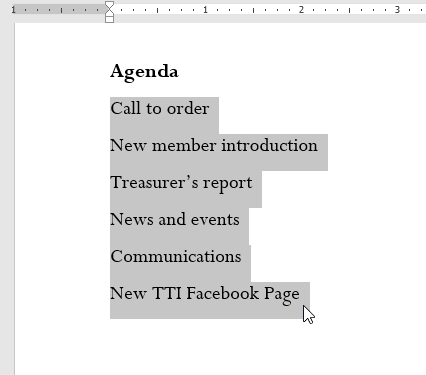
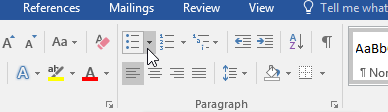
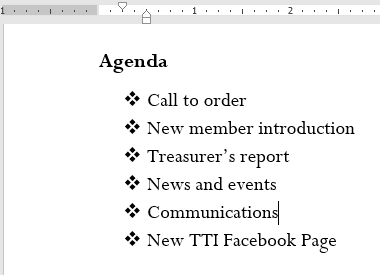
Bulleted lists are useful when order does not matter. Select your text, then click the Bullets button in the Paragraph group on the Home tab.
Customizing Bullets
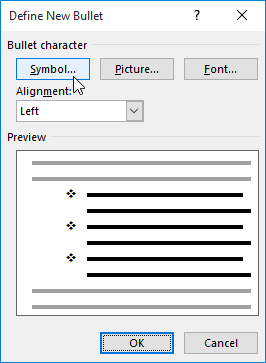
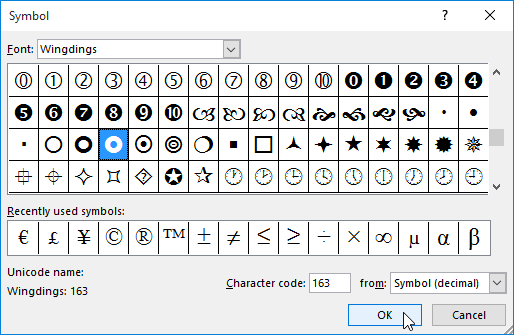
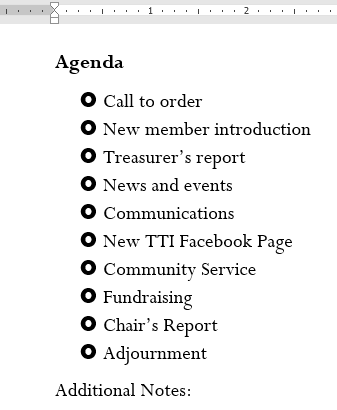
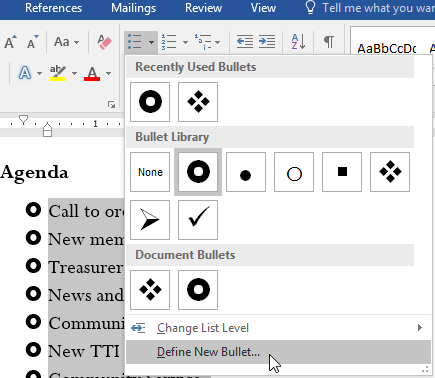
You can customize bullets using symbols, fonts, or colors by selecting Define New Bullet from the dropdown menu.
Changing Bullet Color
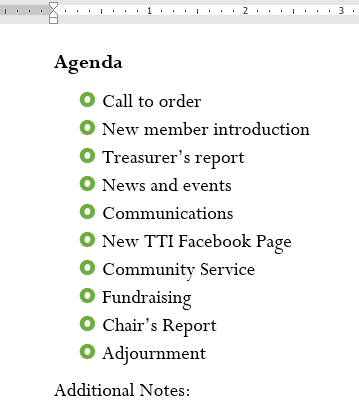
Bullet colors can be changed independently from text color using the Font option inside Define New Bullet.
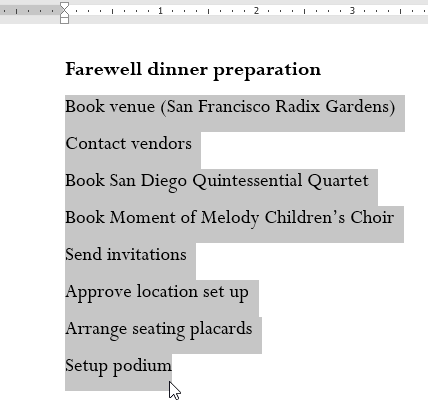
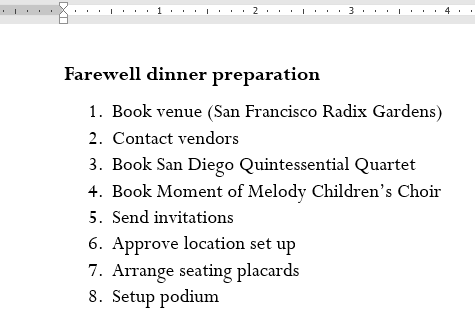
Creating a Numbered List
Numbered lists are used when order matters. Select your text and click the Numbering button in the Paragraph group.
Restarting or Continuing Numbering
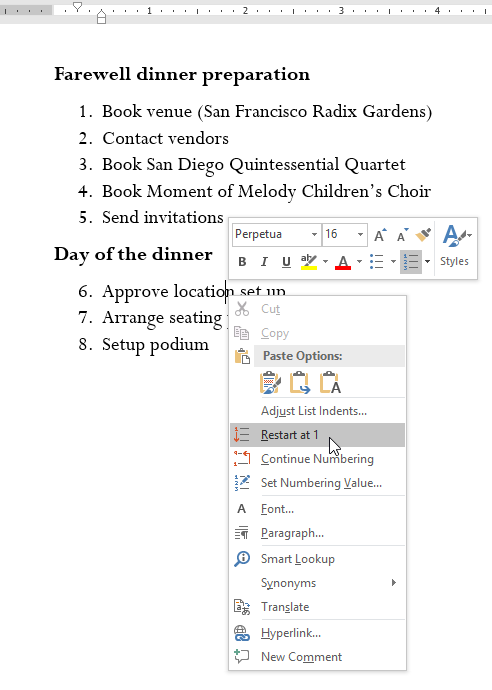
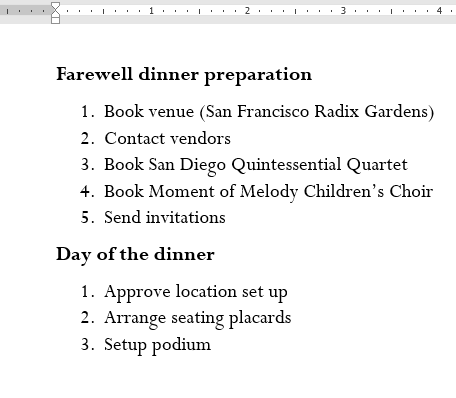
Right-click a numbered list to restart numbering at 1 or continue numbering from a previous list.
Multilevel Lists
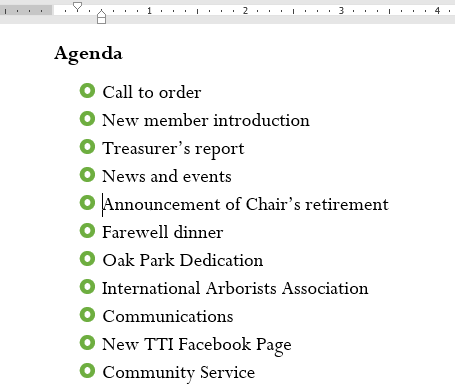
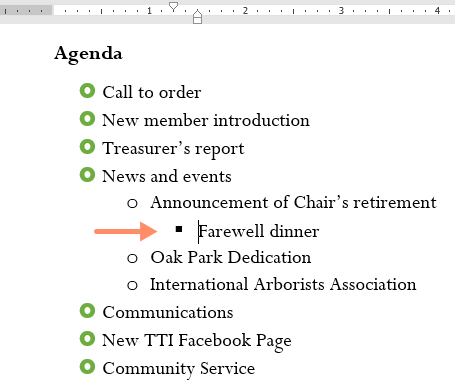
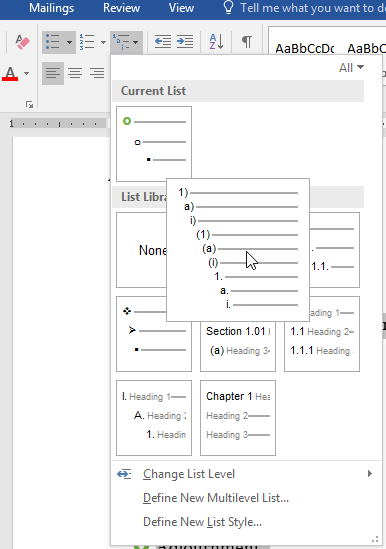
Multilevel lists allow sub-items under main items. Use the Increase Indent and Decrease Indent buttons to change levels.
Knowledge Check
What type of list should you use when the order of items matters?
Practice File
Download this file and follow along with the lesson.
Challenge
Apply what you've learned in this lesson.
Using the provided practice file, complete the following tasks:
- Create a bulleted list.
- Customize the bullet symbol.
- Change the bullet color.
- Create a numbered list.
- Restart numbering.
- Create a multilevel list with at least two levels.
Finished this lesson?
Progress is saved in this browser only. It is not a grade — official progress lives in Brightspace.