Using Find & Replace
Learn how to search for text, navigate results, and replace words or phrases efficiently in Microsoft Word.
By the end of this lesson you can
- Find text quickly and navigate results with the Navigation pane
- Use Replace All safely, and know when to replace one at a time instead
- Apply Match case and Find whole words only to avoid unintended matches
- Find and replace formatting, not just words
Video
Watch the lesson video, then complete the reading and challenge.
Lesson Notes
Read through the key concepts before you try the challenge.
The command that saves an hour and the mistake that costs one
You maintain practice documents at Lakeside Medical Associates.
The practice's billing contact changes and you must update the name in a forty-page policy manual. You open Replace, type the old surname, type the new one, and click Replace All. Word reports 63 replacements. The name appeared 61 times — the other two were inside the words 'Manning' and 'planning,' which are now nonsense.
Your task: Learn the two checkboxes that turn Replace All from a risk into a reliable tool.
Find (Ctrl+F) opens the Navigation pane and lists every match, letting you jump between them. Replace (Ctrl+H) swaps one string for another. The power of Replace All is genuine — it does in one second what would take forty minutes by hand — and so is its danger, because it does exactly what you asked across the entire document, including places you did not think about.
Two options in the More menu prevent nearly every Replace accident. Find whole words only stops 'Ann' from matching inside 'Manning' and 'planning.' Match case stops 'IT' from matching inside 'it,' 'with,' and 'admit.' Together they narrow the search to what you actually meant.
Replacing a name across a long document without breaking words
Change every occurrence of the billing contact's surname in a forty-page manual, without touching words that merely contain those letters.
- 1
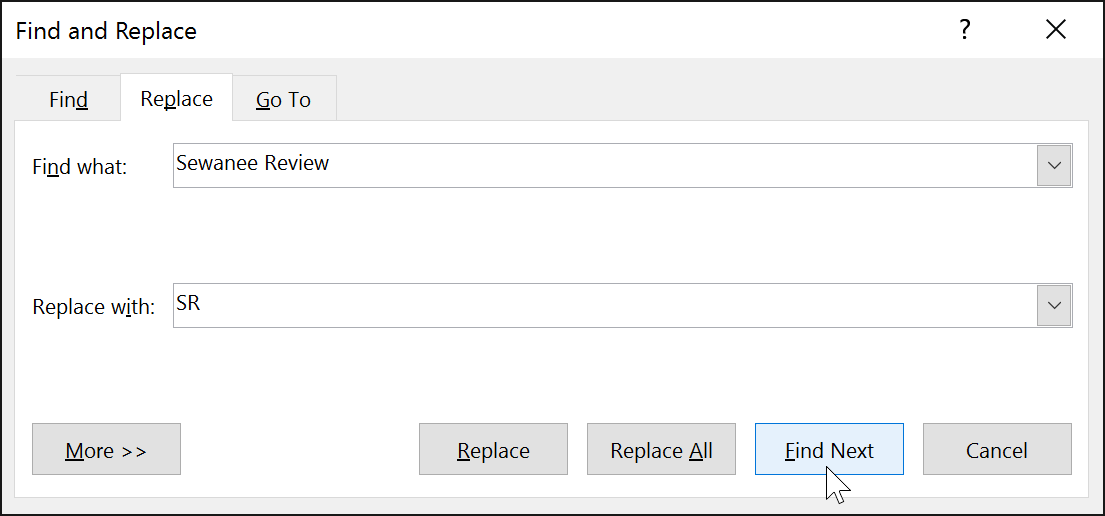
Press Ctrl+H, then click More to expand the options.
The default Replace dialog hides the settings that make it safe. Expanding it first is the habit that prevents the mistake, because the checkboxes are not visible in the collapsed view.
- 2
Check 'Find whole words only' and 'Match case.'
Whole words stops the match from landing inside a longer word. Match case ensures you replace the proper noun and not a lowercase coincidence. These two settings account for the overwhelming majority of Replace All accidents.
- 3
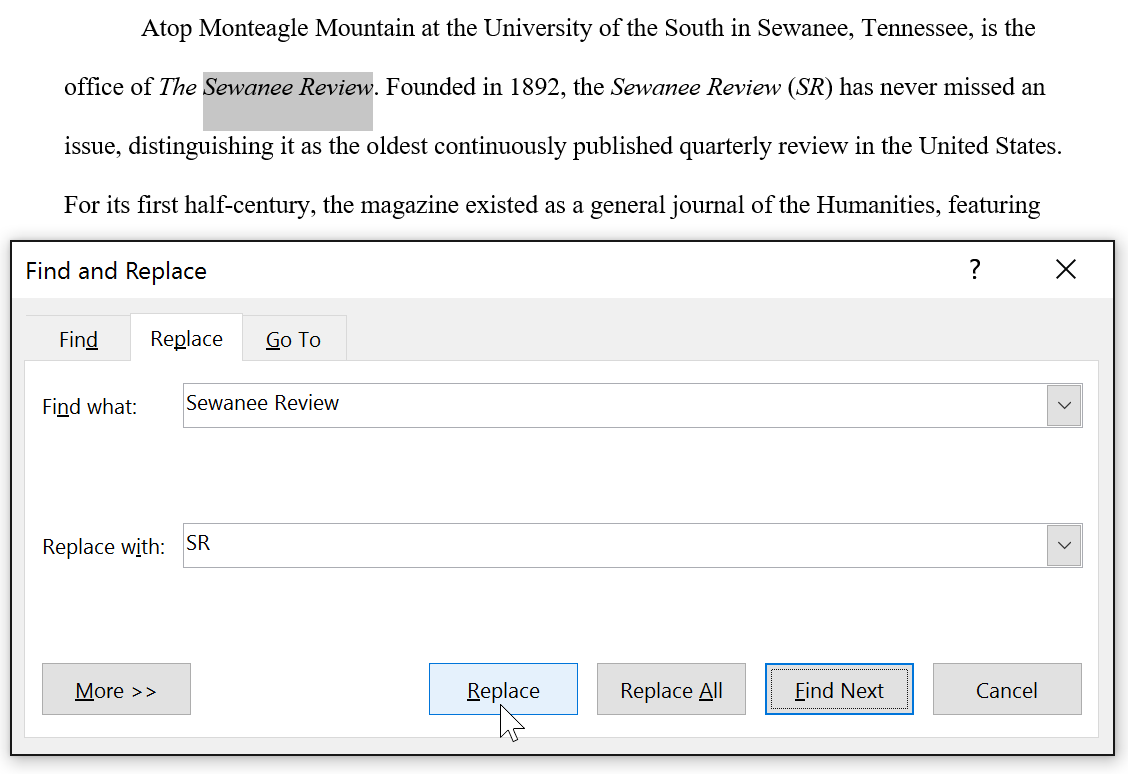
Click Find Next two or three times before replacing anything.
This is the step that separates a careful operator from a hopeful one. Stepping through a few matches shows you what the search is actually catching. If the first three look right, the remaining sixty almost certainly are.
- 4
Click Replace All, then read the count Word reports.
The count is a free verification. If you expected about sixty and Word says sixty-one, that is plausible. If it says two hundred, something matched far more broadly than you intended — press Ctrl+Z immediately, before doing anything else.
Result: Sixty-one accurate replacements and no corrupted words, verified by a count that matched expectation.
Expand More, restrict the match, spot-check with Find Next, then read the count. Replace All is safe when you have told it precisely what you mean.
Using Find (Ctrl + F)
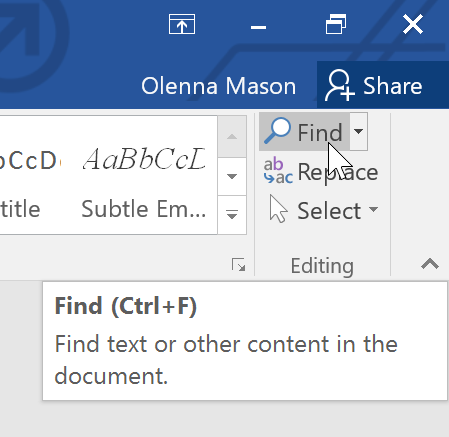
The Find command allows you to search for specific words or phrases in a document. Press Ctrl + F or click Find in the Editing group on the Home tab.
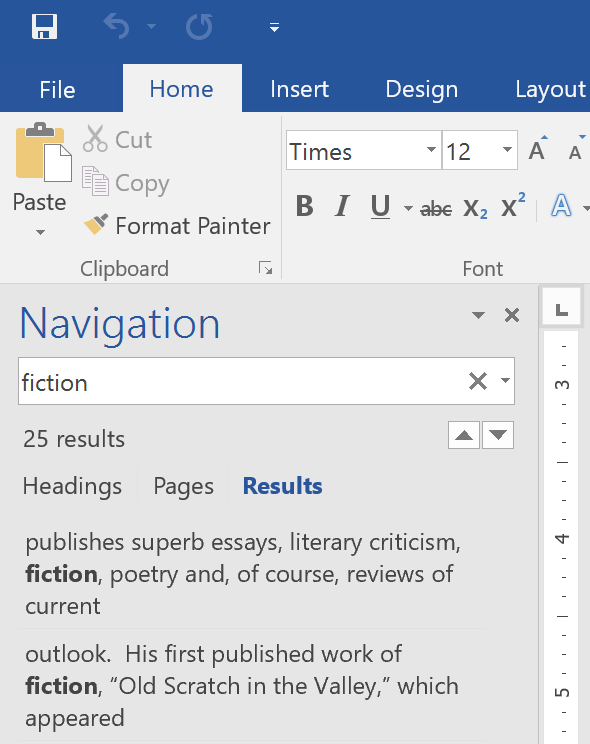
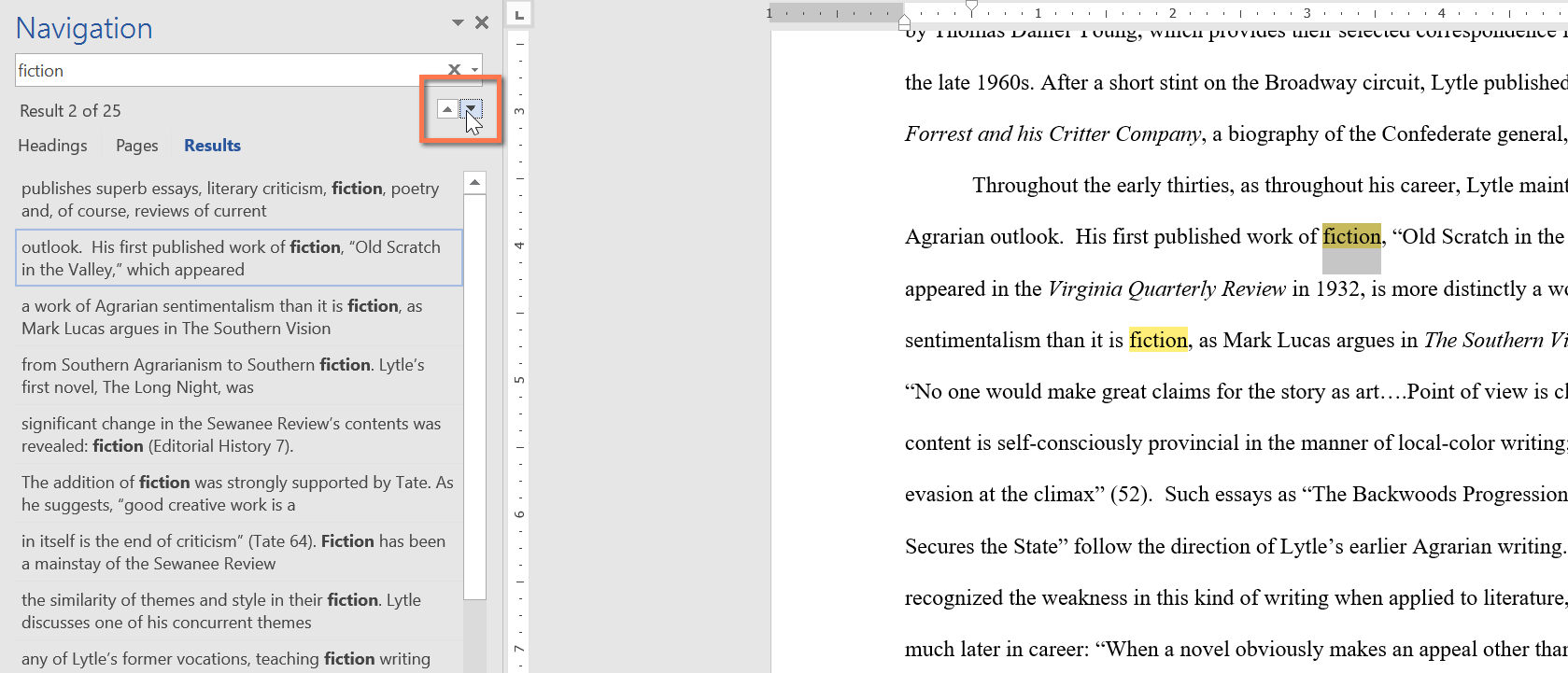
The Navigation pane displays all matching results. Click any result to jump directly to that location in the document.
Advanced Find Options
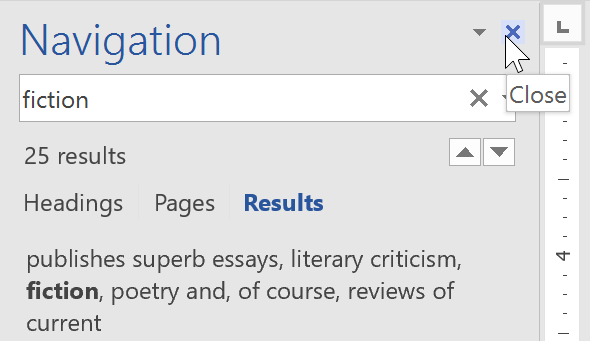
Click the dropdown arrow in the Navigation pane to access Advanced Find. This allows you to refine your search or locate specific elements such as tables, graphics, or footnotes.
Using Replace (Ctrl + H)
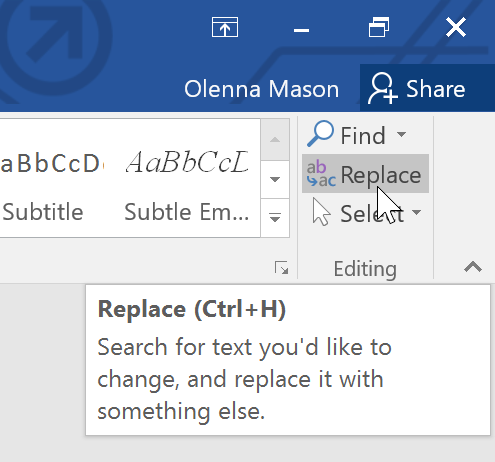
The Replace command allows you to search for text and automatically replace it with new text. Press Ctrl + H or click Replace in the Editing group.
Final Result
After using Replace All, every instance of the word is updated throughout the document instantly.
Knowledge Check
Which keyboard shortcut opens Find & Replace?
Practice File
Download this file and follow along with the lesson.
Challenge
Apply what you've learned in this lesson.
Using the provided practice file, complete the following tasks:
- Use Find to search for the word 'fiction'.
- Navigate through all results using the arrows in the Navigation pane.
- Open Replace (Ctrl + H).
- Replace 'Sewanee Review' with 'SR'.
- Use Replace All to update the entire document.
- Verify that all instances were correctly replaced.
Finished this lesson?
Progress is saved in this browser only. It is not a grade — official progress lives in Brightspace.