Links (Hyperlinks)
Learn how to insert, edit, follow, and remove hyperlinks in Microsoft Word.
By the end of this lesson you can
- Insert, edit, and remove hyperlinks, including links to places within the document
- Write link text that makes sense to someone reading it out of context
- Explain why 'click here' is a problem for screen reader users
- Control Word's automatic hyperlink formatting
Video
Watch the lesson video, then complete the reading and challenge.
Lesson Notes
Read through the key concepts before you try the challenge.
Link text is read out loud
You are publishing the patient resources page at Lakeside Medical Associates.
Your document has nine links, and every one says 'click here.' A patient using a screen reader asks it to list the links on the page — a standard way to navigate. The software reads: click here, click here, click here, nine times. The page is unusable, and nothing about it looks wrong on screen.
Your task: Write link text that says where the link goes, so the document works for everyone reading it.
Screen readers can extract a list of every link in a document, and many people navigate that way rather than reading linearly. That means link text has to make sense standing alone. 'Click here' conveys nothing out of context. 'Download the new patient intake form' conveys everything, and it reads better on screen too.
The rule is simple: put the destination in the link text itself. Instead of 'For directions, click here,' write 'See directions to our Lakeside office.' Instead of 'Our hours are listed here,' write 'View our current office hours.' The sentence gets shorter and the document gets more accessible at the same time.
Inserting a Hyperlink
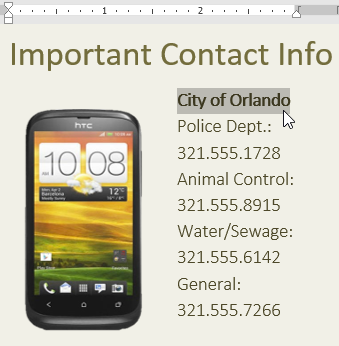
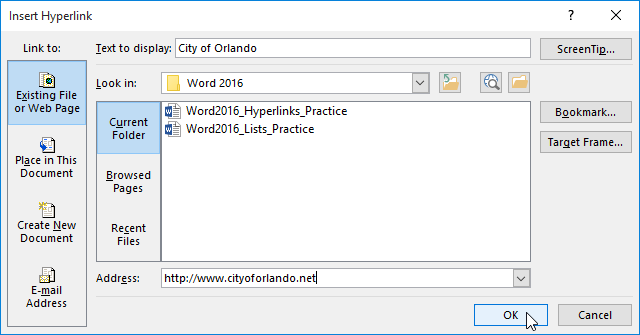
To insert a hyperlink, select the text you want to turn into a link. Then go to the Insert tab and click the Link button.
Following a Hyperlink
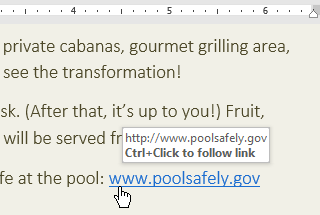
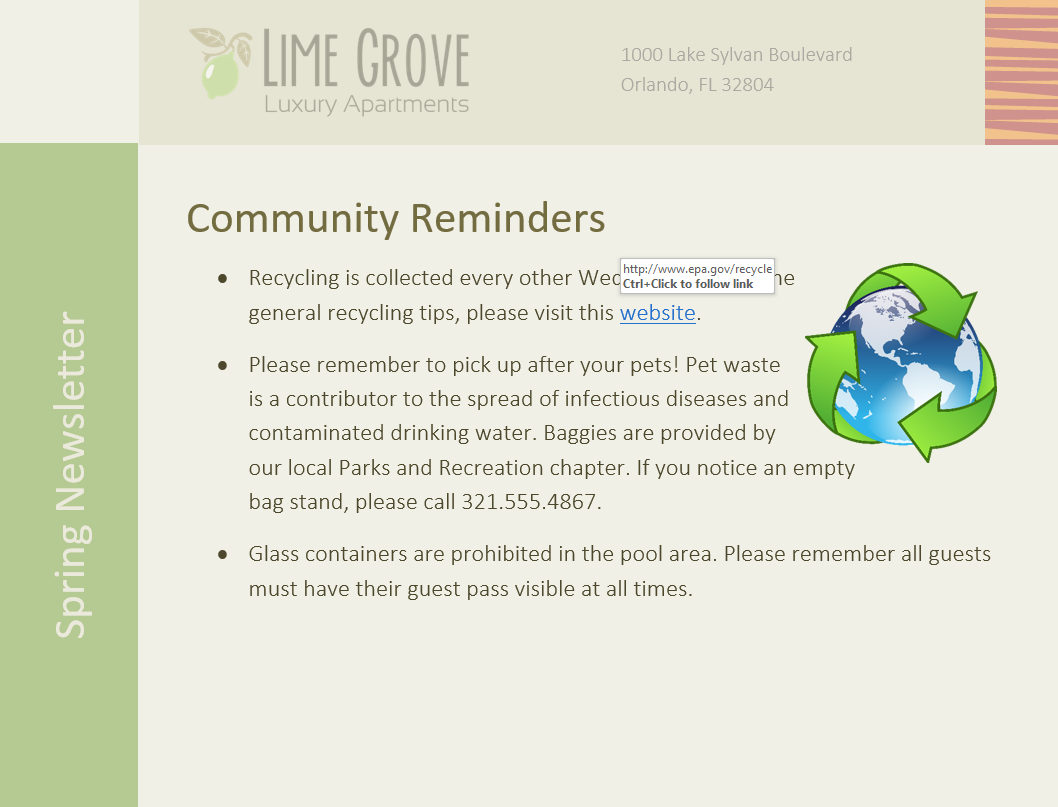
To follow a hyperlink in Word, hold the Ctrl key and click the link. This opens the webpage in your browser.
Editing a Hyperlink
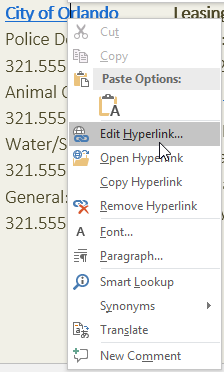
To edit an existing hyperlink, right-click the link and choose Edit Hyperlink. You can change the display text or the web address.
Removing a Hyperlink
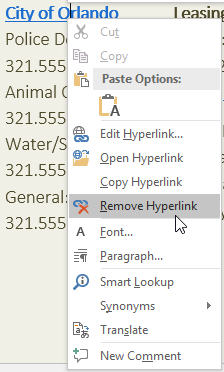
To remove a hyperlink but keep the text, right-click the link and select Remove Hyperlink.
Automatic Hyperlinks
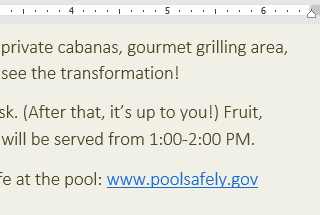
Word automatically converts web addresses (like www.poolsafely.gov) into clickable hyperlinks when you press Enter or Space.

Final Result
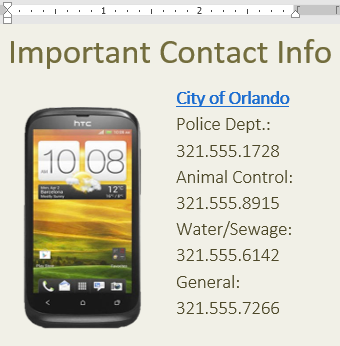
When you are finished, your page should look something like this.
Knowledge Check
How do you follow a hyperlink in a Word document?
Practice File
Download this file and follow along with the lesson.
Challenge
Apply what you've learned in this lesson.
Using the provided practice file, complete the following tasks:
- Insert a hyperlink for 'City of Orlando'.
- Verify the link using Ctrl + Click.
- Edit the hyperlink address.
- Remove a hyperlink but keep the text.
- Create a hyperlink from a typed web address.
Finished this lesson?
Progress is saved in this browser only. It is not a grade — official progress lives in Brightspace.