Understanding OneDrive (Word)
Learn how to sign in, save files to OneDrive, and share documents online.
By the end of this lesson you can
- Explain what OneDrive does and how it differs from saving to the C: drive
- Save a document to OneDrive and open it again from a different device
- Describe what AutoSave requires in order to work
- Judge when a clinical or personal document should not go into a personal OneDrive account
Video
Watch the lesson video, then complete the reading and challenge.
Lesson Notes
Read through the key concepts before you try the challenge.
What OneDrive actually changes
You are covering the front desk at Lakeside Medical Associates.
You spent Tuesday afternoon building a new patient intake packet on the front-desk computer. On Wednesday that machine will not boot, and IT says the drive is being replaced. Your supervisor asks for the packet. If you saved it to the desktop, it is gone. If you saved it to OneDrive, you open it on any other machine in the building and carry on.
Your task: Understand where your files physically live, so that a failed hard drive is an inconvenience rather than a lost week.
The single most useful idea here is the difference between local and cloud storage. A file saved to This PC lives on the physical drive inside that one computer. A file saved to OneDrive is uploaded to Microsoft's servers and synchronized back down to any device you sign in on. The document looks identical either way — the difference only becomes visible when the machine fails, when you need the file from home, or when a colleague needs to work on it with you.
OneDrive also unlocks two features that do not work on locally saved files at all. AutoSave, which writes your changes continuously instead of when you remember to press Ctrl+S, requires a file stored in OneDrive or SharePoint. So does real-time co-authoring, where two people edit the same document simultaneously. If AutoSave is greyed out, the reason is almost always that the file is saved locally.
| Situation | Save to | Why |
|---|---|---|
| Draft you will finish on another machine | OneDrive | Follows you to any device you sign in on. |
| Document a colleague must edit with you | OneDrive or SharePoint | Co-authoring and AutoSave only work on cloud-stored files. |
| Anything containing patient information | The practice's approved system only | Protected health information belongs in systems your employer has assessed. Never a personal OneDrive. |
| Large video or scratch file | Local drive | Avoids consuming your sync quota and bandwidth for a file nobody else needs. |
Introduction
Many of the features in Microsoft Office are designed for saving and sharing files online. OneDrive is Microsoft’s cloud storage space that allows you to save, edit, and share your documents from any device.
You can access OneDrive from your computer, smartphone, or tablet. To get started, you’ll need a free Microsoft account.
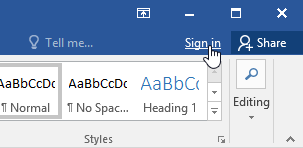
Once you have a Microsoft account, click Sign in in the upper-right corner of the Word window to connect your account.
Benefits of Using OneDrive
- Access your files anywhere – Open documents from any device with an Internet connection.
- Back up your files – Protect your documents even if something happens to your computer.
- Share files – Allow others to view or edit your documents for collaboration.
Saving and Opening Files
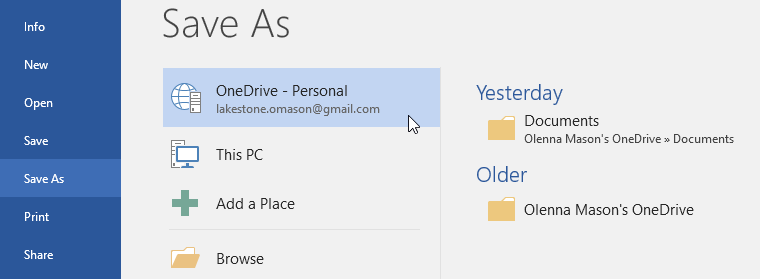
When signed in, OneDrive appears as a save location whenever you click Save or Save As.
You can choose between saving to OneDrive or saving locally to This PC.
Knowledge Check
What is the main benefit of saving a Word document to OneDrive?
Challenge
Apply what you've learned in this lesson.
- Click Sign in in Word.
- Sign in with a Microsoft account.
- Click File → Save As.
- Select OneDrive as the save location.
- Save a document to OneDrive.
Finished this lesson?
Progress is saved in this browser only. It is not a grade — official progress lives in Brightspace.