Getting Started with Word
Learn how to navigate the Word interface and understand the Ribbon, Quick Access Toolbar, and Backstage view.
By the end of this lesson you can
- Name the Ribbon, Quick Access Toolbar, ruler, and status bar, and say what each one is for
- Use Tell Me to find a command you cannot locate on the Ribbon
- Switch between Print Layout, Read Mode, and Web Layout, and explain when each is useful
- Collapse and restore the Ribbon to gain screen space on a small laptop display
Video
Watch the lesson video, then complete the reading and challenge.
Lesson Notes
Read through the key concepts before you try the challenge.
Why the interface is worth ten minutes
You are a new administrative assistant at Lakeside Medical Associates.
Your supervisor forwards a referral letter and asks you to 'clean it up and add our letterhead before it goes out at four.' You open Word and face a screen with roughly two hundred commands. You know what the letter should look like. The only thing standing between you and finishing is knowing where things live.
Your task: Learn the map of the Word window well enough that you spend your time on the writing, not on the hunting.
Almost every Word command is organized by a single principle: the Ribbon groups commands by the kind of work you are doing, not by the menu someone filed them under. Home holds the things you change constantly — font, alignment, lists, styles. Insert holds things you add to a page — pictures, tables, page numbers. Layout holds things that affect the page itself — margins, orientation, columns. Once you know that logic, you can usually predict which tab a command is on before you look.
That prediction is the real skill. Memorizing button positions stops working the moment Microsoft moves one, and they do move. Understanding the organizing logic survives every update, and it transfers to Excel and PowerPoint, which use the same system.
Key terms
- Ribbon
- The tabbed command bar across the top. Tabs group commands by task; each tab is divided into labeled groups such as Font or Paragraph.
- Contextual tab
- A tab that appears only when it is relevant — click a picture and a Picture Format tab appears. If a command seems missing, you often just need to select the object it applies to.
- Quick Access Toolbar
- The small always-visible strip above or below the Ribbon. It holds the few commands you want regardless of which tab is open, and you choose what goes on it.
- Backstage view
- Everything behind the File tab. This is where you act on the file as a whole — open, save, print, share, inspect — rather than on the text inside it.
- Tell Me
- The search box on the Ribbon. Type what you want to do in plain words and it runs the command directly, without you needing to know its tab.
Introduction
Microsoft Word is a word processing application that allows you to create a variety of documents, including letters, resumes, and more. In this lesson, you'll learn how to navigate the Word interface and become familiar with important features such as the Ribbon, Quick Access Toolbar, and Backstage view.
About This Tutorial
The procedures in this tutorial will work for all recent versions of Microsoft Word, including Word 2019, Word 2016, and Microsoft 365. There may be slight differences, but for the most part these versions are very similar.
The Word Interface
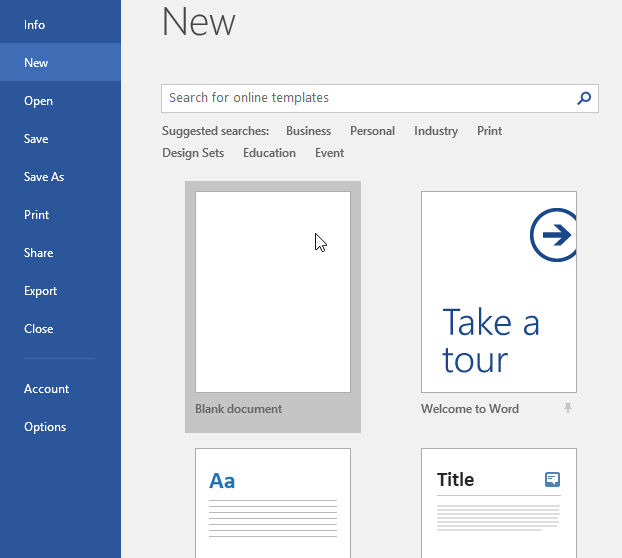
When you open Word for the first time, the Start Screen appears. From here, you can create a new document, choose a template, or access recently edited documents. Select Blank Document to access the Word interface.
Working with the Word Environment
All recent versions of Word include the Ribbon and the Quick Access Toolbar, where you'll find commands to perform common tasks in Word, as well as Backstage view.
The Ribbon
Word uses a tabbed Ribbon system instead of traditional menus. The Ribbon contains multiple tabs near the top of the Word window. Each tab contains groups of related commands.
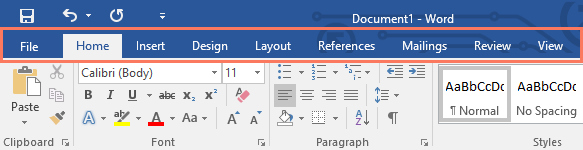
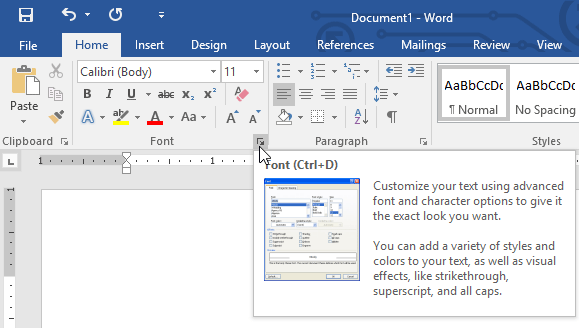
Some groups have a small arrow in the bottom-right corner that opens additional options.
Showing and Hiding the Ribbon
If the Ribbon takes up too much space, you can hide it. Click the Ribbon Display Options button in the upper-right corner of the window.
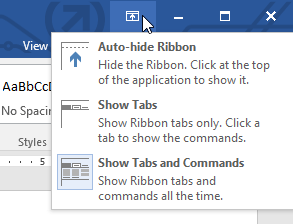
- Auto-hide Ribbon – Completely hides the Ribbon.
- Show Tabs – Shows only the tab names.
- Show Tabs and Commands – Shows the full Ribbon (default).
Using the Tell Me Feature
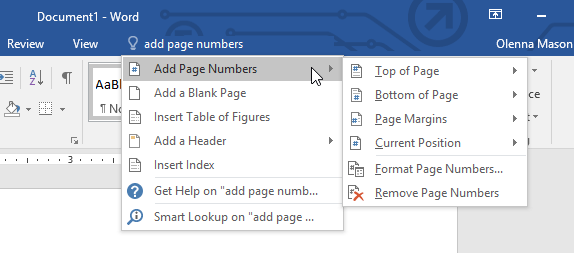
If you're having trouble finding a command, use the Tell Me feature. Type what you're looking for in the Tell Me bar and select a result from the dropdown.
The Quick Access Toolbar
Located above the Ribbon, the Quick Access Toolbar provides quick access to Save, Undo, and Redo. You can customize it with additional commands.
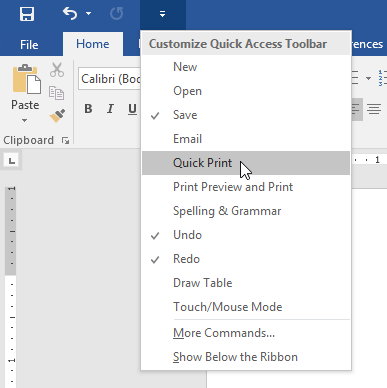
- Click the drop-down arrow next to the Quick Access Toolbar.
- Select the command you want to add.
- The command will appear on the toolbar.
The Ruler
The Ruler appears at the top and left of the document and helps you adjust margins and alignment precisely.
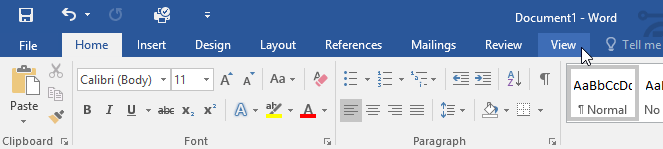
To show or hide the Ruler, click the View tab and check or uncheck the Ruler box.
Backstage View
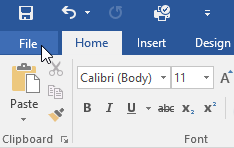
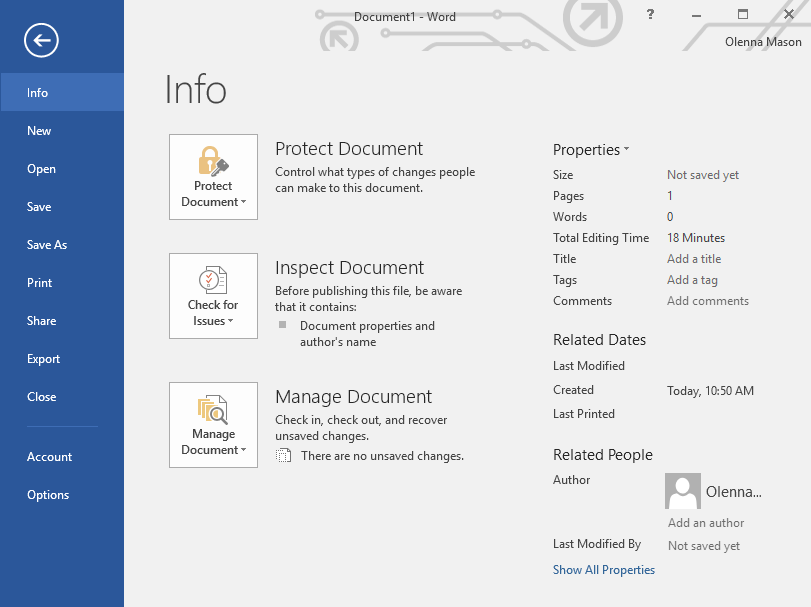
Backstage view provides options for saving, printing, sharing, and managing documents. Click the File tab to open Backstage view.
Document Views and Zooming
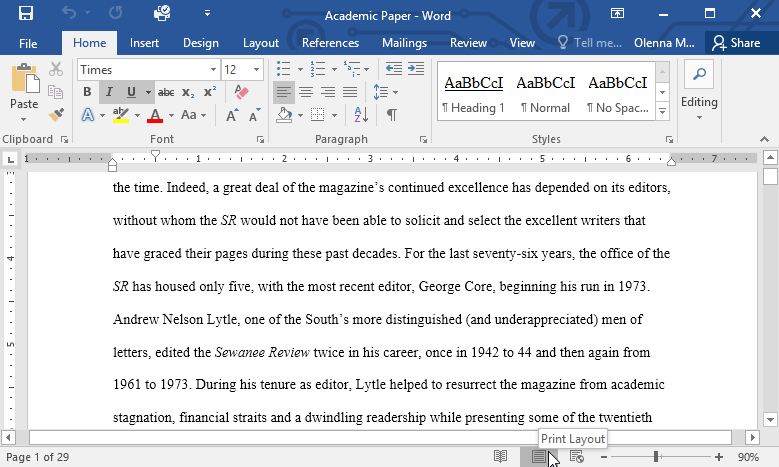
Word offers several document views: Read Mode, Print Layout, and Web Layout. These views change how your document appears.
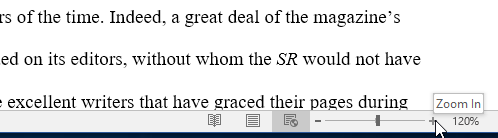
You can zoom in or out using the zoom slider in the bottom-right corner of the window.
Finding a command you have never used
Adding a non-breaking space without knowing where it lives
Your referral letter breaks the line between 'Dr.' and 'Okafor,' leaving the title stranded at the end of a line. You need a non-breaking space, which keeps two words together. You have no idea which tab that is on.
- 1
Predict the tab before searching.
A non-breaking space is a character you are adding to the page, so Insert is a reasonable first guess — it lives under Insert > Symbol > More Symbols > Special Characters. Making the prediction first is what builds the mental map, even when the guess is wrong.
- 2
Use Tell Me rather than opening every tab.
Click Tell Me and type 'non-breaking space.' Word offers the command directly. Hunting tab by tab can take a minute; Tell Me takes five seconds, and it works for any command whose name you can approximately describe.
- 3
Note where Tell Me found it.
This is the step most people skip. Tell Me runs the command but does not teach you the location. Afterwards, go look at Insert > Symbol so the next time you need a special character you go straight there. Tell Me is a shortcut, not a substitute for the map.
- 4
Put it on the Quick Access Toolbar if you will repeat it.
Right-click any Ribbon command and choose Add to Quick Access Toolbar. For a task you do twenty times a day — like Save As or Print Preview — this removes two clicks each time. For something you do twice a year, leave it where it is; a cluttered toolbar is its own kind of slow.
Result: The title and surname stay together on one line, and you now know both the shortcut for finding commands and the actual home of special characters.
Predict the tab, use Tell Me when the prediction fails, then go learn where it actually lives. That loop turns two hundred commands into a map you can navigate.
Knowledge Check
Where are most Word formatting commands found?
Challenge
Apply what you've learned in this lesson.
- Open Word and create a blank document.
- Change Ribbon Display Options to Show Tabs.
- Using Customize Quick Access Toolbar, add New, Quick Print, and Spelling & Grammar.
- In the Tell Me bar, type Shape and press Enter.
- Choose a shape and double-click somewhere in the document.
- Show the Ruler if it is not already visible.
- Zoom the document to 120%.
- Change the Document view to Web Layout.
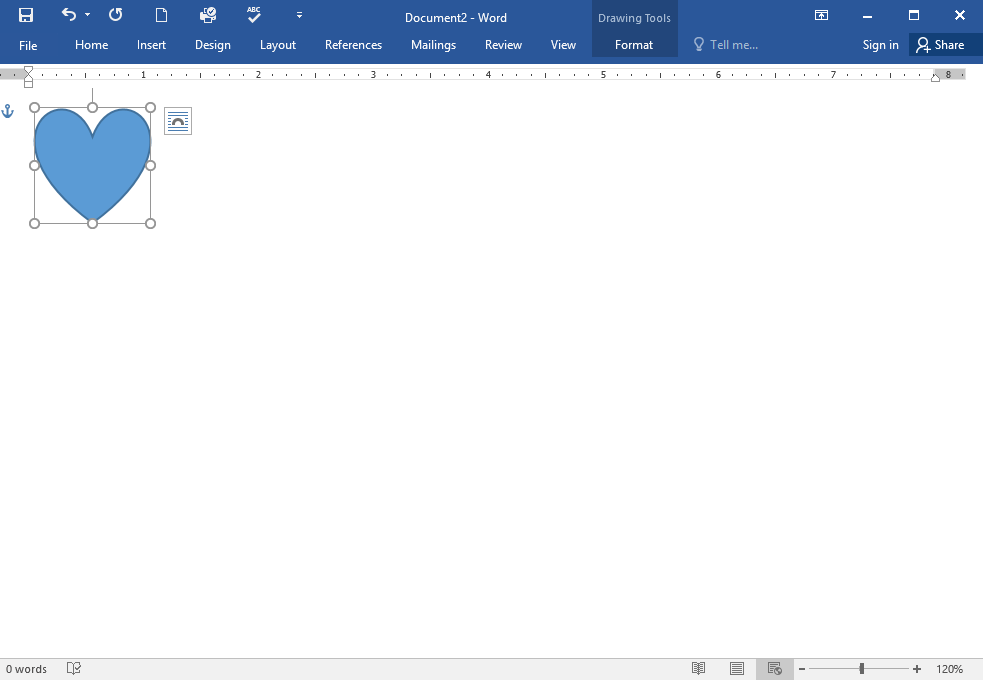
- When finished, your document should look something like this.
- Change Ribbon Display Options back to Show Tabs and Commands, and change view back to Print Layout.
Finished this lesson?
Progress is saved in this browser only. It is not a grade — official progress lives in Brightspace.