Printing Presentations
Learn how to print slides, handouts, and notes pages, and understand PowerPoint’s print settings for different presentation needs.
By the end of this lesson you can
- Choose an appropriate print layout for a given purpose
- Print handouts with a sensible number of slides per page
- Print speaker notes for yourself
- Reduce ink and improve legibility on printed slides
Video
Watch the lesson video, then complete the reading and challenge.
Lesson Notes
Read through the key concepts before you try the challenge.
A printed deck serves a different purpose from a projected one
You prepare materials for the board meeting at Lakeside Medical Associates.
You print forty slides full page, one per sheet, on a dark-backgrounded theme. Forty sheets per attendee, most of the toner cartridge, and pages so dark the text is barely legible on paper.
Your task: Pick the print layout that matches what the reader will do with it.
| Layout | Produces | Use for |
|---|---|---|
| Full Page Slides | One slide per sheet | Rarely — only when detail genuinely needs the size |
| Notes Pages | Slide plus your notes | Your own copy while presenting |
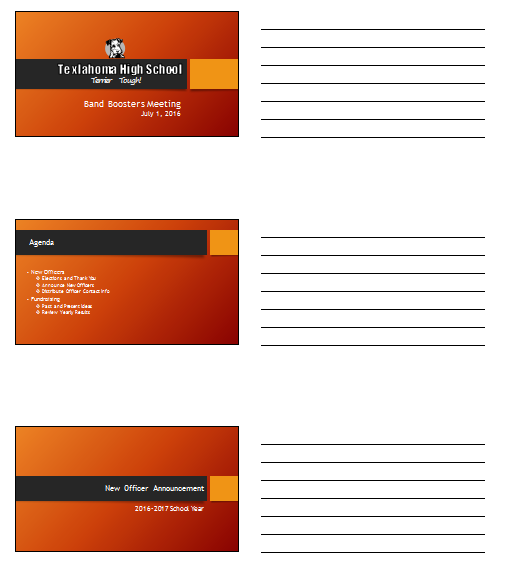
| Handouts, 3 per page | Slides with ruled lines beside them | Audience handouts — the lines invite notes |
| Handouts, 6 per page | Six thumbnails per sheet | A compact reference after the session |
| Outline | Text only | Reviewing the argument without design |
Accessing the Print Screen
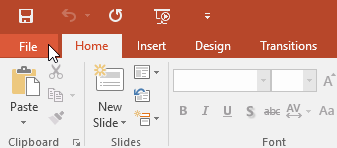
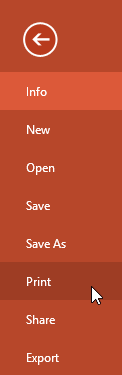
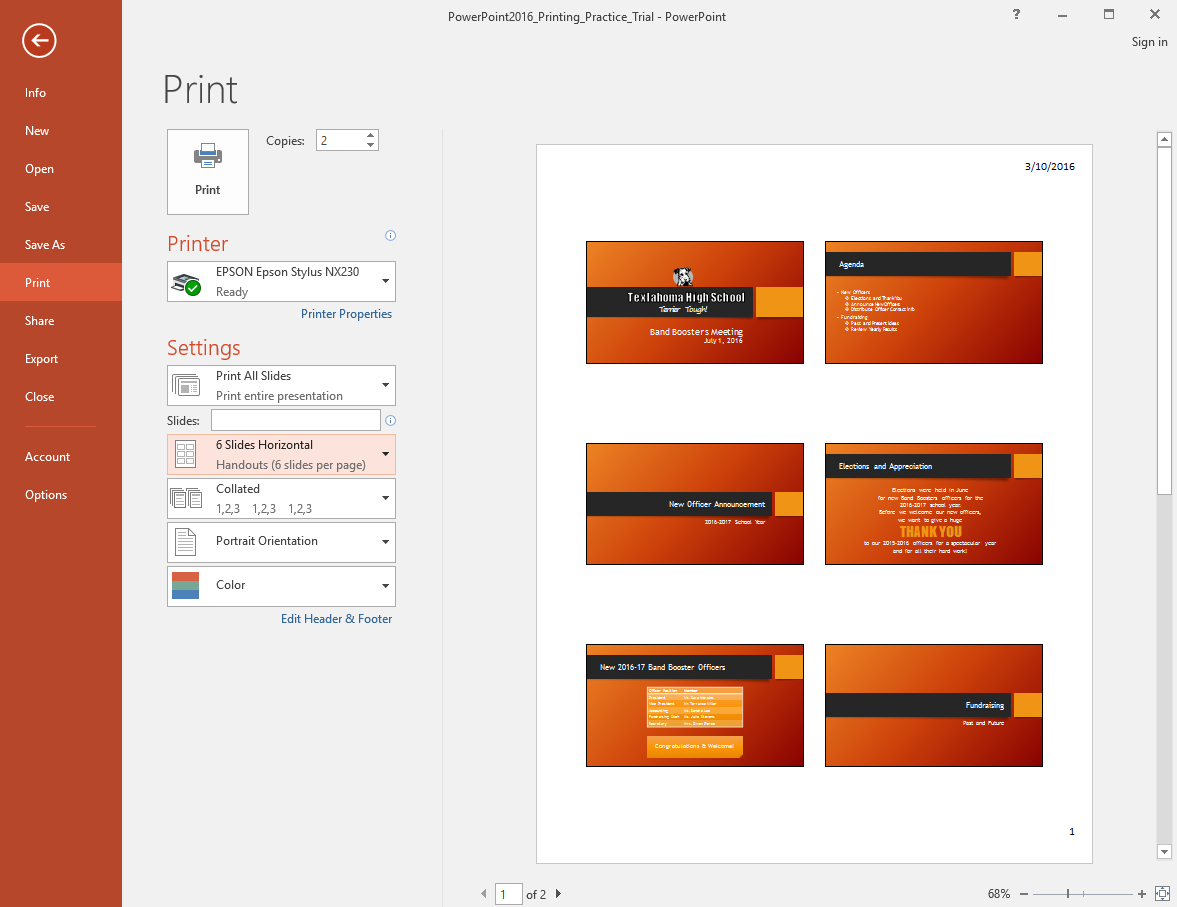
To print a presentation, open the File tab to enter Backstage view, then select Print. This opens the print workspace where you can preview and adjust all print settings.
Check the preview before every print job, not just the settings. The page count is the fastest check available: a deck that shows 12 slides and previews 13 pages has a stray blank, and finding it now costs thirty seconds instead of a stack of wasted paper.
Understanding Print Settings
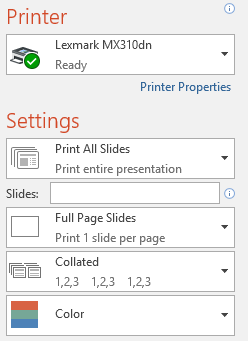
PowerPoint provides several print settings that allow you to control how your presentation will appear when printed.
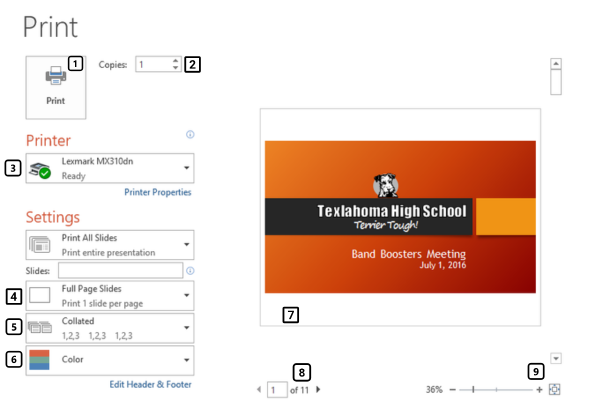
Printing a range matters more than it sounds. When one slide changes after you have printed forty packets, printing just that page and swapping it is a few minutes; reprinting everything is an afternoon and a full toner cartridge.
For a dark-themed deck, choose Pure Black and White rather than Color. It prints readable dark text on white instead of reproducing the dark background, which saves most of the toner and produces something people can actually annotate.
Print Layout Types
One of the most important decisions when printing is choosing the correct layout. PowerPoint offers several formats depending on how the presentation will be used.
Full Page is rarely the right choice for an audience. It uses one sheet per slide and leaves no room to write. Handouts at 3 per page add ruled lines beside each slide, which is what people actually want to take notes on.

Handouts allow you to print multiple slides per page. This is useful for audiences who want to follow along during a presentation.
Notes Pages include each slide along with speaker notes beneath it. This is helpful when presenting or reviewing detailed talking points.
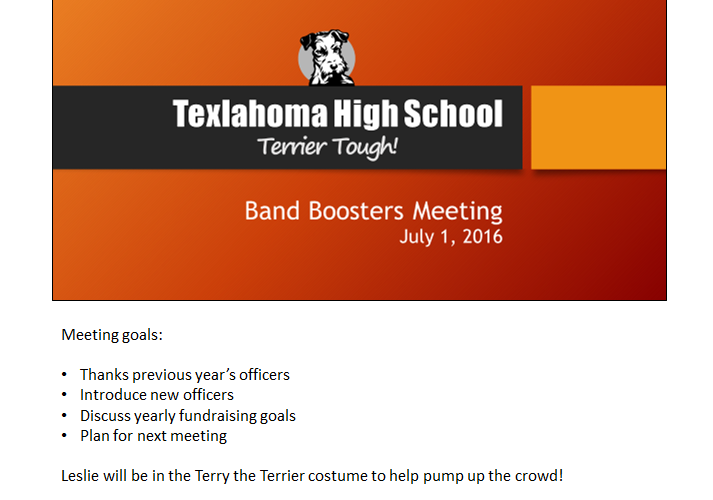
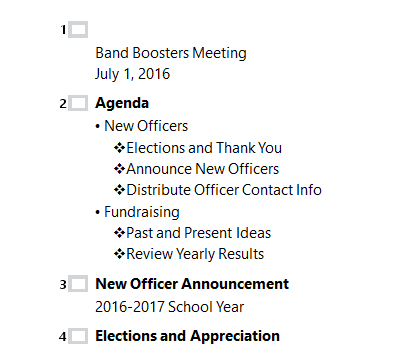
Printing the outline is a good way to check your own argument before you worry about design. Stripped of images and layout, a deck that does not make sense as a list of headings will not make sense to an audience either.
Using Print Preview
Before printing, always review the print preview to ensure your slides appear correctly. This helps avoid issues such as incorrect layouts or cut-off content.
Printing Your Presentation
Once your settings are configured, click the Print button to print your presentation.
Completed Output Example
A properly printed presentation should match your selected layout and provide a clear, readable format for your audience.
Knowledge Check
Which print layout includes space for audience notes beside each slide?
Practice File
Download this file and follow along with the lesson.
Challenge
Apply what you've learned in this lesson.
Complete the following tasks using the practice presentation:
- Open the practice presentation.
- Go to File and select Print.
- Change the print layout to Handouts (3 slides per page).
- Preview the print layout.
- Switch to Notes Pages view.
- Return to Handouts layout.
- Print the presentation or export it as a PDF.
Finished this lesson?
Progress is saved in this browser only. It is not a grade — official progress lives in Brightspace.