Presenting Your Slide Show
Learn how to deliver your presentation using Slide Show view, navigation tools, Presenter View, and interactive presentation features.
By the end of this lesson you can
- Start a slide show and navigate it confidently
- Use Presenter View to see notes, timing, and the next slide
- Use presentation tools such as the pen and screen blanking
- Prepare for the practical failures that occur during presentations
Video
Watch the lesson video, then complete the reading and challenge.
Lesson Notes
Read through the key concepts before you try the challenge.
Presenter View is the reason to stop reading your slides
You present at the all-staff meeting at Lakeside Medical Associates.
Without Presenter View you turn to the screen to see what is on the slide, which means talking to the wall. You cannot see what is coming next, and you have no idea whether you are running long.
Your task: Use Presenter View so your notes, the next slide, and a timer are in front of you and the audience sees only the presentation.
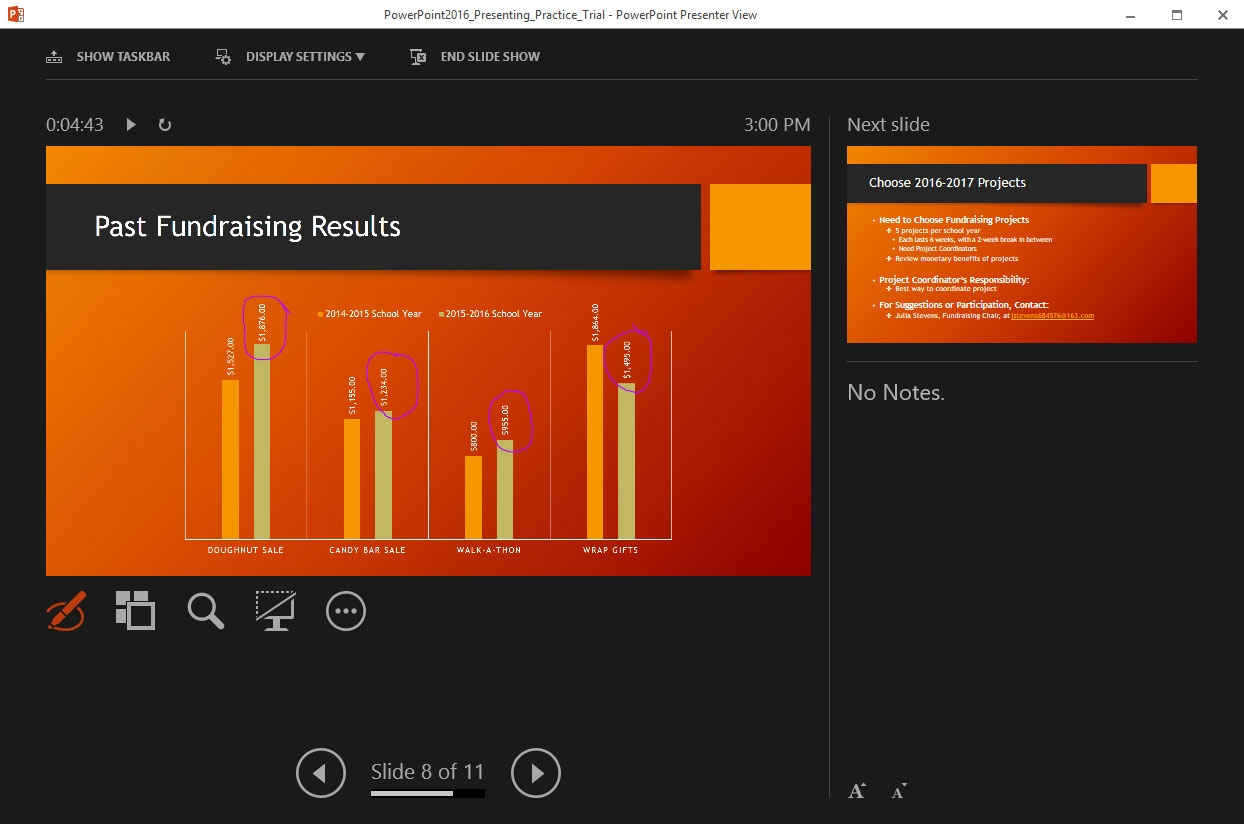
Presenter View puts your notes, a timer, a preview of the next slide, and navigation controls on your screen while the audience sees the slide alone. It is the single feature that most improves how a presentation is delivered, because it removes every reason to look at the projection.
| Key | Does |
|---|---|
| F5 | Starts the show from the beginning |
| Shift + F5 | Starts from the current slide — what you want when rehearsing |
| B or W | Blanks the screen to black or white |
| Number then Enter | Jumps directly to that slide |
| Esc | Ends the show |
| Ctrl + P | Turns the pointer into a pen for annotating |
Starting a Slide Show
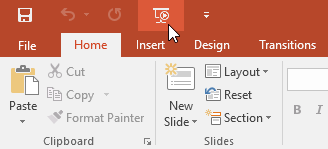
To present your slides, you must enter Slide Show view. This mode displays your presentation in full screen, just as your audience will see it.
You can start a slide show in several ways depending on your situation.
- Press F5 to start from the beginning
- Use the Slide Show tab → From Beginning
- Use From Current Slide to start from your current position
- Click the Slide Show button in the bottom-right corner
Navigating Slides
While presenting, you can move between slides using several methods.
- Click the mouse to move forward
- Press the spacebar or arrow keys
- Use on-screen navigation arrows

Using multiple navigation methods ensures you can present smoothly whether using a keyboard, mouse, or remote clicker.
Ending a Slide Show
To end your presentation, you can press the Esc key at any time.
You can also right-click during the presentation and select End Show from the menu.
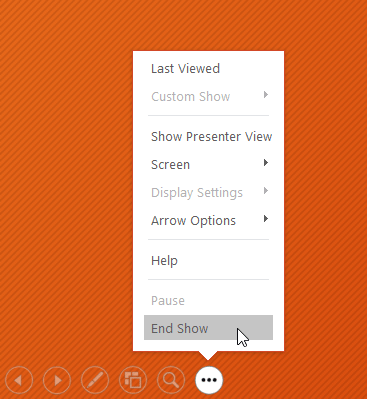
At the end of the final slide, PowerPoint will display a message indicating the presentation has finished.
Using Presentation Tools
During a presentation, you can access additional tools by right-clicking or using the Slide Options menu.
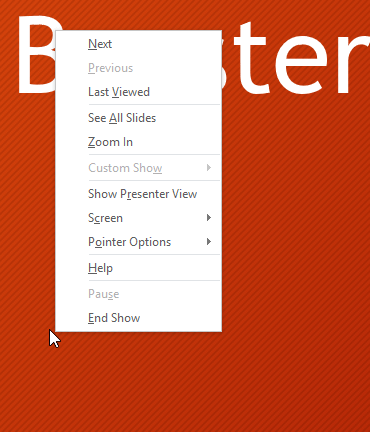
These tools allow you to navigate slides, access settings, and control your presentation without exiting Slide Show view.
Jumping Between Slides
You can jump to any slide instantly by selecting 'See All Slides' during your presentation.
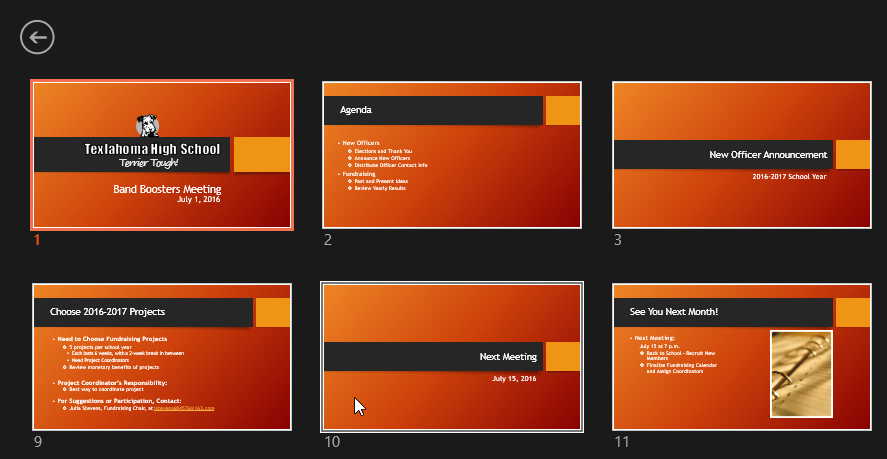
This is especially useful when answering audience questions or navigating a presentation out of order.
Using Drawing Tools
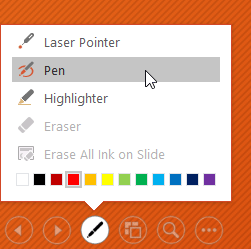
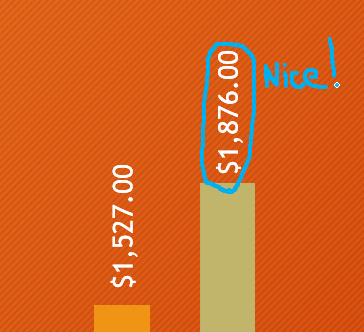
PowerPoint includes drawing tools that allow you to annotate slides during a presentation.
- Pen for writing
- Highlighter for emphasis
- Different colors for visibility
Using the Laser Pointer
The laser pointer allows you to highlight areas without permanently marking the slide.
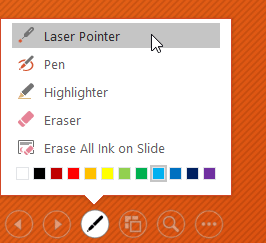
This is useful when you want to guide attention without adding annotations.
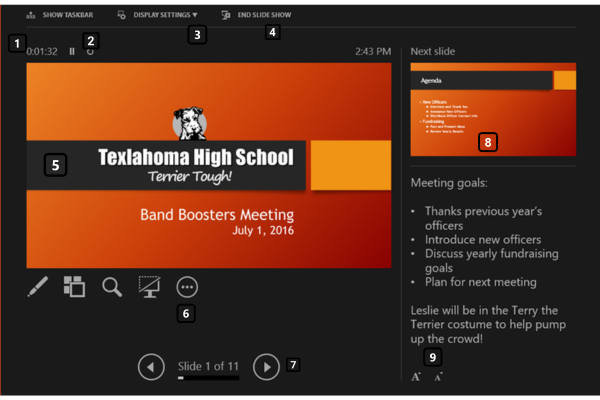
Presenter View
Presenter View allows you to see additional information while your audience only sees the slides.
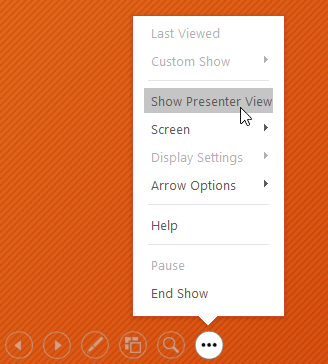
Presenter View includes tools like a timer, slide previews, notes, and navigation controls.
Setting Up a Slide Show
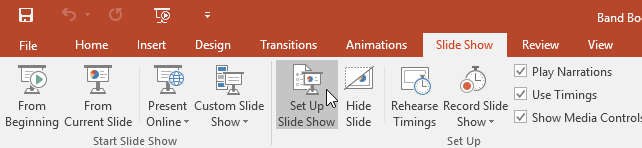
PowerPoint allows you to configure how your presentation behaves using the Set Up Slide Show dialog box.
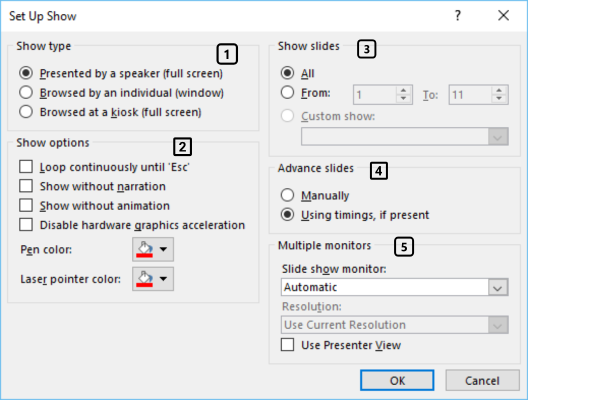
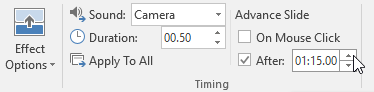
You can choose presentation type, slide range, and how slides advance.
Completed Presentation Example
A well-delivered presentation uses navigation tools, annotations, and Presenter View to guide the audience effectively.
Knowledge Check
Which feature allows you to view notes and upcoming slides while the audience sees only the presentation?
Practice File
Download this file and follow along with the lesson.
Challenge
Apply what you've learned in this lesson.
Complete the following tasks using the practice presentation:
- Open the practice presentation.
- Start the slide show from the beginning.
- Navigate to slide 8.
- Use the pen tool to circle key data points.
- Switch to Presenter View.
- Use the laser pointer to highlight content.
- End the slide show properly.
Finished this lesson?
Progress is saved in this browser only. It is not a grade — official progress lives in Brightspace.