Modifying Themes
Learn how to customize PowerPoint themes by changing theme colors, fonts, effects, and background styles.
By the end of this lesson you can
- Change theme colors, fonts, and effects independently
- Create and save a custom theme for reuse
- Check color contrast for legibility
- Apply organizational branding consistently
Video
Watch the lesson video, then complete the reading and challenge.
Lesson Notes
Read through the key concepts before you try the challenge.
Build the practice's theme once
You standardize presentations across Lakeside Medical Associates.
Five staff produce decks and all five look different. Patients and partners see materials that do not appear to come from the same organization. Everyone is choosing colors from scratch each time, because there is nothing to choose from.
Your task: Define the practice's colors and fonts once as a saved theme, so consistency is the easy path.
Theme colors, fonts, and effects can each be changed independently from the Design tab's Variants dropdown. Set the practice's palette and typefaces, then Save Current Theme — the theme appears in the gallery for everyone it is shared with, in PowerPoint, Word, and Excel alike.
Once the theme exists, staff choose from theme colors rather than inventing them, and every deck matches without anyone needing to remember a hex code. Making the consistent choice the easy one is what actually produces consistency.
Modifying PowerPoint Themes
PowerPoint themes control the overall appearance of your presentation, including colors, fonts, and visual effects.
If you like the general design of a theme but want to adjust certain elements, you can modify the theme instead of choosing a completely different one.
You can change theme colors, fonts, effects, and background styles while keeping the overall layout of the theme.

Changing Theme Colors
If you don't like the colors of a theme, you can quickly apply a different color set while keeping the rest of the theme unchanged.
Theme colors control the color palette used for text, shapes, charts, and other design elements in your presentation.
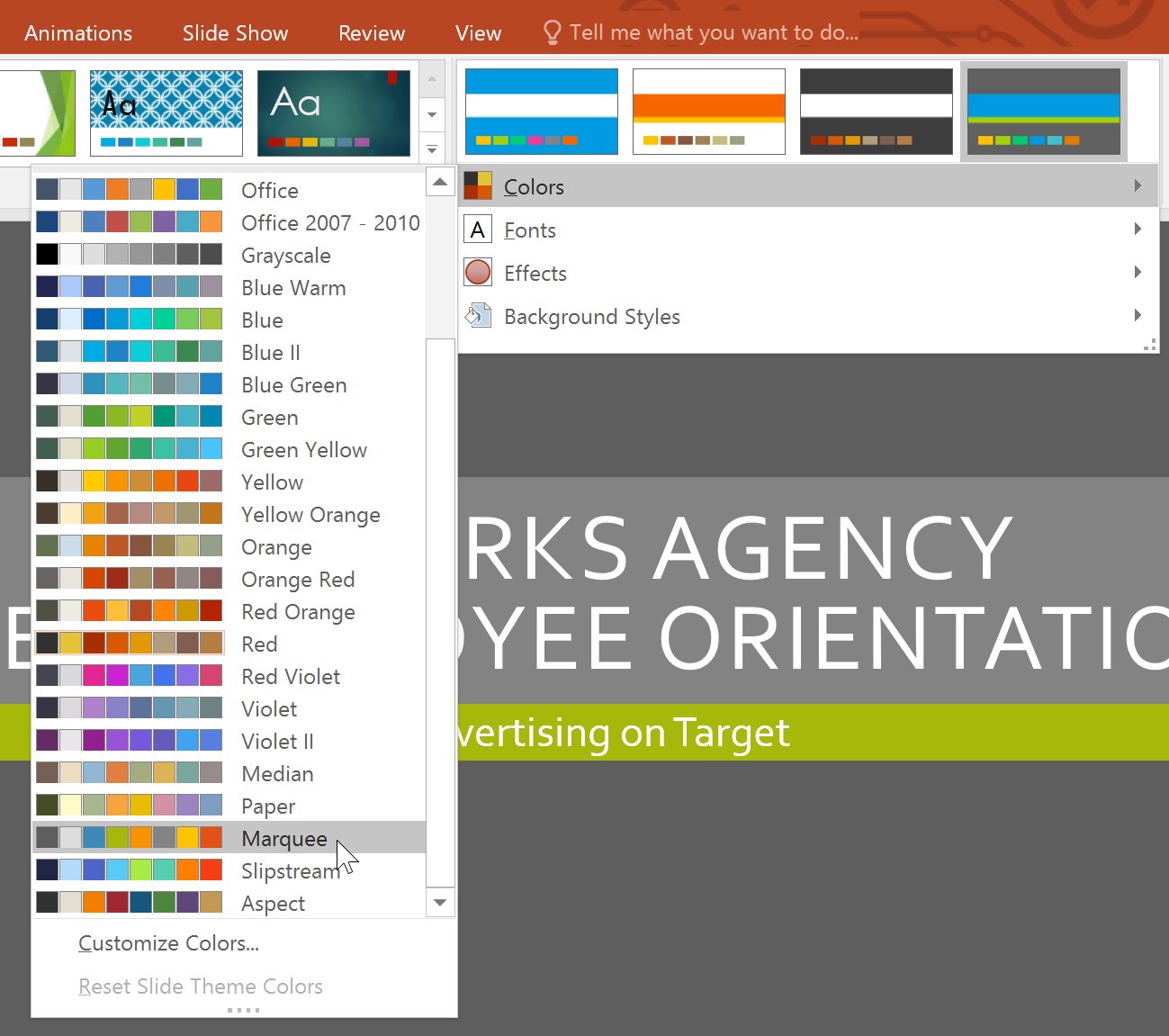
To change theme colors, open the Design tab, click the Variants drop-down arrow, select Colors, and choose the desired color set.
Customizing Theme Colors
If none of the built-in color sets match your design needs, you can create your own custom theme colors.
Custom colors allow you to control the exact colors used for text backgrounds, accents, and hyperlinks.
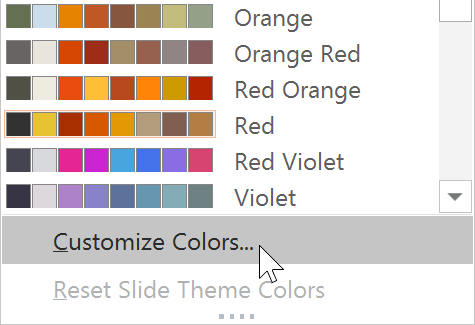
Open Design → Variants → Colors → Customize Colors, then choose new colors and give your custom theme a name before saving it.
Changing Theme Fonts
Theme fonts define the default fonts used for headings and body text across the entire presentation.
Changing theme fonts helps keep text consistent throughout all slides.
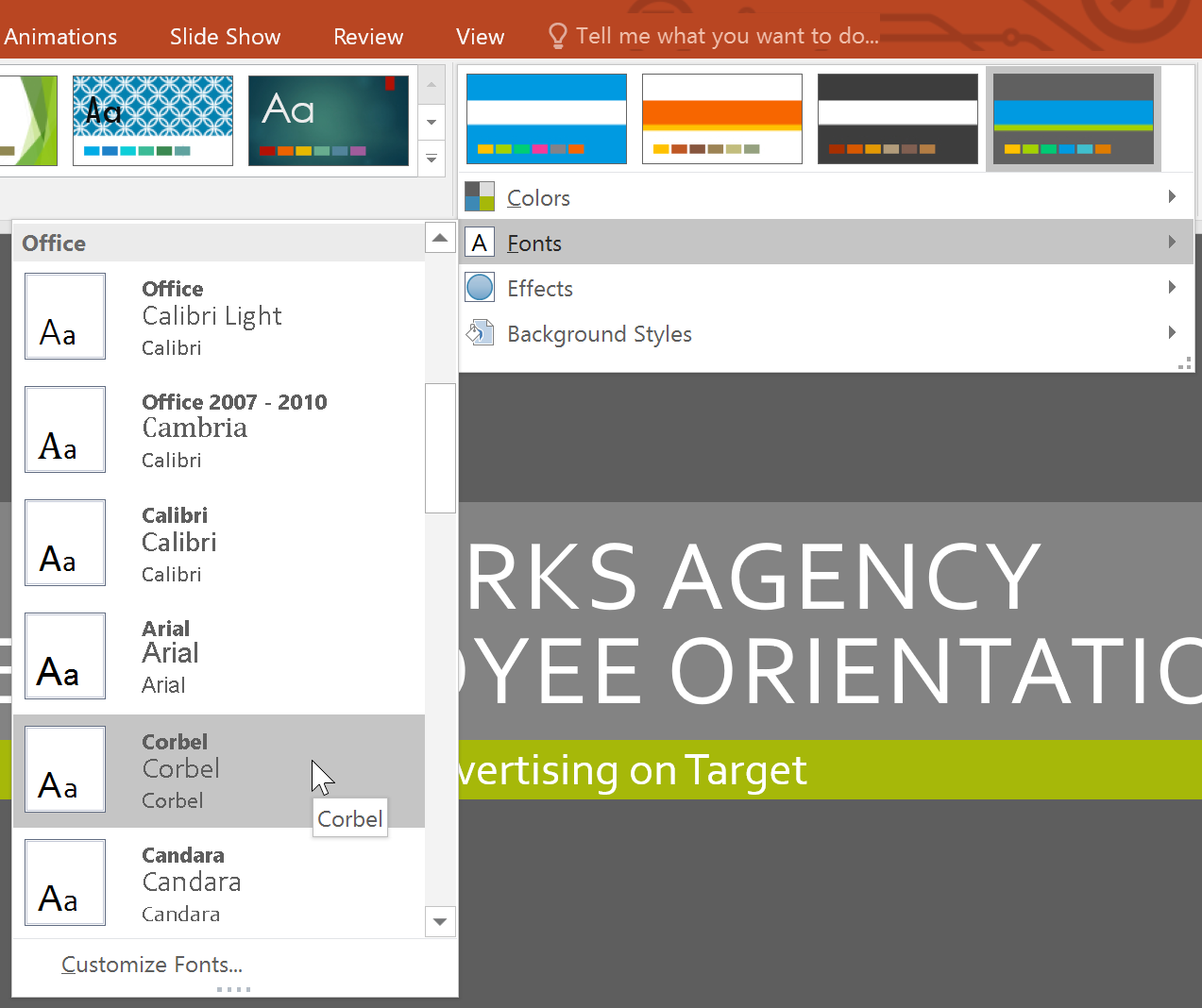
To change fonts, open the Design tab, click Variants, select Fonts, and choose a font pair from the list.
Customizing Theme Fonts
If you want to use specific fonts, you can create your own custom theme font combination.
This allows you to choose one font for headings and another for body text.
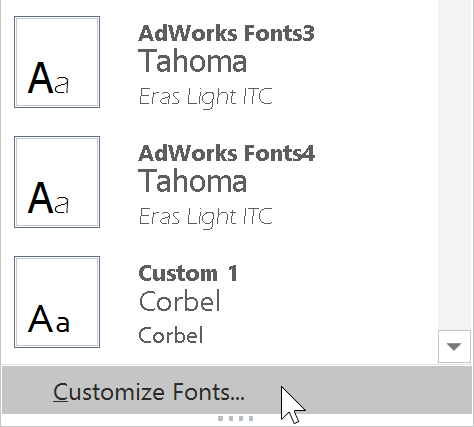
Select Design → Variants → Fonts → Customize Fonts, choose the heading and body fonts, then save the custom font theme.
Changing Theme Effects
Theme effects control the appearance of shapes, SmartArt graphics, and other visual objects in your presentation.
Changing theme effects can adjust elements such as shadows, glows, reflections, and shape styles.
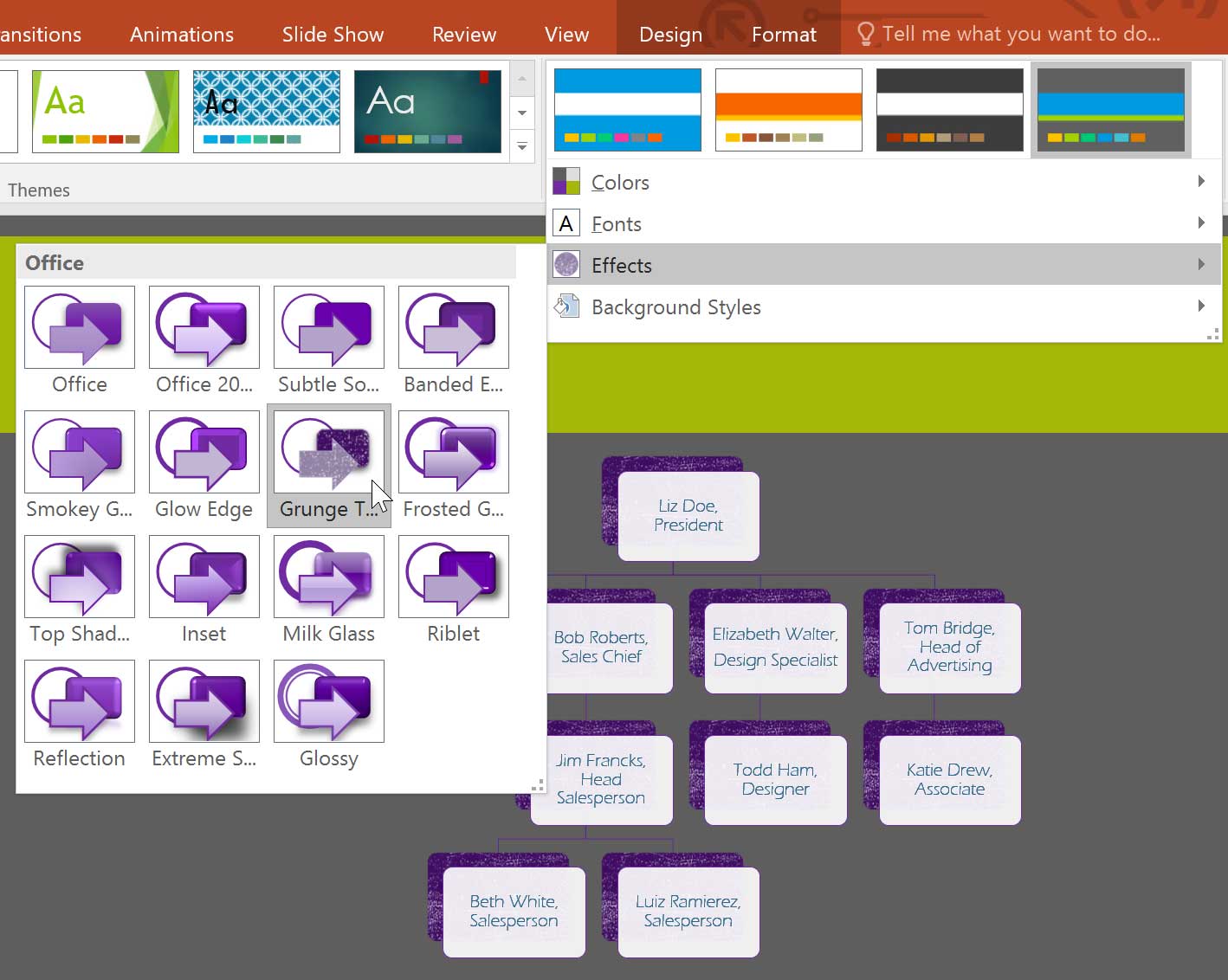
To apply a different effect style, open the Design tab, click Variants, select Effects, and choose the desired effect.
Changing Background Styles
You can also change the background style of your slides to further customize the appearance of your presentation.
Background styles depend on the current theme and color settings.
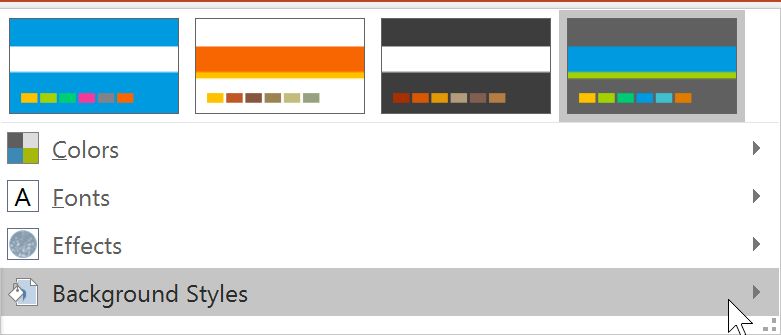
Open Design → Variants → Background Styles and choose a new background. For additional options, select Format Background.
Saving a Custom Theme
After customizing colors, fonts, and effects, you can save your theme and reuse it in future presentations.
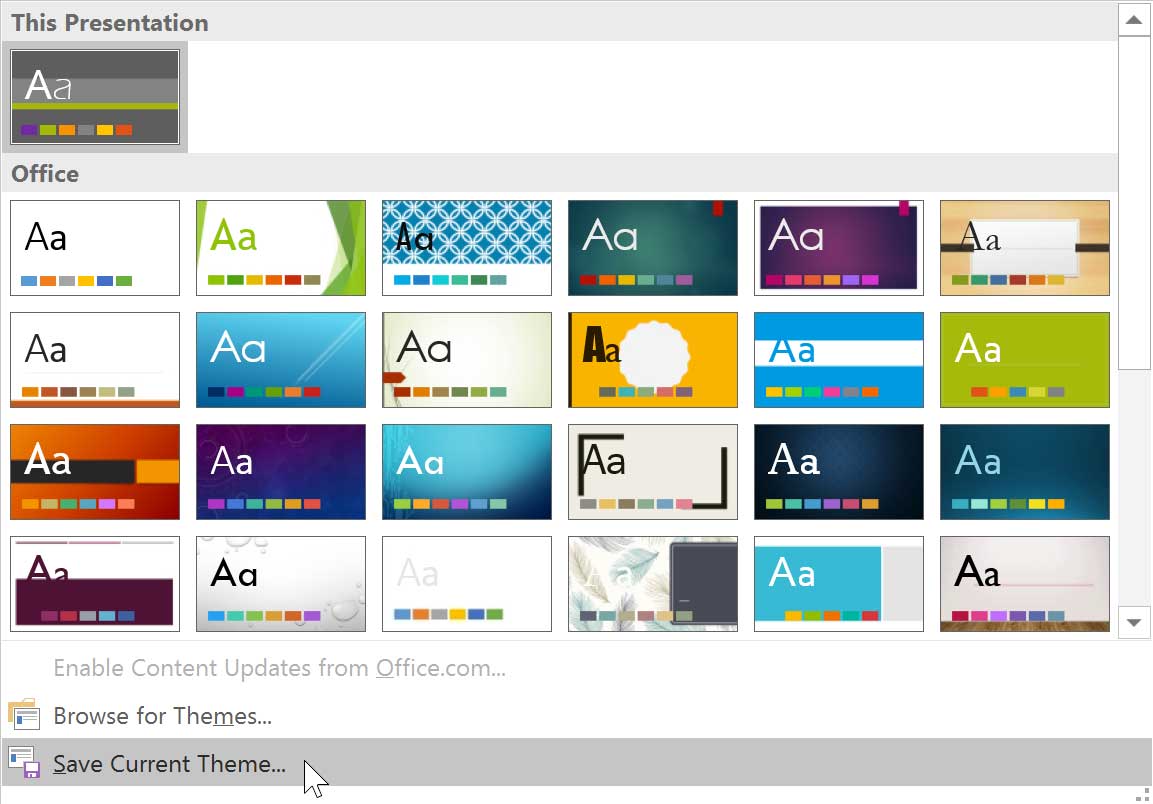
Open the Themes gallery on the Design tab and select Save Current Theme.
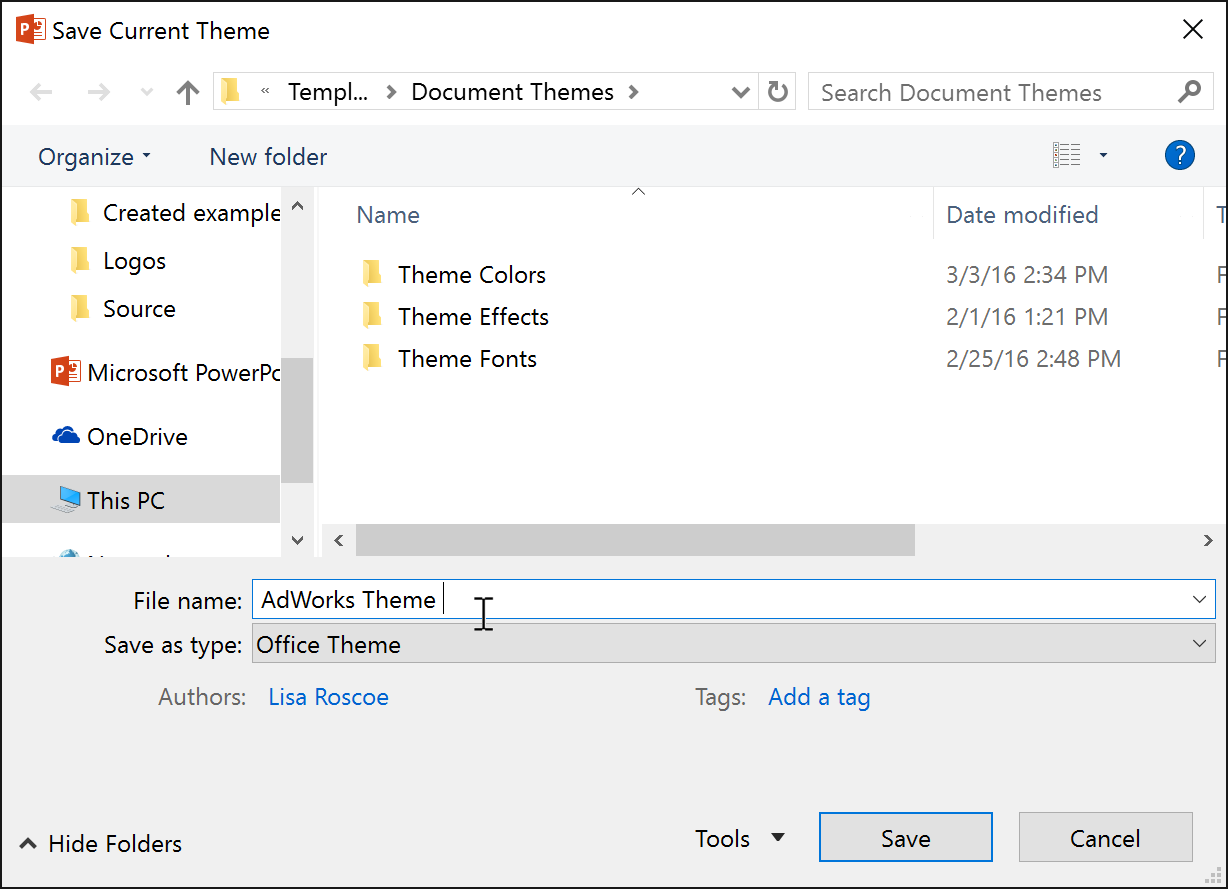
Enter a name for the theme and click Save. The theme will appear in the Custom section of the theme gallery.
Completed Presentation Example
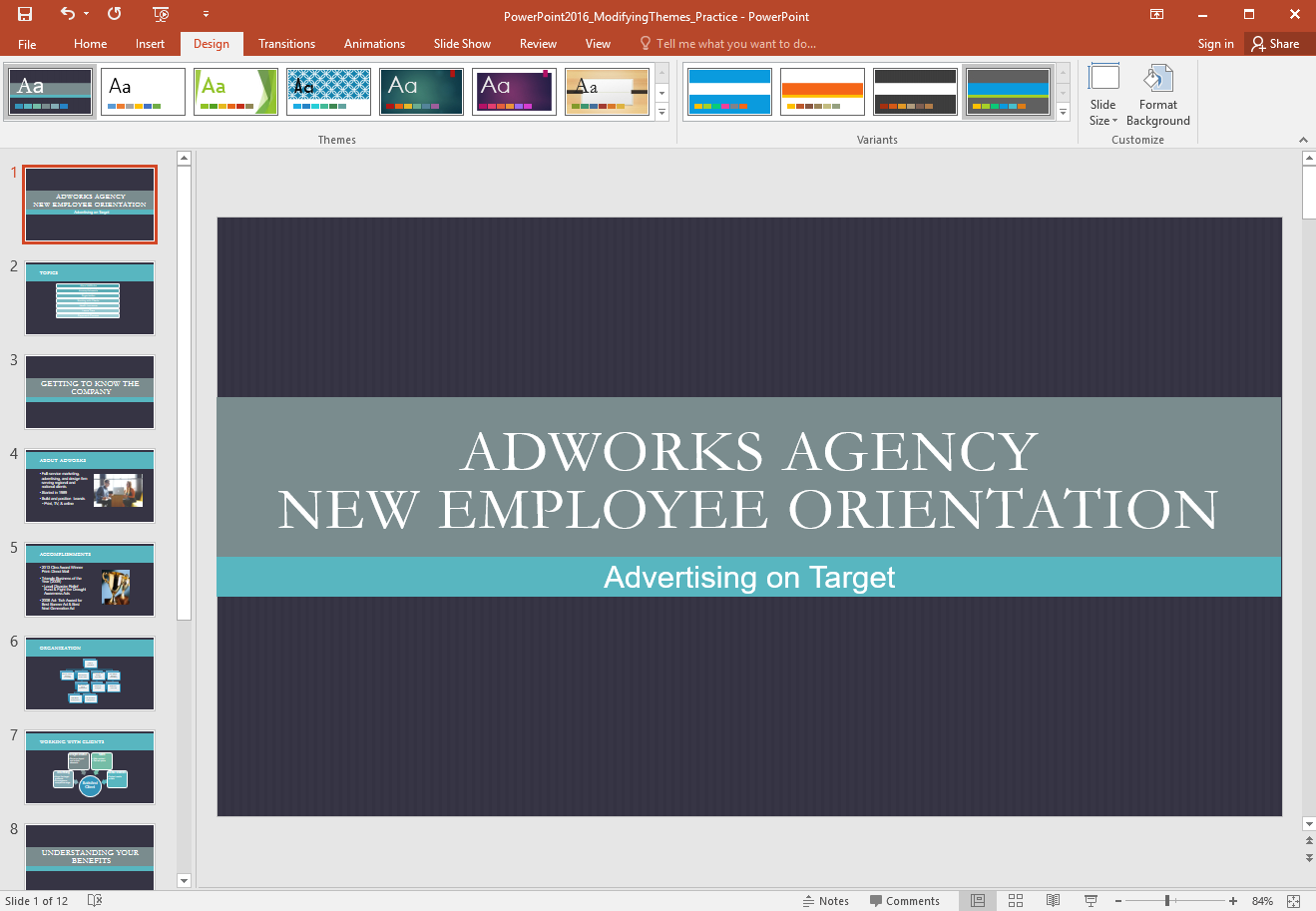
After modifying theme colors, fonts, effects, and background styles, your presentation will have a customized and consistent design.
Knowledge Check
Which element of a theme controls the color palette used throughout the presentation?
Practice File
Download this file and follow along with the lesson.
Challenge
Apply what you've learned in this lesson.
Complete the following tasks using the practice presentation:
- Open the practice presentation.
- Change the theme colors.
- Customize the fonts so the heading font is Garamond and the body font is Arial.
- Change the background style.
- Optional: Save your customized theme.
Finished this lesson?
Progress is saved in this browser only. It is not a grade — official progress lives in Brightspace.