Slide Master View
Learn how to use Slide Master view to make global design changes, create custom layouts, manage placeholders, and keep an entire presentation consistent.
By the end of this lesson you can
- Open Slide Master view and explain what it controls
- Distinguish the master from the layouts beneath it
- Add a logo or standing element to every slide at once
- Edit a layout without affecting the rest of the deck
Video
Watch the lesson video, then complete the reading and challenge.
Lesson Notes
Read through the key concepts before you try the challenge.
One change instead of forty
You maintain the standard deck at Lakeside Medical Associates.
The practice logo must appear on every slide of a forty-slide deck. Pasted onto each slide by hand, it lands in forty slightly different positions and takes twenty minutes. Placed on the Slide Master, it appears once on every slide, in exactly the same place, in about fifteen seconds.
Your task: Use the master for anything that should appear on every slide.
Slide Master view (View > Slide Master) shows a hierarchy. The master is at the top, and every layout beneath inherits from it. A change to the master reaches all layouts; a change to one layout affects only slides using that layout. This is the same inheritance idea as styles in Word, applied to slide design.
| You want to change | Edit | Effect |
|---|---|---|
| Logo on every slide | The master | Appears on all layouts at once |
| Title font throughout | The master's title placeholder | Every layout's title updates |
| The title slide only | The Title Slide layout | Other slides are unaffected |
| Add a new arrangement | Insert Layout | Becomes available in the New Slide gallery |
Putting the practice logo on every slide
Add the logo to a forty-slide deck so it sits identically on every slide and stays there as slides are added.
- 1
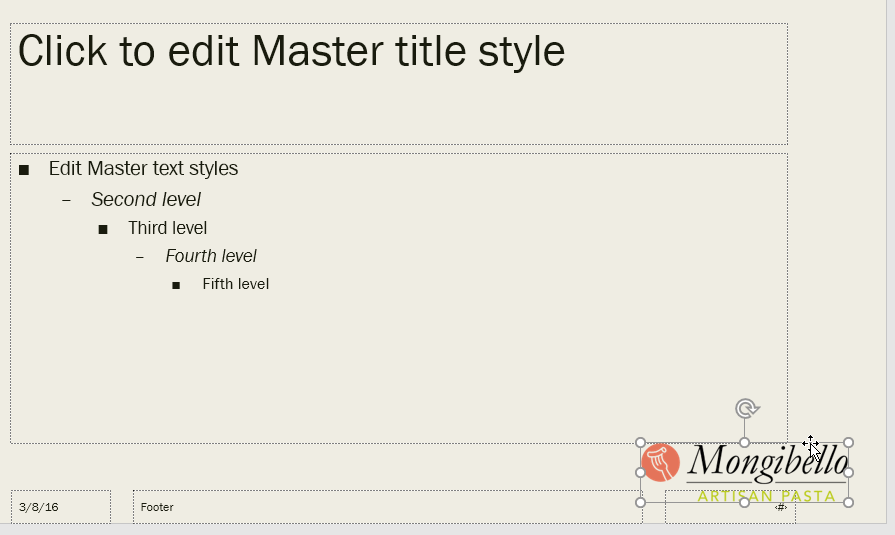
View > Slide Master, and select the top thumbnail — the master itself.
The top thumbnail is larger and sits above the indented layouts. Selecting a layout instead is the usual mistake, and it puts the logo on only the slides using that one layout.
- 2
Insert the logo and position it, allowing clear space from the edges.
Projectors and video calls sometimes crop the outer edge of a slide. Keeping the logo a little inside the boundary means it survives that, and it looks deliberate rather than jammed into the corner.
- 3
Close Master View and check several slides, including the title slide.
The Title Slide layout often has its own background and may position or hide the logo differently. Checking a few slides of different layouts confirms the change reached them as intended.
- 4
Add a new slide and confirm the logo appears on it too.
This is the actual test of whether you edited the master rather than individual slides. A logo that appears on new slides automatically is inherited; one that does not was pasted onto existing slides.
Result: The logo on every slide, in one position, appearing automatically on any slide added later.
Edit the master for what belongs everywhere and a layout for what belongs on one kind of slide. Never paste a standing element onto individual slides.
What Slide Master View Does
Slide Master view allows you to control the overall design and layout structure of an entire presentation. Instead of editing slides one by one, you can update the master and its layouts so that design changes appear everywhere they are used.
This is especially useful when you want consistent branding, repeated logos, matching fonts, and reusable slide layouts throughout a presentation.
Opening Slide Master View
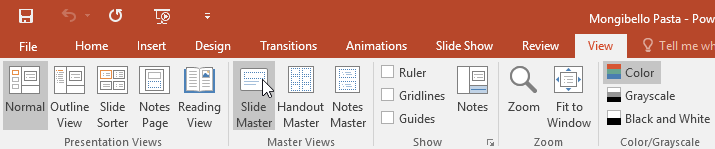
To begin working with slide masters, go to the View tab and select Slide Master. PowerPoint will switch from the normal editing view into the master editing workspace.
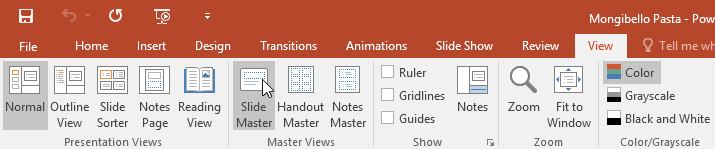
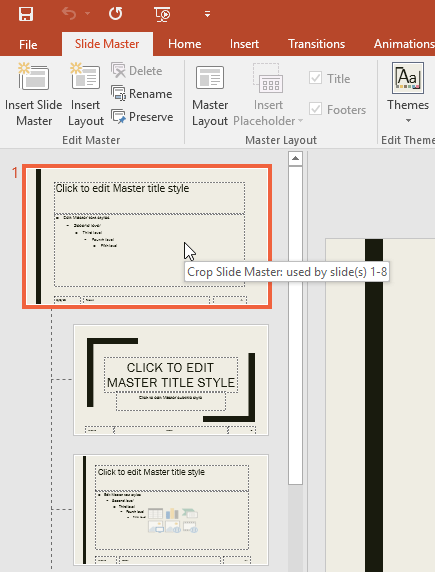
Once Slide Master view opens, the left pane will display the large master slide at the top and the related layouts below it.
Understanding the Master Slide and Layouts
The top slide in Slide Master view is the master slide. It controls global elements such as theme fonts, background styling, and repeated objects like logos.
The smaller slides beneath it are layouts. Each layout controls the structure of a specific slide type such as title slides, content slides, or image-based slides.
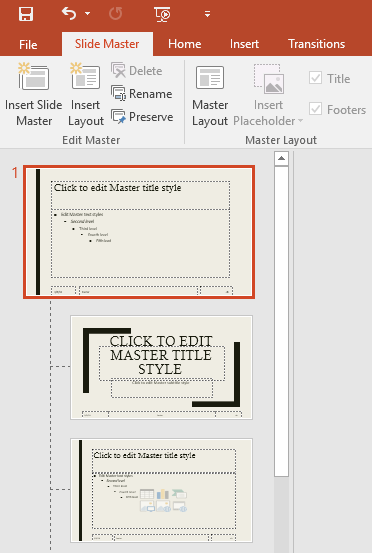
When you apply a layout to a slide, that slide inherits all formatting and structure from that layout.
Editing Master Text and Branding
You can format text on the master or layouts just like regular slides, including font style, size, and alignment.
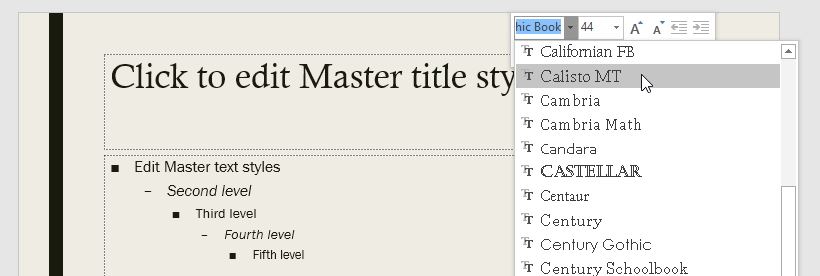
You can also insert logos or branding elements so they automatically appear on multiple slides.
Using Theme Fonts in Slide Master
Slide Master view works closely with themes. Changing theme fonts will update text across all layouts instantly.
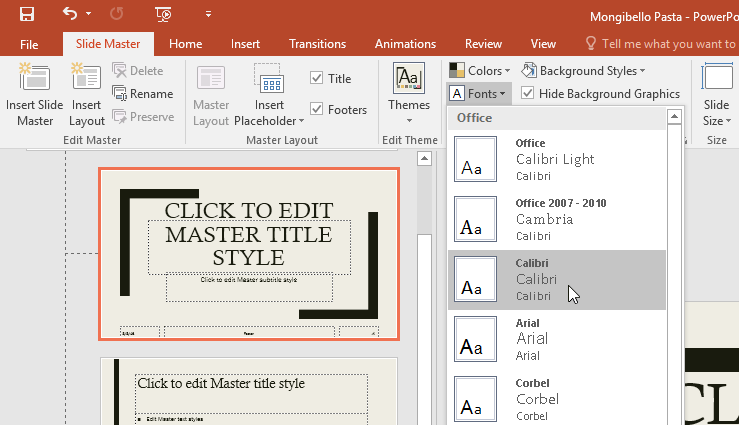
This ensures consistency and helps maintain a professional appearance.
Inserting and Managing Placeholders
Placeholders define where content such as text, images, charts, and media will appear on a slide.
Use Insert Placeholder from the Slide Master tab to add placeholders to layouts.
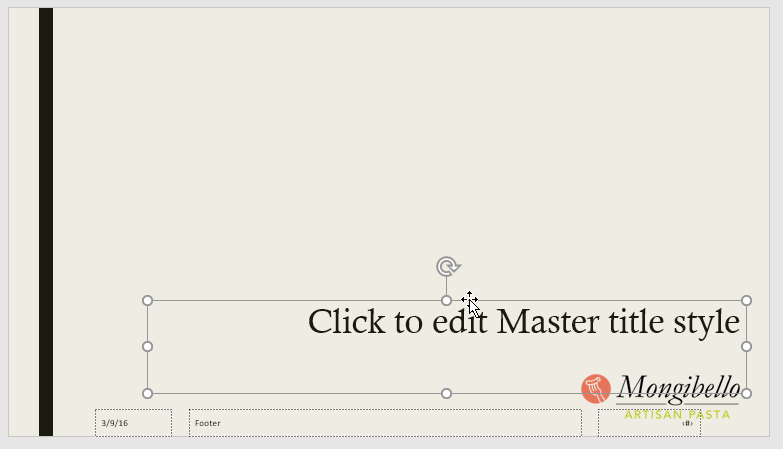
Once placed, you can resize and position placeholders to create structured layouts.
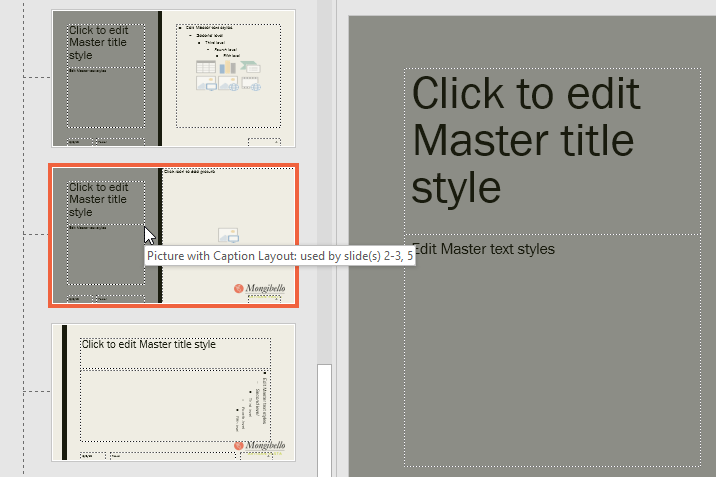
Creating a Custom Layout
You can create your own layouts to standardize how slides are structured across a presentation.
Custom layouts are useful for things like product slides, team slides, or image-focused content.
Renaming Layouts
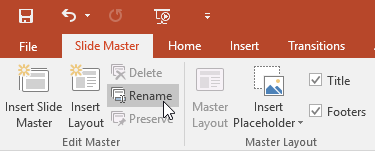
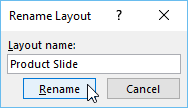
Renaming layouts makes them easier to identify and reuse later.
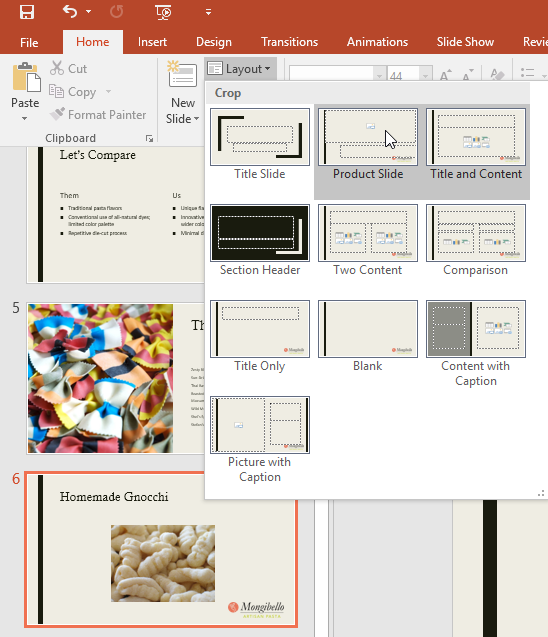
Click Rename and assign a meaningful name such as Product Slide.
Showing and Hiding Master Elements
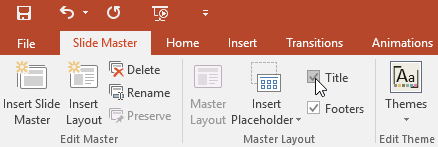
You can control whether titles, footers, and background elements appear on specific layouts.
Applying Custom Layouts to Slides
Apply layouts from the Home tab to instantly update slide structure and formatting.
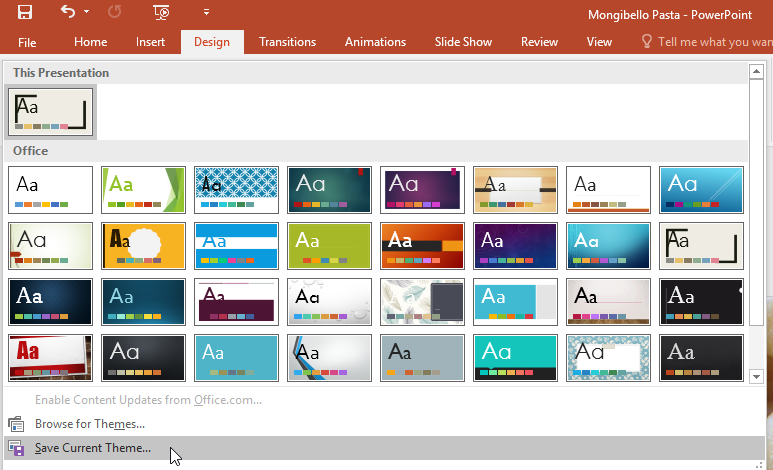
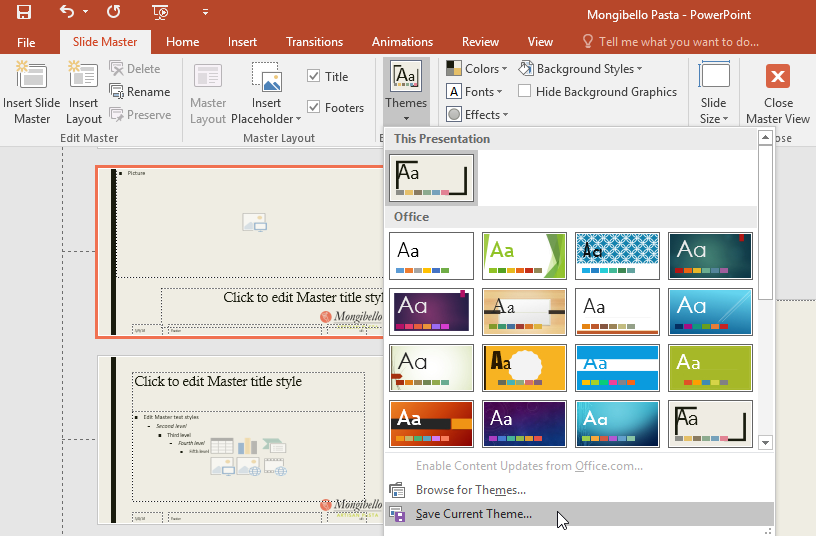
Saving the Theme
Save your customized theme to reuse it in future presentations.
Closing Slide Master View
Click Close Master View to return to the normal editing environment.
Completed Presentation Example

Pro Tip
Knowledge Check
What does Slide Master control?
What is a layout?
Why are placeholders important?
Practice File
Download this file and follow along with the lesson.
Challenge
Apply what you've learned in this lesson.
Complete the following tasks using the practice presentation:
- Open the practice presentation.
- Go to the View tab and open Slide Master view.
- Select one of the layouts and rename it Product Slide.
- Insert a Picture placeholder on a custom layout.
- Move and resize the logo so it is aligned consistently on the layout.
- Change the theme font used for the layout.
- Return to Normal view.
- Apply the custom Product Slide layout to an existing slide.
- Save the current theme for future use.
Finished this lesson?
Progress is saved in this browser only. It is not a grade — official progress lives in Brightspace.