Applying Themes
Learn how to quickly change the design of your presentation using built-in PowerPoint themes.
By the end of this lesson you can
- Apply a theme and explain what it changes
- Choose theme variants and understand what they alter
- Judge a theme by legibility rather than attractiveness
- Keep a deck consistent with organizational branding
Video
Watch the lesson video, then complete the reading and challenge.
Lesson Notes
Read through the key concepts before you try the challenge.
Choose a theme for the room, not for the monitor
You design the annual staff briefing at Lakeside Medical Associates.
You pick a theme with pale gray text on a white background. It looks refined on your monitor. Projected in a room where the lights must stay on, the text is close to invisible from the fourth row.
Your task: Evaluate a theme by whether it survives a real projector in a real room.
A theme sets colors, fonts, and effects across every slide at once, so the whole deck stays coherent and a redesign is one click rather than forty. That is its value. Its risk is that theme choice is usually made on a bright monitor a foot from your face, under conditions nothing like a presentation.
Projection loses contrast, and ambient light loses more. Strong contrast — genuinely dark text on a genuinely light background, or the reverse — is the single most important property of a presentation theme. Mid-gray on white, or any two mid-tones together, will fail in the room.
What is a Theme?
A theme is a predefined combination of colors, fonts, layouts, and visual effects that control the overall appearance of a presentation.
PowerPoint presentations use a theme by default. Even if you never choose one manually, the Office theme is already applied when you create a new presentation.
Applying a theme allows you to instantly change the design of every slide while keeping the presentation consistent and professional.

Theme Elements
Every PowerPoint theme includes a set of design elements that work together to control the appearance of your slides.
These elements ensure that colors, fonts, and design effects remain consistent throughout the entire presentation.
The three main theme elements are theme colors, theme fonts, and theme effects.
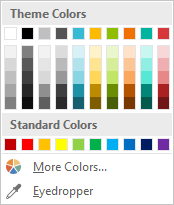
Theme colors define the color palette used throughout the presentation.
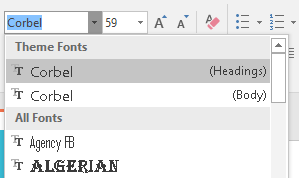
Theme fonts determine the default fonts used for headings and body text.
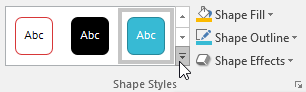
Theme effects control the appearance of shapes, SmartArt graphics, and other design elements.
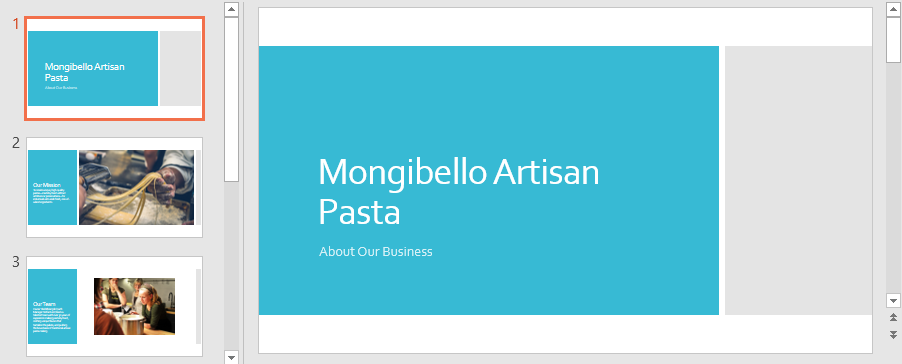
Applying a Theme
All themes in PowerPoint are located on the Design tab in the Themes group.
You can apply a theme at any time, and PowerPoint will automatically update every slide in the presentation.
To apply a theme, open the Design tab and locate the Themes group.

Click the More arrow to view the complete gallery of available themes.
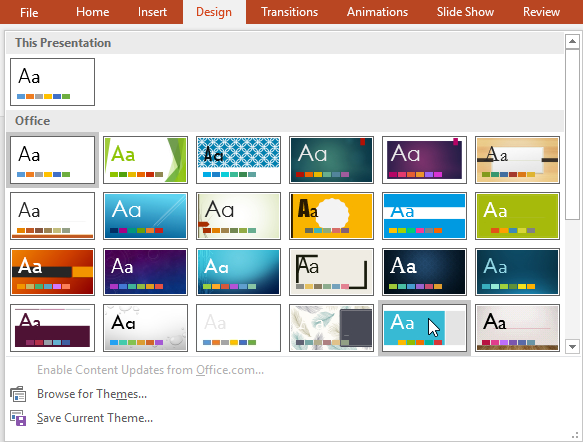
Select the theme you want and it will immediately be applied to the entire presentation.
Using Theme Variants
After applying a theme, you can change the appearance of that theme by choosing a variant.
Variants adjust the color scheme while keeping the same overall theme layout and design.
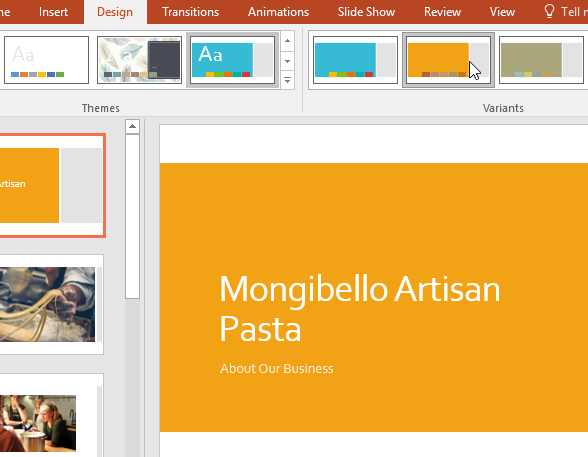
This allows you to quickly explore different design options without changing the entire theme.
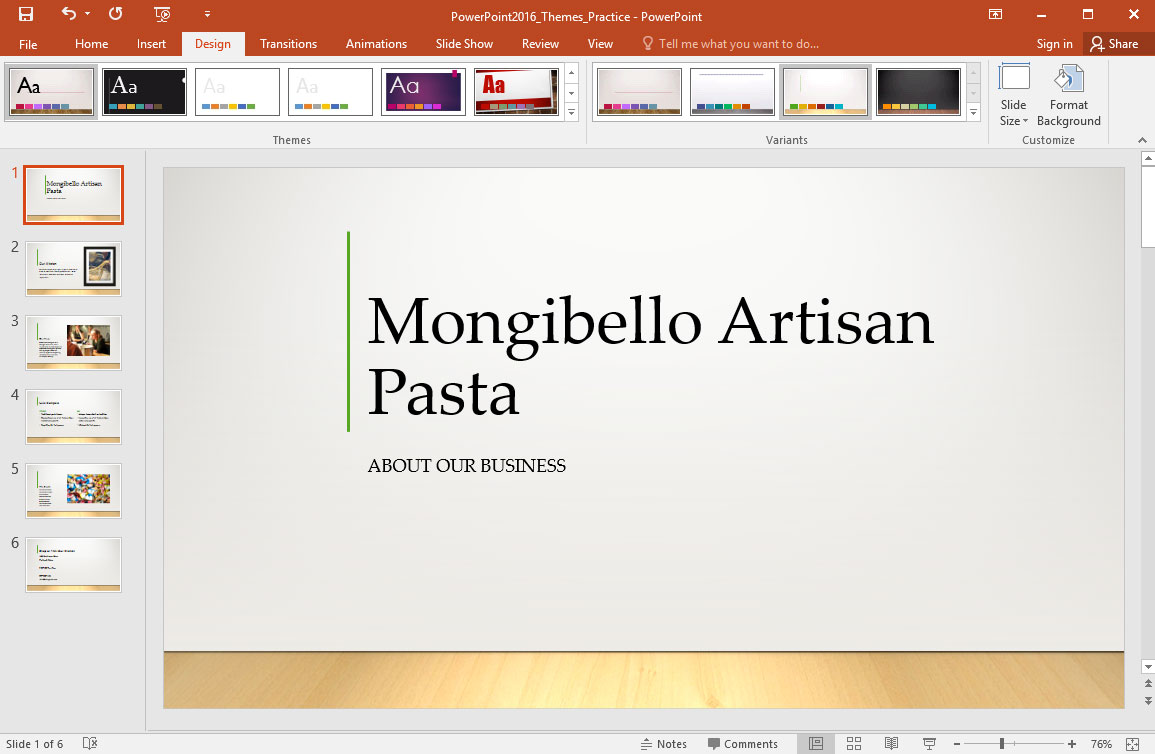
Completed Presentation Example
After applying a theme and selecting a variant, your slides will have a consistent design and professional appearance.
Knowledge Check
What does applying a theme to a presentation do?
Practice File
Download this file and follow along with the lesson.
Challenge
Apply what you've learned in this lesson.
Complete the following tasks using the practice presentation:
- Open the practice presentation.
- Select the Design tab.
- Open the Themes gallery.
- Apply the Gallery theme.
- Select a different theme variant.
Finished this lesson?
Progress is saved in this browser only. It is not a grade — official progress lives in Brightspace.