PowerPoint Lists
Learn how to create bulleted and numbered lists to organize information clearly on slides.
By the end of this lesson you can
- Create bulleted and numbered lists and change their levels
- Choose between bullets and numbers based on whether order matters
- Explain why long bulleted lists undermine a presentation
- Convert a list into a stronger visual when appropriate
Video
Watch the lesson video, then complete the reading and challenge.
Lesson Notes
Read through the key concepts before you try the challenge.
The bullet list is the default, and rarely the best choice
You explain the referral workflow at Lakeside Medical Associates.
Six bullets describing six sequential steps. The audience sees six equal-looking items and cannot tell that order matters, that step three depends on step two, or where the decision point is. A simple diagram would have shown all three instantly.
Your task: Use numbers when sequence matters, and consider whether a list is the right form at all.
Bullets signal a set with no order. Numbers signal sequence. Using bullets for a procedure actively misinforms, because readers take the formatting as meaning — the same rule that applies in Word applies here, and matters more, because a slide gets a glance rather than a careful read.
It is also worth asking whether a list is the right form at all. A sequence is usually clearer as a process diagram, a comparison as a two-column table, and a proportion as a chart. Bullets are the default because they are easy to type, not because they communicate well.
Bulleted Lists
Bulleted lists are commonly used in PowerPoint to organize information into clear and easy-to-read points.
To add bullets, select the text you want to format and click the Bullets command in the Paragraph group on the Home tab.
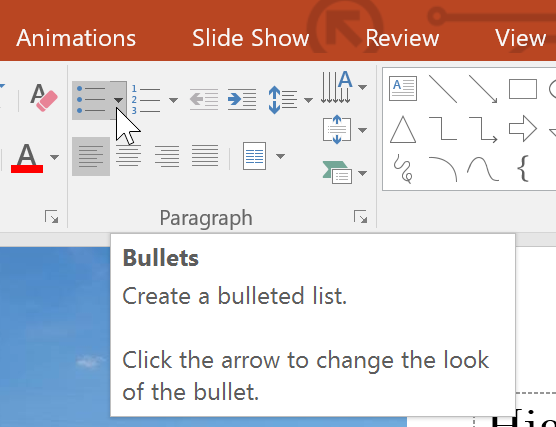
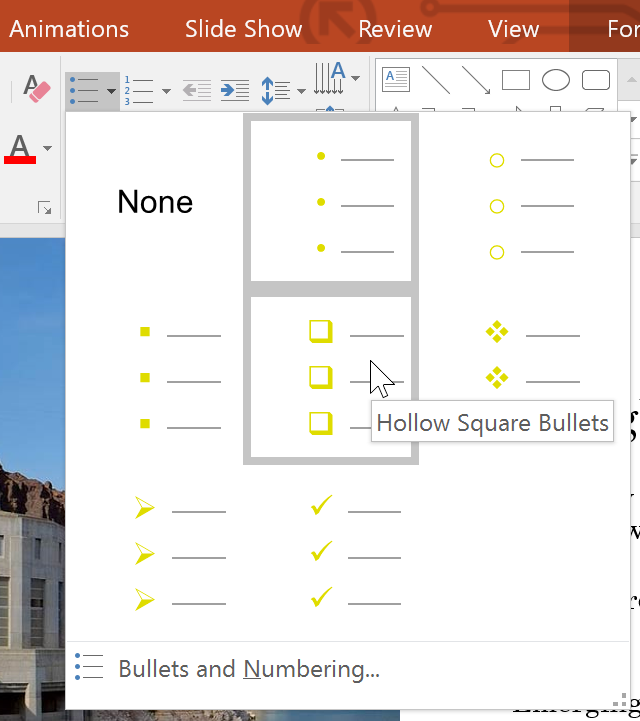
You can also click the drop-down arrow next to the Bullets command to choose from different bullet styles.
Choosing a Bullet Style
PowerPoint includes several built-in bullet styles such as circles, squares, arrows, and checkmarks.
Selecting a style immediately updates the appearance of the list.
Customizing Bullets
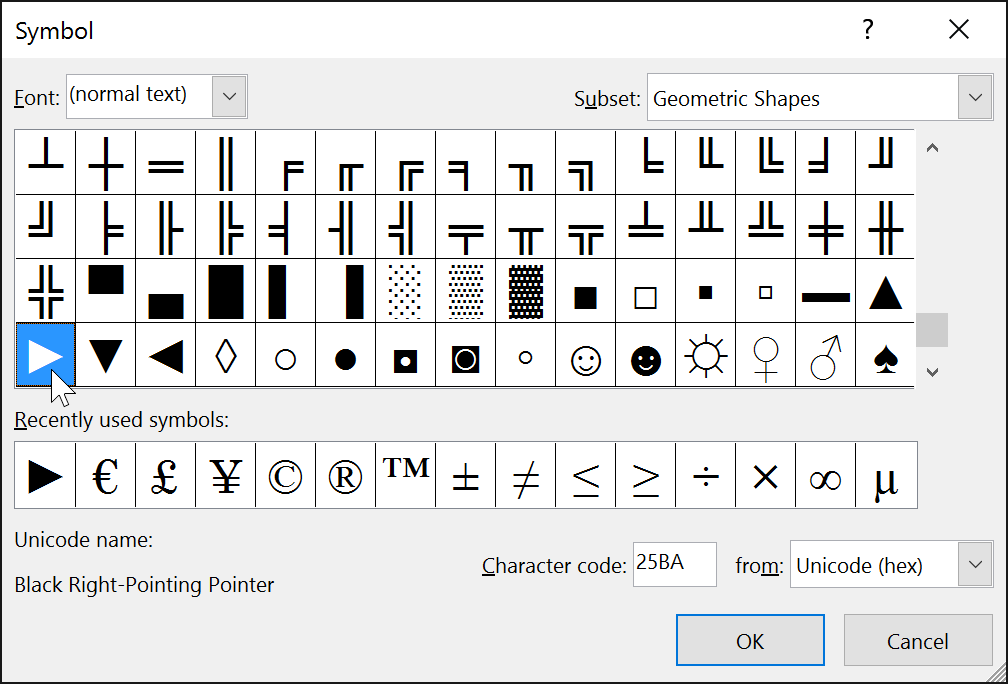
If you want more control over the appearance of your bullets, you can open the Bullets and Numbering dialog box.
From here you can change the bullet style, adjust the size, or select a different color.
You can also click Customize to choose symbols or other bullet characters.
Numbered Lists
Numbered lists are useful when presenting steps, instructions, or information that should appear in a specific order.
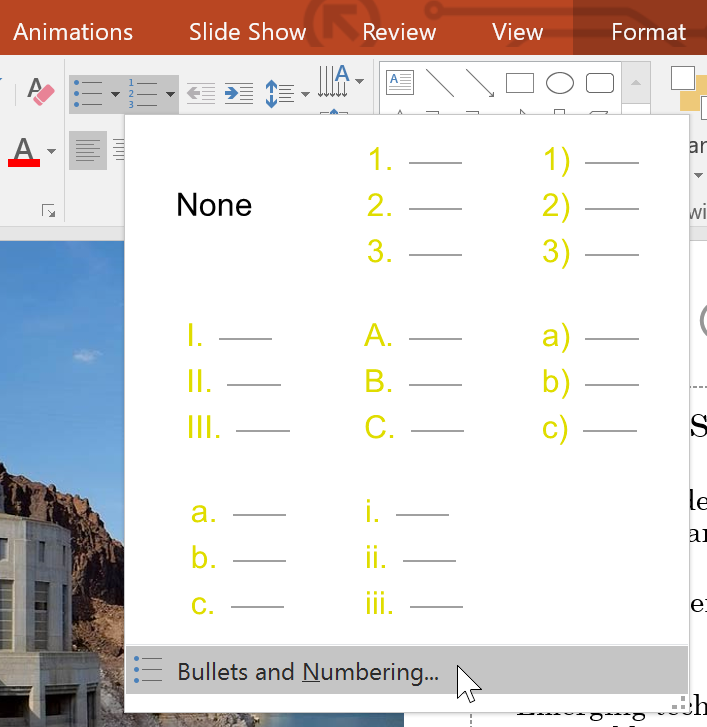
To apply numbering, select the text and click the Numbering command on the Home tab.
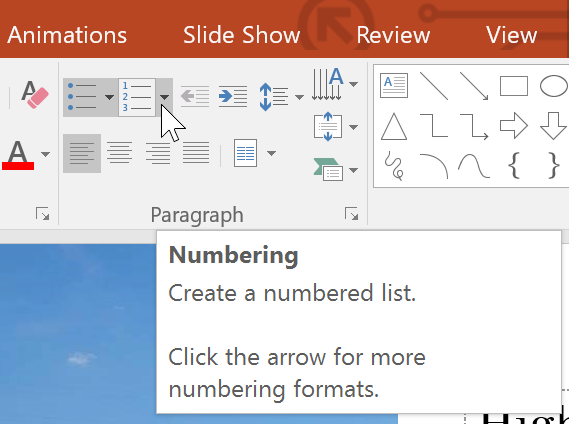
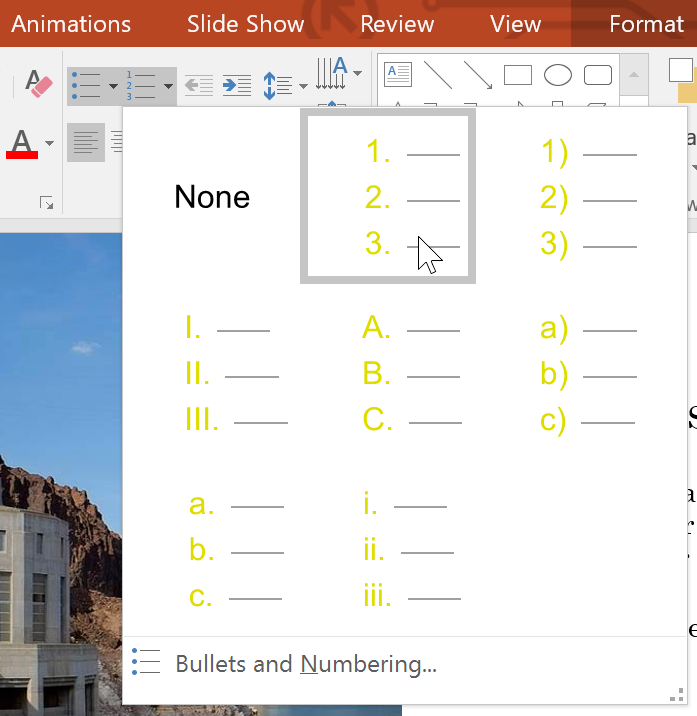
Click the drop-down arrow next to the Numbering button to choose from different numbering formats.
Continuing Numbering
When you create numbered lists across multiple slides or sections, PowerPoint can continue numbering automatically.
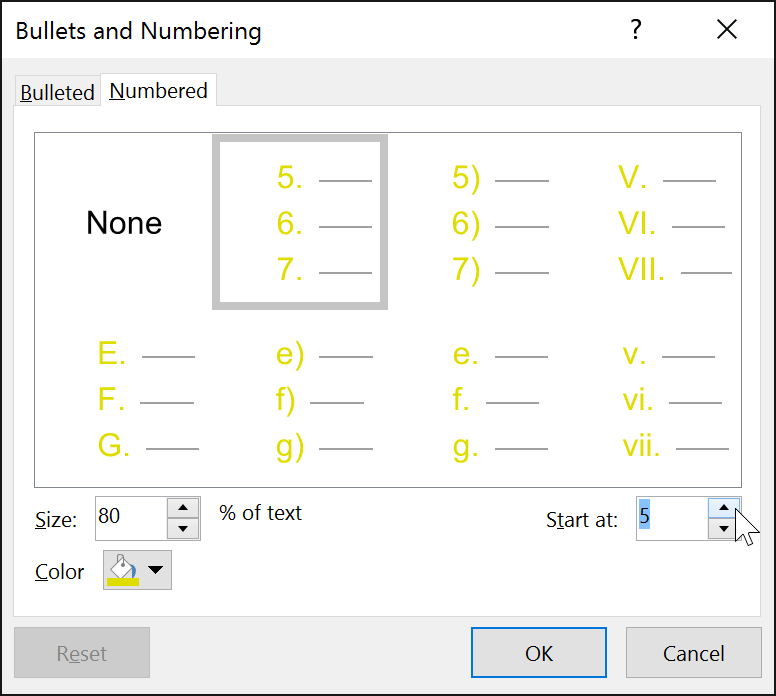
You can adjust where numbering starts by opening the Bullets and Numbering dialog box and changing the Start At value.

Completed Slide Example
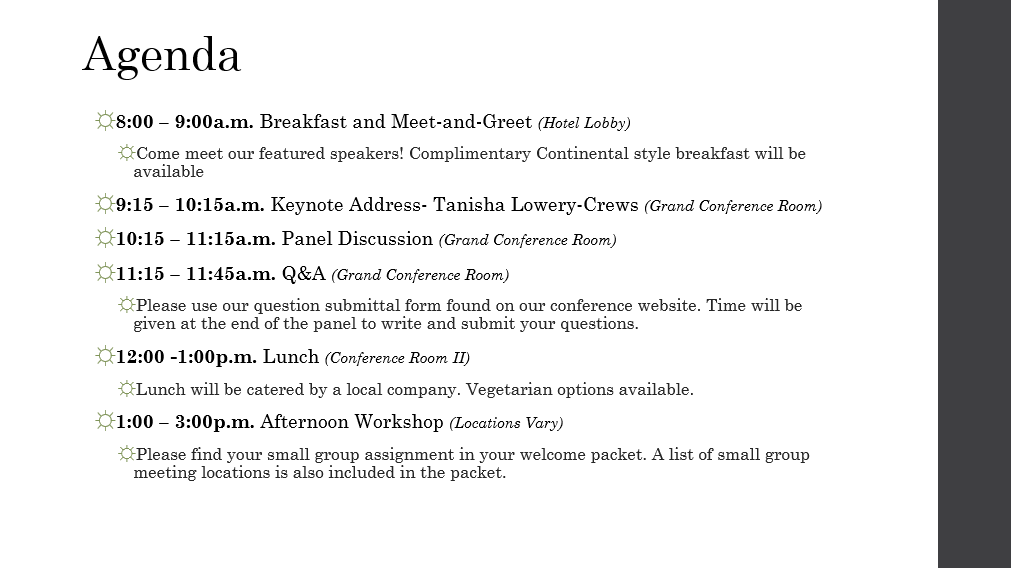
After applying bullets or numbering and customizing the formatting, your slide will look more organized and easier for your audience to read.
Knowledge Check
When should you use a numbered list on a slide?
Practice File
Download this file and follow along with the lesson.
Challenge
Apply what you've learned in this lesson.
Complete the following tasks using the practice presentation:
- Open the practice presentation.
- Select the slide that contains the agenda list.
- Convert the list into a numbered list.
- Change the numbering so the list starts at 5.
- Customize the bullet style for another list on the slide.
Finished this lesson?
Progress is saved in this browser only. It is not a grade — official progress lives in Brightspace.