PowerPoint Text Basics
Learn how to select text, cut, copy, paste, drag text, and format text using the tools on the Home tab.
By the end of this lesson you can
- Add and edit text in placeholders and text boxes
- Select text efficiently with keyboard shortcuts
- Apply formatting that stays consistent with the deck's theme
- Recognize when a slide is carrying too much text
Video
Watch the lesson video, then complete the reading and challenge.
Lesson Notes
Read through the key concepts before you try the challenge.
The word limit is the design
You present quarterly results at Lakeside Medical Associates.
Your key slide holds ninety words in five bullets. You watch the room read it, and by the time you reach your second sentence they have finished and are checking their phones. The information was delivered. The point was not.
Your task: Reduce each slide to what genuinely benefits from being seen, and move the rest to the notes.
A commonly cited guide is roughly six words per line and six lines per slide. The number matters less than the principle behind it: a slide is glanced at, not read. Anything requiring sustained reading belongs in a handout or in the notes pane.
Font size is the other half. Twenty-four point is a sensible floor for body text — not for aesthetics, but because it is what remains legible from the back of a room. If your content only fits at eighteen point, the slide has too much on it, and shrinking the type just makes it unreadable as well as crowded.
| Content | Put it | Because |
|---|---|---|
| The single point of the slide | The slide, as a short phrase | It anchors what you are saying |
| Your supporting explanation | The notes pane | You say it; the audience listens rather than reads |
| Detailed figures and tables | A handout | Detail needs reading time a live audience does not have |
| The source of a statistic | A small line on the slide | It establishes credibility without being read aloud |
Selecting Text
Before you can edit or move text in PowerPoint, you first need to select it. Selecting text allows you to copy it, delete it, format it, or move it to another location on the slide.
Dragging works, and there are faster ways worth knowing: double-click selects a word, triple-click selects a paragraph, and Ctrl+A selects everything in the placeholder. Precise selection matters because PowerPoint applies formatting to exactly what is highlighted — a stray trailing space picked up in the selection is how one word ends up a different size.
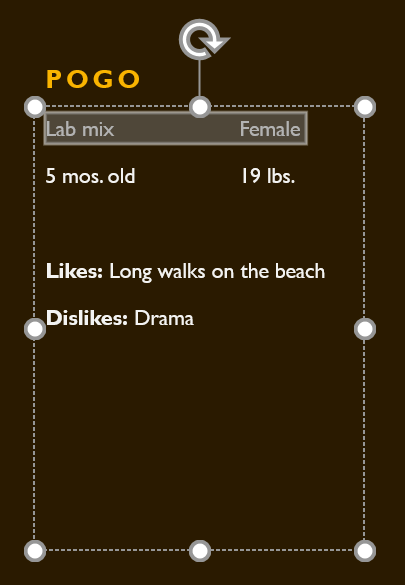
Once the text is highlighted, PowerPoint knows that any commands you choose will apply to that selection.
Copying and Pasting Text
Copy leaves the original in place; cut removes it. The keyboard versions are worth using — Ctrl+C, Ctrl+X, Ctrl+V — because they work identically in Word, Excel, and your browser.
First select the text you want to copy. Then click the Copy command in the Clipboard group on the Home tab.
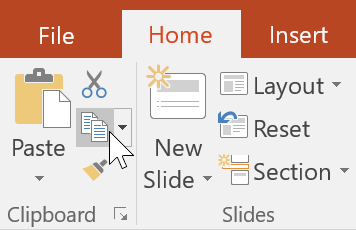
Pasting normally brings the source formatting with it, which is why text copied from a web page arrives in the wrong font on a colored background. Ctrl+Shift+V, or Paste Options > Keep Text Only, brings the words and leaves the formatting behind. On a slide, where consistency is most of what looks professional, that is almost always what you want.
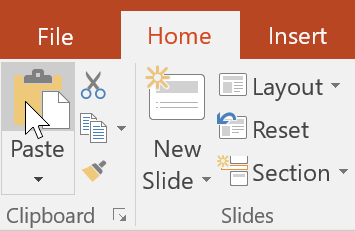
The copied text will appear in the new location while the original text remains unchanged.
Cutting and Pasting Text
If you want to move text instead of copying it, you can use the Cut command. Cutting removes the selected text and places it on the clipboard.
Select the text you want to move, then click the Cut command on the Home tab.
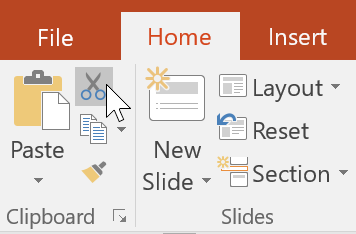
Place the insertion point where the text should appear, then click Paste.
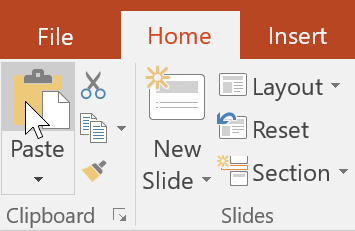
The text will appear in its new location and will be removed from its original position.
Dragging and Dropping Text
Another quick way to move text is by dragging and dropping it. This allows you to move text directly without using the Ribbon commands.
First select the text you want to move. Then click and drag the selected text to a new location within the text box.
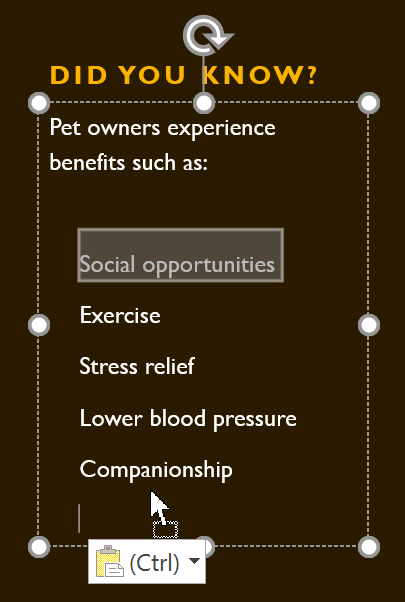
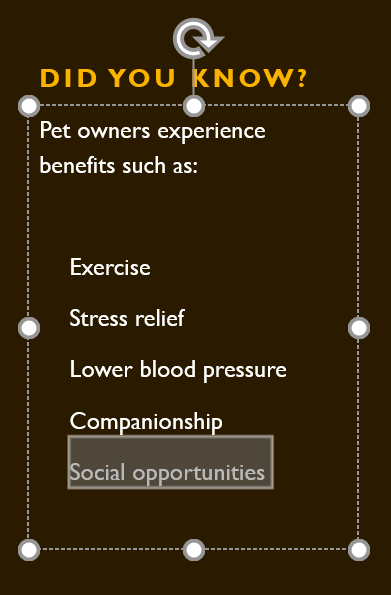
When you release the mouse, the text will move to the new location.
Formatting Text
Emphasis works by contrast, which makes it a budget. Bold one phrase on a slide and the eye goes there; bold six and you have emphasized nothing. Before formatting anything, decide which single thing the audience should see first.
Prefer the placeholder's own styling to manual formatting wherever you can. Text typed into a layout placeholder inherits size, font, and position from the Slide Master, so it matches every other slide automatically. Formatting applied by hand has to be repeated, and it drifts.
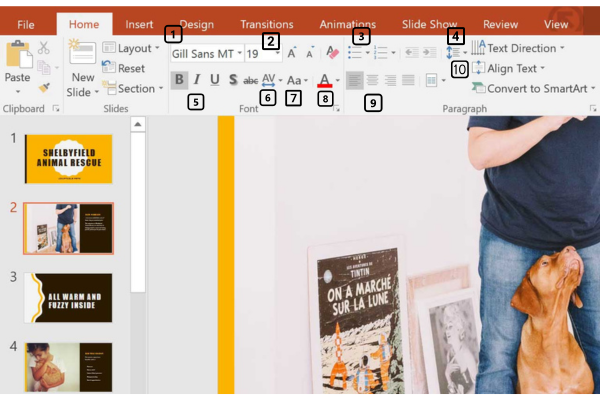
Bold for emphasis, and use it sparingly. Avoid underline entirely on a slide: readers read underlined text as a hyperlink and some will wait for it to do something. Italic is harder to read when projected, so keep italic runs short.
Completed Slide Example
After editing and formatting the text, the slide will appear more organized and easier to read.
The example below shows how the slide should look after rearranging the list and formatting the text.

Knowledge Check
How do you select all text in a text box in PowerPoint?
Practice File
Download this file and follow along with the lesson.
Challenge
Apply what you've learned in this lesson.
Complete the following tasks using the practice presentation:
- Open the practice presentation.
- Select slide 4.
- Move the text 'Lower blood pressure' so it appears between 'Companionship' and 'Social opportunities'.
- Use either Cut and Paste or Drag and Drop.
- Select the list of benefits and apply italics formatting.
- Select the title 'Did You Know?' remove the bold formatting and change the font size to 36 pt.
Finished this lesson?
Progress is saved in this browser only. It is not a grade — official progress lives in Brightspace.