Indents and Line Spacing
Learn how to adjust paragraph indentation and spacing to improve slide readability.
By the end of this lesson you can
- Adjust line spacing and paragraph spacing in a placeholder
- Use indent levels to show hierarchy
- Explain how whitespace affects legibility from a distance
- Recognize when spacing changes are hiding a content problem
Video
Watch the lesson video, then complete the reading and challenge.
Lesson Notes
Read through the key concepts before you try the challenge.
Whitespace is what makes a slide readable from the back
You prepare a training slide at Lakeside Medical Associates.
You cram five bullets in by cutting line spacing to 0.8. On your monitor it is fine. Projected in a room with the lights on, the lines run together into a gray block and the people at the back read none of it.
Your task: Use spacing to aid legibility, and treat crowding as a signal to cut content.
Line spacing between about 1.0 and 1.2 suits most slide text. Tighter than that and lines start to merge visually at a distance, particularly with a projector's reduced contrast. Space between paragraphs matters more on a slide than in a document, because it is what separates one idea from the next at a glance.
Why Indents and Spacing Matter
Indentation and line spacing help organize text so information is easier for your audience to read.
Indentation creates hierarchy within lists and paragraphs, while line spacing controls the vertical distance between lines of text.
Showing the Ruler
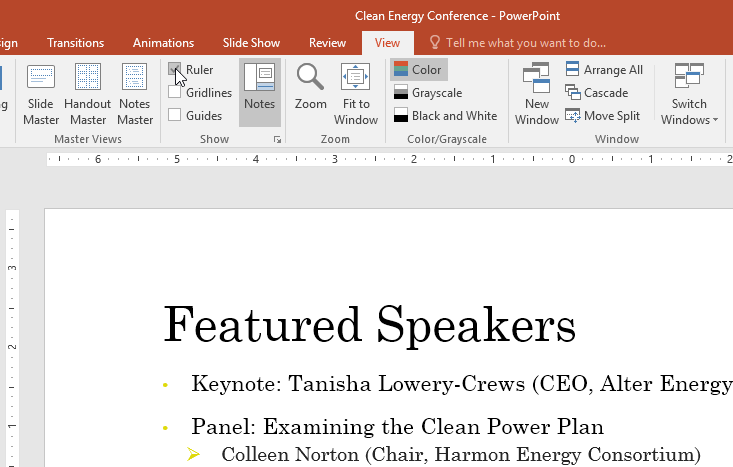
The ruler provides visual controls that allow you to adjust indentation precisely.
If the ruler is not visible, go to the View tab and check the Ruler option.
Understanding Indent Markers
The ruler contains several markers that control how text is indented.

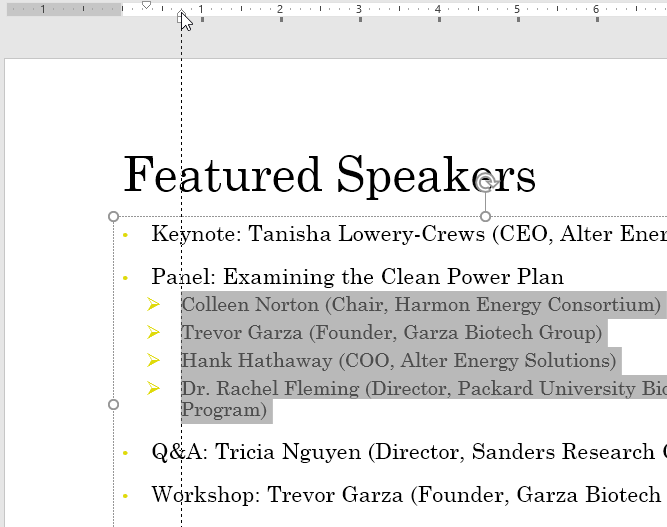
The first-line indent marker controls where the first line of a paragraph begins.

The hanging indent marker controls the indentation of every line except the first.
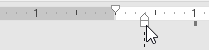
The left indent marker moves the entire paragraph inward.
Adjusting Indentation
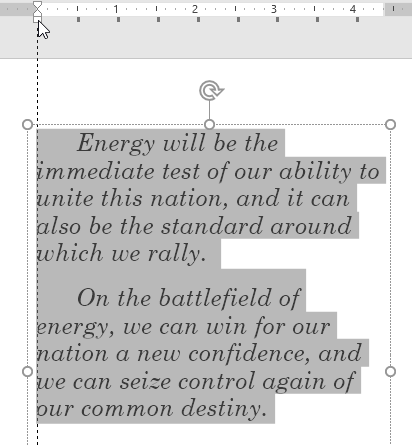
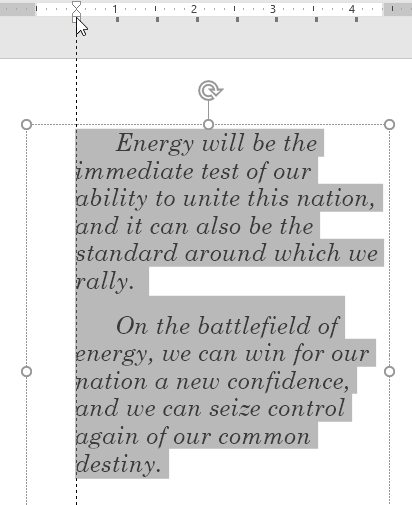
You can adjust bullet alignment by dragging the indent markers on the ruler.
This allows you to control how far bullet points and text appear from the left side of the slide.
Using Hanging Indents
The hanging indent marker controls how lines wrap after the first line of text.

Creating Multilevel Lists
Indentation can also be used to create multilevel lists that organize information into main topics and subtopics.

Adjusting Line Spacing
Line spacing controls how much vertical space appears between lines of text.
To change line spacing, select the text and click the Line Spacing button in the Paragraph group on the Home tab.
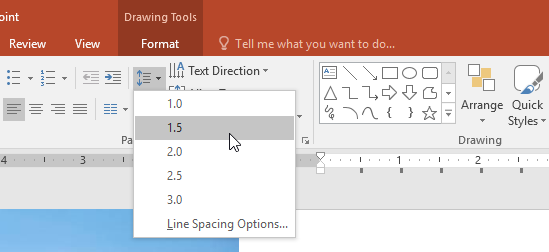
You can select common spacing options such as 1.0, 1.5, or 2.0.

Using Line Spacing Options
For more precise control, open Line Spacing Options from the dropdown menu.
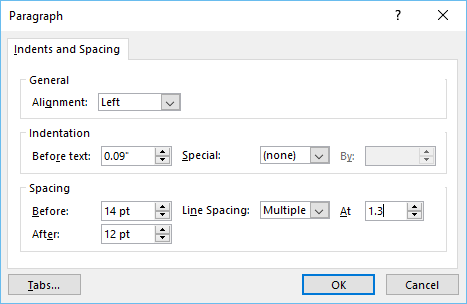
You can adjust spacing before and after paragraphs to improve readability.

Completed Slide Example
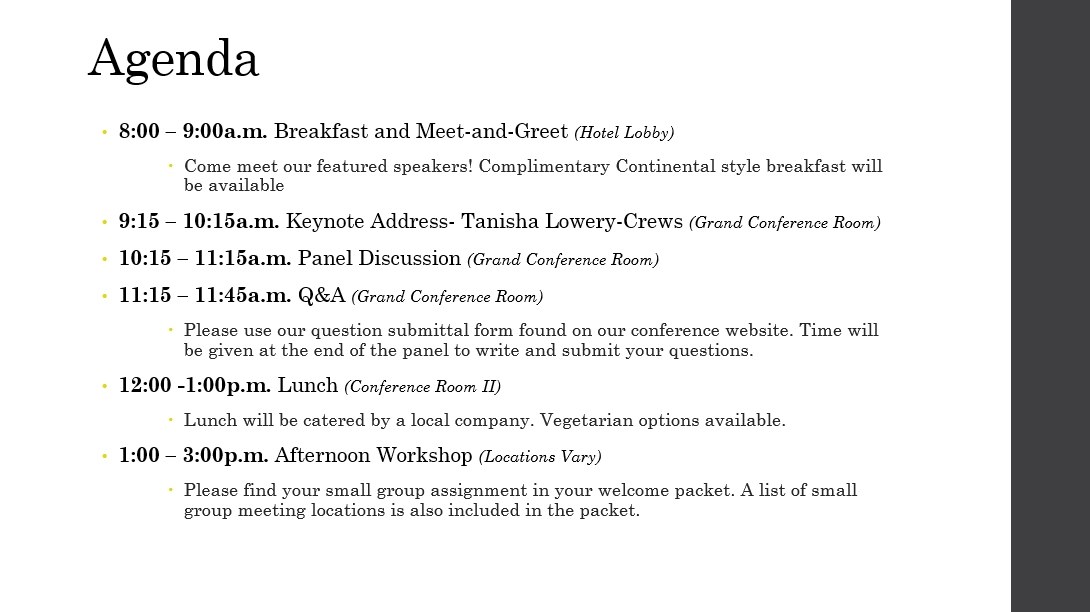
After adjusting indentation and line spacing, the slide will appear more organized and easier to read.
Knowledge Check
What does increasing line spacing do?
Practice File
Download this file and follow along with the lesson.
Challenge
Apply what you've learned in this lesson.
Complete the following tasks using the practice presentation:
- Open the practice presentation.
- Navigate to the slide containing the agenda.
- Select the bulleted list.
- Change the line spacing using Line Spacing Options.
- Show the ruler if it is not already visible.
- Adjust the left indent marker to align the bullet points.
Finished this lesson?
Progress is saved in this browser only. It is not a grade — official progress lives in Brightspace.