Using Find & Replace in PowerPoint
Learn how to quickly locate text in your presentation and replace it with new content using the Find and Replace tools.
By the end of this lesson you can
- Find text across all slides in a presentation
- Replace text throughout a deck
- Use Replace Fonts to swap a typeface everywhere
- Check that a replacement has not broken anything
Video
Watch the lesson video, then complete the reading and challenge.
Lesson Notes
Read through the key concepts before you try the challenge.
One command for a change that touches every slide
You update the orientation deck at Lakeside Medical Associates.
The practice changes its name. The old name appears on thirty-one of forty slides, including several inside diagrams. Slide by slide, this is half an hour and a guarantee of missing two.
Your task: Replace throughout the deck in one action, then verify the result.
Replace (Ctrl+H) works across every slide at once. Match case is available and worth using for a proper noun, so you change the practice name without touching an ordinary word that happens to contain the same letters.
Finding Text
The Find tool allows you to search for specific words or phrases within your presentation.
This is useful when working with presentations that contain many slides or repeated information.
To use Find, go to the Home tab and click the Find command in the Editing group.
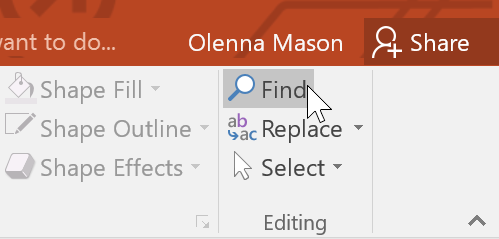
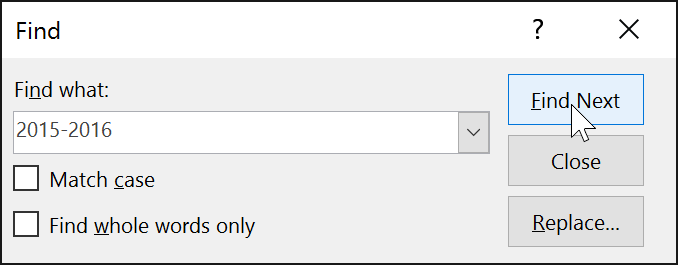
The Find dialog box will appear where you can enter the word or phrase you want to locate.
Locating Text
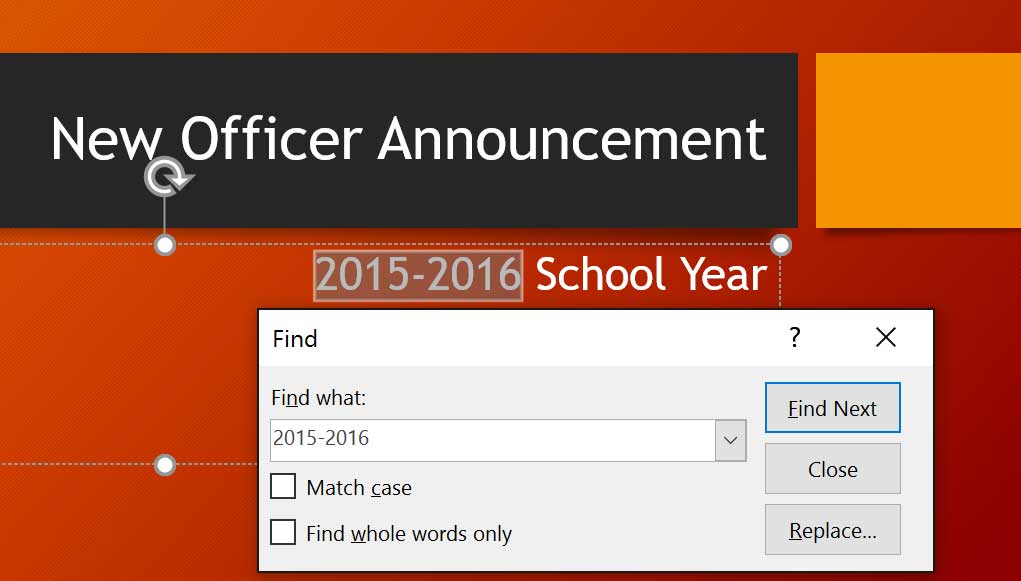
After entering the search text, click Find Next to move through the presentation and locate each occurrence.
When PowerPoint finds the text, it will highlight the matching word or phrase on the slide.
Using Replace
The Replace feature allows you to search for text and replace it with different text automatically.
This tool is especially useful when you need to update names, dates, or repeated information across multiple slides.
To open Replace, click the Replace command in the Editing group on the Home tab.
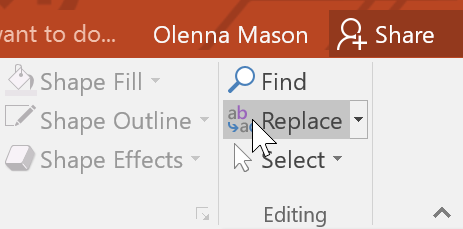
The Replace dialog box allows you to enter both the text you want to find and the text you want to replace it with.
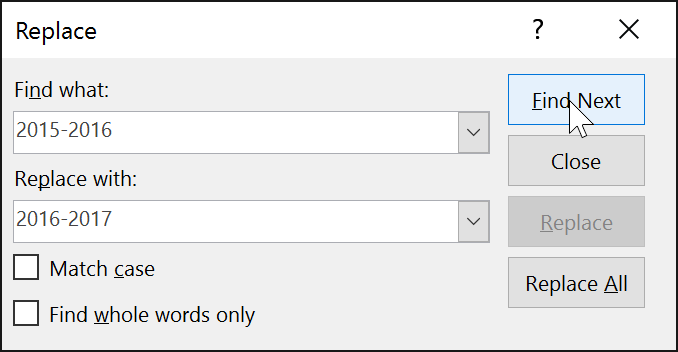
Replacing Text
Once the text is found, you can click Replace to change the highlighted occurrence.
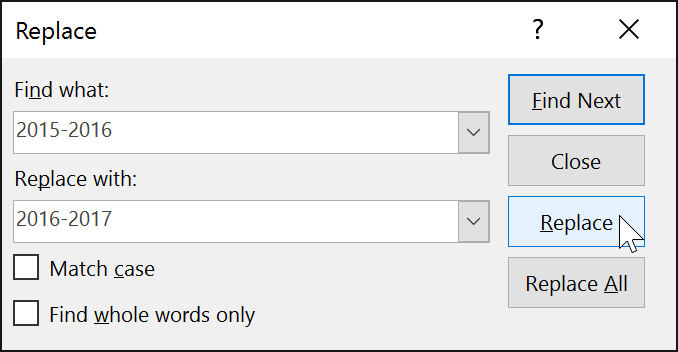
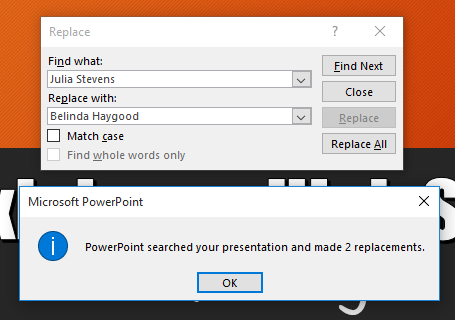
If you want PowerPoint to replace every occurrence of the text in the presentation, click Replace All.
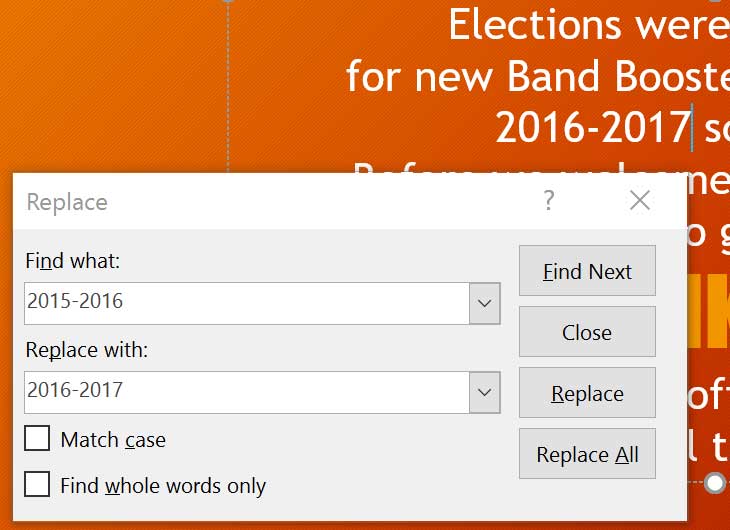
Completed Slide Example
After replacing the text, the updated content will appear throughout the presentation.
This allows you to quickly update repeated information without manually editing each slide.
Knowledge Check
What is the main use of Replace in PowerPoint?
Practice File
Download this file and follow along with the lesson.
Challenge
Apply what you've learned in this lesson.
Complete the following tasks using the presentation:
- Open the presentation.
- Use the Find command to search for the text '2015-2016'.
- Use Replace to change it to '2016-2017'.
- Click Replace All to update every occurrence.
- Confirm the changes when PowerPoint displays the replacement message.
Finished this lesson?
Progress is saved in this browser only. It is not a grade — official progress lives in Brightspace.