Understanding OneDrive for PowerPoint
Learn how to sign in to PowerPoint, connect your Microsoft account, and use OneDrive to save and access presentations from anywhere.
By the end of this lesson you can
- Save a presentation to OneDrive and open it elsewhere
- Explain why cloud storage matters for a deck you will present
- Share a presentation with appropriate permissions
- Plan for presenting when the network is unavailable
Lesson Notes
Read through the key concepts before you try the challenge.
The file has to be there when you stand up to present
You present at the quarterly staff meeting at Lakeside Medical Associates.
Your deck is on your desk computer. The meeting is in the conference room, on a different machine, and the guest network is refusing connections. You have four minutes and thirty people waiting.
Your task: Store the deck so it is reachable from anywhere, and carry a fallback for when the network is not.
OneDrive makes the presentation reachable from any machine you can sign in on, which solves the ordinary case well. It also gives you version history, so an accidental deletion of six slides is recoverable rather than final.
What is OneDrive?
OneDrive is Microsoft's cloud storage service. It allows you to store presentations and other files online so you can access them from any computer, tablet, or smartphone with an internet connection.
Using OneDrive makes it easy to save, edit, and share PowerPoint presentations while keeping your files protected and backed up.
Signing in to PowerPoint
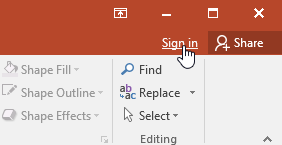
To use OneDrive features, you need to sign in with a Microsoft account. Click the Sign in button in the upper-right corner of the PowerPoint window.
After signing in, PowerPoint connects to your OneDrive storage so you can save presentations online and access them across devices.
Benefits of Using OneDrive
Once you sign in, OneDrive provides several powerful advantages for managing presentations.
- Access files anywhere from any device connected to the internet.
- Back up presentations safely in the cloud.
- Share files with coworkers or classmates.
- Collaborate on presentations with multiple people at the same time.
Saving Presentations to OneDrive
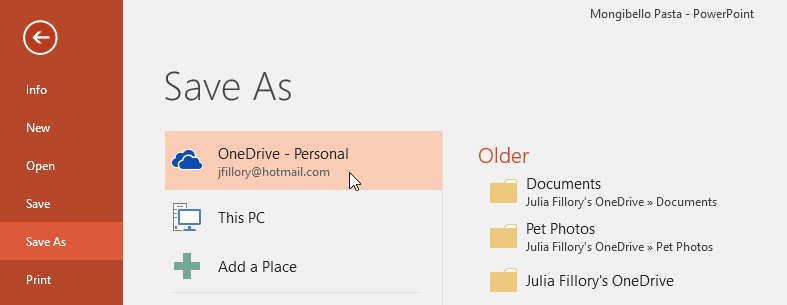
When you save a presentation, you can choose OneDrive as the storage location. This allows the file to sync automatically with your Microsoft account.
Click File → Save As and choose OneDrive instead of saving directly to your computer.
Opening Files from OneDrive
Once your presentations are stored in OneDrive, you can open them from any device. Simply sign into PowerPoint and choose OneDrive when opening a file.
You can still save files locally to your computer, but OneDrive provides additional convenience and protection.
Knowledge Check
What is the benefit of saving a presentation to OneDrive?
Challenge
Apply what you've learned in this lesson.
Complete the following tasks:
- Sign in to PowerPoint using a Microsoft account.
- Open the File menu and select Save As.
- Choose OneDrive as the save location.
- Save a presentation to OneDrive.
- Locate your saved presentation inside your OneDrive account.
Finished this lesson?
Progress is saved in this browser only. It is not a grade — official progress lives in Brightspace.