Creating and Opening Presentations
Learn how to create new PowerPoint presentations, use templates, open existing files, pin presentations, and understand Compatibility Mode.
By the end of this lesson you can
- Create presentations from blank files and from templates
- Open and pin recent presentations
- Evaluate whether a template suits your content
- Explain what a template supplies beyond appearance
Video
Watch the lesson video, then complete the reading and challenge.
Lesson Notes
Read through the key concepts before you try the challenge.
A template is a set of decisions already made
You produce recurring briefings at Lakeside Medical Associates.
Every month you rebuild the same deck: the same title arrangement, the same colors, the same closing slide. Twenty minutes each time, spent re-making decisions you already made in January — and the decks still do not quite match each other.
Your task: Build the practice's design once as a template, then start every deck from it.
A template supplies the theme, the slide layouts, and often placeholder content — all the structural decisions. Starting from one means starting with the design settled, so your attention goes to the argument rather than to fonts.
Creating a New Presentation
PowerPoint files are called presentations. When starting a new project, you will usually begin with a blank presentation.
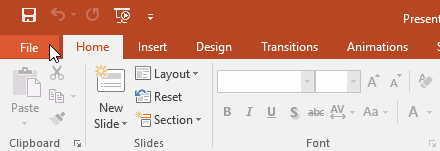
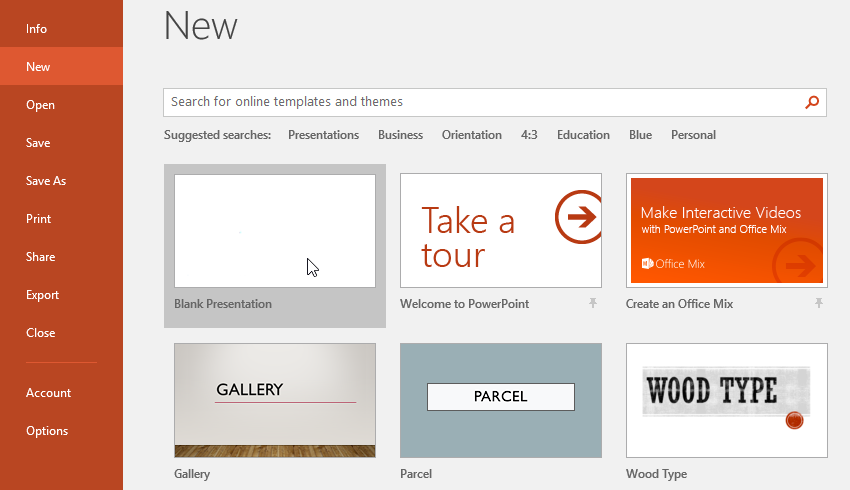
To create a new presentation, click the File tab to open Backstage view, then select New and choose Blank Presentation.
Using Templates
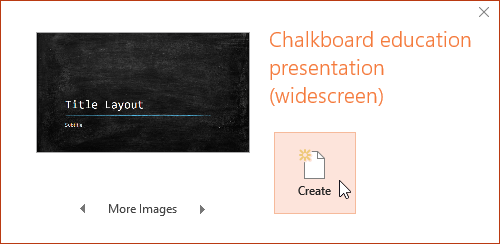
Templates are predesigned presentations that allow you to quickly start a slideshow with built-in formatting, layouts, and color themes.
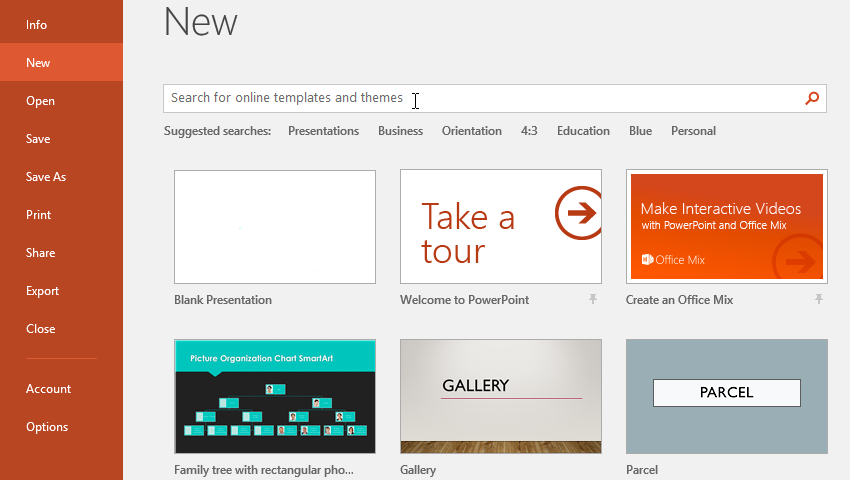
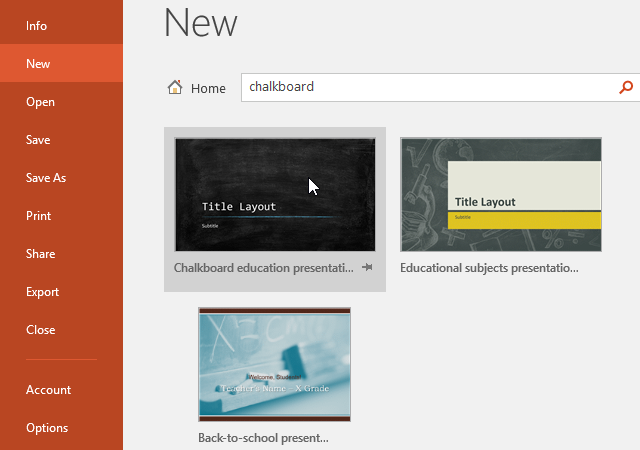
From the New screen in Backstage view, you can search for templates using the search bar or choose from suggested templates.
Opening Existing Presentations
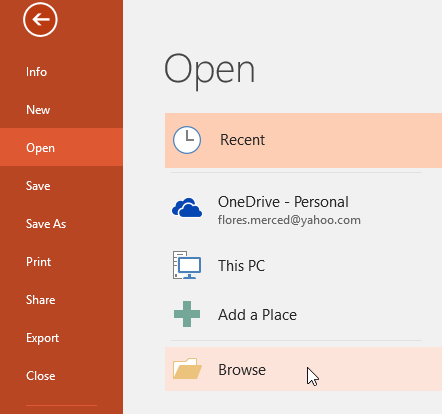
You can open presentations that have already been saved on your computer or OneDrive.
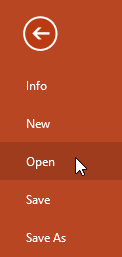
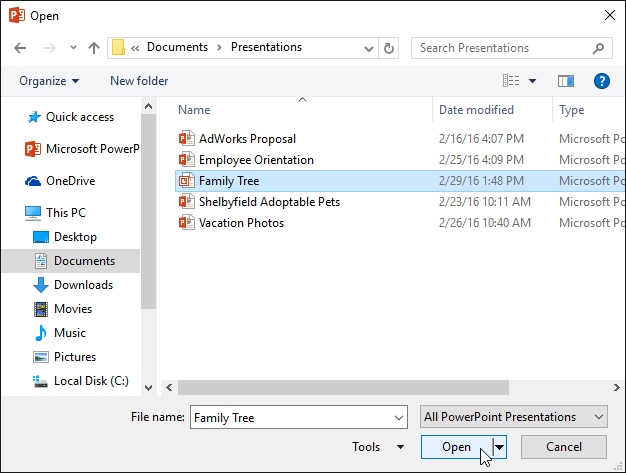
Click File → Open to view recent files or browse your computer to locate a presentation.
Pinning Presentations
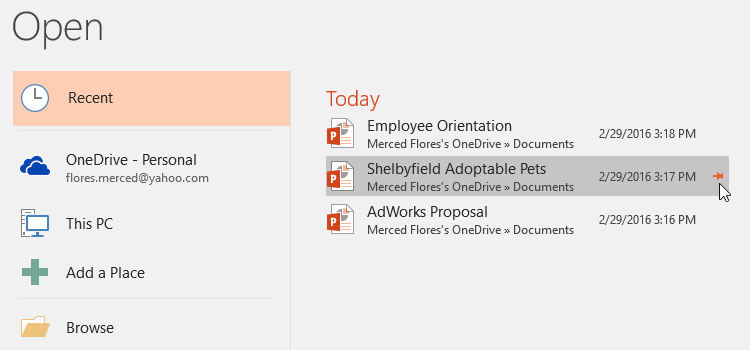
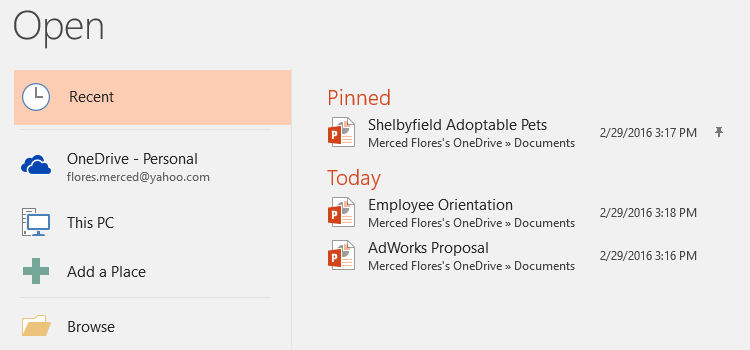
If you frequently use the same presentation, you can pin it to the Recent list so it stays easy to access.
Hover your mouse over a recent file and click the pushpin icon to pin the presentation.
Understanding Compatibility Mode
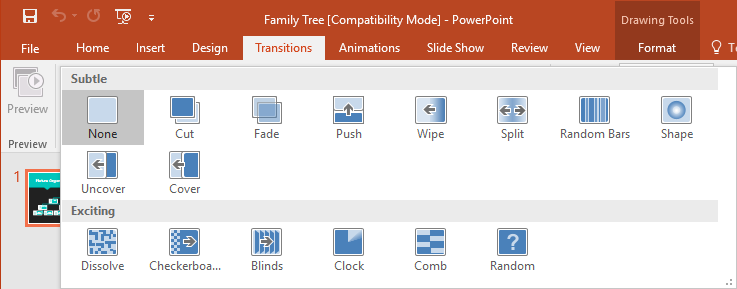
If you open a presentation created in an older version of PowerPoint, it may open in Compatibility Mode.
Compatibility Mode disables certain newer features so the presentation remains compatible with older versions of PowerPoint.
Converting a Presentation
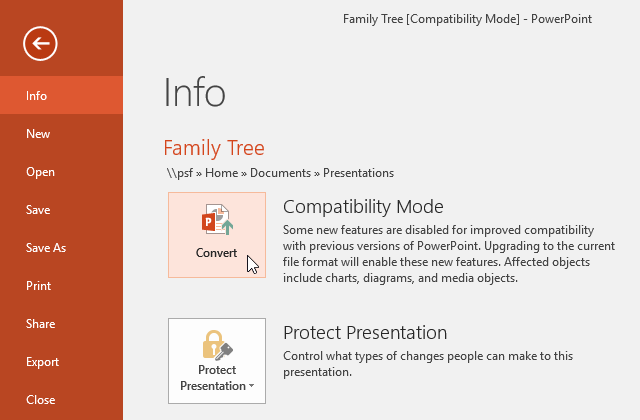
To access newer PowerPoint features, you can convert a presentation from Compatibility Mode to the latest file format.
Open Backstage view, click Convert, and save the presentation as the newer format.
Knowledge Check
What is a PowerPoint template?
Practice File
Download this file and follow along with the lesson.
Challenge
Apply what you've learned in this lesson.
Complete the following tasks:
- Create a new blank PowerPoint presentation.
- Search for a template and create a presentation from it.
- Open an existing presentation from your computer.
- Pin a presentation in the Recent list.
- Open a presentation in Compatibility Mode.
- Convert the presentation to the latest PowerPoint format.
Finished this lesson?
Progress is saved in this browser only. It is not a grade — official progress lives in Brightspace.