Getting Started with PowerPoint
Learn your way around the PowerPoint interface including the Ribbon, Quick Access Toolbar, slide views, zoom controls, and Backstage view.
By the end of this lesson you can
- Identify the Ribbon, slide pane, thumbnail pane, and notes pane
- Switch between Normal, Slide Sorter, Reading, and Presenter views
- Explain what a placeholder is and why it matters
- Navigate a deck efficiently while building it
Video
Watch the lesson video, then complete the reading and challenge.
Lesson Notes
Read through the key concepts before you try the challenge.
PowerPoint is a visual aid, not the presentation
You prepare the monthly all-staff briefing at Lakeside Medical Associates.
Your first deck has fourteen slides carrying every word you plan to say. During the meeting the room reads ahead, stops listening, and you end up reading your own slides aloud to people who finished them a minute ago.
Your task: Learn the tool, and learn what belongs on a slide versus what belongs in your mouth.
The most useful principle in this entire course is that the audience cannot read and listen at the same time. Text-heavy slides force a choice, and the audience reliably chooses reading — which makes the presenter redundant. Slides should carry the few things that genuinely benefit from being seen: an image, a number, a chart, a short phrase that anchors what you are saying.
Everything else goes in the notes pane, which only you see in Presenter View. This is what the notes pane is actually for, and using it properly is the difference between a deck that supports you and a deck that replaces you.
Key terms
- Placeholder
- A pre-positioned content box defined by the slide layout. Typing into placeholders rather than free text boxes is what keeps a deck consistent.
- Layout
- A named arrangement of placeholders — Title Slide, Title and Content, Two Content. Chosen per slide.
- Slide Master
- The design definition behind every layout. Change it once and the whole deck follows.
- Theme
- The coordinated colors, fonts, and effects applied across the presentation.
- Notes pane
- Text attached to a slide that the audience never sees. Visible to you in Presenter View.
| View | Shows | Use it to |
|---|---|---|
| Normal | One slide plus thumbnails and notes | Build and edit slides |
| Outline | Text only, as a hierarchy | Draft and reorder the argument before designing anything |
| Slide Sorter | All slides as thumbnails | Reorder, delete, and check visual consistency |
| Reading | Full screen in a window | Review the flow without leaving your desktop |
| Presenter | Notes, timer, and next slide | Actually present |
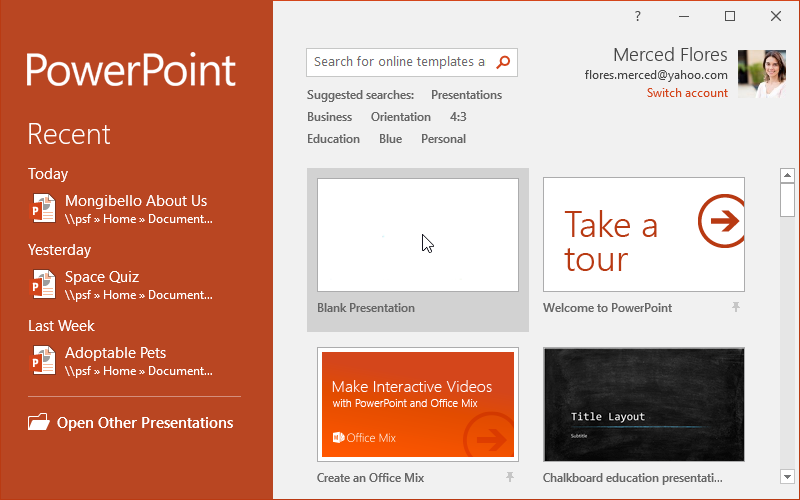
PowerPoint Start Screen
When you open PowerPoint, the Start Screen appears. From here you can create a new presentation, choose from templates, or open recent files.
Select Blank Presentation to open the PowerPoint editing environment and begin building your slides.
Understanding the PowerPoint Interface
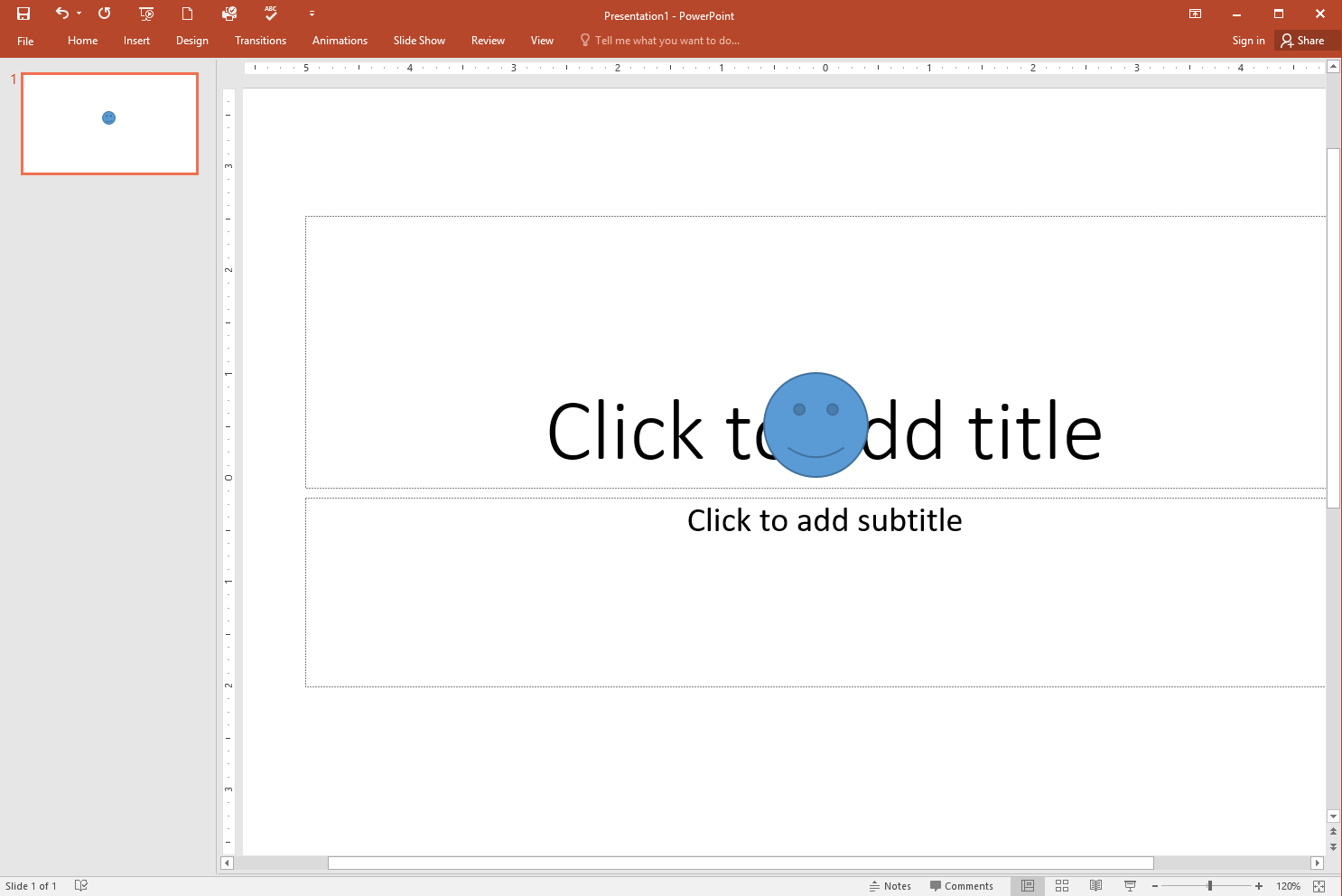
Once a presentation opens, you will see the PowerPoint interface. The main workspace includes the Ribbon, slide navigation pane, slide editing area, and status bar.
The slide pane is where you build your presentation, while the navigation pane on the left allows you to organize and switch between slides.
The Ribbon
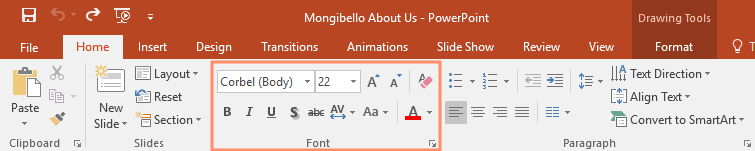
The Ribbon contains the commands you use to create and edit presentations. It is organized into tabs such as Home, Insert, Design, Transitions, Animations, Slide Show, Review, and View.
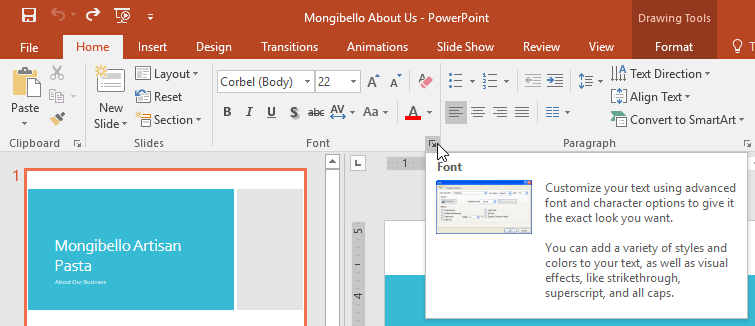
Each tab contains groups of related commands. For example, the Font group contains tools for formatting text.
Showing and Hiding the Ribbon
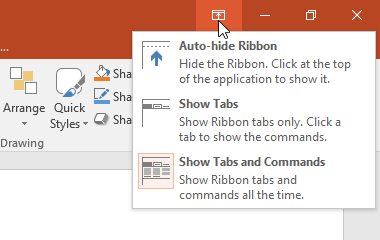
You can control how much of the Ribbon is visible using the Ribbon Display Options in the top-right corner of PowerPoint.
Options include Auto-hide Ribbon, Show Tabs, and Show Tabs and Commands.
Quick Access Toolbar
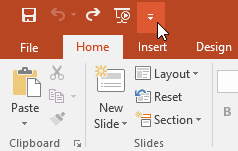
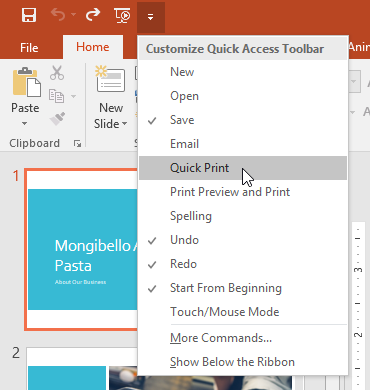
The Quick Access Toolbar is located above the Ribbon and provides quick access to commonly used commands such as Save, Undo, Redo, and Start From Beginning.
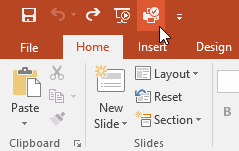
You can customize the Quick Access Toolbar by clicking the drop-down arrow and selecting additional commands.
Using the Tell Me Box
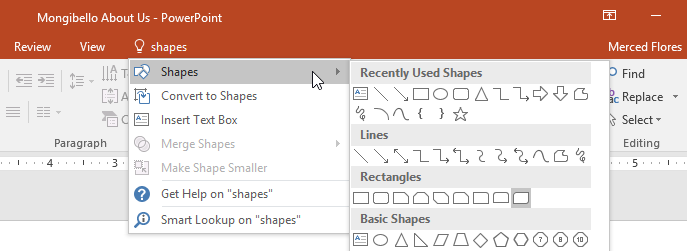
The Tell Me box works like a search tool inside PowerPoint. You can type the name of a command or feature and PowerPoint will help you find it instantly.
This is especially useful when you are learning PowerPoint and do not know where certain tools are located.
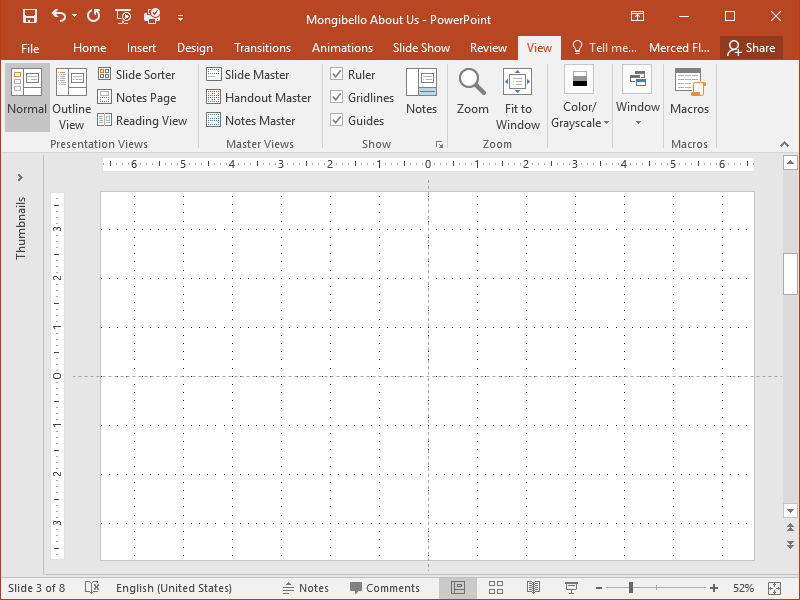
Ruler, Guides, and Gridlines
PowerPoint includes layout tools to help align objects on your slides. These include the ruler, guides, and gridlines.
You can enable these tools from the View tab in the Ribbon under the Show group.
Slide Views
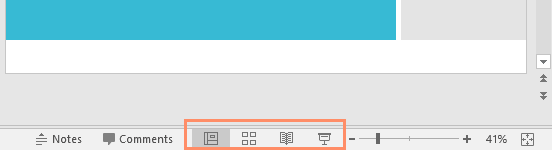
PowerPoint includes multiple slide views that change how your presentation is displayed. These include Normal view, Slide Sorter view, Reading view, and Slide Show view.
You can switch between these views using the view buttons in the bottom-right corner of the PowerPoint window.
Zoom Controls
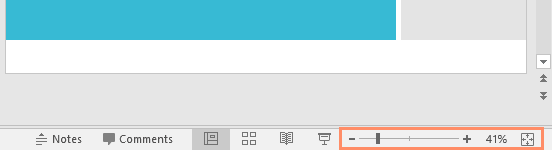
The Zoom slider located in the bottom-right corner allows you to zoom in or out of your slide.
This helps you adjust your workspace when working on detailed slide content.
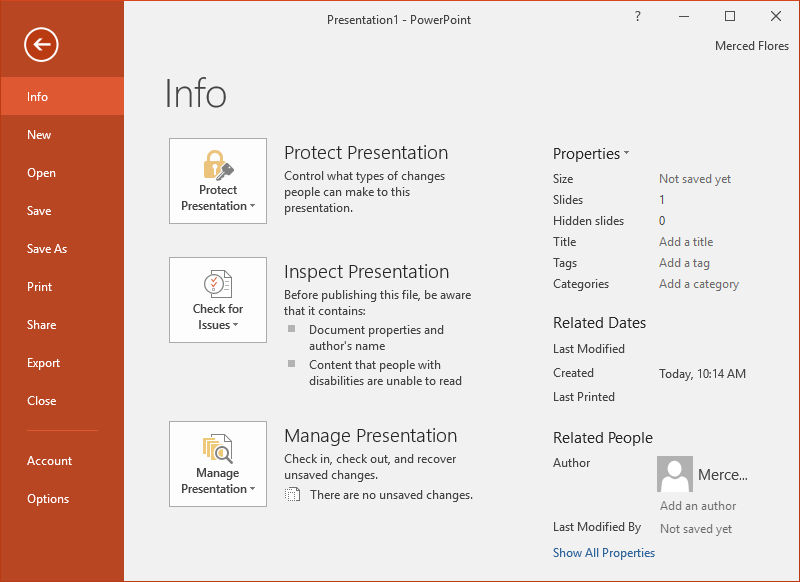
Backstage View
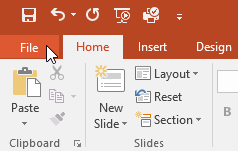
Backstage view is accessed by clicking the File tab. It contains options for saving, printing, sharing, exporting, and managing your presentation.
This area also shows presentation information such as file size, slide count, and document properties.
Knowledge Check
Where are most PowerPoint commands organized?
Challenge
Apply what you've learned in this lesson.
Complete the following tasks:
- Open PowerPoint and create a blank presentation.
- Change the Ribbon Display Options to Show Tabs.
- Add New, Quick Print, and Spelling to the Quick Access Toolbar.
- Use the Tell Me box to search for Shapes.
- Insert a shape onto the slide.
- Enable the Ruler from the View tab.
- Zoom the presentation to 120%.
- Return the Ribbon display to Show Tabs and Commands.
Finished this lesson?
Progress is saved in this browser only. It is not a grade — official progress lives in Brightspace.