Saving Presentations
Learn how to save PowerPoint presentations, change file types, export presentations, and recover unsaved work.
By the end of this lesson you can
- Save in the format that matches how the deck will be used
- Export to PDF and to video
- Explain what each export format preserves and loses
- Prepare a deck for a machine that may not have PowerPoint
Video
Watch the lesson video, then complete the reading and challenge.
Lesson Notes
Read through the key concepts before you try the challenge.
Choose the format for how it will be opened
You distribute the orientation deck at Lakeside Medical Associates.
You email the .pptx to twelve new hires. Three cannot open it, two see substituted fonts that break every slide layout, and one edits it and forwards their version to the rest.
Your task: Match the distribution format to what recipients actually need to do with it.
| Format | Preserves | Use for |
|---|---|---|
| .pptx | Everything, fully editable | Colleagues who must edit it |
| Layout and fonts; loses animation and video | Distributing to read — opens anywhere | |
| MP4 video | Animation, timing, and narration | Self-paced training people watch without you |
| PowerPoint Show (.ppsx) | Everything; opens straight into the slide show | Handing to someone who should present, not edit |
| Images (PNG/JPG) | One picture per slide | Dropping a slide into another document |
Saving a Presentation
Where you save decides what you can do later. A file on the computer's own drive is reachable only from that machine, and is gone if the drive fails. A file in OneDrive follows you to any device you sign in on, keeps a version history you can roll back, and is the only kind of file AutoSave and co-authoring work on. For a presentation you will build over several sessions, or deliver from a room's machine rather than your own, save to OneDrive from the start.
Click the File tab to open Backstage view and access the Save and Save As commands.
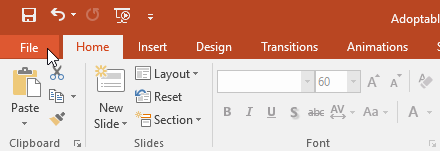
Using the Save Command
Save writes over the file you opened. That is what you want when you are updating your own work — and it is exactly the wrong thing when you opened an existing deck to build a new one from it. Whenever a file is your starting point rather than your subject, use Save As first, before you change anything.
The first Save always opens Save As, because PowerPoint has nowhere to write to yet. After that it saves silently, which is why the Save-As-first habit matters: once the file has a name, a reflexive Ctrl+S goes straight into it with no prompt.
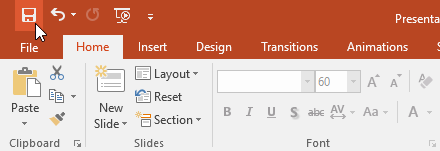
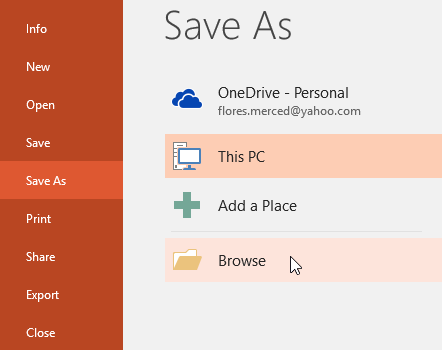
Using Save As
Save As creates a new file and leaves the original untouched. Do it before you edit, not after. Renaming a file you have already changed does not restore the original, and the deck you overwrote may have been the one someone else needed.
From the Save As screen you can choose to store the presentation on OneDrive, your computer, or another location.
Entering a File Name
Name the file so a stranger could identify it in a folder list: subject, audience, and date in year-month order — "2026-10-14 Staff Orientation - New Hires.pptx". Year-first dates sort chronologically automatically. "Presentation1 final v2 FINAL.pptx" is the file nobody can find in March.
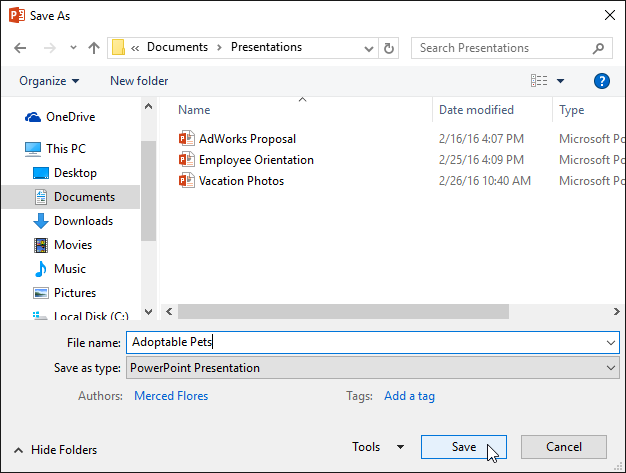
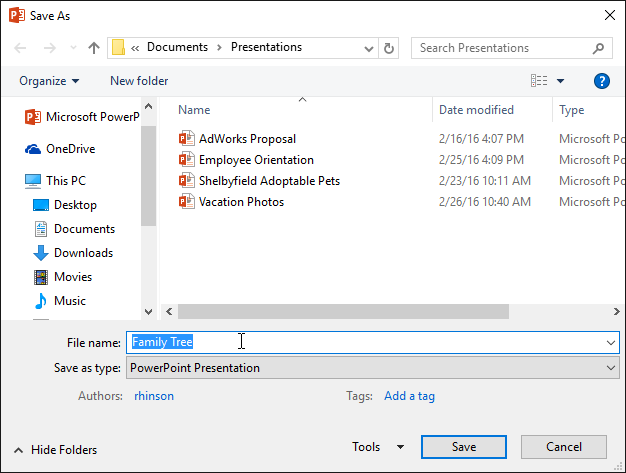
Choosing a File Type
Match the format to what the recipient needs to do. A .pptx is editable — right for a colleague who will revise it, and wrong for a deck you do not want altered. A PowerPoint Show (.ppsx) opens straight into the slide show, which suits handing a deck to someone who will present but not edit. A PDF opens anywhere, locks the layout, and drops animation and video.
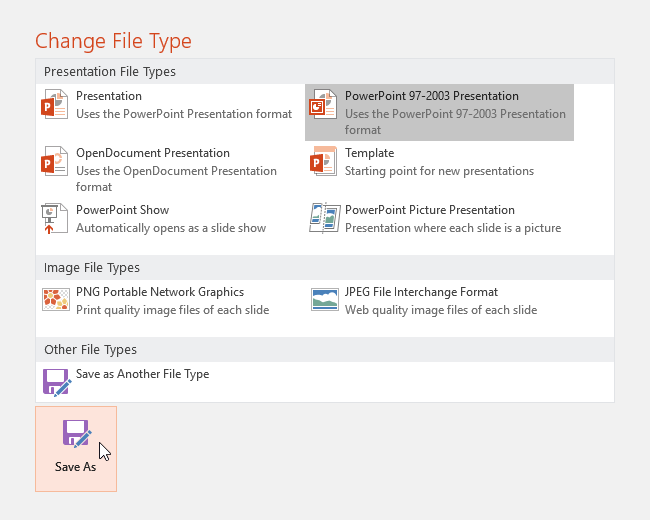
Exporting Presentations
Export produces a copy in another format and leaves your .pptx alone. Video is the one worth knowing: it preserves animation, timing, and narration, so a deck people watch without you keeps working. It also takes minutes to render on a long deck, so do it before the day you need it.
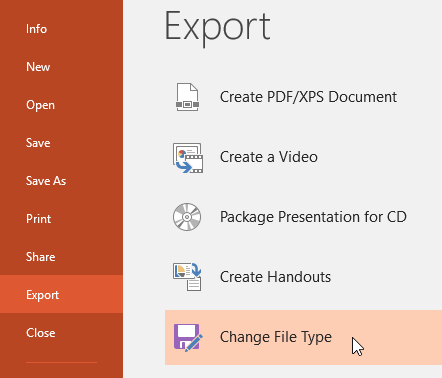
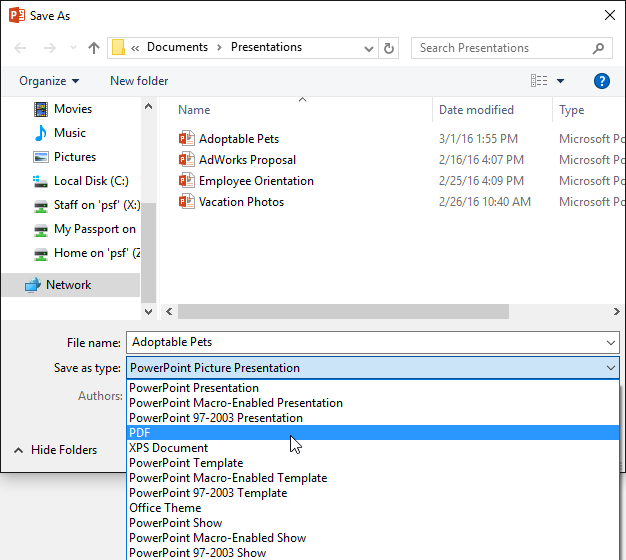
Sharing Presentations
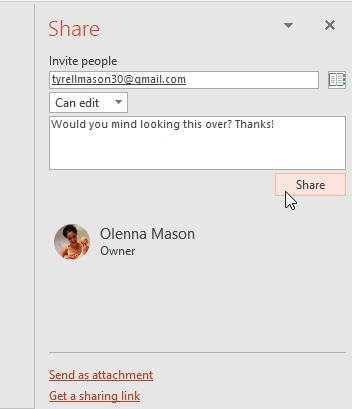
Sharing requires the file to be in OneDrive or SharePoint — that is what a share link points at. If the Share button offers to upload first, it is telling you the file is currently local and cannot be shared as a link.
Choose the permission deliberately. "Can view" is right for most recipients; "can edit" is for genuine co-authors. And permissions outlive the task — a link shared for one afternoon still works next year unless someone revokes it. Set an expiry on anything sensitive.

Recovering Unsaved Presentations
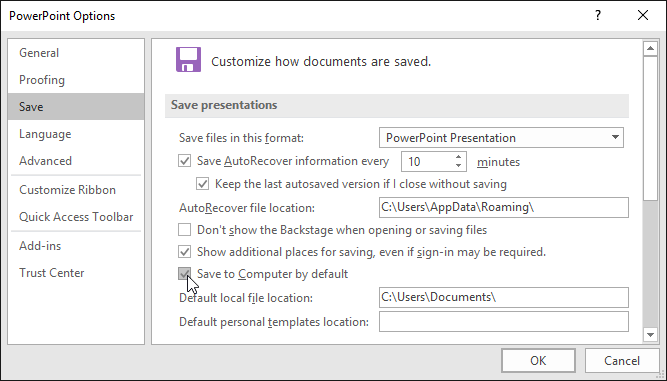
AutoRecover is a safety net, not a save. It keeps periodic snapshots so a crash costs you minutes rather than hours, and it is not a substitute for saving. Check the interval under File > Options > Save and set it to match how much work you could bear to redo.
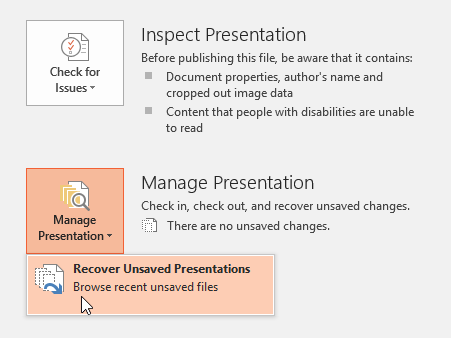
Go to File → Info → Manage Presentation and choose Recover Unsaved Presentations.
Document Recovery
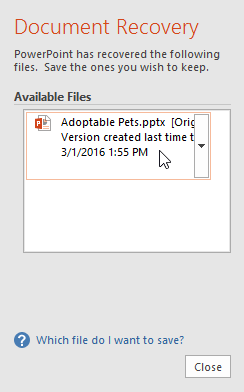
Open the recovered version and check it before you close the pane — once you dismiss it, the recovery files are cleared. Compare it against the last version you saved, since the recovered copy may be newer or older depending on when the snapshot was taken.
PowerPoint Save Options
Two settings are worth changing once. Set the AutoRecover interval to five minutes rather than the default ten. And set the default save location to OneDrive, so the safe choice is the one that happens when you are not thinking about it.
Knowledge Check
What should you do if you want to share a presentation that others cannot edit?
Practice File
Download this file and follow along with the lesson.
Challenge
Apply what you've learned in this lesson.
Complete the following tasks:
- Open PowerPoint and create a new blank presentation.
- Save the presentation to your computer using Save As.
- Rename the presentation.
- Export the presentation as a PDF.
- Open the File tab and locate the Recover Unsaved Presentations option.
Finished this lesson?
Progress is saved in this browser only. It is not a grade — official progress lives in Brightspace.