Creating Charts in Excel
Learn how to visualize data in Excel using charts. Charts help transform raw numbers into visual insights that make trends, comparisons, and patterns easier to understand.
By the end of this lesson you can
- Choose a chart type that matches the question the data answers
- Create and format a chart with clear titles and labels
- Explain how axis choices can mislead a reader
- Decide when a table communicates better than a chart
Video
Watch the lesson video, then complete the reading and challenge.
Lesson Notes
Read through the key concepts before you try the challenge.
The chart type is a claim about the data
You present supply spending to the board at Lakeside Medical Associates.
You build a pie chart with eleven slices to show spending by category. Four slices are under 3% and their labels overlap into an unreadable tangle. A board member asks which of two similar slices is larger, and nobody can tell by looking.
Your task: Match the chart to the question, and recognize when a table would serve better.
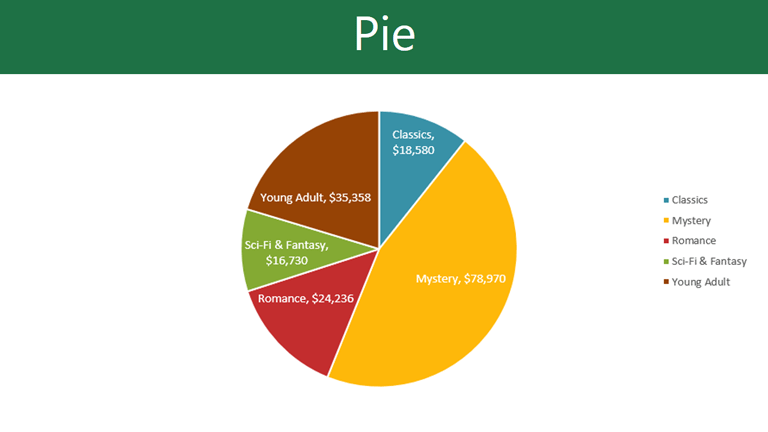
Human perception judges length far more accurately than angle or area. That single fact explains most chart guidance: bar and column charts are read accurately, pie charts poorly. A pie chart works only for parts of one whole, with few enough slices that the comparison is obvious — five or fewer is the usual advice.
| The question | Chart | Why |
|---|---|---|
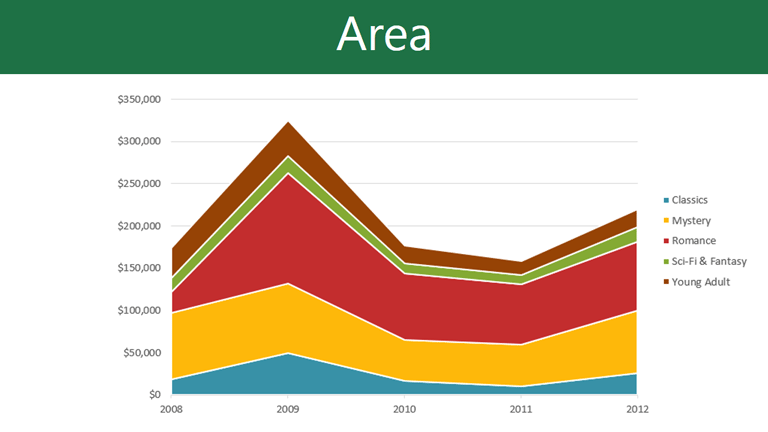
| How did this change over time? | Line | A continuous line is read as continuity |
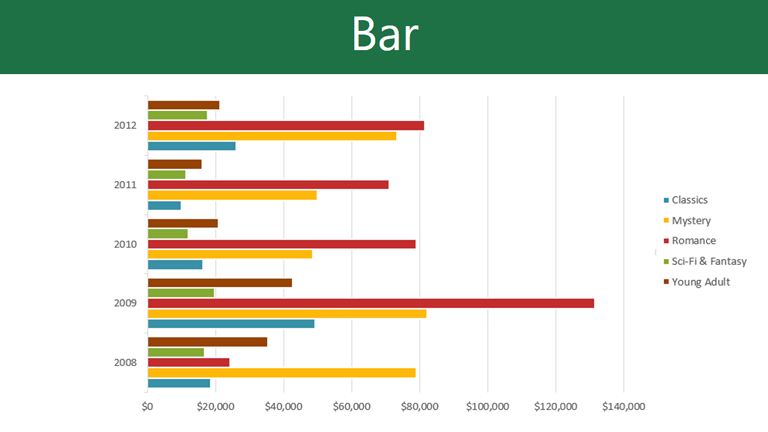
| How do these categories compare? | Column or bar | Length is judged accurately |
| What share is each part of the whole? | Pie | Only for parts of one whole, five or fewer slices |
| Are these two measures related? | Scatter | Shows the relationship directly |
| How does this distribute? | Histogram | Shows shape and spread |
| Exact values matter more than shape | A table | Charts show patterns; tables give precision |
Why Charts Matter
Charts turn raw numbers into something your brain can understand in two seconds. They help you spot trends, compare categories, and present data clearly in reports.
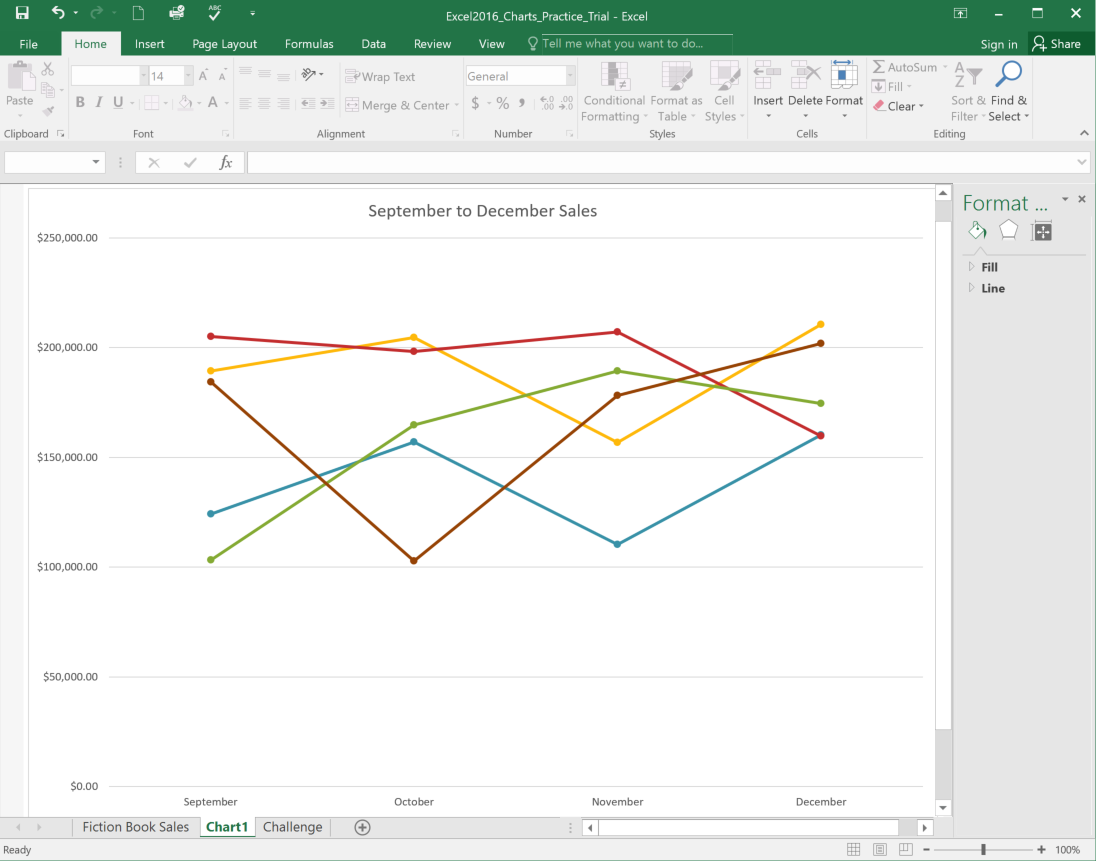
Common Chart Types
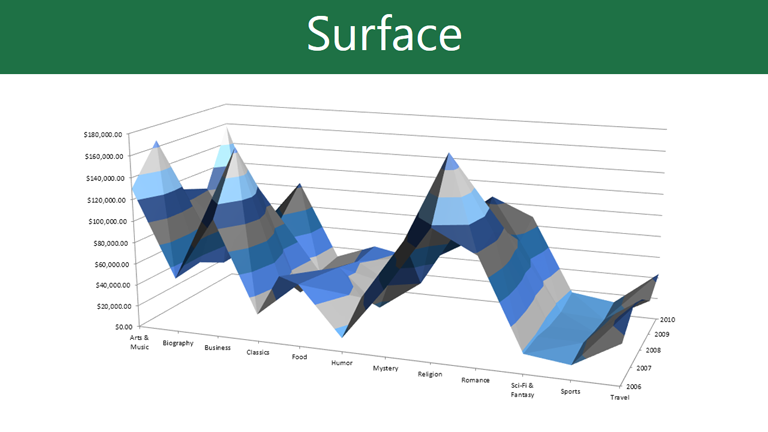
Excel offers many chart types. The key is choosing the one that matches your goal: compare categories, show change over time, or show parts of a whole.
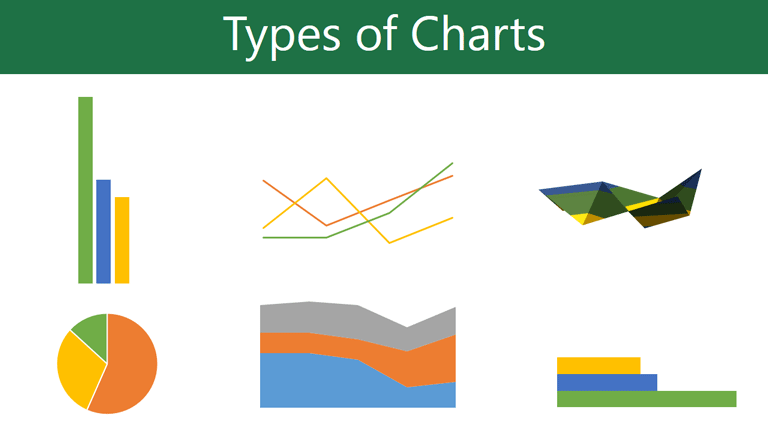
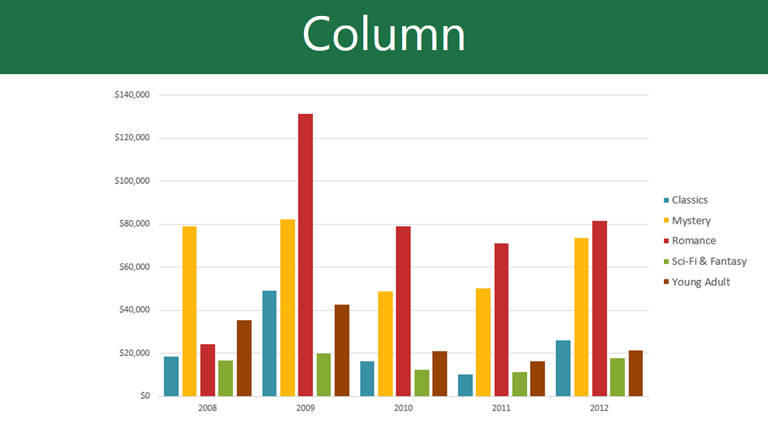
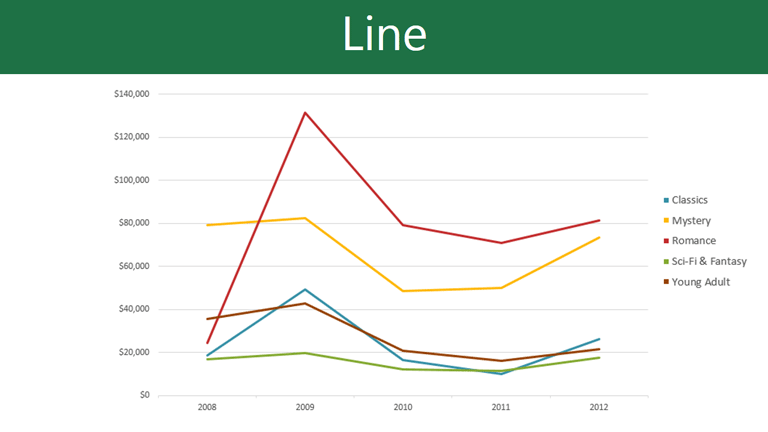
Step 1: Select Your Data
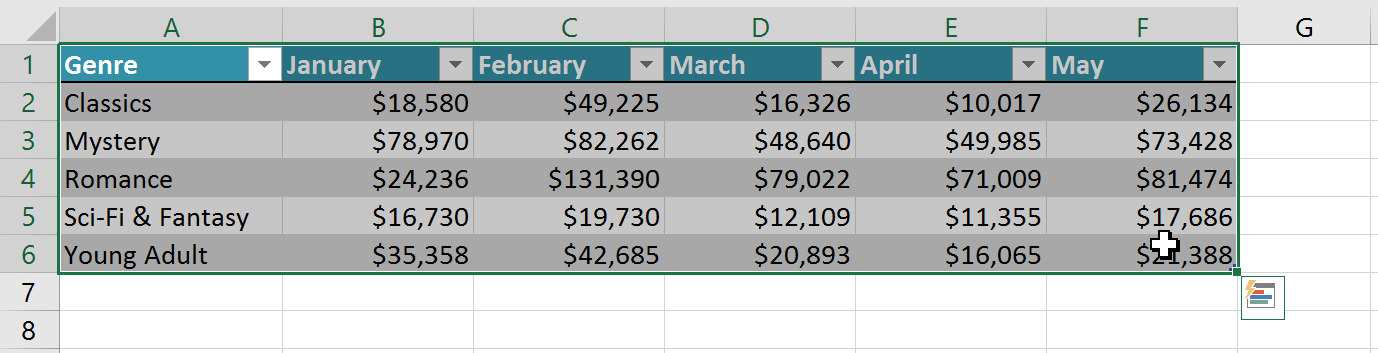
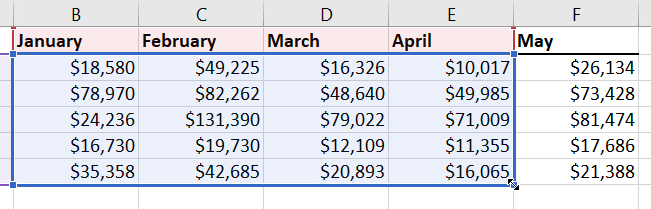
Before inserting a chart, select the full range of data you want Excel to chart, including headings. Excel uses headings for the legend and axis labels.
Step 2: Insert a Chart
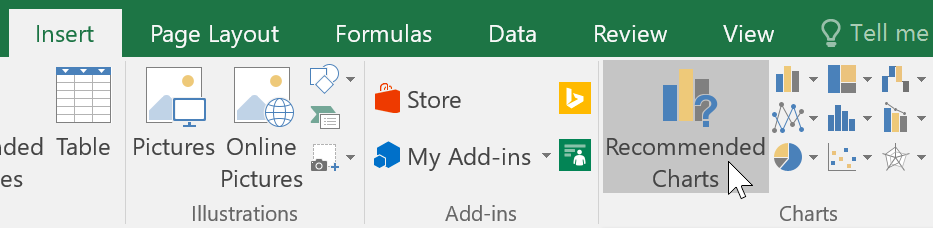
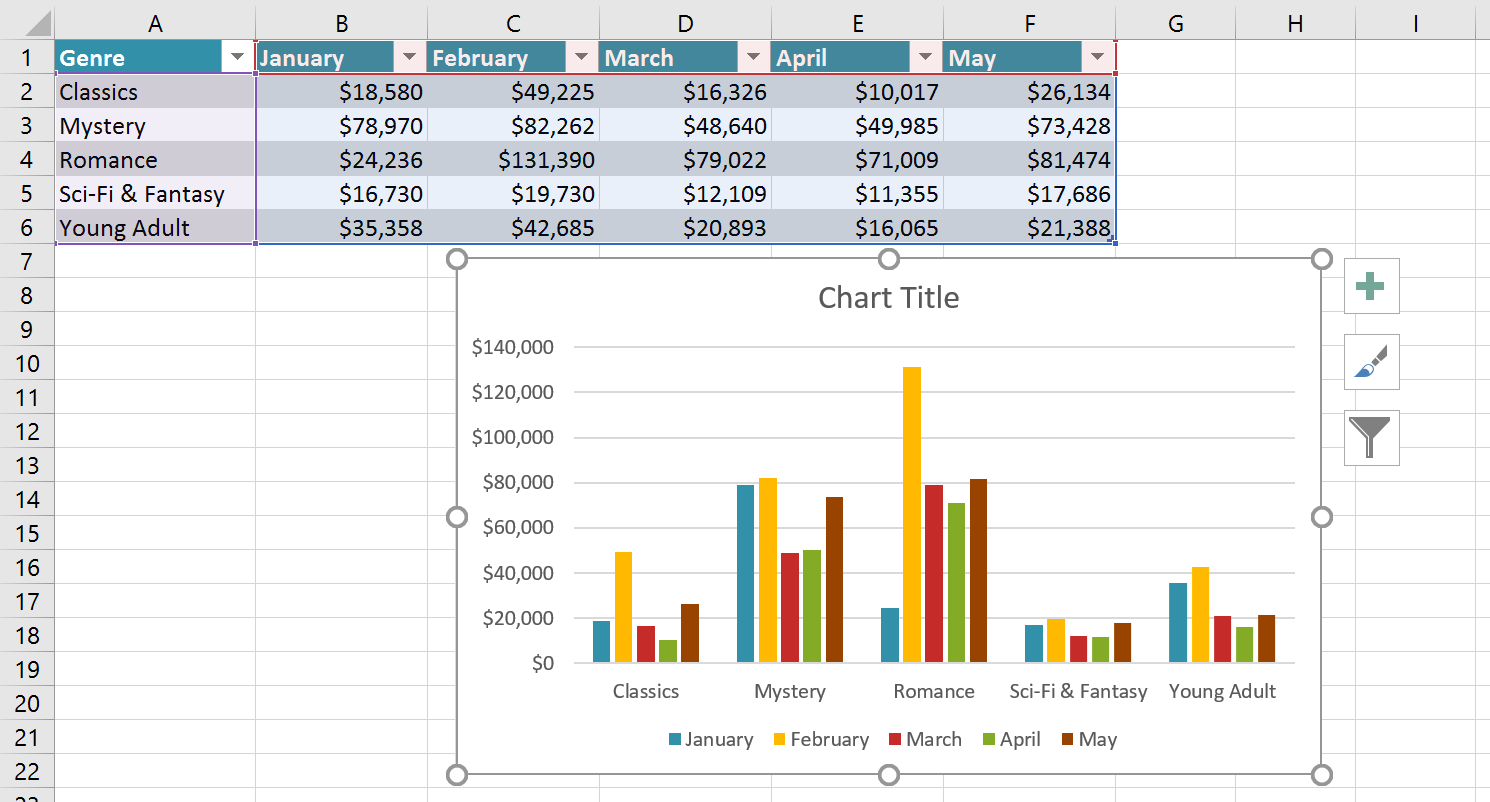
Go to the Insert tab. You can use Recommended Charts to let Excel suggest the best chart, or pick a chart type directly from the Charts group.
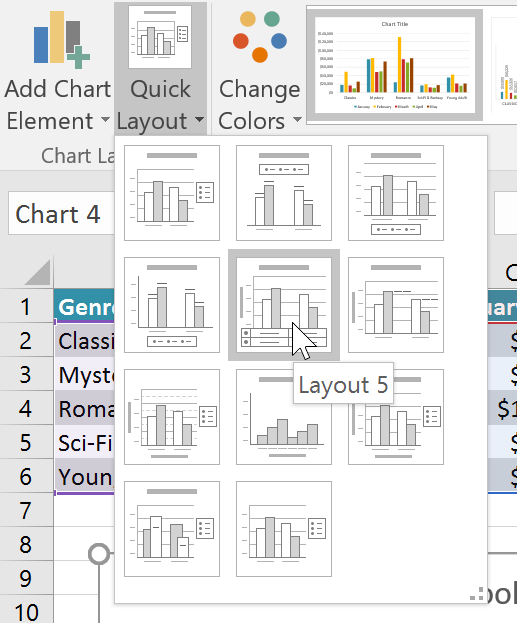
Quick Layout
Quick Layout is the fastest way to make a chart look presentable. It adds titles, labels, and legend arrangements with one click.
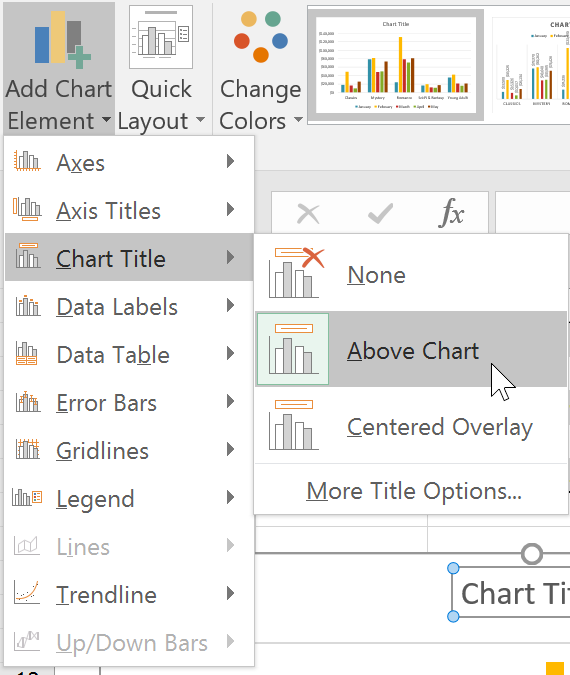
Add Chart Title and Elements
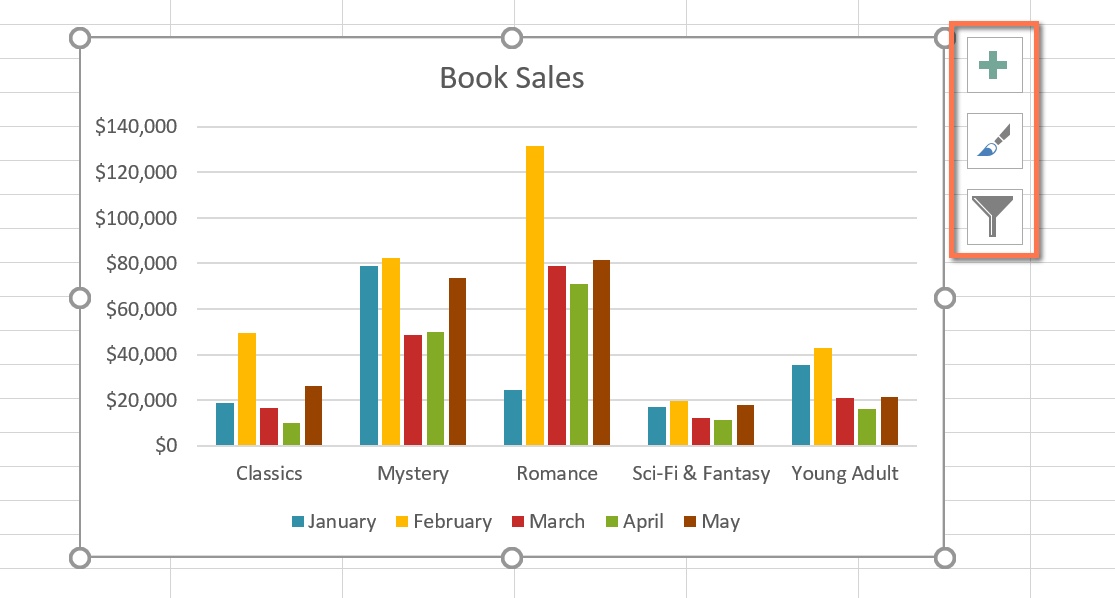
Use the green + button (Chart Elements) to add a Chart Title, Axis Titles, Data Labels, and more.
Change Chart Type
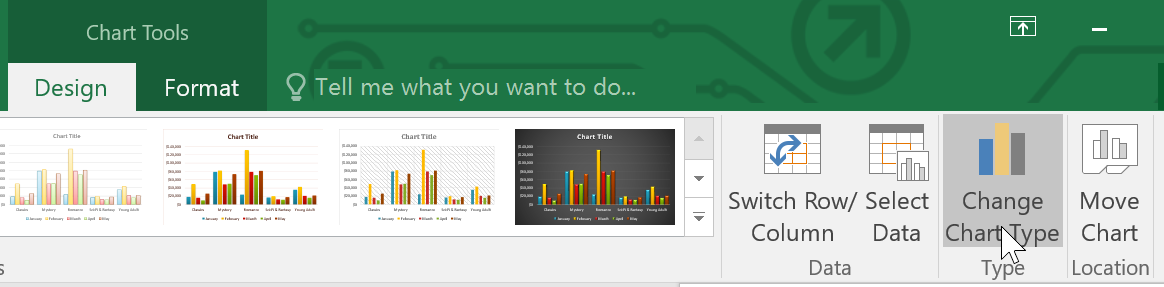
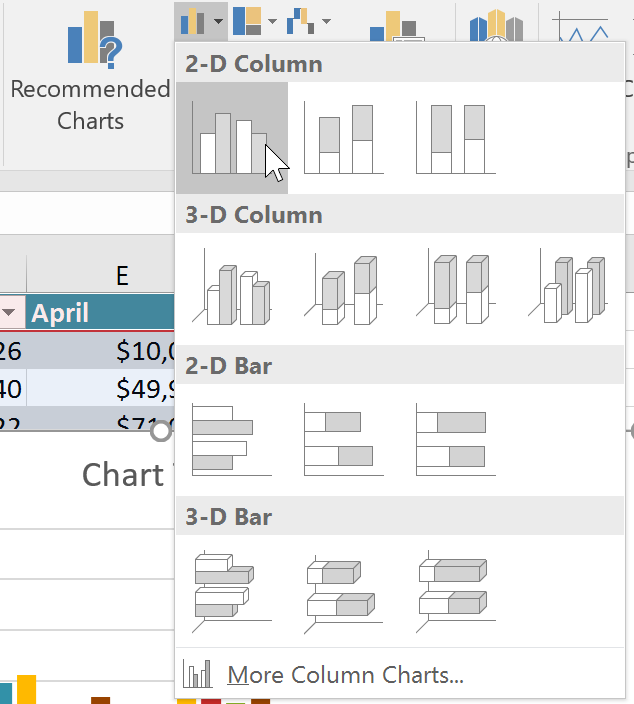
If you pick the wrong chart type, no problem. Select the chart → Chart Design → Change Chart Type.
Switch Row/Column
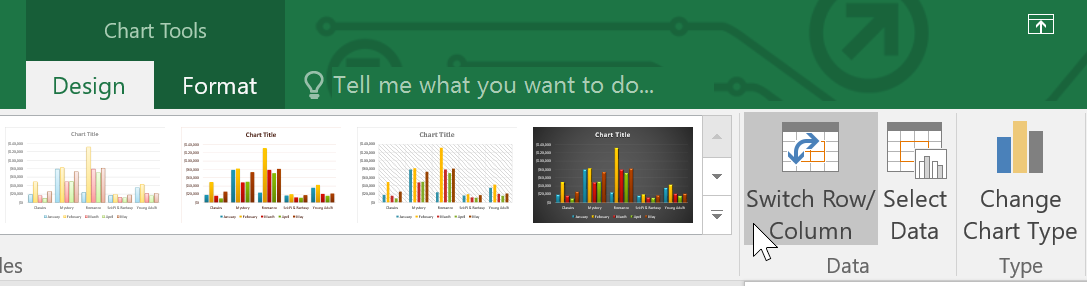
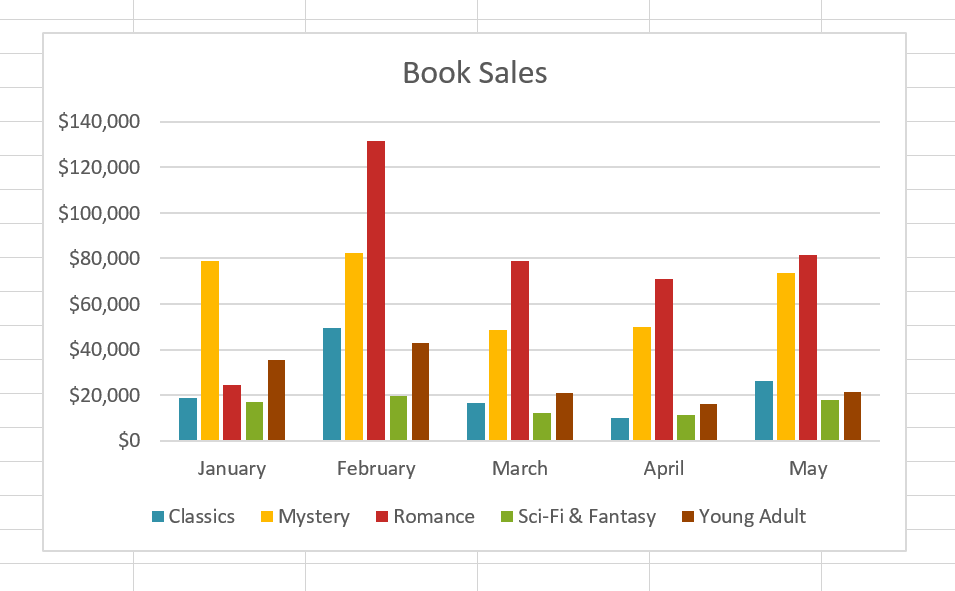
If your chart looks backwards (wrong categories/series), use Switch Row/Column to flip how Excel reads the data.
Move Chart to a New Sheet
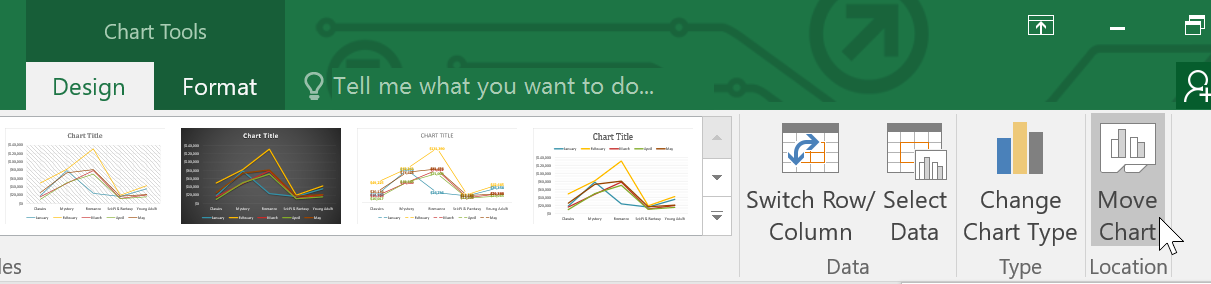
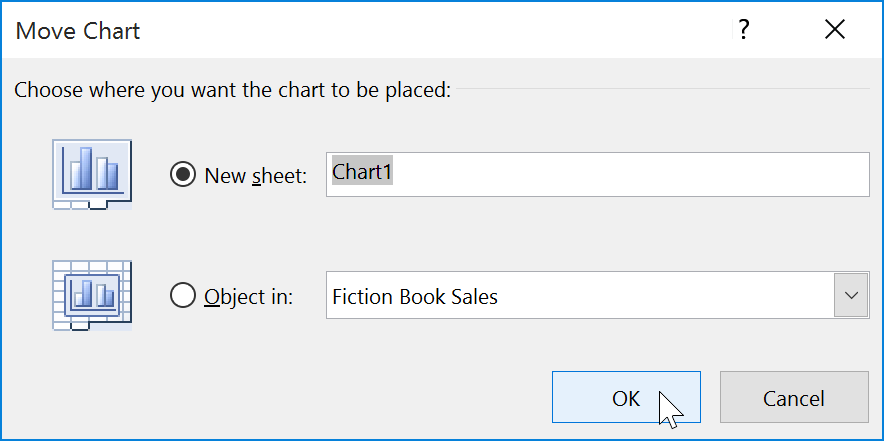
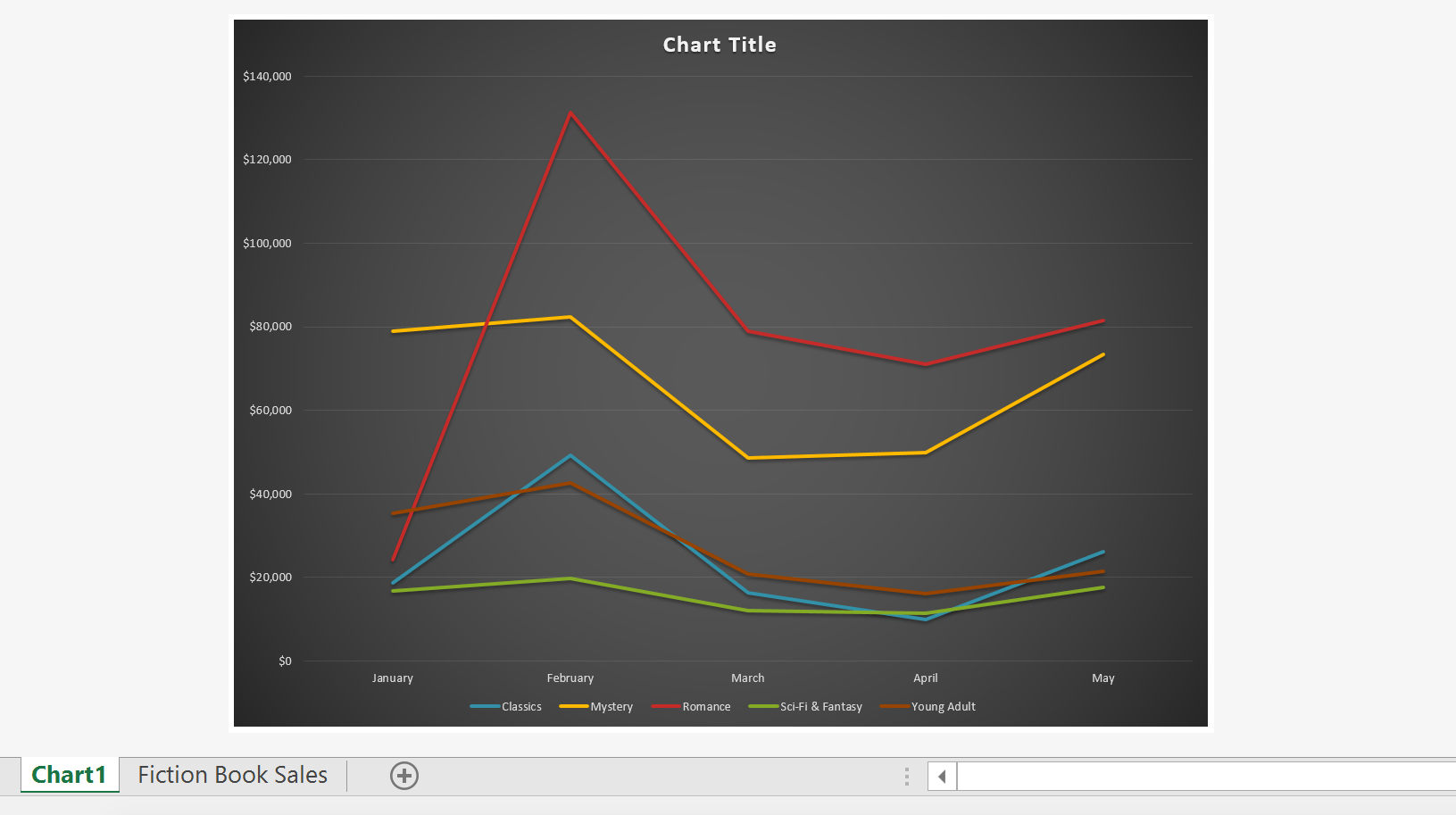
To make charts cleaner and easier to present, move them onto their own chart sheet: Chart Design → Move Chart.
Knowledge Check
Which chart type is best for showing how individual parts make up a whole?
Practice File
Download this file and follow along with the lesson.
Challenge
Apply what you've learned in this lesson.
Download and open the practice workbook. Complete the following:
- Select the full dataset (including headings).
- Insert a Column chart using Recommended Charts.
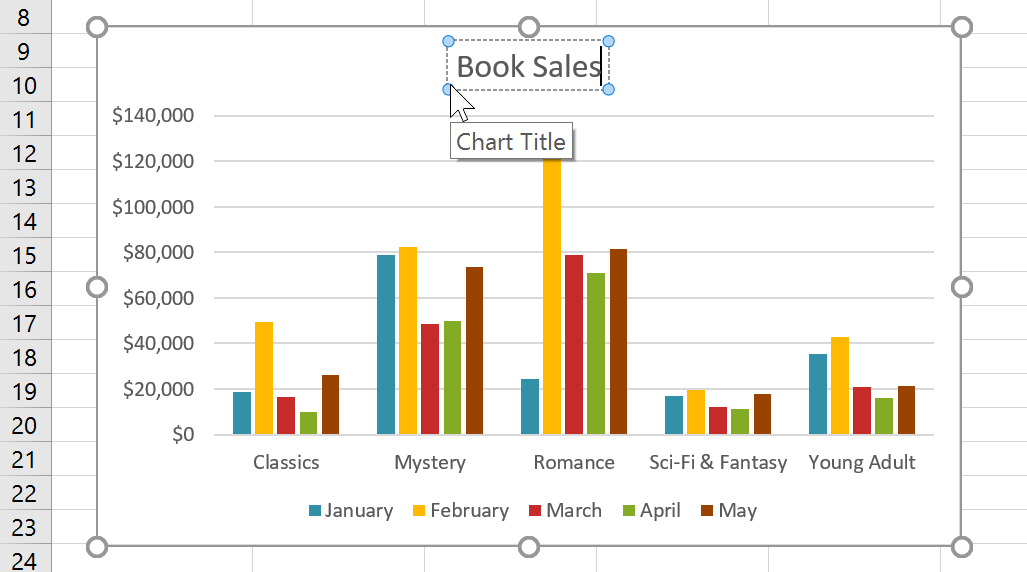
- Add a Chart Title: Book Sales.
- Use Quick Layout to add labels/titles if needed.
- Change the chart type to Line.
- Use Switch Row/Column to compare how the data changes.
- Move the final chart to a new chart sheet named Chart1.
Finished this lesson?
Progress is saved in this browser only. It is not a grade — official progress lives in Brightspace.