Working with Tables
Learn how to convert datasets into Excel tables, apply styles, add rows automatically, and manage structured data more efficiently.
By the end of this lesson you can
- Convert a range to an Excel Table and explain what changes
- Use structured references in formulas
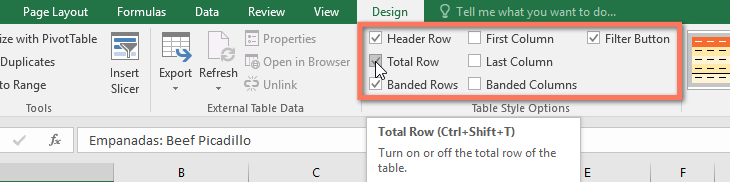
- Add a total row that respects filtering
- Judge when a Table helps and when a plain range is fine
Video
Watch the lesson video, then complete the reading and challenge.
Lesson Notes
Read through the key concepts before you try the challenge.
A Table knows where its data ends
You maintain the supply tracker at Lakeside Medical Associates.
Your chart and PivotTable are built on A1:F200. Twelve new rows are added at row 201. The chart does not include them, the PivotTable does not include them, and both look completely normal. Nobody notices for a month.
Your task: Use a Table so the range grows with the data and everything built on it follows.
Insert > Table converts a range into a named object that tracks its own extent. Type into the row below and the Table absorbs it — and so does every chart, PivotTable, and formula referencing the Table. This is the single feature that prevents the silent staleness above.
Tables also change how formulas read. =SUM(Orders[Cost]) says what it means, where =SUM(E2:E200) requires you to go and look. Structured references make formulas self-documenting, and they cannot drift out of alignment with the data the way fixed ranges do.
| Feature | Effect |
|---|---|
| Auto-expanding range | New rows and columns are included automatically everywhere |
| Structured references | =SUM(Orders[Cost]) instead of =SUM(E2:E200) |
| Filter buttons | Added to every header automatically |
| Total row | Uses SUBTOTAL, so it respects filtering |
| Banded rows | Readability that survives sorting and inserting |
| Formula fill | A formula entered in one cell fills the whole column |
Why Tables Matter
Excel tables transform ordinary cell ranges into structured datasets. Once data is converted into a table, Excel automatically enables sorting, filtering, and consistent formatting.
Tables are widely used in financial reports, inventory lists, employee records, and sales tracking because they keep large datasets organized.
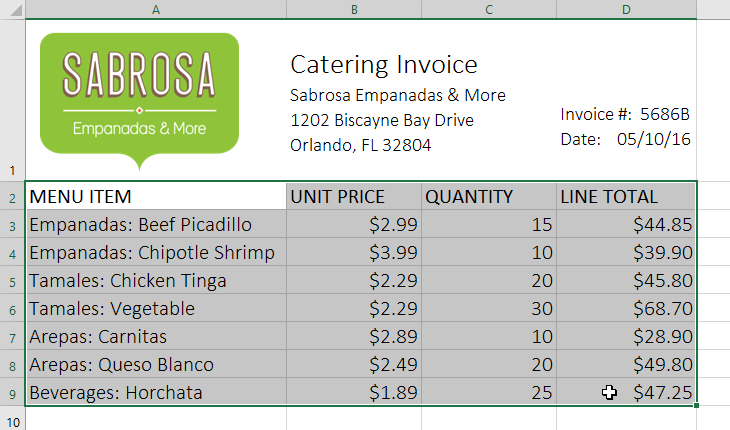
Formatting Data as a Table
To create a table, first select any cell inside your dataset. Excel will automatically detect the surrounding data range.
Next, go to the Home tab and click Format as Table.

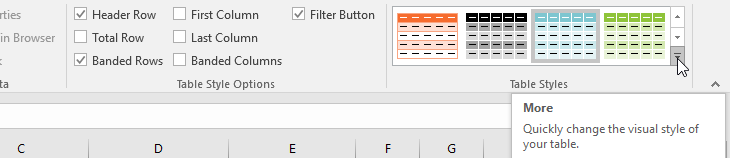
Choose one of the available table styles from the gallery.
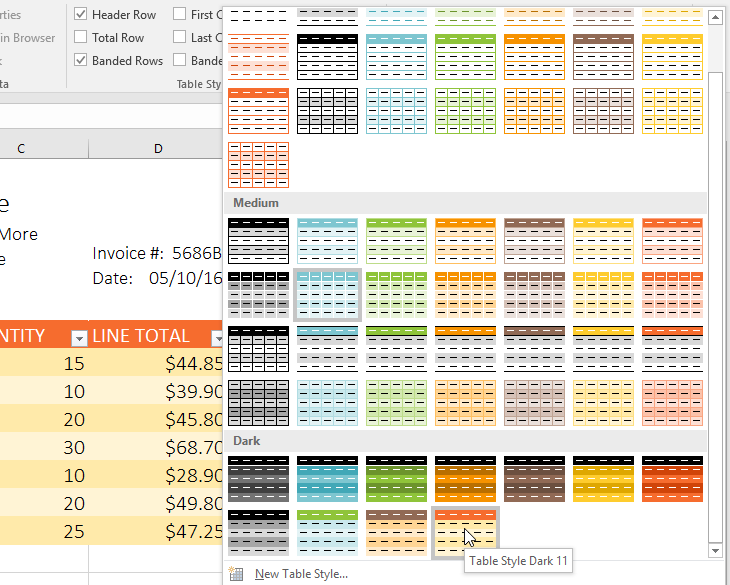
Confirm the Table Range
After selecting a table style, Excel displays the Create Table dialog box where you confirm the selected range.
If your dataset contains column headers, make sure the My Table Has Headers option is checked.
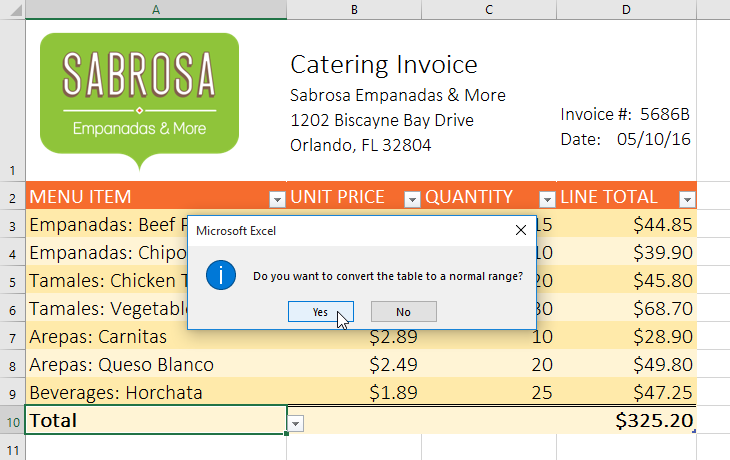
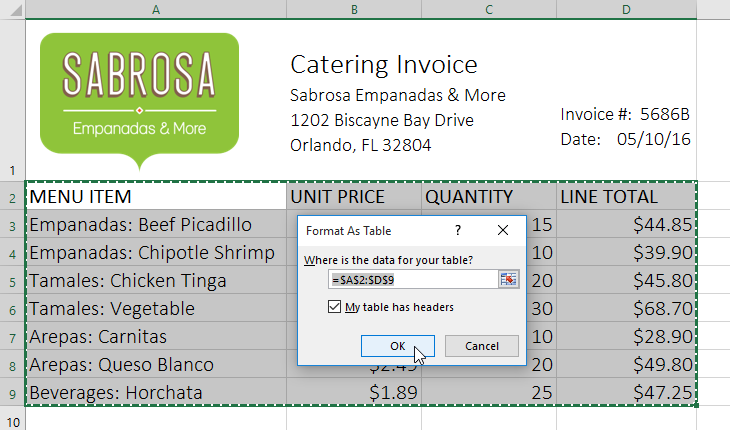
Table Style Applied
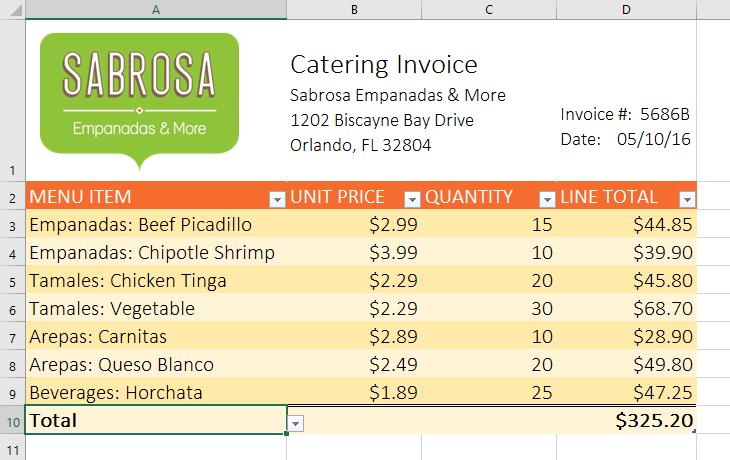
After confirming the dialog box, Excel converts the dataset into a formatted table.
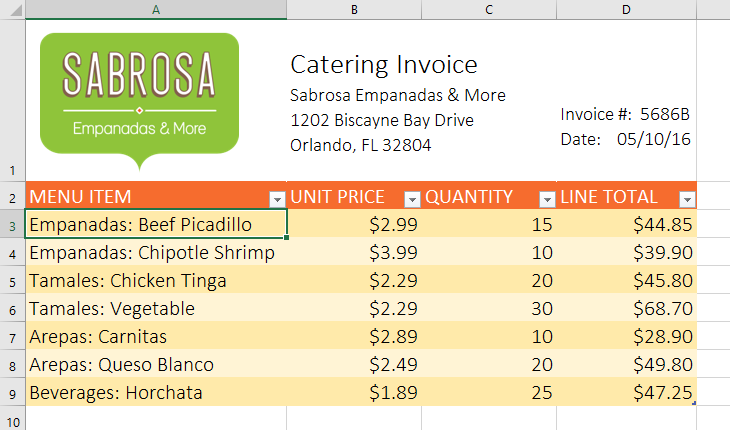
Table styles include alternating row colors, filter dropdowns, and consistent formatting across the dataset.
Using the Table Design Tab
Once a table is created, Excel adds a Table Design tab to the ribbon. This tab contains tools for customizing the table.
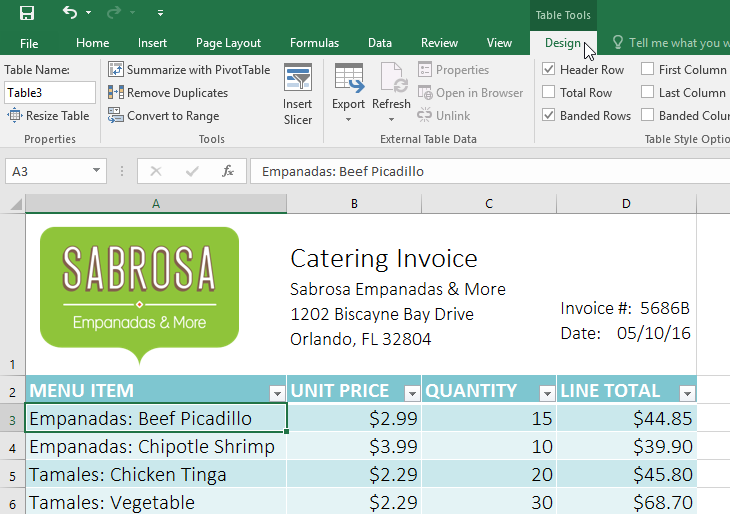
You can use the Table Styles section to quickly apply a new visual style.
Adding New Rows
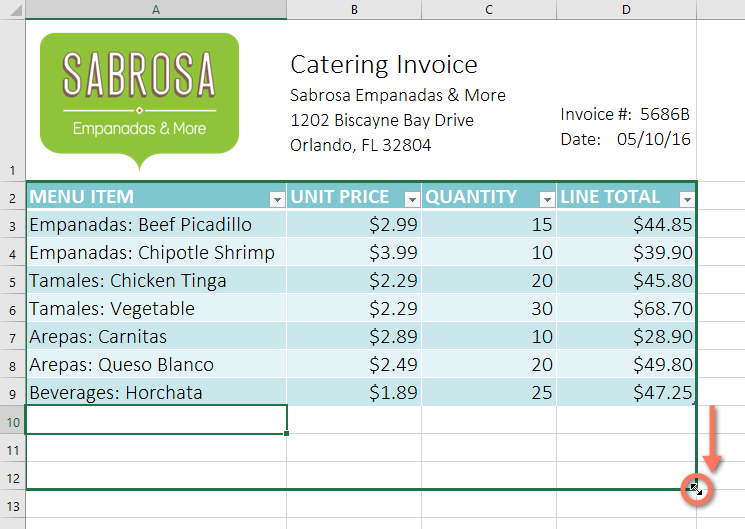
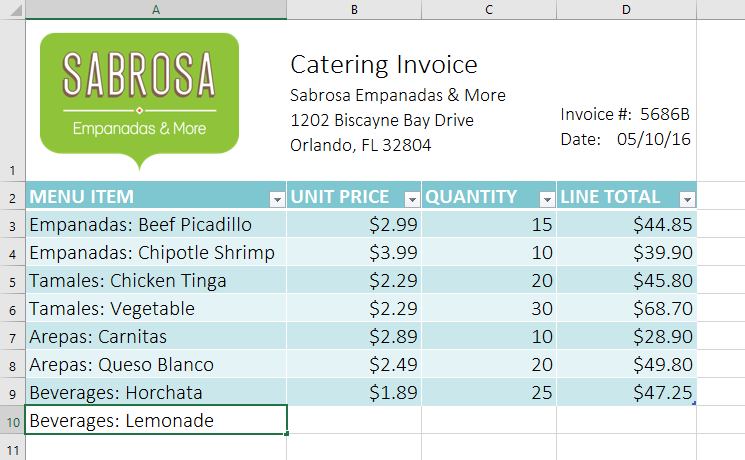
One powerful feature of Excel tables is automatic expansion. When you add new rows directly below the table, Excel automatically includes them in the table structure.
Deleting Rows from a Table
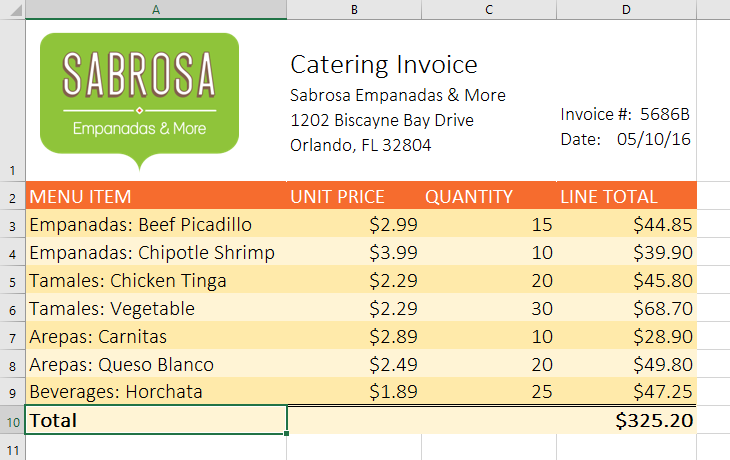
Rows inside a table can be deleted just like normal rows. Excel automatically adjusts the table size after deletion.
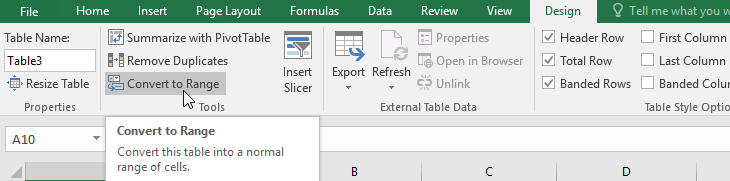
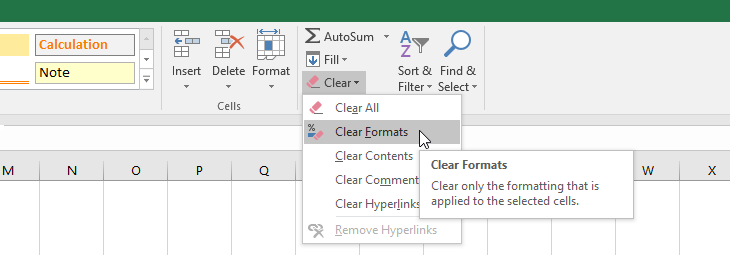
Convert Table Back to a Range
If you no longer need table functionality, you can convert the table back to a standard cell range.
Knowledge Check
What is one advantage of converting a data range to an Excel Table?
Practice File
Download this file and follow along with the lesson.
Challenge
Apply what you've learned in this lesson.
Download the practice workbook and complete the following steps:
- Open the Challenge worksheet.
- Select the entire dataset.
- Format the data as a table using a Medium style.
- Add a new row at the bottom of the table.
- Enter sample data for the new row.
- Delete one row from the table.
- Change the table style using the Table Design tab.
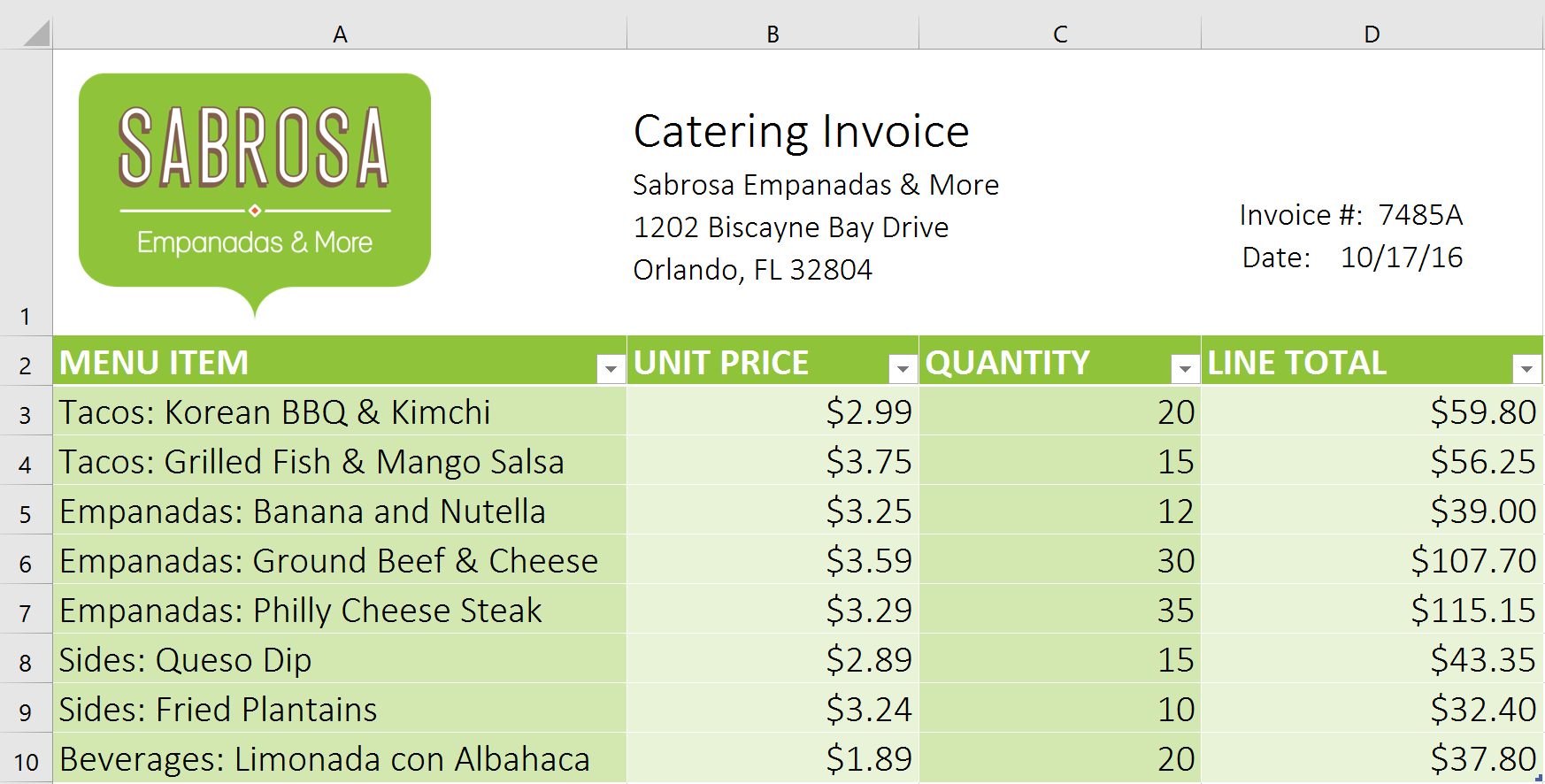
- When finished, your table should look similar to the example below.
Finished this lesson?
Progress is saved in this browser only. It is not a grade — official progress lives in Brightspace.