Introduction to PivotTables
PivotTables allow you to summarize large datasets instantly and reorganize your data to answer questions quickly.
By the end of this lesson you can
- Build a PivotTable from a clean data range
- Arrange fields across Rows, Columns, Values, and Filters
- Change how values are summarized
- Refresh a PivotTable when the source data changes
Video
Watch the lesson video, then complete the reading and challenge.
Lesson Notes
Read through the key concepts before you try the challenge.
Answering four questions in three minutes
You are asked for a spending breakdown at Lakeside Medical Associates.
Your supervisor asks: what did we spend per department last month, what are the top categories, which vendors got the most, and how does May compare with April? Answered with formulas and manual summary tables, that is most of an afternoon. Answered with one PivotTable, it is about three minutes.
Your task: Learn to summarize a large data set by rearranging fields rather than writing formulas.
A PivotTable summarizes a data set by whatever fields you drag into it, without altering the source in any way. Drag Department to Rows and Amount to Values and you have spending per department. Drag Month to Columns as well and you have a full cross-tab. Each rearrangement is a new question answered, and the underlying data is never touched.
| Area | Field goes here to | Example |
|---|---|---|
| Rows | Become the row labels | Department, one per row |
| Columns | Become the column headings | Month, one per column |
| Values | Be summarized — summed, counted, averaged | Amount, summed |
| Filters | Filter the whole table | Year, to show one year at a time |
Why PivotTables Are Powerful
When a worksheet contains many rows of data, calculating totals manually becomes difficult. PivotTables automatically summarize and analyze large datasets.
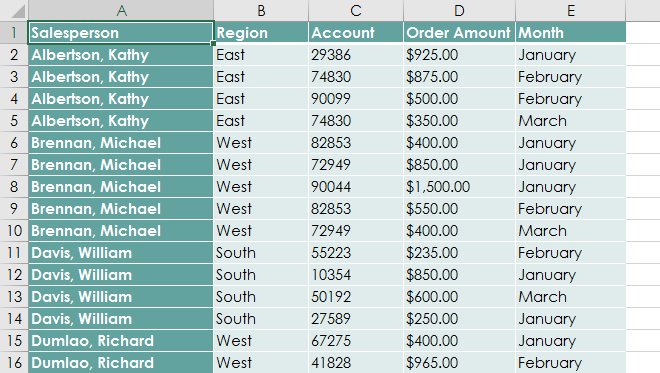
Step 1: Select Your Data
Select the entire dataset including the column headers. These headers will become the fields used in the PivotTable.
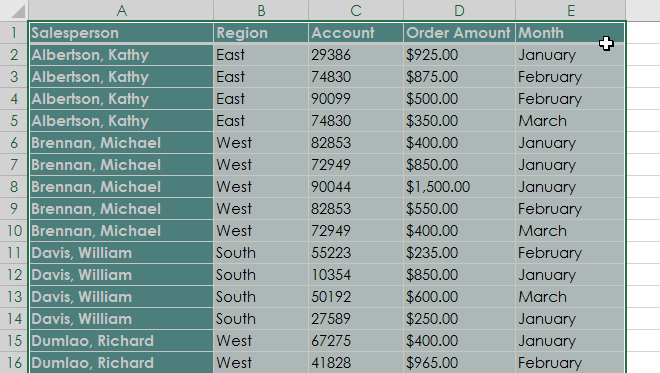
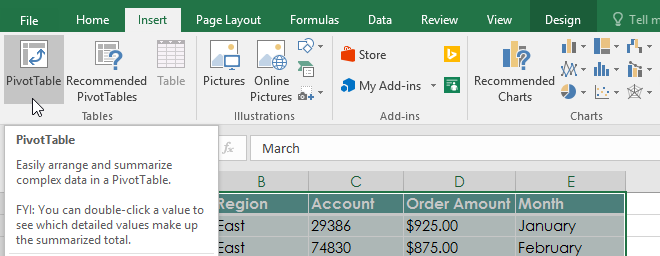
Step 2: Insert the PivotTable
Go to the Insert tab and click PivotTable.
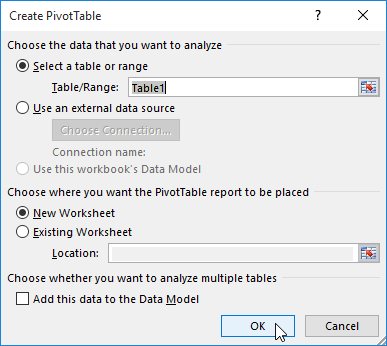
Excel will open the Create PivotTable dialog box.
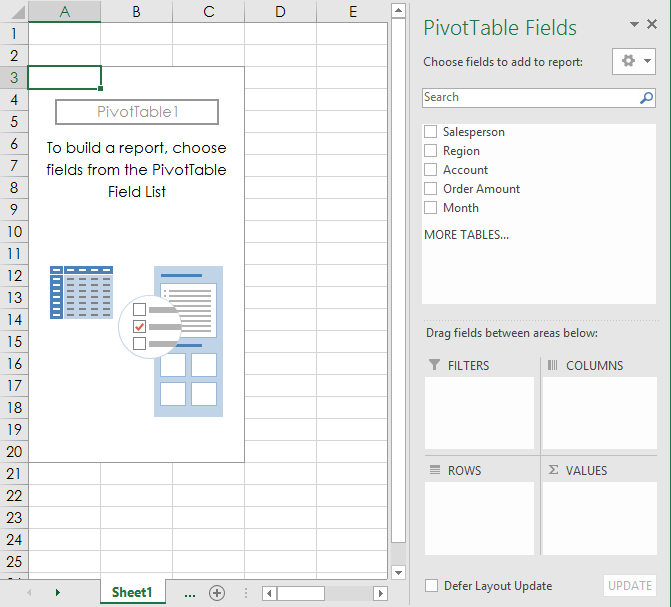
Step 3: Understanding the PivotTable Fields Panel
A blank PivotTable and the PivotTable Fields panel will appear in a new worksheet.
Step 4: Add Fields to Build the PivotTable
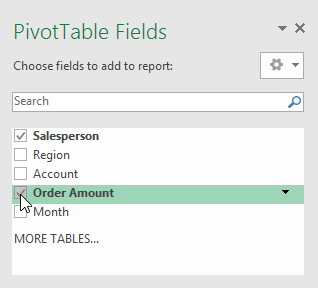
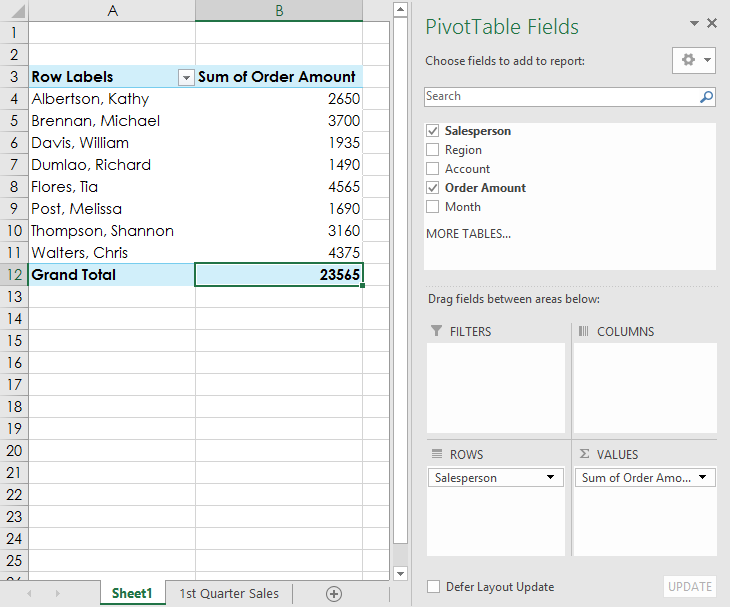
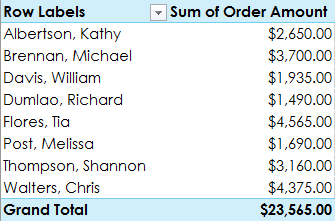
To calculate total sales by salesperson:
- Add Salesperson to the Rows area
- Add Order Amount to the Values area
Adding Columns to Analyze More Data
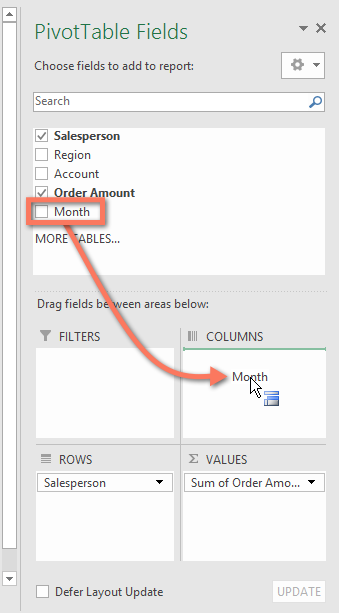
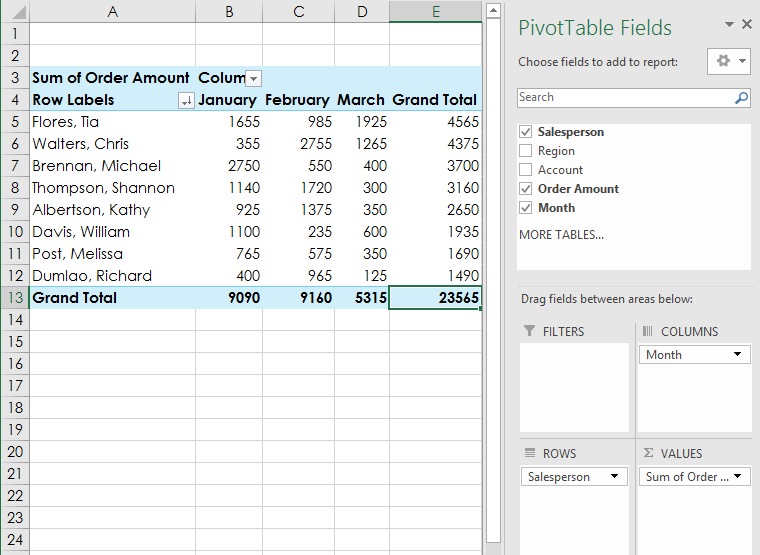
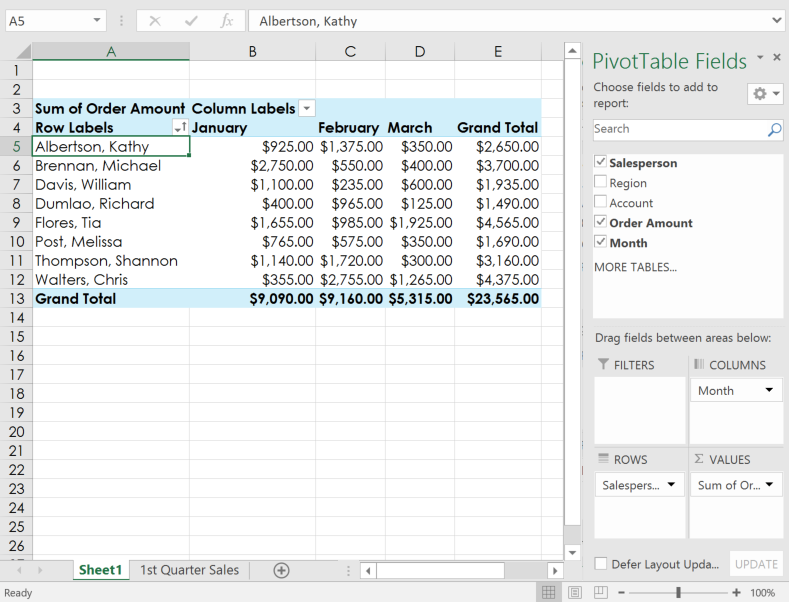
You can analyze the data further by dragging the Month field into the Columns area.
Changing the PivotTable Perspective
PivotTables allow you to reorganize (pivot) the data to answer different questions.
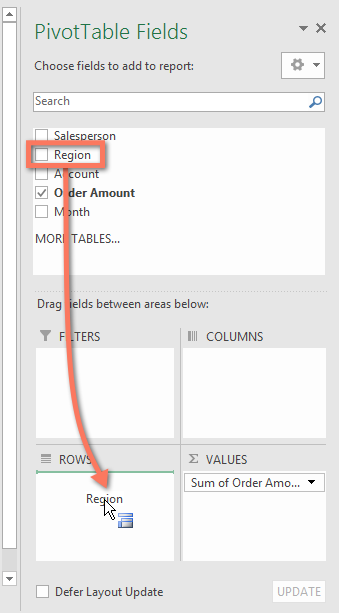
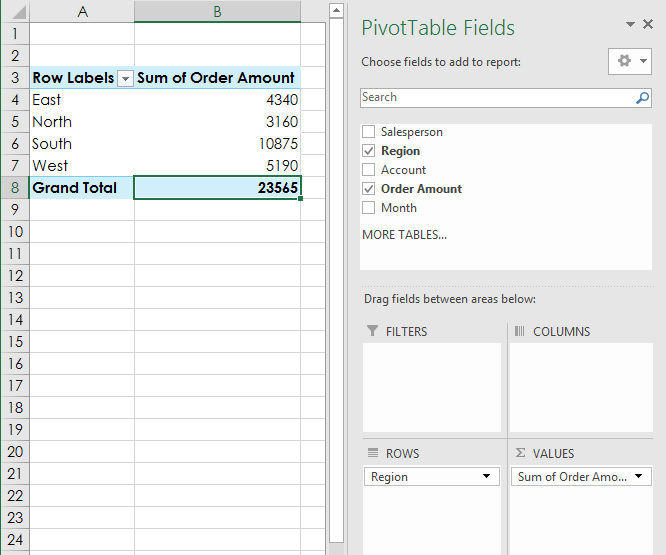
For example, remove Salesperson and instead add Region to see total sales by region.
Sorting and Filtering
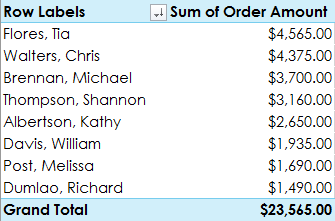
PivotTables allow sorting and filtering so you can analyze your data more easily.
Final PivotTable Example
Knowledge Check
What does a PivotTable allow you to do?
Practice File
Download this file and follow along with the lesson.
Challenge
Apply what you've learned in this lesson.
- Open our practice workbook.
- Create a PivotTable in a separate sheet.
- We want to answer the question What is the total amount sold in each region? To do this, select Region and Order Amount.
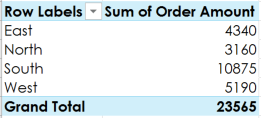
- In the Rows area, remove Region and replace it with Salesperson.
- Add Month to the Columns area.
- Change the number format of cells B5:E13 to Currency. Note: You might have to make columns C and D wider to see the values.
When you're finished, your workbook should look like this:
Finished this lesson?
Progress is saved in this browser only. It is not a grade — official progress lives in Brightspace.