Using Find & Replace
Search for specific data and quickly correct or replace repeated content throughout a worksheet or workbook.
By the end of this lesson you can
- Find values and formulas across a worksheet or workbook
- Use Replace All safely with Match case and whole-cell matching
- Search within formulas as well as displayed values
- Recognize when Find and Replace is the wrong tool for a data problem
Video
Watch the lesson video, then complete the reading and challenge.
Lesson Notes
Read through the key concepts before you try the challenge.
Replace All reaches further than you think
You standardize vendor names in the supply tracker at Lakeside Medical Associates.
You replace 'Med' with 'Medical' across the sheet. 'MedSupply Co' becomes 'MedicalSupply Co', 'Medline' becomes 'Medicalline', and a formula referencing a defined name called MedRate breaks entirely. One click, several hundred cells.
Your task: Constrain the search before running it, and know what Replace can reach.
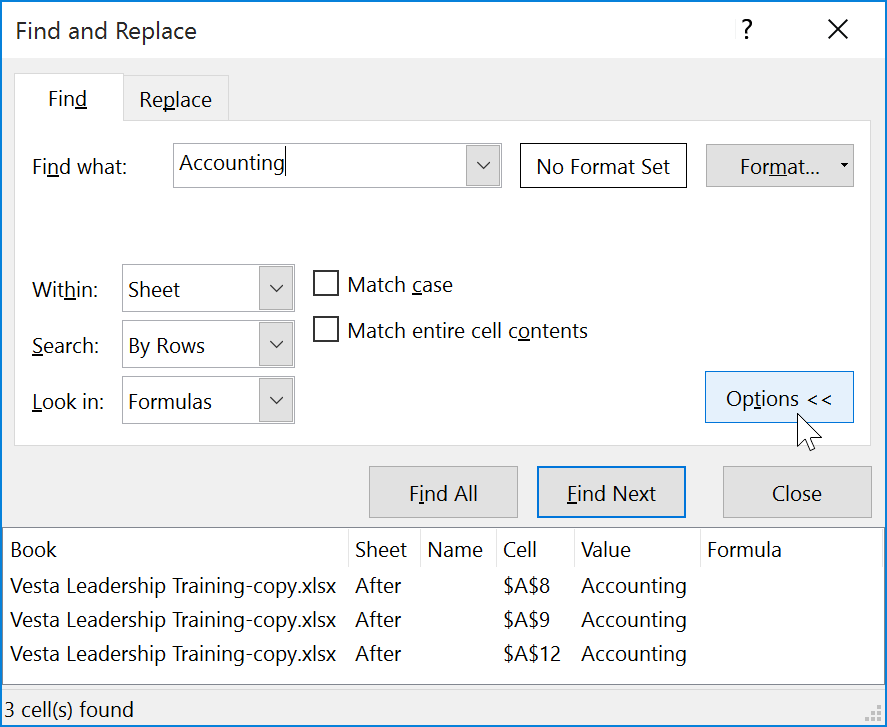
Excel's Find and Replace has an option Word does not: 'Match entire cell contents.' It requires the whole cell to equal your search term rather than merely containing it, and it is the single most effective protection against a runaway replacement in a data column.
The Options button also exposes 'Look in,' which decides whether Excel searches Values, Formulas, or Comments. Searching Formulas is how you find every cell referencing a particular sheet or hard-coded number — genuinely useful when auditing an inherited workbook. It is also how a careless replacement damages formulas rather than data.
Why Use Find & Replace?
When working with large datasets, manually scanning for errors or repeated values can be time-consuming. Excel’s Find and Replace tools allow you to quickly locate and update content across a worksheet or an entire workbook.
Using the Find Command
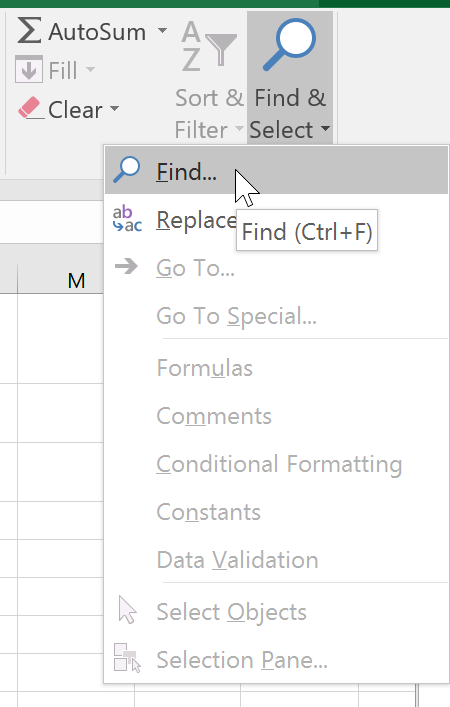
To locate specific content, go to the Home tab, click Find & Select, then choose Find. You can also press Ctrl + F on your keyboard.
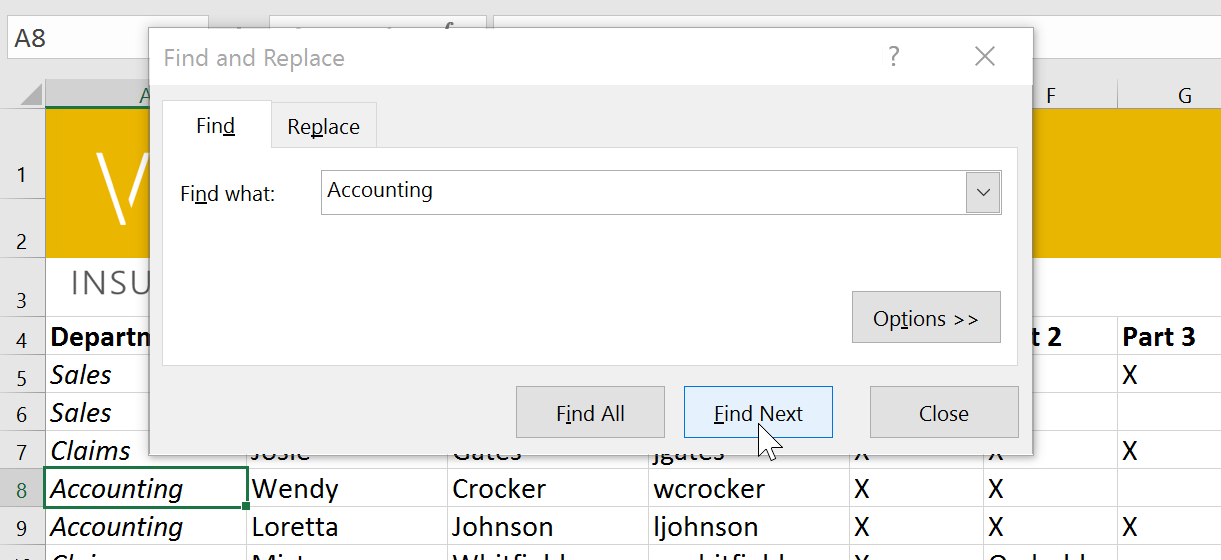
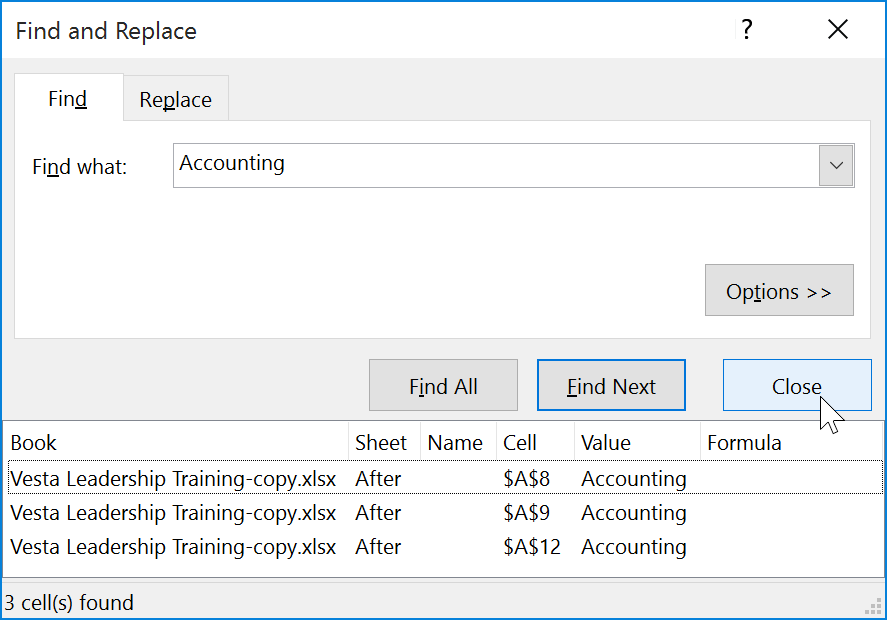
Enter the text you want to search for in the Find what field. Click Find Next to locate one instance at a time or Find All to display every match.
Advanced Search Options
Click Options to expand advanced search settings such as Match Case, Match Entire Cell Contents, and choosing whether to search within the current sheet or the entire workbook.
Using Replace
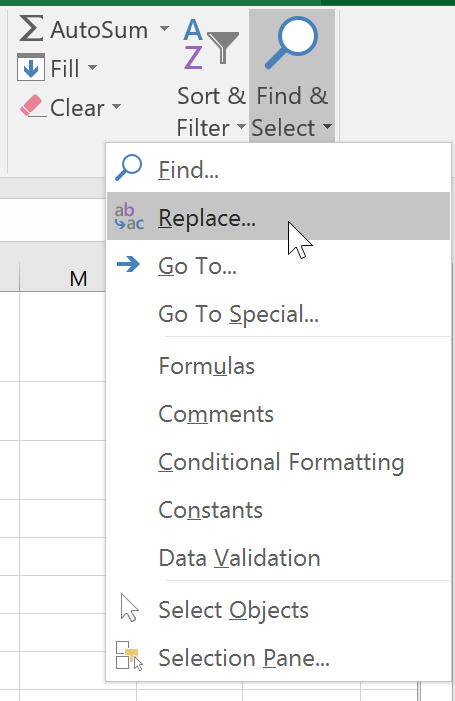
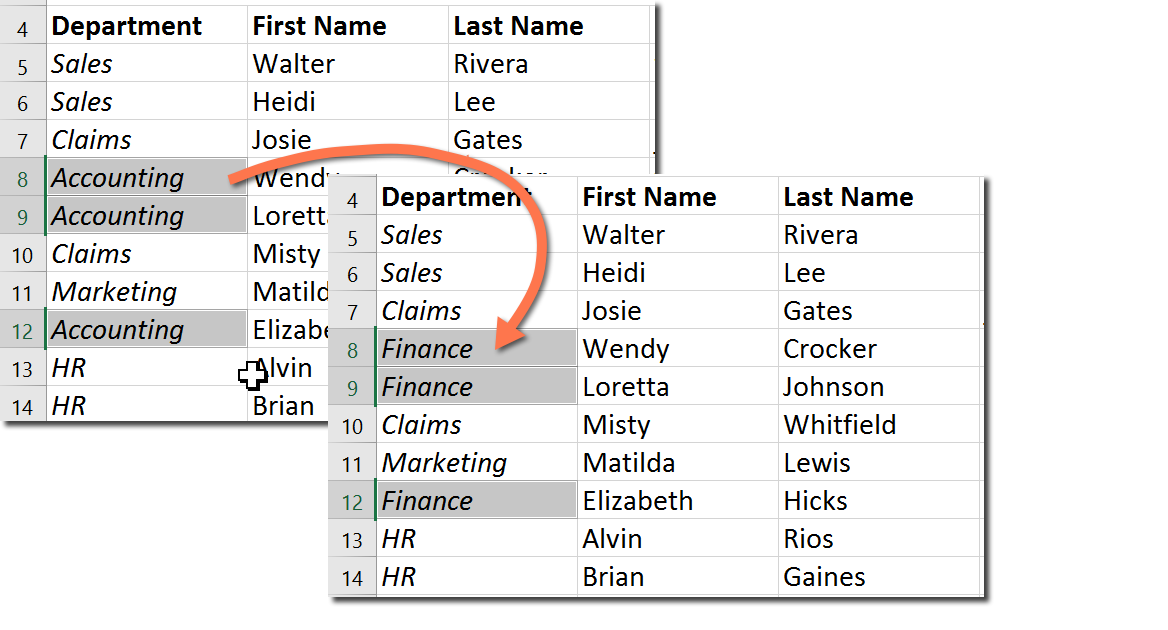
If you need to correct repeated mistakes or update values, use Replace. From the Home tab, click Find & Select, then choose Replace.
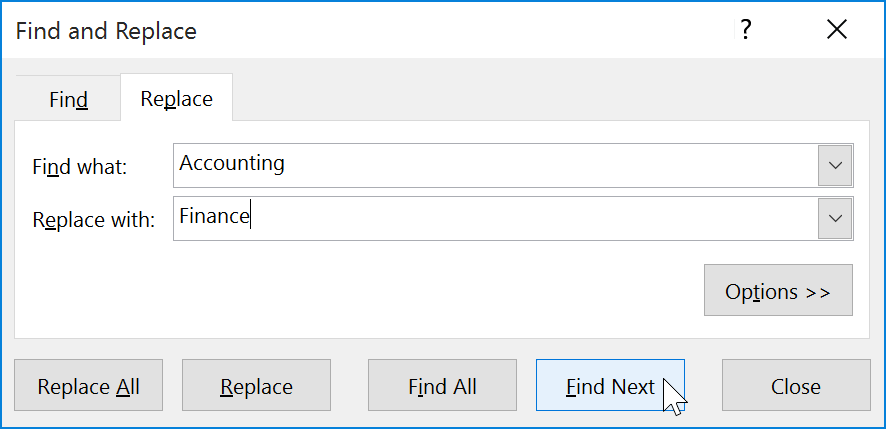
Enter the text to find in the Find what field and the replacement text in the Replace with field. Use Replace to update one instance at a time.
Using Replace All
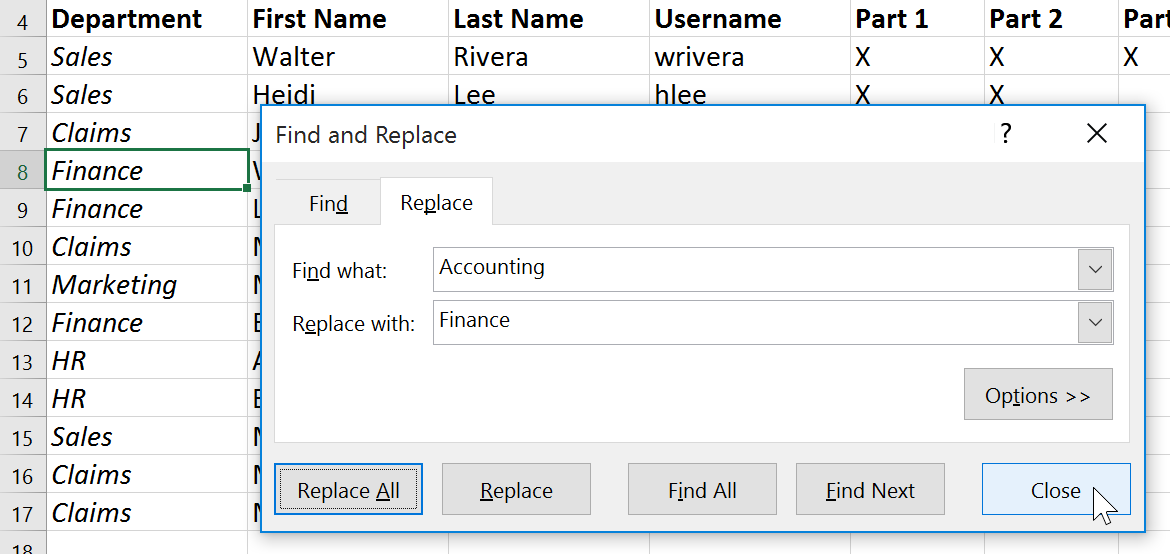
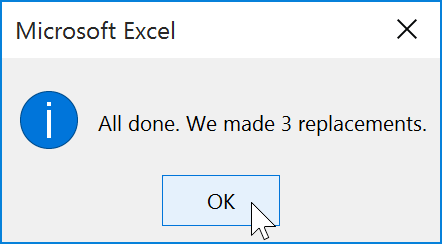
Replace All updates every matching instance automatically. Use this option carefully, as it does not allow you to review changes individually.
Knowledge Check
Which keyboard shortcut opens the Replace dialog in Excel?
Practice File
Download this file and follow along with the lesson.
Challenge
Apply what you've learned in this lesson.
Complete the following tasks using the practice workbook:
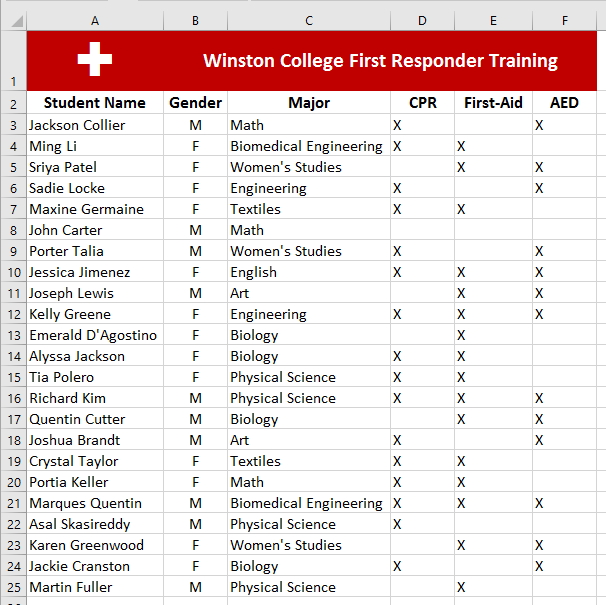
- Change Crystal Lewis’s last name to Taylor using Find and Replace. Be careful to only change Crystal’s record.
- Replace Bio with Biology. Do NOT change Biomedical Engineering.
- Use Replace All to change Physics to Physical Science.
- Verify your worksheet matches the final expected result.
Finished this lesson?
Progress is saved in this browser only. It is not a grade — official progress lives in Brightspace.