Working with Multiple Worksheets
Learn how to insert, rename, move, copy, group, and organize worksheets within a workbook.
By the end of this lesson you can
- Add, rename, reorder, color, and delete worksheets
- Reference a cell on another sheet in a formula
- Group sheets to edit several at once
- Structure a workbook so data, calculations, and output are separated
Video
Watch the lesson video, then complete the reading and challenge.
Lesson Notes
Read through the key concepts before you try the challenge.
One sheet per purpose
You rebuild the supply tracker at Lakeside Medical Associates.
The current workbook has everything on one sheet: raw orders, a summary, notes, and three abandoned attempts at a chart, side by side. Nobody can tell which region is authoritative, and every sort risks scrambling something unrelated.
Your task: Separate the workbook into sheets with distinct jobs, so each region has one purpose.
A durable convention is three kinds of sheet: raw data that is only ever added to, calculations that read from it, and output that people actually look at. Keeping them apart means a change to a formula cannot corrupt source data, and a person reading the summary never has to scroll past 900 rows to find it.
Cross-sheet references use the sheet name and an exclamation mark: =Data!C7, or ='Q3 Orders'!C7 when the name contains a space. Rather than typing them, start the formula, then click the other sheet's tab and the cell — Excel writes the reference correctly, including quoting names that need it.
Introduction
Every workbook contains at least one worksheet by default. When working with large amounts of data, you can create multiple worksheets to better organize your information and make it easier to manage.
You can also group worksheets together to make changes to multiple sheets at the same time.
Insert a New Worksheet
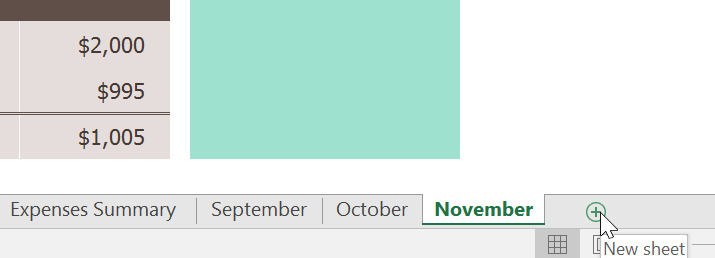
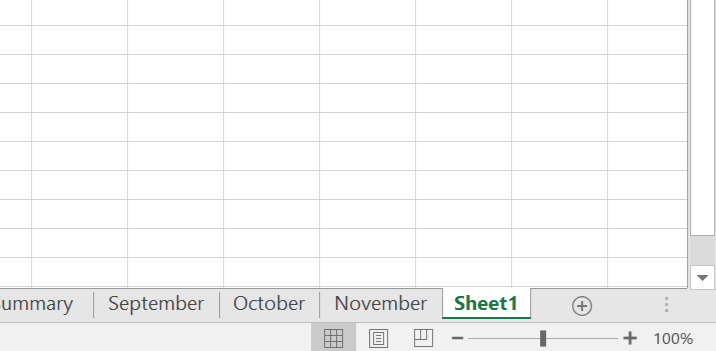
- Locate and select the New Sheet (+) button near the bottom-right corner of the Excel window.
- A new blank worksheet will appear.
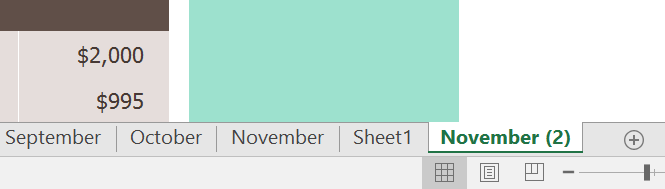
Copy a Worksheet
Excel allows you to duplicate an existing worksheet without copying and pasting content manually.
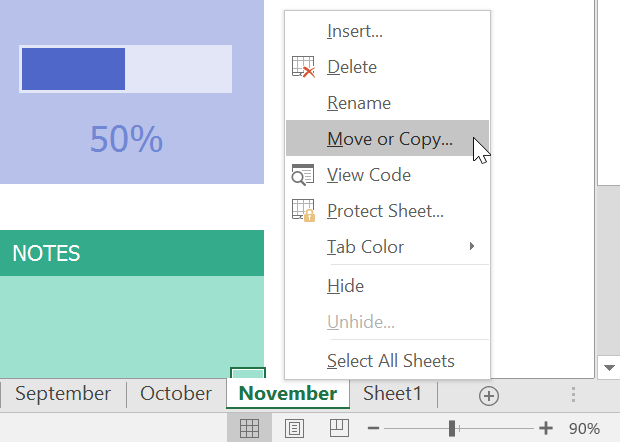
- Right-click the worksheet you want to copy.
- Select Move or Copy.
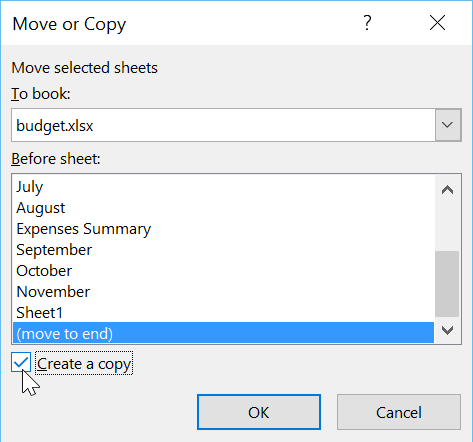
- Choose where the sheet should appear.
- Check Create a copy and click OK.
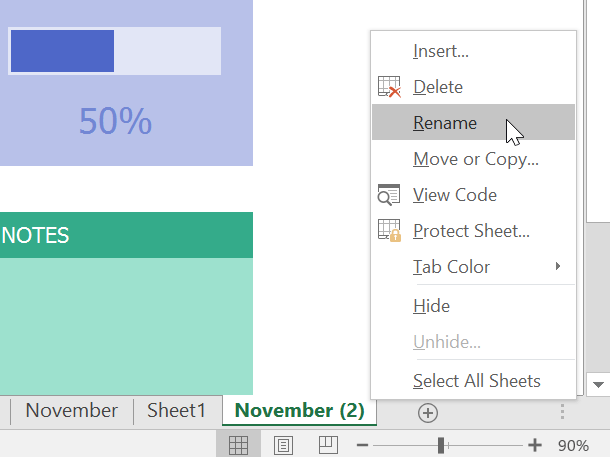
Rename a Worksheet
- Right-click the worksheet tab.
- Select Rename.
- Type the desired name and press Enter.

Move a Worksheet
- Click and drag the worksheet tab.
- Release when the black arrow appears in the desired location.

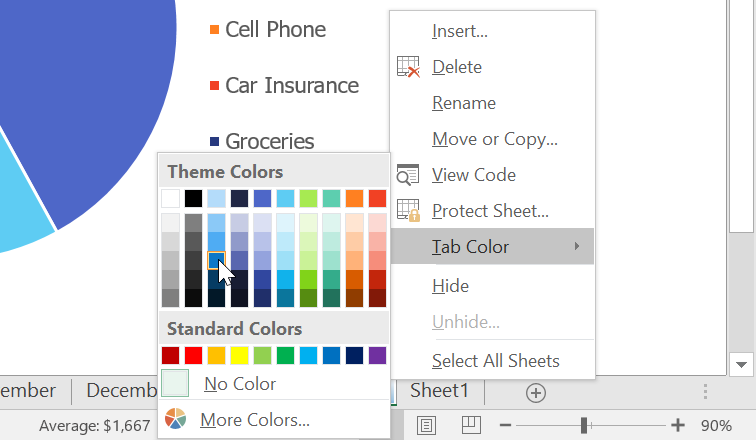
Change Worksheet Tab Color
- Right-click the worksheet tab.
- Hover over Tab Color.
- Select the desired color.
Delete a Worksheet
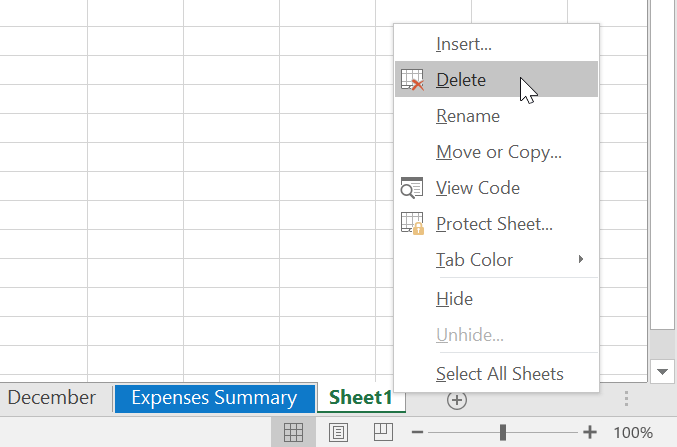
- Right-click the worksheet tab.
- Select Delete.
Switching Between Worksheets
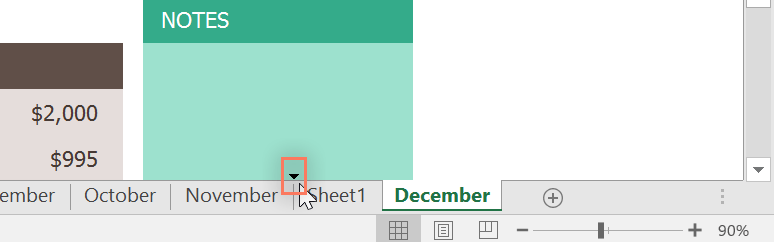
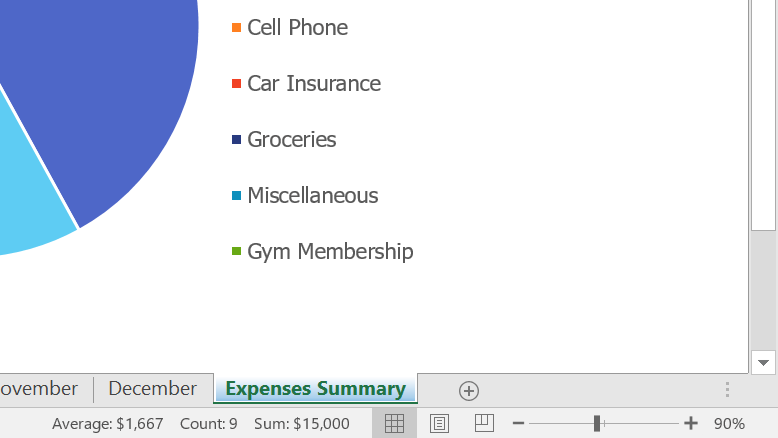
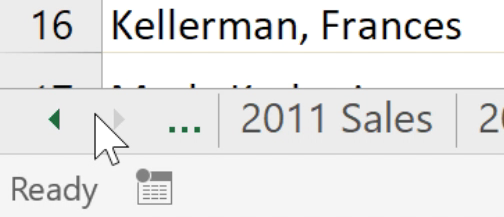
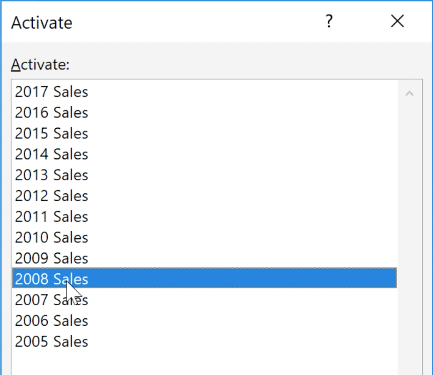
You can click worksheet tabs to switch between sheets. For large workbooks, right-click the scroll arrows in the lower-left corner to see a list of all worksheets.
Grouping and Ungrouping Worksheets
Grouping worksheets allows you to make changes to multiple sheets at the same time.
- Hold the Ctrl key.
- Click each worksheet tab you want to group.
- Release Ctrl once selected.


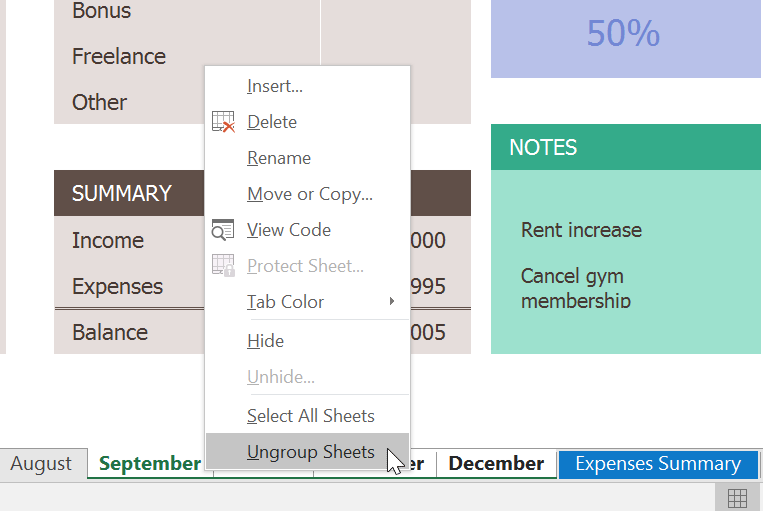
To ungroup worksheets, right-click any grouped tab and select Ungroup Sheets.
Knowledge Check
How do you rename a worksheet tab in Excel?
Practice File
Download this file and follow along with the lesson.
Challenge
Apply what you've learned in this lesson.
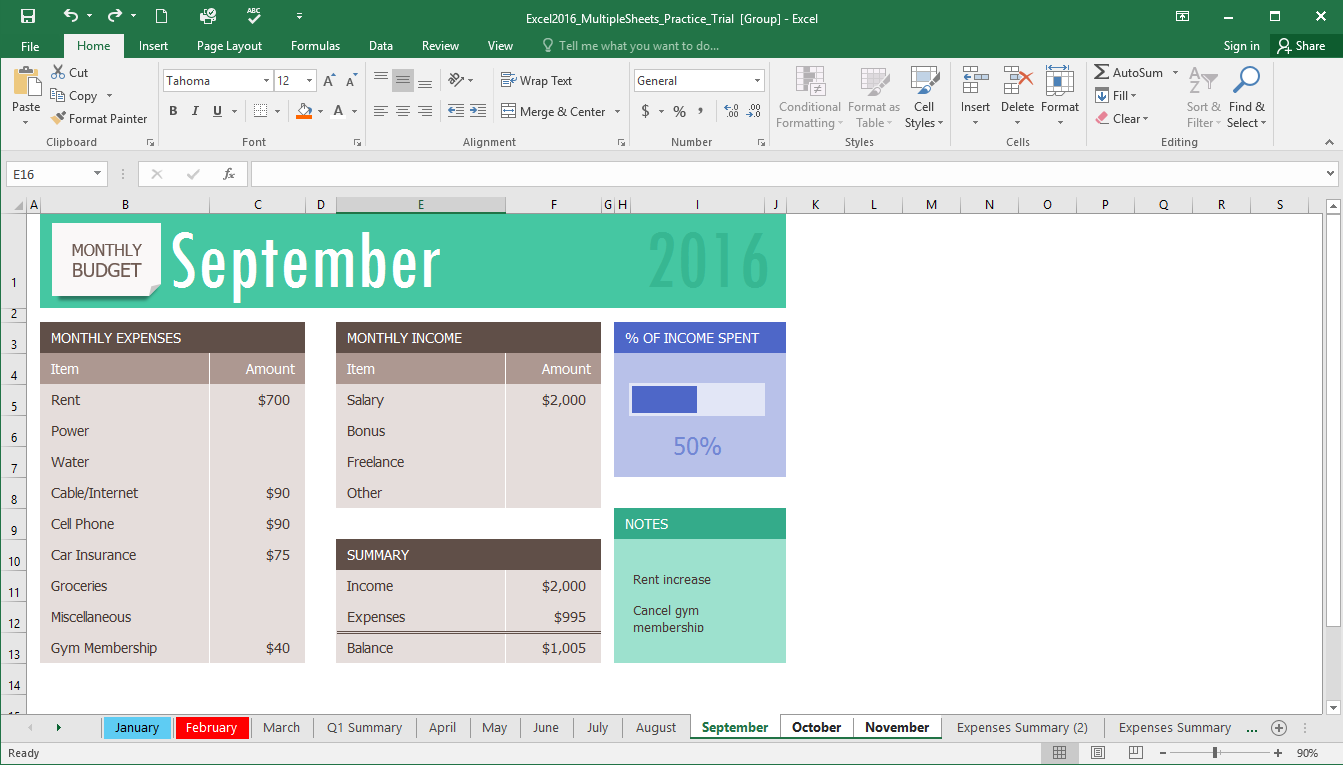
- Insert a new worksheet and rename it Q1 Summary.
- Move the Expenses Summary worksheet to the far right.
- Move the Q1 Summary worksheet so it appears between March and April.
- Create a copy of the Expenses Summary worksheet using Move or Copy.
- Change the January tab color to blue and the February tab color to red.
- Group the worksheets September, October, and November.
When you're finished, your workbook should resemble the example below:
Finished this lesson?
Progress is saved in this browser only. It is not a grade — official progress lives in Brightspace.