Checking Spelling in Excel
Learn how to use Excel’s Spell Check tool to identify and correct spelling errors before sharing a workbook.
By the end of this lesson you can
- Run spell check across a worksheet and a whole workbook
- Use Add to Dictionary and AutoCorrect appropriately
- Explain why spell check cannot catch the errors that matter most in Excel
- Build validation that catches data errors spell check never will
Lesson Notes
Read through the key concepts before you try the challenge.
Spell check does not check your numbers
You prepare the quarterly supply report at Lakeside Medical Associates.
Spell check reports no errors. The report goes to the board with a quantity entered as 1200 instead of 120, which inflates the supply forecast by nine thousand dollars. Every word in the workbook is spelled correctly.
Your task: Use spell check for what it can do, and build separate checks for the errors that actually cost money.
Spell check examines text in cells, headers, and comments. It cannot evaluate whether a number is plausible, whether a formula references the right range, or whether a value landed in the right row. In a spreadsheet, those are the errors with consequences.
Data Validation (Data > Data Validation) is the tool that does catch them. Restrict a quantity column to whole numbers between 1 and 500 and Excel rejects 1200 at the moment of entry, with a message you write yourself. Catching an error at entry is far cheaper than finding it in a board report.
Why Use Spell Check?
Before sharing a workbook, it’s important to check for spelling errors. Excel includes a built-in Spell Check tool that scans your worksheet for misspelled words.
Unlike Microsoft Word, Excel does not check grammar or spelling as you type. Spell Check must be run manually.
Running Spell Check
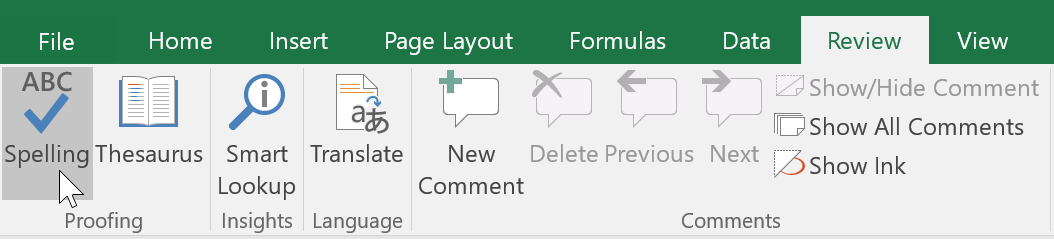
To begin spell check, go to the Review tab and click Spelling.
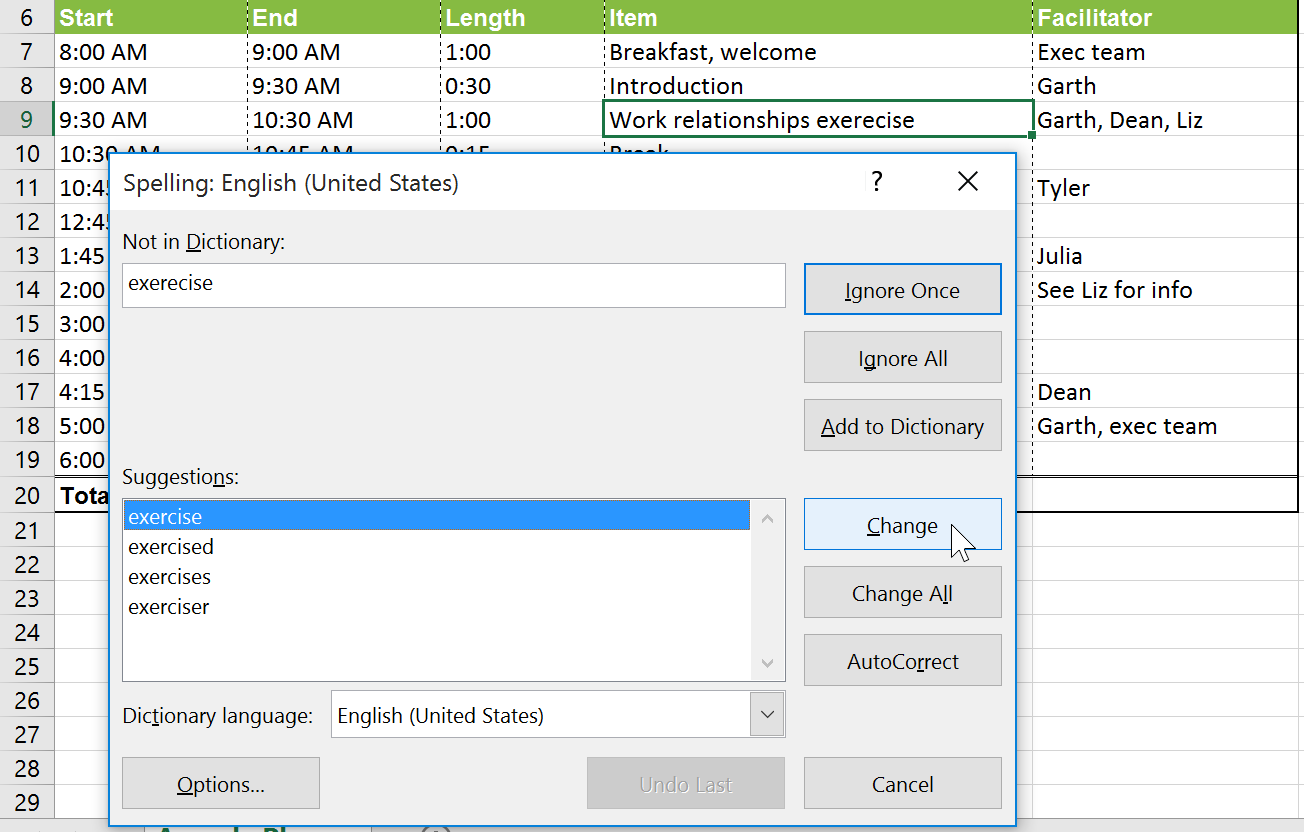
The Spelling dialog box will appear. Excel will highlight words that are not found in the dictionary and provide suggestions.
Correcting Spelling Errors
Select the correct spelling from the Suggestions list and click Change to fix the error. Use Change All to correct every instance of that word in the worksheet.
Ignoring or Adding Words
Spell Check may flag names or brand terms that are actually correct. You can choose Ignore Once, Ignore All, or Add to Dictionary.
- Ignore Once – Skips this instance.
- Ignore All – Skips all instances in the worksheet.
- Add to Dictionary – Saves the word so Excel won’t flag it again.
Spell Check Complete
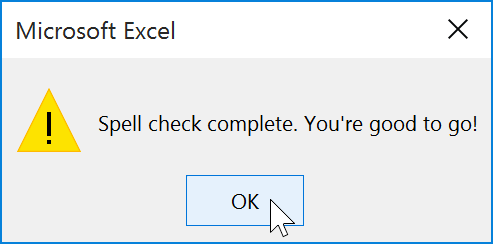
After Excel finishes reviewing the worksheet, a confirmation message will appear.
Knowledge Check
What happens when you click 'Add to Dictionary' in Spell Check?
Practice File
Download this file and follow along with the lesson.
Challenge
Apply what you've learned in this lesson.
Complete the following tasks:
- Run Spell Check from the Review tab.
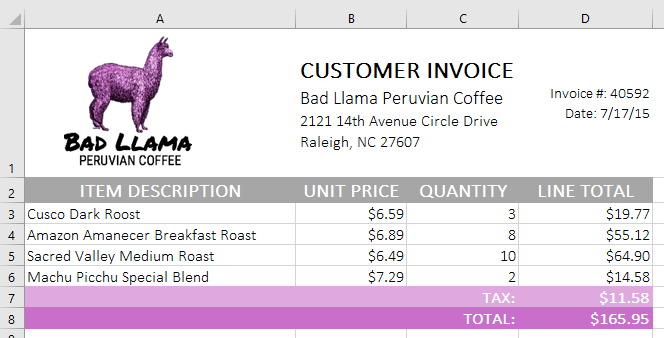
- Correct the misspelled words 'coffe' and 'medum'.
- Ignore the spelling suggestion for the word 'Amanecer'.
- Finish spell check and confirm the completion message appears.
Finished this lesson?
Progress is saved in this browser only. It is not a grade — official progress lives in Brightspace.