Comments and Co-authoring
Learn how to add, edit, delete, and manage comments, collaborate in real time, and restore previous versions of a workbook.
By the end of this lesson you can
- Add threaded comments and notes, and explain the difference
- Co-author a workbook stored in OneDrive or SharePoint
- Manage sharing permissions on a workbook
- Judge what should never be written in a comment
Video
Watch the lesson video, then complete the reading and challenge.
Lesson Notes
Read through the key concepts before you try the challenge.
Comments explain the reasoning behind a number
You forecast supply needs at Lakeside Medical Associates.
One line in the budget is 40% above last year. You know why — a vendor contract ended and the replacement costs more. Six months later, nobody remembers, and the figure looks like an error to everyone reviewing it.
Your task: Record the reasoning where the number lives, so the workbook explains itself.
A spreadsheet shows what, rarely why. Comments attach the reasoning to the exact cell, so the explanation is found by whoever questions the number — including you, later. This is one of the highest-value habits in spreadsheet work and one of the least practiced.
Modern Excel distinguishes threaded Comments, which support replies and are built for discussion, from Notes, which are the older single-author annotations. Use Comments for conversation and Notes for standing documentation such as 'source: vendor invoice 4471.'
Sharing a Workbook
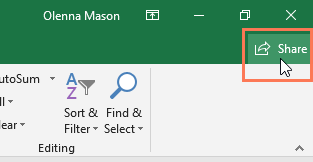
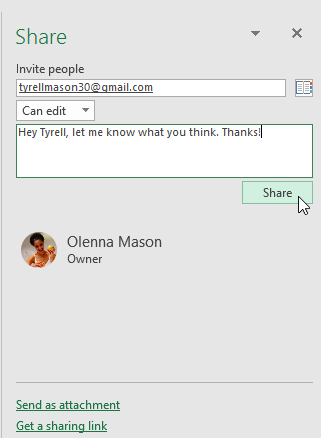
To collaborate with others, click the Share button in the top-right corner of Excel.
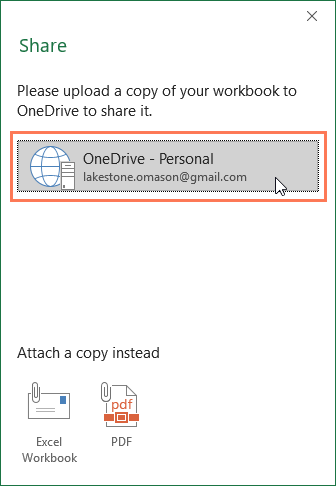
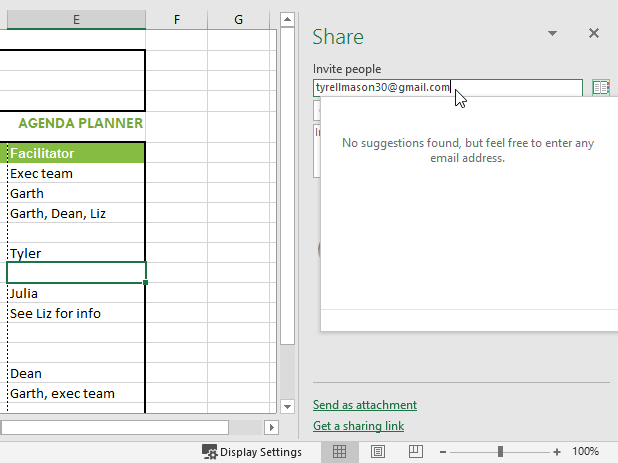
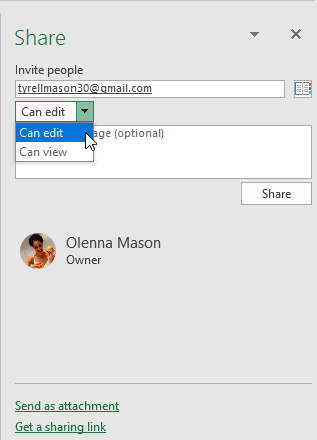
Upload the workbook to OneDrive if prompted. Then enter the recipient’s email address and choose whether they Can edit or Can view.
Adding Comments
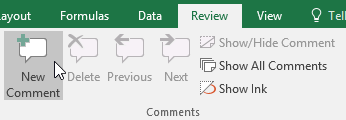
Comments allow you to leave feedback without changing the contents of a cell. Select a cell, go to the Review tab, and click New Comment.
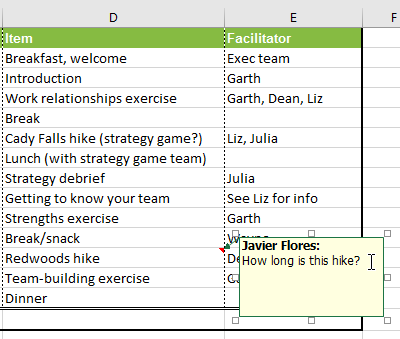
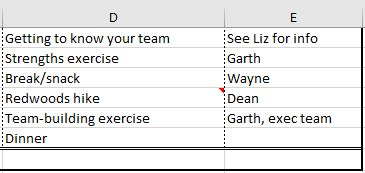
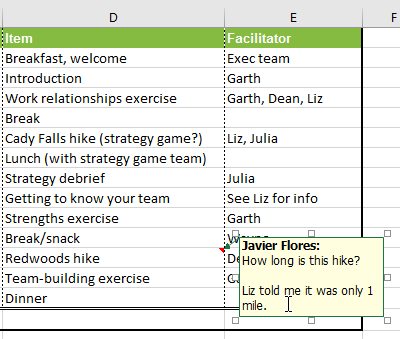
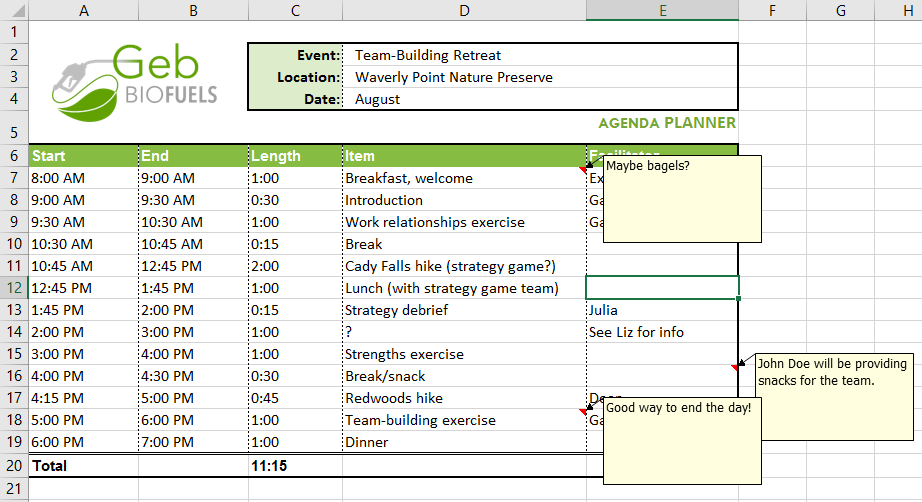
Cells with comments display a red indicator in the corner. Select the cell to view the comment.
Editing Comments
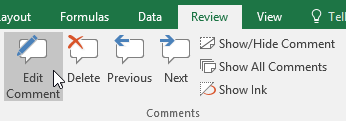
To edit a comment, select the cell and click Edit Comment on the Review tab.
Showing and Hiding Comments
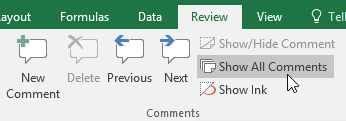
To display every comment at once, click Show All Comments on the Review tab.
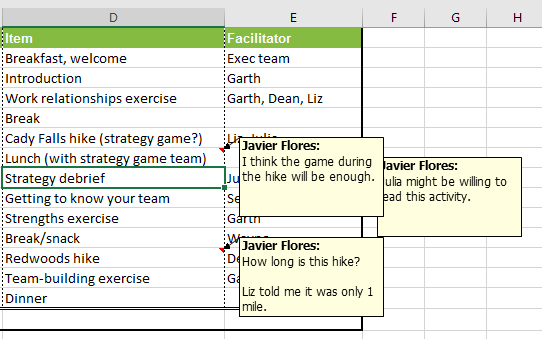
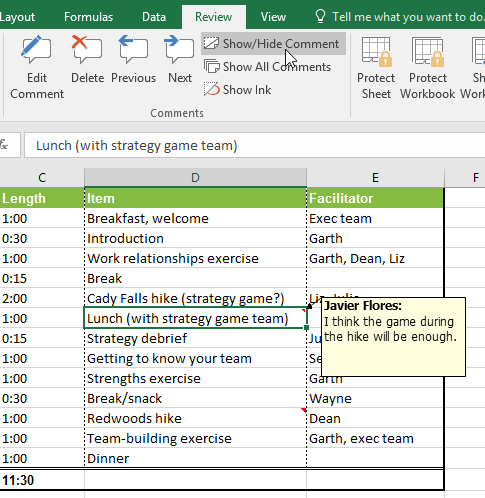
You can also show or hide a single comment by selecting the cell and clicking Show/Hide Comment.
Deleting Comments
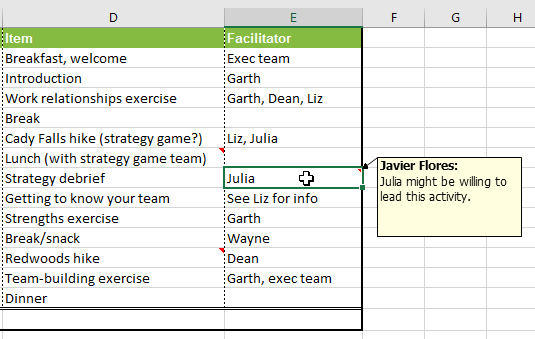
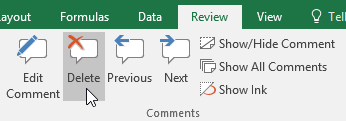
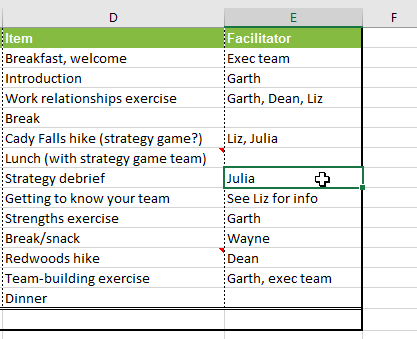
To remove a comment, select the cell and click Delete in the Comments group on the Review tab.
Real-Time Co-authoring
When a workbook is shared through OneDrive, multiple users can edit at the same time. Each collaborator appears with a unique color indicator.

Restoring a Previous Version
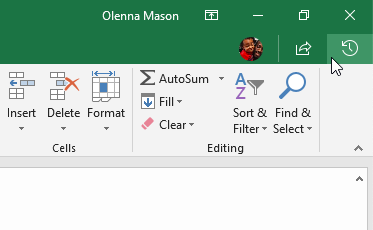
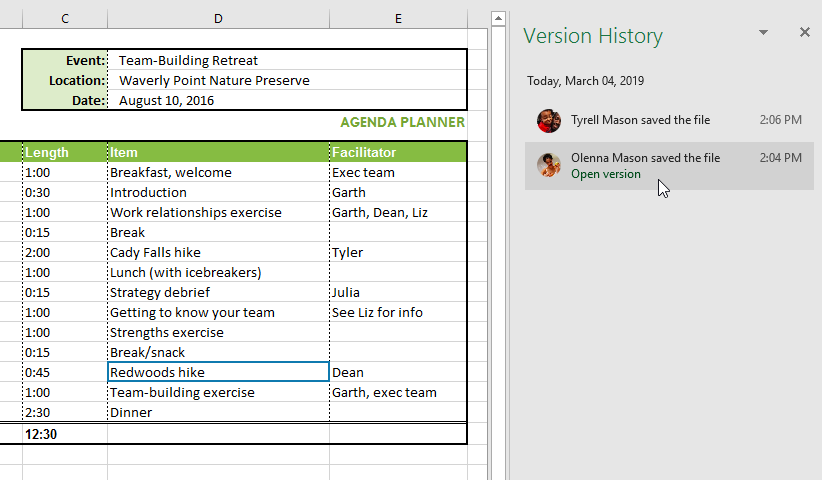
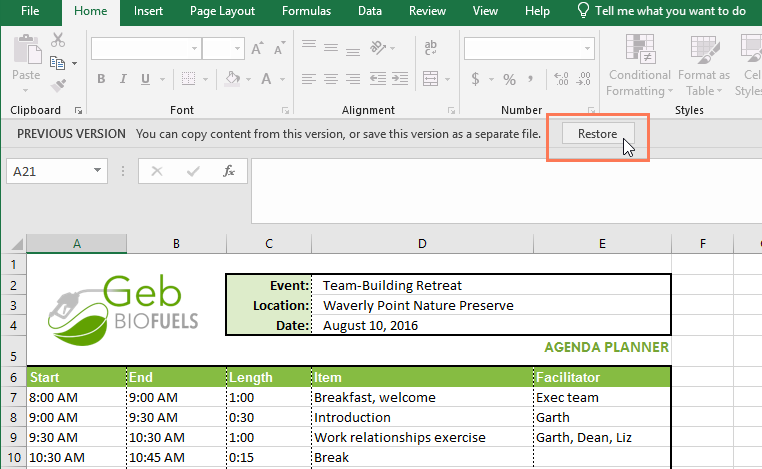
If changes were made that you want to undo, click the clock icon next to the Share button to open Version History.
Knowledge Check
What allows multiple people to edit an Excel file at the same time?
Practice File
Download this file and follow along with the lesson.
Challenge
Apply what you've learned in this lesson.
Complete the following tasks:
- Add four comments to different cells.
- Edit one of the comments.
- Delete one comment.
- Use Show All Comments to display every comment.
- Open Version History and review a previous version.
Finished this lesson?
Progress is saved in this browser only. It is not a grade — official progress lives in Brightspace.