Understanding Number Formats in Excel
Learn how to apply Date, Currency, Percentage, and Decimal number formats, and understand how formatting affects calculations.
By the end of this lesson you can
- Apply currency, percentage, date, and accounting formats appropriately
- Explain the difference between a displayed value and a stored value
- Diagnose why a percentage or date displays unexpectedly
- Use custom number formats for identifiers with leading zeros
Video
Watch the lesson video, then complete the reading and challenge.
Lesson Notes
Read through the key concepts before you try the challenge.
What you see is not always what is stored
You reconcile invoices at Lakeside Medical Associates.
A column of costs displays as whole dollars and the total is off by four dollars against the vendor statement. Nothing looks wrong. The cells actually contain cents, and the display is rounding each one for you while the total sums the real values.
Your task: Separate what a cell displays from what it stores, because formulas always use the stored value.
Number formatting changes appearance only. A cell holding 1240.4567 formatted to no decimals displays 1240, but every formula referring to it uses 1240.4567. This is why a column of rounded-looking numbers produces a total that appears not to add up — the total is correct, and the display is what is lying.
If you need the value itself rounded, use the ROUND function: =ROUND(A1,2). Formatting is for presentation; ROUND is for changing the number. Confusing the two is one of the most common sources of reconciliation discrepancies.
| Format | Displays 0.25 as | Watch out for |
|---|---|---|
| General | 0.25 | No formatting applied |
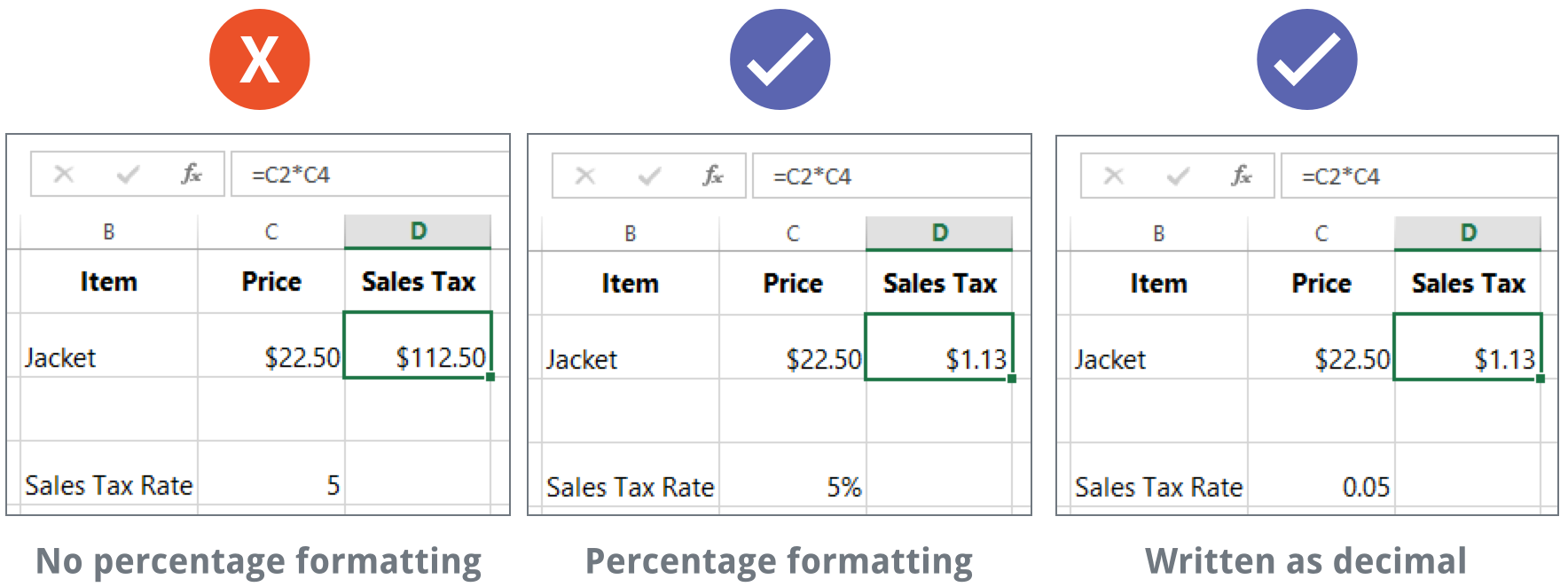
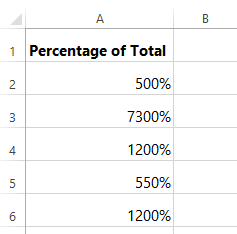
| Percentage | 25% | Excel multiplies by 100 to display — typing 25 into a percent cell gives 2500% |
| Currency | $0.25 | Places the symbol next to the number |
| Accounting | $ 0.25 | Aligns symbols and decimals in a column; shows zero as a dash |
| Text | 0.25 | Excel stops treating it as a number — it will not sum |
General Format vs Specific Formats
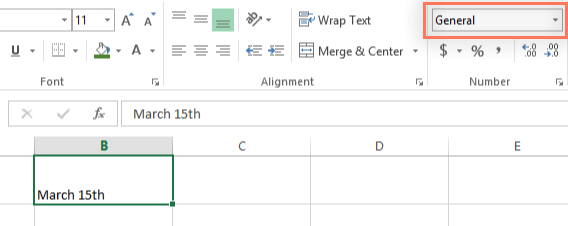
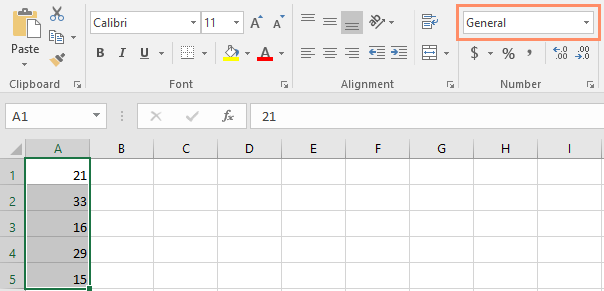
By default, Excel uses the General format. This does not apply any special formatting such as currency symbols, percentage signs, or date styling.
Applying Date Formats
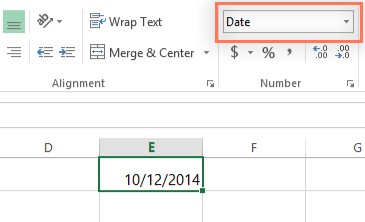
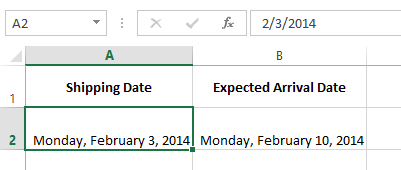
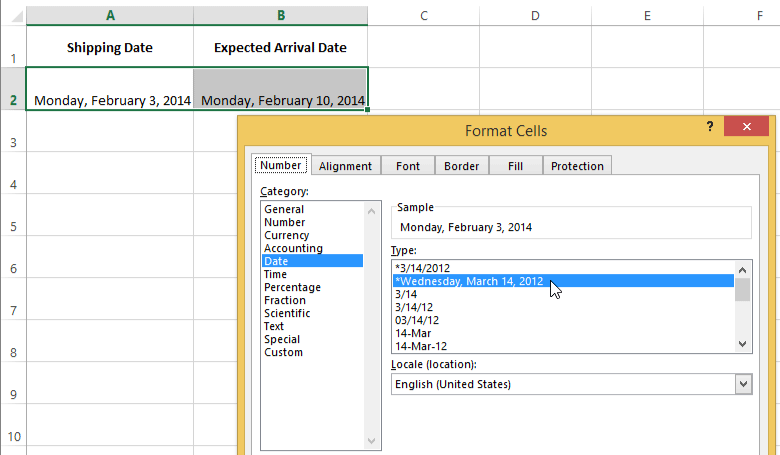
Dates can be formatted as Short Date, Long Date, or customized through the Format Cells dialog box.
Currency and Accounting Formats
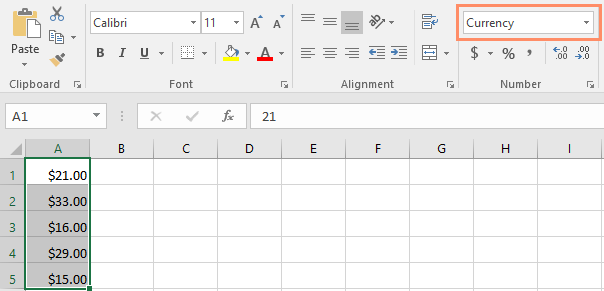
Currency format adds a currency symbol and decimal places. Accounting format aligns currency symbols and decimal points for professional financial reports.
Decimal Places and Rounding
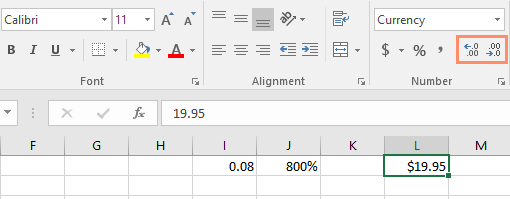
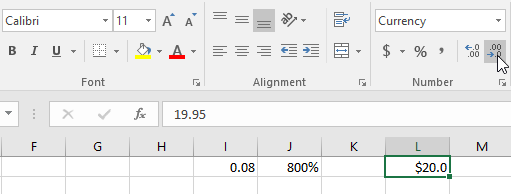
Use Increase Decimal and Decrease Decimal to control how many decimal places are displayed.
Understanding Percentage Format
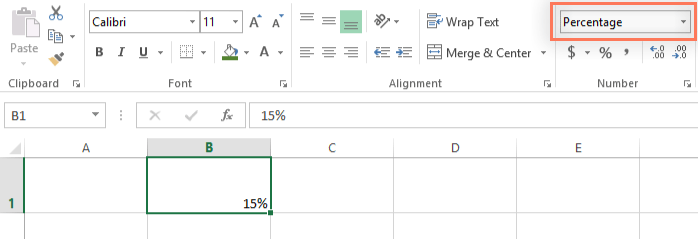
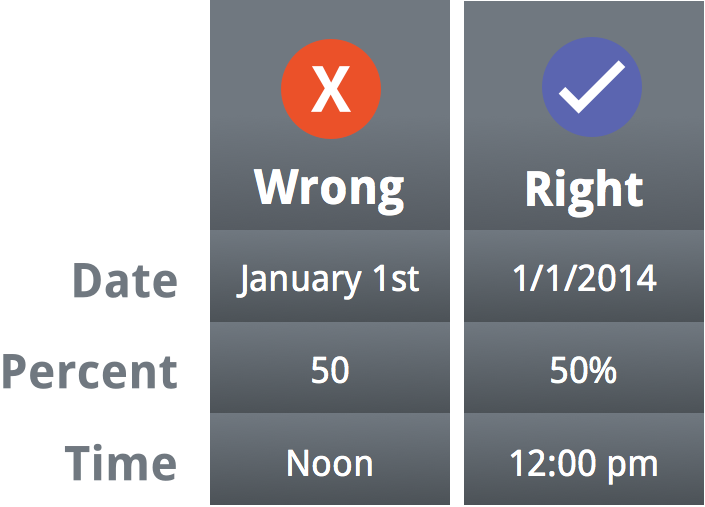
Percentage format multiplies a value by 100 and adds a percent symbol. For example, typing 0.05 and applying Percentage becomes 5%.
How Formatting Affects Calculations
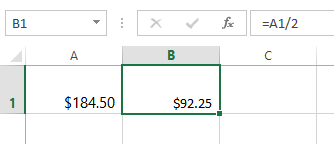
Formatting changes how data is displayed, but it does not change the underlying value. Understanding this is critical for accurate calculations.
Real-World Example: Customer Invoice
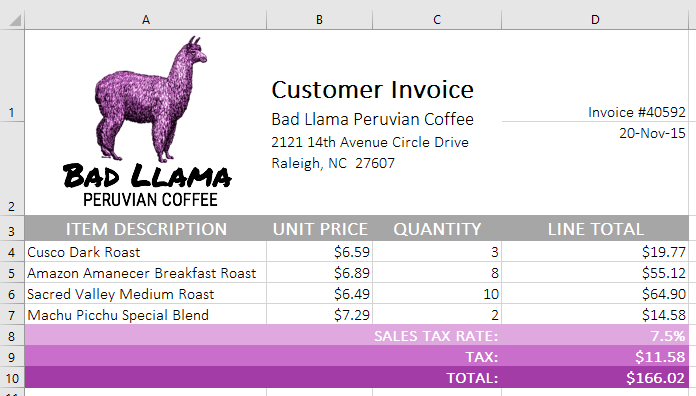
In professional documents like invoices, proper number formatting ensures totals, tax rates, and currency values are displayed correctly.
Knowledge Check
If a cell is formatted as Percentage, what does the value 0.25 display as?
Practice File
Download this file and follow along with the lesson.
Challenge
Apply what you've learned in this lesson.
Complete the following tasks:
- Format a column as Short Date.
- Change a date to Long Date format.
- Apply Currency formatting to a price column.
- Adjust decimal places to two digits.
- Format a tax rate as Percentage.
- Create a properly formatted invoice total.
Finished this lesson?
Progress is saved in this browser only. It is not a grade — official progress lives in Brightspace.