Intro to Formulas
Learn how to create basic formulas in Excel using cell references, mathematical operators, and the fill handle.
By the end of this lesson you can
- Write formulas using cell references rather than typed values
- Explain why references make a spreadsheet maintainable
- Use the fill handle to copy a formula down a column
- Recognize and interpret Excel's common error values
Video
Watch the lesson video, then complete the reading and challenge.
Lesson Notes
Read through the key concepts before you try the challenge.
Never type a number a formula could calculate
You maintain the supply budget at Lakeside Medical Associates.
The totals row contains typed numbers your predecessor calculated by hand. A price correction arrives for one item. The item's cost updates, the totals do not, and the workbook now quietly disagrees with itself — with nothing on screen indicating a problem.
Your task: Build formulas that recalculate, so the workbook can never fall out of step with its own data.
Every formula begins with an equals sign, which is how Excel knows to calculate rather than store what you typed. =C2*D2 multiplies whatever is currently in those two cells and updates the instant either changes.
The discipline is to reference rather than embed. =C2*0.08 for tax works until the rate changes, and then it is wrong in every cell that used it, invisibly. Put the rate in its own labeled cell and write =C2*$F$1. When the rate changes you edit one cell, and the entire workbook is correct again.
| Error | Means | Usual cause |
|---|---|---|
| ##### | The column is too narrow to display the value | Widen the column — the value is fine |
| #DIV/0! | Division by zero or by an empty cell | A divisor cell is empty or zero |
| #VALUE! | The formula received the wrong type of data | Text where a number was expected |
| #REF! | A reference points at a cell that no longer exists | A row or column the formula used was deleted |
| #NAME? | Excel does not recognize a name in the formula | A misspelled function name, or text without quotation marks |
| #N/A | A lookup found no match | The value being looked up is not present in the lookup range |
Building a supply cost sheet that maintains itself
Calculate line totals, a subtotal, and tax so that any price change updates everything automatically.
- 1
Put the tax rate in its own labeled cell, say F1, rather than inside formulas.
A rate typed into thirty formulas has to be found and changed thirty times, and any one you miss stays wrong silently. A rate in a labeled cell is changed once, and it is visible to anyone opening the workbook.
- 2
In E2 enter =C2*D2 for quantity times unit price.
References rather than numbers. If the quantity in C2 changes, the line total follows immediately — the sheet can never disagree with its own inputs.
- 3
Select E2 and double-click the fill handle to copy down the column.
Double-clicking fills down to the extent of the adjacent data, which is far more reliable than dragging on a 900-row sheet. The relative references shift as the formula moves, so row 3 gets =C3*D3.
- 4
Subtotal with =SUM(E2:E30), then tax with =E31*$F$1.
The dollar signs make F1 absolute, so copying the formula never shifts it off the rate cell. SUM over a range also keeps working when rows are inserted inside it, which typed addition does not.
Result: A sheet where changing any quantity, price, or the tax rate updates every dependent figure instantly.
Put every input in its own labeled cell and reference it. Numbers buried inside formulas are the single most common cause of spreadsheets that are quietly wrong.
What Is a Formula?
A formula is an equation that performs calculations in a worksheet. All formulas in Excel must begin with an equals sign (=).
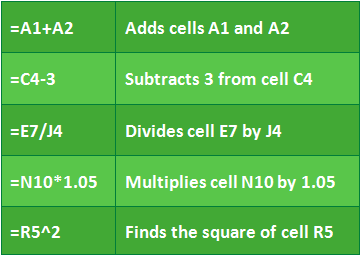
Excel can add, subtract, multiply, divide, and calculate exponents using standard mathematical operators.
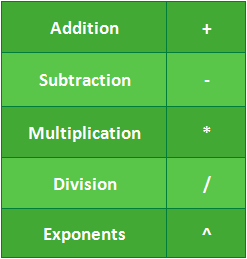
Understanding Cell References
Instead of typing numbers directly into formulas, Excel typically uses cell references. A cell reference identifies the location of data in the worksheet, such as A1 or D10.
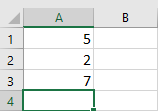
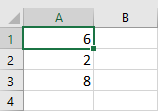
Using references allows formulas to automatically update when the referenced data changes.
Common Formula Examples
Creating a Basic Formula
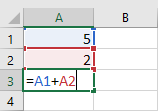
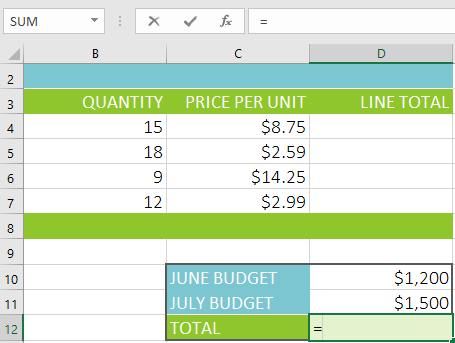
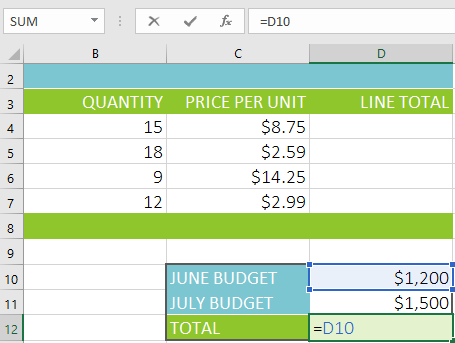
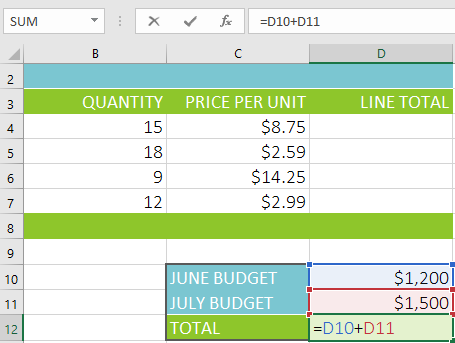
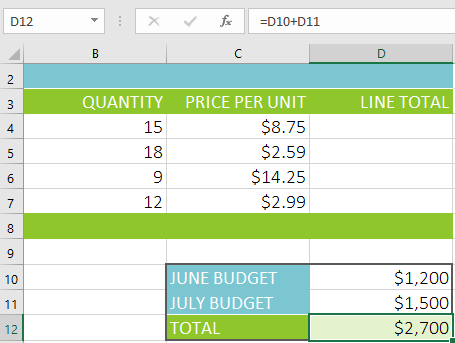
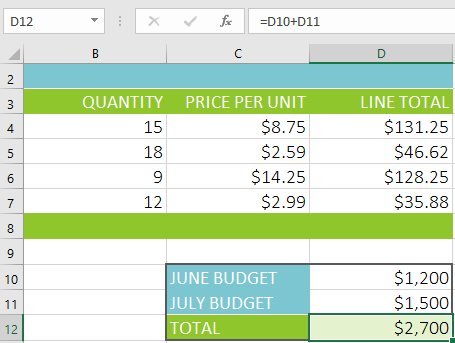
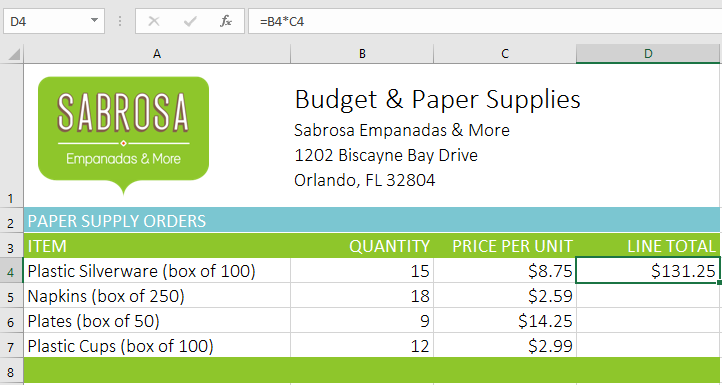
To create a formula, select the cell where you want the result to appear, type an equals sign (=), then enter the cell references and operator.
In this example, we calculate a total budget by adding two cells together.
Editing a Formula
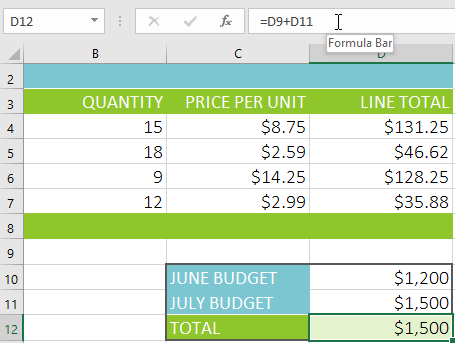
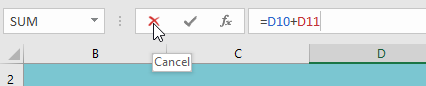
To modify a formula, select the cell and click inside the formula bar, or double-click the cell to edit directly.
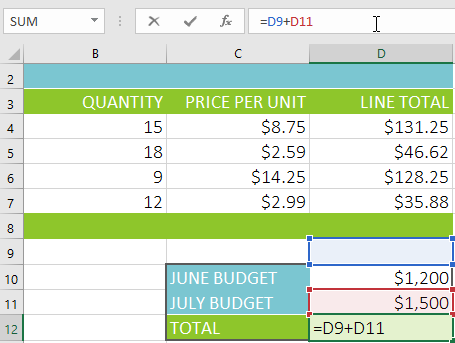
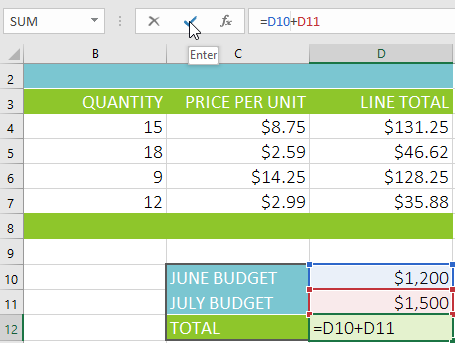
Using the Point-and-Click Method
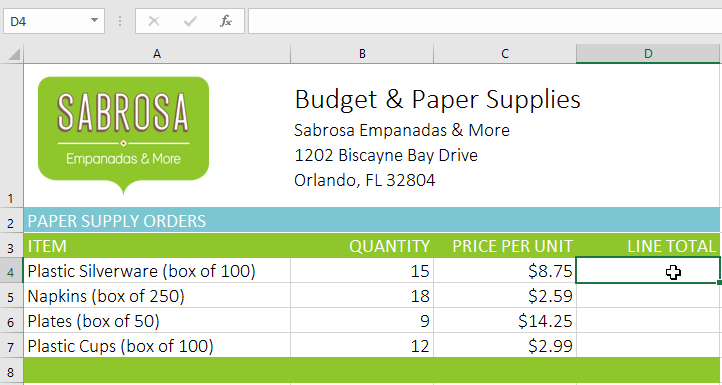
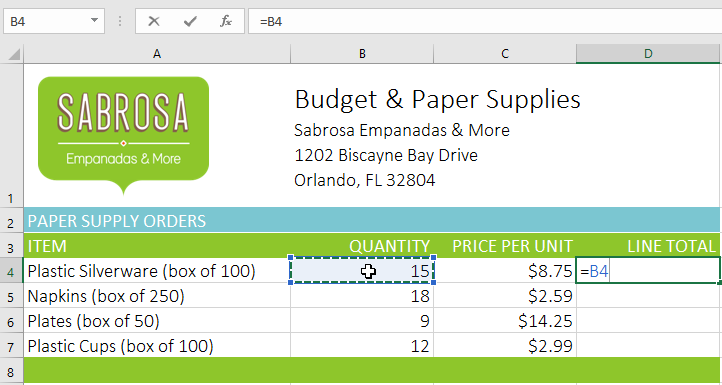
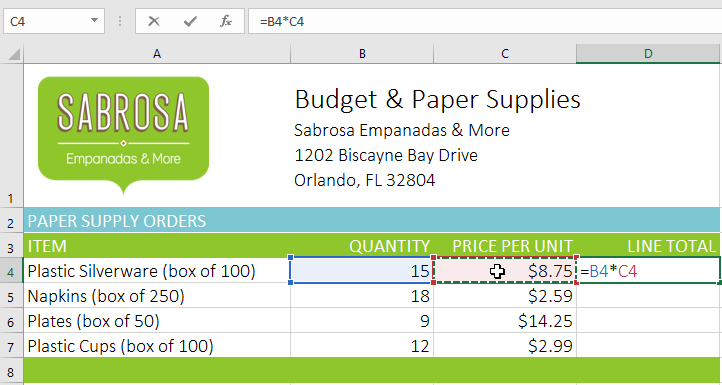
Instead of typing cell addresses manually, you can click the cells you want to include in the formula. This reduces errors and increases accuracy.
Copying Formulas with the Fill Handle
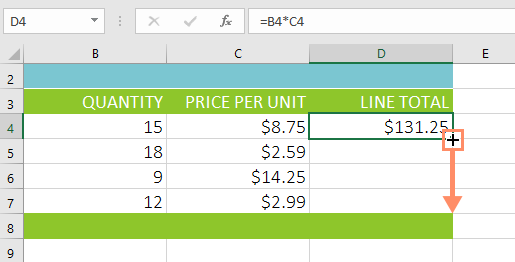
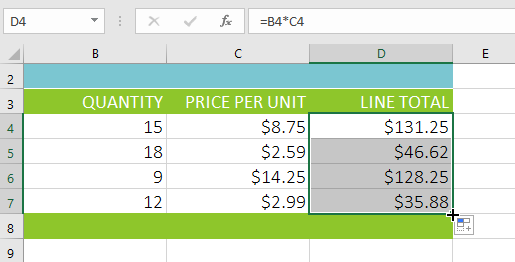
Formulas can be copied to adjacent cells using the fill handle. This small square appears in the bottom-right corner of a selected cell.
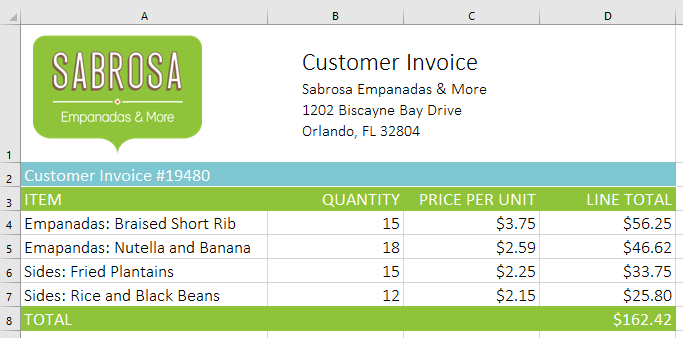
Practical Invoice Example
In real-world spreadsheets, formulas are often used to calculate totals such as invoices, budgets, or payroll.
Knowledge Check
How must every Excel formula begin?
Practice File
Download this file and follow along with the lesson.
Challenge
Apply what you've learned in this lesson.
Complete the following tasks in the practice workbook:
- Create a formula in cell D4 that multiplies Quantity by Price per Unit.
- Use the fill handle to copy the formula to remaining rows.
- Edit one price value and verify that totals update automatically.
- Create a formula that adds two budget values together.
- Show all formulas using Ctrl + ` and then return to normal view.
Finished this lesson?
Progress is saved in this browser only. It is not a grade — official progress lives in Brightspace.