Modifying Columns, Rows, and Cells
Learn how to resize, insert, delete, hide, move, and format rows and columns in Excel.
By the end of this lesson you can
- Adjust column width and row height, including AutoFit
- Insert, delete, hide, and unhide rows and columns
- Explain why merged cells cause problems in data ranges
- Wrap text so long entries stay readable
Video
Watch the lesson video, then complete the reading and challenge.
Lesson Notes
Read through the key concepts before you try the challenge.
Merged cells break more than they fix
You inherit the supply tracker at Lakeside Medical Associates.
Your predecessor merged cells across the top of each section to make headings look centered. Now sorting throws an error, filtering behaves unpredictably, and selecting a column selects far more than you asked for.
Your task: Learn the layout tools that make a sheet readable without damaging its structure.
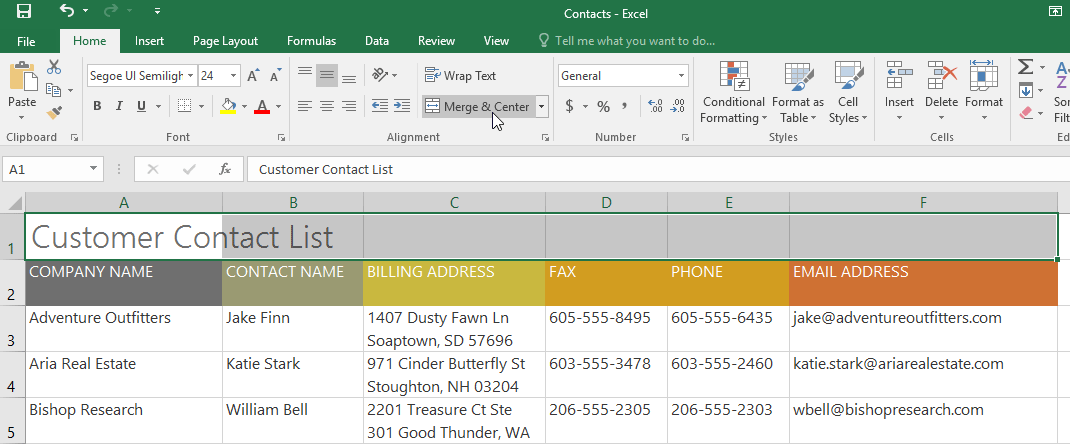
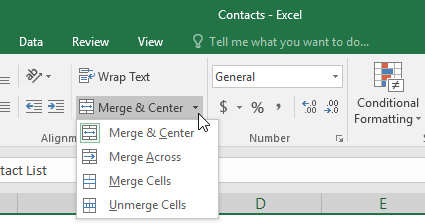
Merging combines cells into one, which destroys the grid the merged region covered. Sorting, filtering, and many formulas depend on every row having the same shape, so a merged range breaks them. In a data table, merged cells are close to always the wrong tool.
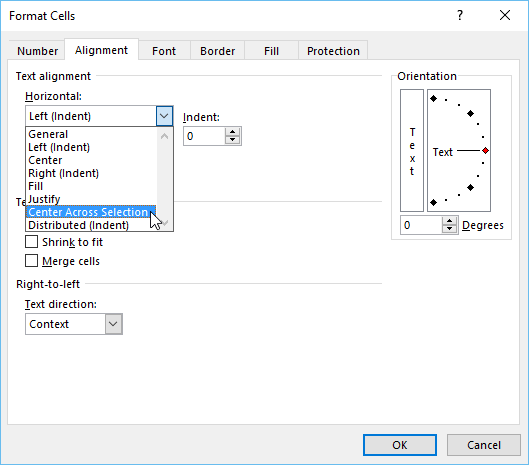
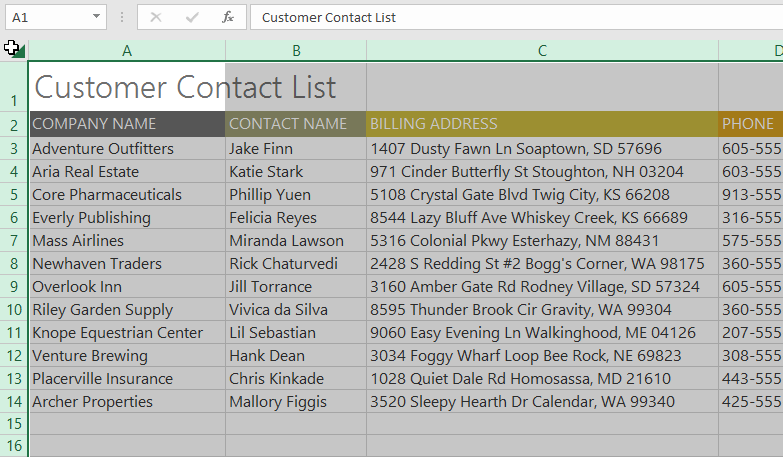
'Center Across Selection' gives the same visual result without the damage. Select the cells, open Format Cells > Alignment, and set Horizontal to Center Across Selection. The text appears centered across the range while every cell remains individually addressable — so sorting and filtering keep working.
Resizing Columns
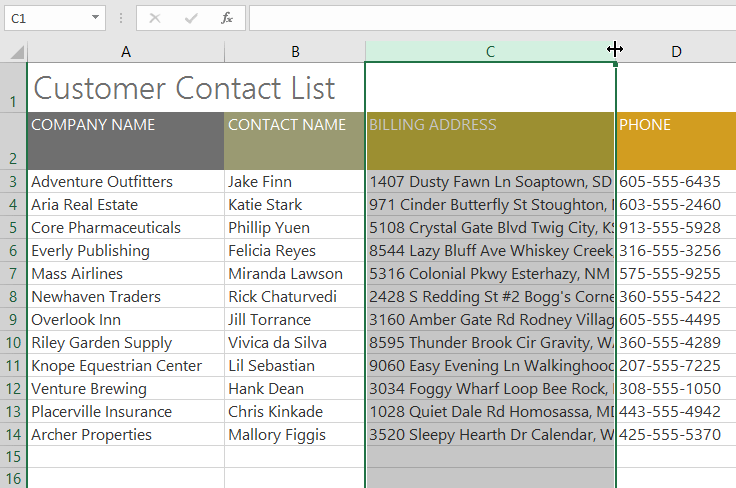
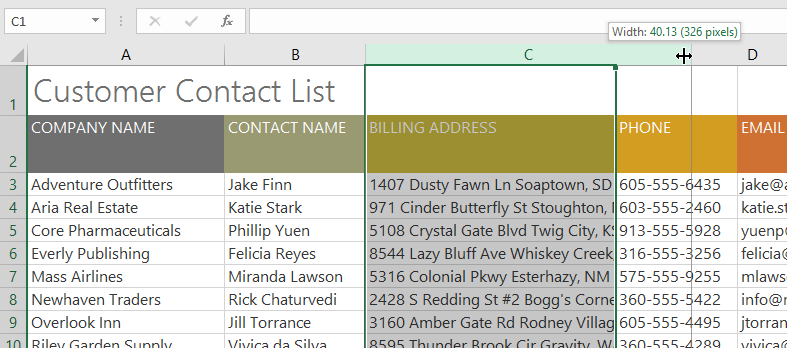
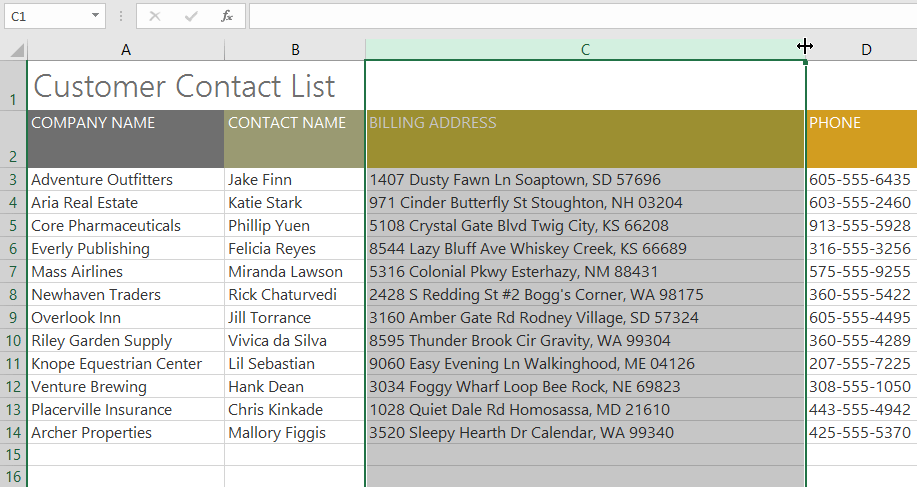
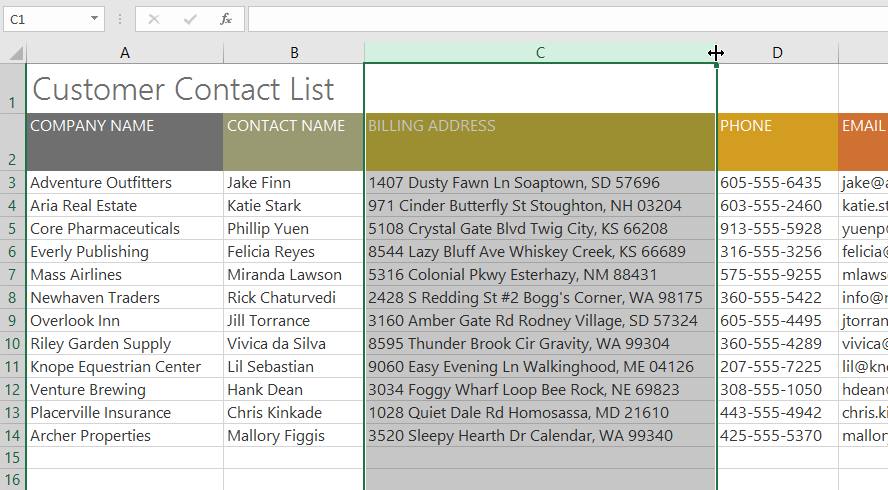
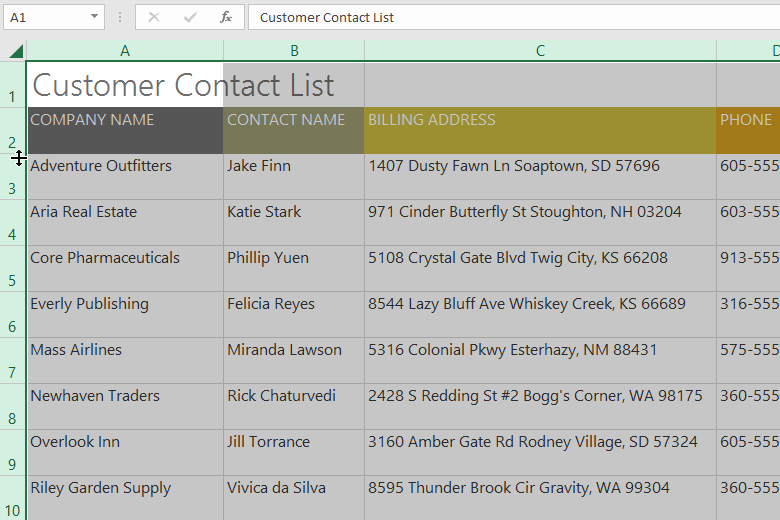
You can manually resize columns by dragging the boundary between column headers or use AutoFit to automatically adjust the width.
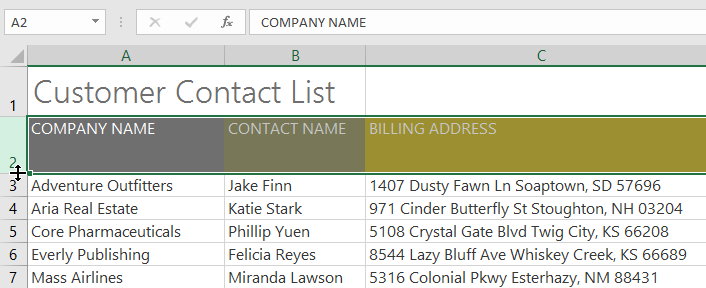
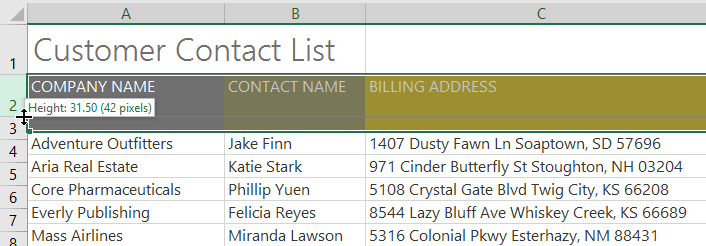
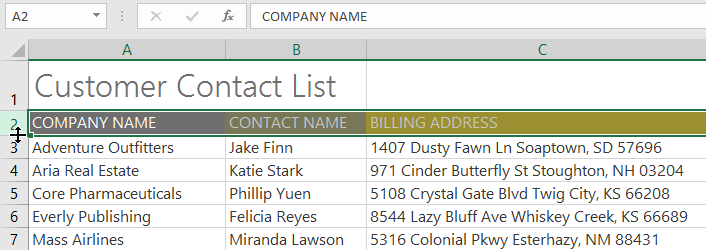
Resizing Rows
Row height can be adjusted manually or through the Row Height command.
Wrap Text
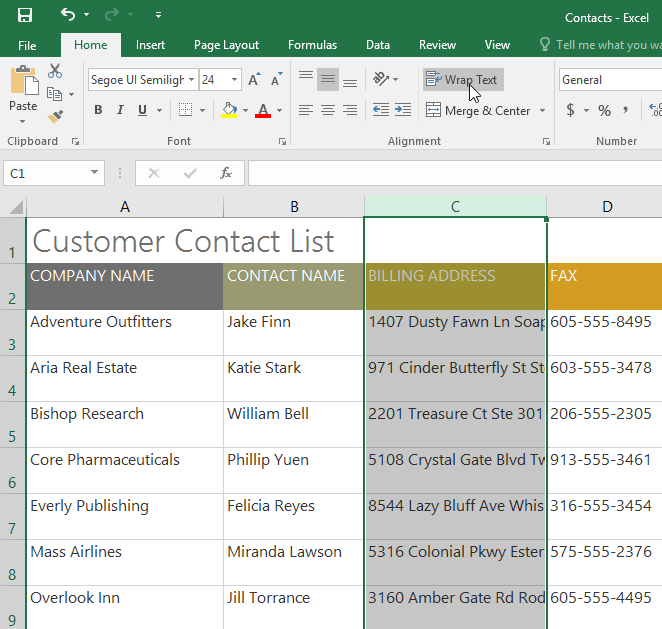
Wrap Text allows content to appear on multiple lines within a single cell instead of expanding the column width.
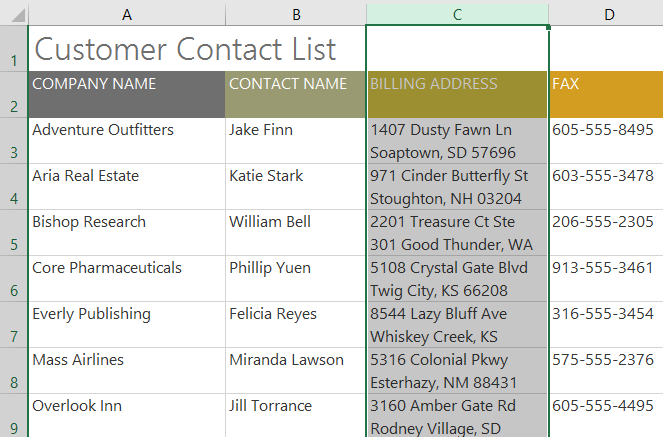
Inserting Rows and Columns
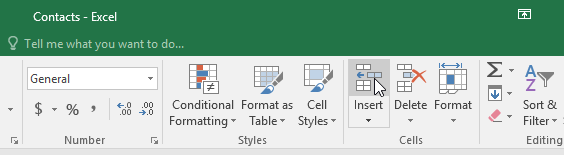
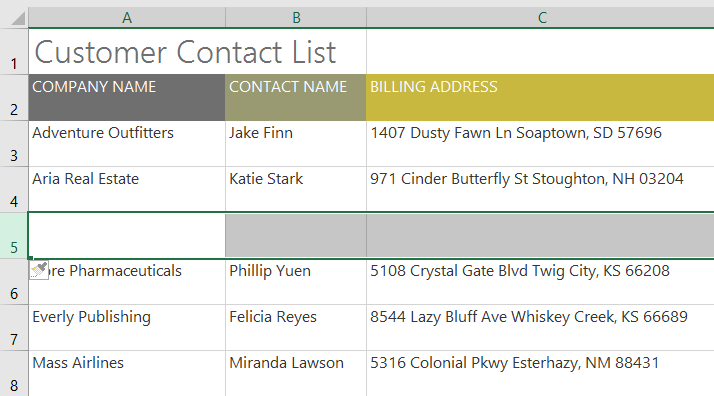
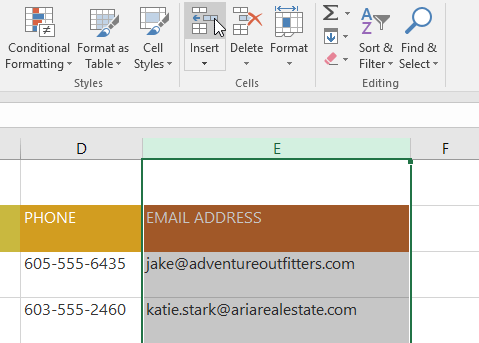
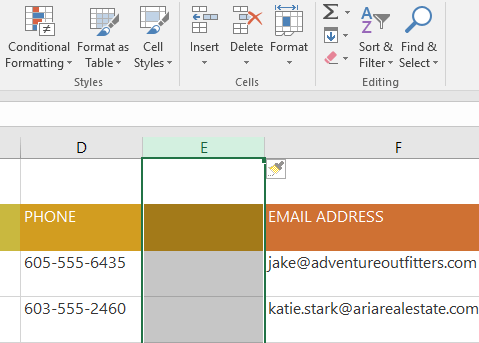
You can insert new rows or columns using the Insert command from the Home tab.
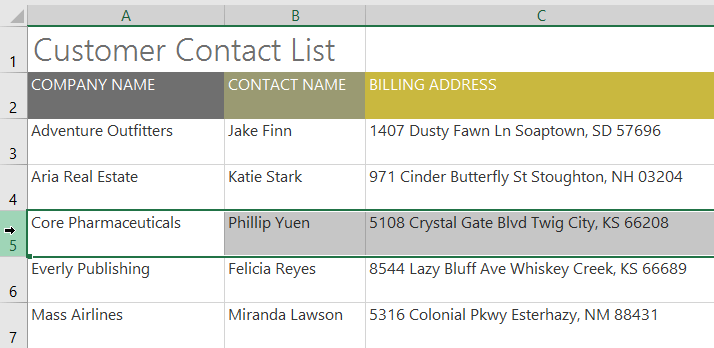
Deleting Rows and Columns
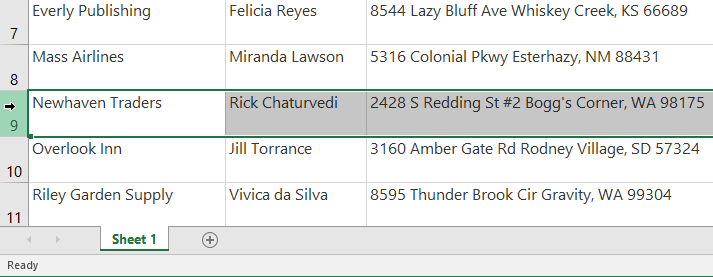
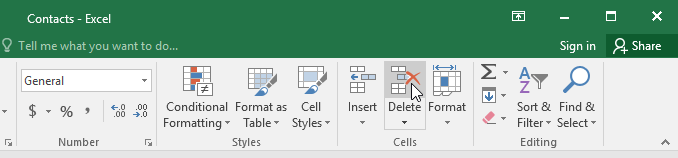
Rows and columns can be deleted using the Delete command or right-click menu.
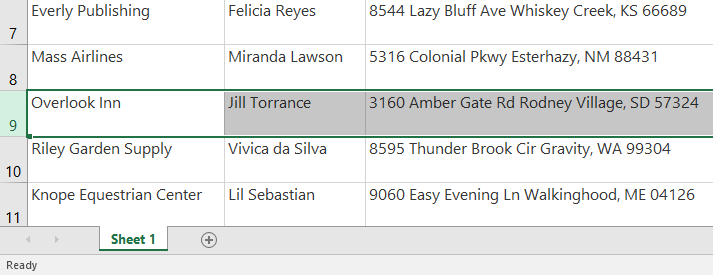
Hiding and Unhiding Rows and Columns
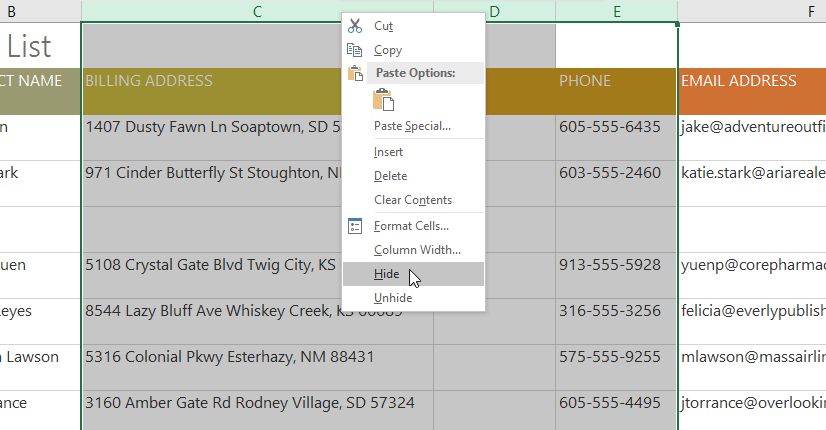
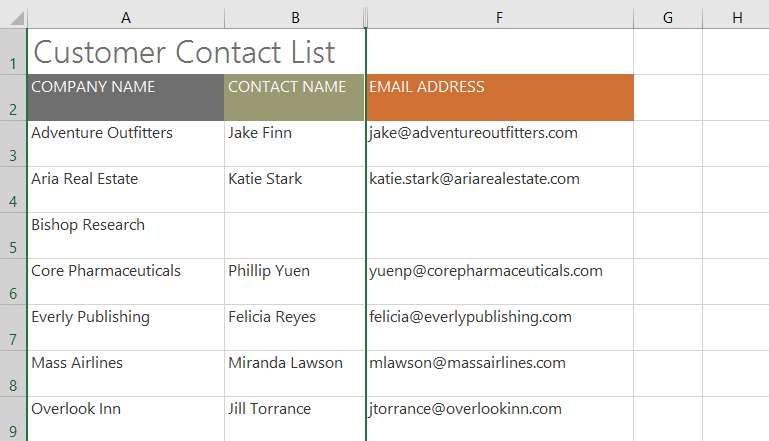
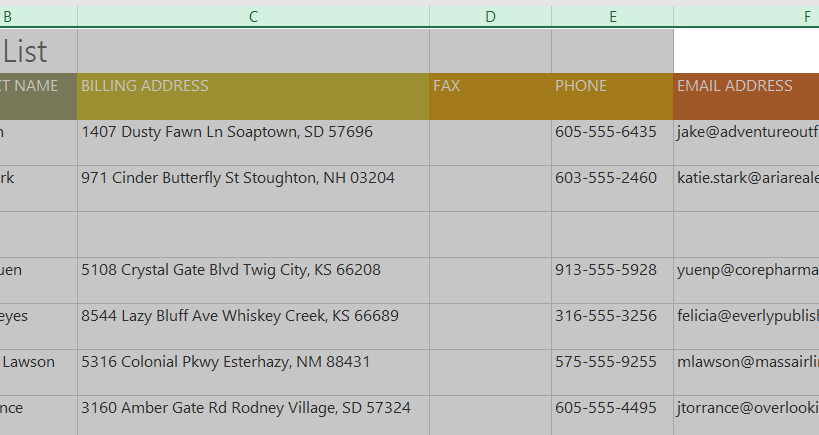
Rows and columns can be hidden to temporarily remove them from view without deleting data.
Moving Rows and Columns
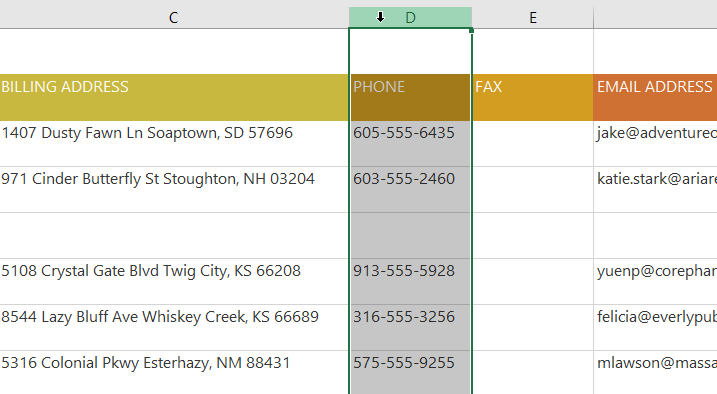
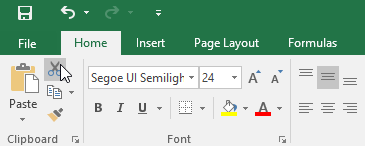
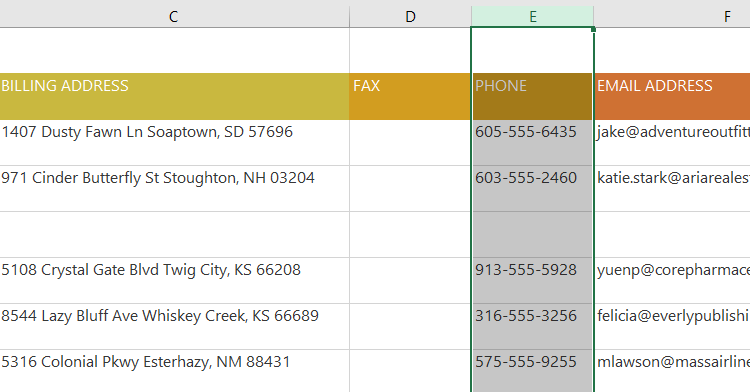
Rows and columns can be moved using Cut and Insert Cut Cells.
Merge & Center vs Center Across Selection
Merge & Center combines cells into one. Center Across Selection centers text without merging cells.
Selecting All Cells
Click the Select All button to highlight the entire worksheet at once.
Knowledge Check
What does AutoFit do to a column?
Practice File
Download this file and follow along with the lesson.
Challenge
Apply what you've learned in this lesson.
Complete the following tasks:
- AutoFit a column width.
- Resize a row manually.
- Insert a new row.
- Delete a column.
- Hide and unhide a column.
- Move a row using Cut.
- Use Wrap Text on a long address.
- Use Center Across Selection on a title.
Finished this lesson?
Progress is saved in this browser only. It is not a grade — official progress lives in Brightspace.