Task Management Tools
Learn what task management tools are, how offices use them, and how to set up a basic board to track team work.
Video
Watch the lesson video, then complete the reading and challenge.
Presentation Slides
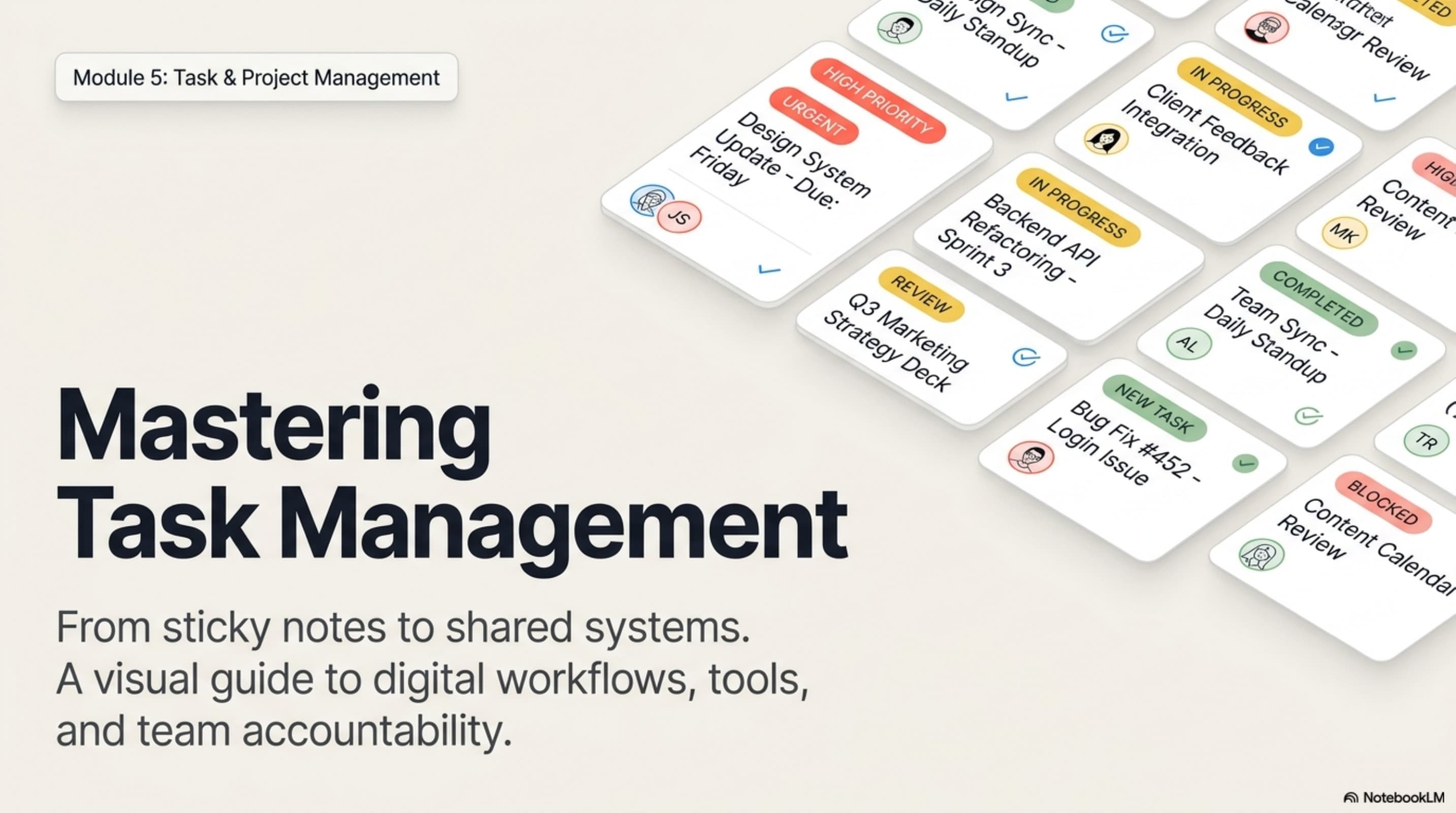
Review the slides below, then complete the reading and challenge.
Lesson Notes
Read through the key concepts before you try the challenge.
Real-World Scenario
Why Task Management Tools Matter
Every office generates tasks constantly — from client follow-ups to internal deliverables to daily admin work. Without a system, tasks live in email chains, sticky notes, and verbal agreements that disappear the moment the conversation ends. Task management tools solve this problem by giving teams a single shared system for tracking who is doing what and when it is due:
- Tasks become visible — instead of tasks living in individual inboxes, a shared board gives everyone on the team a real-time view of what is open, in progress, and complete
- Accountability becomes clear — when every task has a named owner, there is no ambiguity about who is responsible and no room for tasks to fall through the cracks
- Progress is trackable — managers can see at a glance whether the team is on track without needing to send status-check emails
- Nothing gets lost — verbal assignments and email threads are fragile; a task on a board persists until it is explicitly marked done
- Bottlenecks become visible — when multiple tasks pile up in 'In Progress' for the same person, the board surfaces the problem before it becomes a missed deadline
Overview of Popular Tools
Several task management platforms are widely used in professional offices. Each has a different design philosophy and ideal use case. You do not need to master all of them — but you need to know what each one is and when it is the right choice:
- Trello — a visual, card-based tool built around the Kanban board. Tasks appear as cards that move across columns as work progresses. Best for teams that want simplicity and instant visual clarity. Free tier is generous and ideal for most small teams.
- Asana — a more structured tool with list views, timeline views, and project portfolios. Best for teams managing complex projects with dependencies, milestones, and multiple contributors. Widely used in marketing, operations, and project management roles.
- ClickUp — a highly customizable platform that supports boards, lists, Gantt charts, goals, and time tracking in a single tool. Best for teams that want maximum control over their workflow structure. Steeper learning curve than Trello but more powerful at scale.
- Microsoft To Do — a lightweight personal and small-team task manager that integrates tightly with Microsoft 365 (Outlook, Teams). Best for individuals tracking their own work or for teams already deep in the Microsoft ecosystem. Not suited for complex multi-project management.
- Notion — a flexible workspace that combines task management with documentation, notes, and databases. Best for teams that want to manage tasks and documentation in the same place. Requires more setup than dedicated task tools but is extremely adaptable.
Boards vs. Lists: Understanding the Difference
The two most common task display formats are boards and lists. Both track the same underlying data — tasks, owners, due dates, and statuses — but they present it differently and serve different cognitive needs. Knowing when to use each is a sign of organizational maturity:
- Board view (Kanban) — tasks appear as moveable cards organized in vertical columns. The columns represent stages of work (To Do, In Progress, Review, Done). You drag a card from one column to the next as it progresses. Best for: understanding the current state of all work at a glance and visualizing workflow stages.
- List view — tasks appear in a linear, top-to-bottom format with checkboxes, due dates, and assignees visible in columns beside each task name. Best for: reviewing deadlines chronologically, scanning a long backlog, or managing a personal to-do list where order matters.
- When to use a board — use a board when your team needs to see what state every task is in at any given moment. Boards answer the question 'Where does everything stand right now?' instantly.
- When to use a list — use a list when your team needs to prioritize by date or urgency. Lists answer the question 'What needs to happen soonest?' efficiently.
- Most modern tools support both views — Asana, ClickUp, and Notion let you switch between board and list views on the same project without changing any data. Learn to switch between them depending on what question you are trying to answer.
Anatomy of a Professional Task
A task card is a container for information. An incomplete task — one with no owner, no due date, or no description — is nearly useless because it creates ambiguity about what needs to happen, when, and by whom. Every professional task should contain these fields before it is assigned to anyone:
- Title — write a clear, action-oriented title that describes the specific output: 'Draft Q3 client report' not 'Report'. The title should tell anyone reading the board exactly what needs to be produced.
- Owner — assign every task to exactly one person. A task assigned to 'the team' is a task assigned to no one. Single ownership is the foundation of accountability.
- Due date — every task needs a deadline, even a soft one. A task with no due date communicates that it is not important enough to finish on time, which means it will keep getting pushed until it becomes urgent.
- Priority — label each task as High, Medium, or Low priority so the owner knows how to sequence their work when their plate is full. Most tools support priority labels or color-coding.
- Description — use the description field to add context: what the task is, why it matters, what done looks like, and any relevant links or reference materials. A description-free task forces the owner to track down context before they can start.
- Status — update the task's status column or card column as work progresses: Not Started → In Progress → Done. Status fields only work if people actually update them after every meaningful change.
Setting Up Your First Board
The simplest effective board structure uses three columns. This three-column foundation covers the full lifecycle of any task and requires zero training for new team members to understand:
- To Do — all tasks that have been identified and assigned but not yet started. This is the backlog. Tasks should be created here first and only moved when someone actively begins work.
- In Progress — tasks that someone is actively working on right now. A well-maintained board has an honest 'In Progress' column — if a task has stalled or is blocked, it should be flagged, not left sitting as if work is continuing.
- Done — tasks that are fully complete. Moving a card to Done is a meaningful action — it signals to the team that the work is finished and the outcome is ready. Never move a card to Done if follow-up is still required.
- Adding columns as your workflow grows — once the team is comfortable with the three-column foundation, add columns like 'In Review', 'Blocked', or 'Awaiting Approval' to reflect the actual stages of your workflow more precisely.
- Board maintenance — review the board weekly to archive completed tasks, update stalled items, and ensure every 'In Progress' card still reflects active work. A board with 30 tasks stuck in 'In Progress' for two weeks is not being used correctly.
Quick Reference: Task Management Essentials

Task Management Essentials: From Sticky Notes to Shared Systems
Responsible Use
AI Assist
Knowledge Check
What two things should every task have to ensure clear accountability?
Challenge
Apply what you've learned in this lesson.
Create a free Trello board at trello.com — or mock one by drawing or writing the structure in a document. Your board must be fully set up and meet all five specifications below:
- Create 3 lists: To Do, In Progress, and Done
- Add at least 6 tasks (cards) distributed across all 3 lists
- Each card must have a clear, action-oriented title — no single-word titles like 'Report' or 'Meeting'
- At least 3 cards must have a due date assigned
- At least 2 cards must have a named owner (use any name) and a priority label (High, Medium, or Low)