Hands-On: Build a Project Tracker
Apply everything from this module to build a complete, usable project tracker for a real team scenario.
Video
Watch the lesson video, then complete the reading and challenge.
Presentation Slides
Review the slides below, then complete the reading and challenge.
Lesson Notes
Read through the key concepts before you try the challenge.
Real-World Scenario
The Fragile Tracker vs. The Functional Tracker
Most people build a project tracker by opening a blank spreadsheet, typing column headers, and starting to enter tasks. The result is a fragile tracker — one that works fine for the first day and breaks quietly thereafter. A functional tracker is engineered with the same care you would give any tool that a team will depend on. Here is what separates them:
- Fragile trackers have no consistent status vocabulary — one person marks a task 'done', another writes 'complete', another writes 'finished'. Filtering the tracker for completed items returns inconsistent results.
- Fragile trackers assign tasks to groups — 'the team', 'marketing', 'everyone'. When nobody specific owns a task, nobody specific completes it.
- Fragile trackers have no priority signal — every task looks equally important, so team members guess about sequencing and the most important work may get done last.
- Functional trackers enforce consistency through dropdowns — every status entry and priority entry is selected from a pre-approved list, making the tracker filterable, sortable, and reliable from row 1 to row 100.
- Functional trackers assign tasks to individuals — one name per task, always. The tracker is only as useful as its accountability structure.
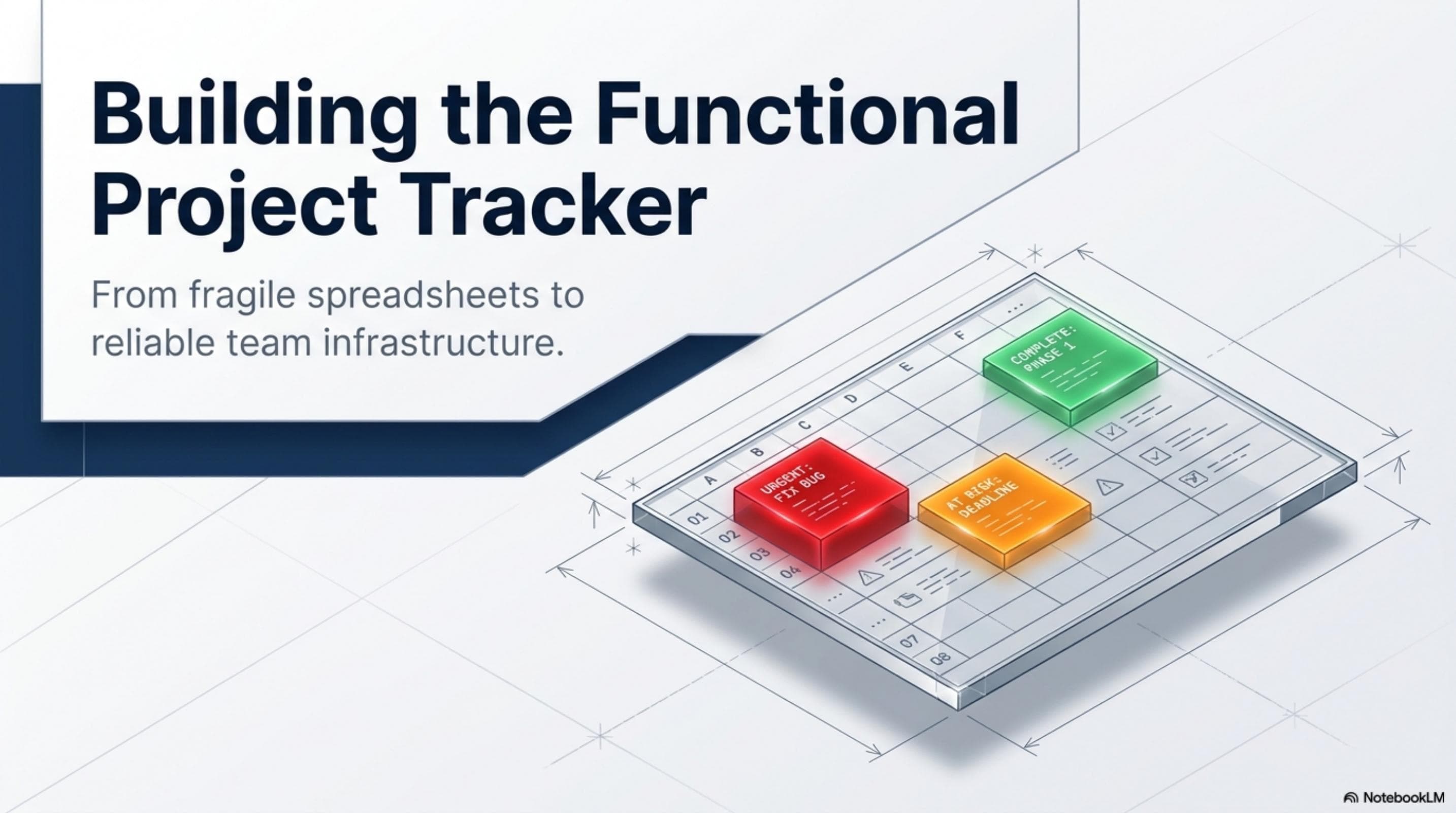
- Functional trackers provide instant priority visibility — conditional formatting colors high-priority and blocked tasks so the most important work is visible in seconds without reading every row.
- Functional trackers document themselves — a Notes tab explains what each column means, what status values are allowed, and who maintains the tracker. Any new team member can use the tracker correctly without asking for a tutorial.
Phase 1 — Architecting the Column Structure
The most important step in building any tracker is planning what data you actually need to capture before you type a single value. Adding columns impulsively mid-project breaks existing filters and creates structural inconsistencies. Plan the full column structure first, then build:
- Task Name (Column A) — a specific, action-oriented description of the deliverable. Write task names as outcomes: 'Submit Q3 client report to finance team by June 30' is useful. 'Report' is not.
- Project (Column B) — the project or initiative this task belongs to. Including a project column enables filtering by project so you can view all tasks for a single initiative at once. Minimum of two distinct projects in the finished tracker.
- Owner (Column C) — the single person responsible for this task. Use first and last names so there is no ambiguity when multiple team members share a first name.
- Due Date (Column D) — the specific date the task is expected to be complete. Apply consistent YYYY-MM-DD formatting so the column sorts correctly when you sort by date.
- Priority (Column E) — the urgency and importance level of this task: High, Medium, or Low. Apply a Data Validation dropdown so no one can type 'urgent', 'critical', or any non-standard value.
- Status (Column F) — the current state of the task. Apply a Data Validation dropdown: Not Started, In Progress, Complete, At Risk, Blocked. Free-text is not allowed in this column.
- Notes (Column G) — context, blockers, dependencies, and communication history. This is the only free-text column in the tracker.
Phase 1 — Data Guardrails: Dropdowns for Priority and Status
The Priority and Status columns are the most important columns in the tracker — and the most vulnerable to inconsistency if left as free-text fields. Data Validation dropdowns convert these columns from noise generators into reliable filters:
- Select the entire Priority column (Column E), then navigate to Data > Data Validation (Google Sheets) or Data > Data Validation > Allow: List (Excel).
- Enter your allowed values for Priority: High, Medium, Low — separated by commas. These are the only values the column will accept. Reject all invalid input.
- Repeat the process for the Status column (Column F) with these values: Not Started, In Progress, Complete, At Risk, Blocked.
- Set both validations to 'Reject input' on invalid data — in Google Sheets, select 'Reject input' under the On Invalid Data setting. This means the spreadsheet will not allow free-text entries that fall outside the approved list.
- The result: every priority and status entry is machine-readable and perfectly consistent. Filtering the tracker by 'High' priority returns exactly every high-priority task — no missed rows, no false matches, no ambiguity.
- Test the validation immediately after setting it up — try typing 'urgent' into a Priority cell. The tracker should reject the input and display an error. If it does not, the validation was not set up correctly.
Phase 1 — Locking the Foundation with Frozen Headers
A tracker with 50 rows of tasks and a header row that disappears when you scroll is unusable. The moment a team member has to scroll up to remember what Column E means, the structural clarity you built is gone. Freeze the header row before entering any data:
- Google Sheets — click View > Freeze > 1 Row. Row 1 locks in place and remains permanently visible at the top of the screen regardless of how far down you scroll.
- Excel — click View > Freeze Panes > Freeze Top Row. Same result: Row 1 is anchored.
- Always freeze the header row before entering task data — this ensures the structural label is locked before the sheet grows.
- Verify it works — enter 20 rows of tasks and scroll to the bottom. The header row should remain fully visible at the top of the window. If it disappears, the freeze was not applied correctly.
- A frozen header row is non-negotiable for any shared tracker — without it, team members editing the tracker from their own screens have no reliable column reference and may enter data in the wrong column.
Phase 2 — Priority Visualization with Conditional Formatting
A project tracker with 30 tasks and no visual differentiation requires reading every row to identify the most critical work. Conditional Formatting automates priority visibility by coloring cells based on their content — turning a flat grid into an instantly readable status display:
- Select the entire Priority column (Column E), then navigate to Format > Conditional Formatting (Google Sheets) or Home > Conditional Formatting > New Rule (Excel).
- Create a rule for 'High' priority — set the condition to 'Text is exactly: High' and choose a red background fill. Every High-priority task will stand out immediately in the tracker.
- Create a rule for 'Low' priority — set the condition to 'Text is exactly: Low' and choose a light grey or light blue fill. Visual hierarchy is now complete: red = urgent, grey = low stakes.
- Apply a second set of rules to the Status column — 'Complete' in green, 'At Risk' in orange, 'Blocked' in yellow. This gives every row a two-column visual summary of urgency and progress status simultaneously.
- The result: scanning a 30-row tracker for the work that needs attention takes three seconds. Red high-priority tasks and orange at-risk items are immediately visible without reading any cell content.
- Conditional formatting applies automatically to every new row added — you never need to manually reformat cells as the tracker grows beyond its initial set of tasks.
Phase 2 — Sharing With the Team
A tracker that only you can access is a personal to-do list. A tracker shared with the team is project infrastructure. Sharing a tracker correctly means configuring access levels thoughtfully and documenting the tracker structure so every team member can use it without breaking it:
- In Google Sheets — click Share in the top right corner. Add team members by email and assign 'Viewer', 'Commenter', or 'Editor' access based on their role. Use 'Anyone with the link can view' for read-only access across a larger group.
- Editor access — grant only to team members whose job requires updating the tracker: the project lead, the office assistant, and anyone who owns tasks in the tracker.
- Viewer access — appropriate for stakeholders who need visibility into the tracker but should not be able to change any values. A senior manager, a client contact, or a cross-functional partner might receive Viewer access.
- Protect formula cells — if your tracker includes any calculated columns (a formula counting overdue tasks, for example), protect those cells so team members cannot accidentally overwrite them. In Google Sheets: Format > Protect Range. In Excel: Review > Protect Sheet.
- Add a Notes tab — create a second spreadsheet tab named 'Notes' and document every column: its name, what it means, and any entry rules (especially for the dropdown columns). A team member who joins the project two weeks in should be able to read the Notes tab and use the tracker correctly with zero additional instruction.
Quick Reference: Building a Functional Project Tracker

Building a Functional Project Tracker
Responsible Use
AI Assist
Knowledge Check
What makes a project tracker most effective for team accountability?
Challenge
Apply what you've learned in this lesson.
Build a complete, functional project tracker in Google Sheets or Microsoft Excel. This is your capstone challenge for Module 5 — it must demonstrate every skill from this module. Your tracker must pass every check in the five specifications below before you submit it:
- Include all 7 required columns fully filled in: Task Name, Project (at least 2 different projects), Owner (at least 3 different named individuals), Due Date, Priority, Status, and Notes — with at least 10 rows of realistic task data
- Apply Data Validation dropdowns to both the Priority column (High / Medium / Low) and the Status column (Not Started / In Progress / Complete / At Risk / Blocked) — set both to reject invalid input
- Apply conditional formatting to the Priority column (High = red background) and the Status column (Complete = green, At Risk = orange, Blocked = yellow) — verify all rules fire correctly with test data
- Freeze Row 1 and verify it stays visible when scrolling, then add a second tab named 'Notes' with a one-sentence description of every column and its entry rules
- Mark at least 1 task as 'At Risk' with a specific explanatory note in the Notes column, and mark at least 2 tasks as 'Complete'