Pictures & Text Wrapping
Learn how to insert images, resize them properly, and control how text wraps around pictures in Microsoft Word.
By the end of this lesson you can
- Insert images from your computer and from online sources
- Choose a text wrapping mode that matches how the image relates to the text
- Explain the difference between In Line with Text and the floating wrap modes
- Anchor an image so it stays with the content it illustrates
Video
Watch the lesson video, then complete the reading and challenge.
Lesson Notes
Read through the key concepts before you try the challenge.
Wrapping decides whether an image behaves like a letter or like a sticker
You are laying out a wellness newsletter at Lakeside Medical Associates.
You place a photo beside a paragraph about flu season. You add two sentences higher up the page and the photo leaps to page three, landing beside an unrelated article about parking. You drag it back. You add another sentence. It jumps again.
Your task: Understand anchoring and wrapping well enough that images stay where you put them.
There are really only two behaviors, and everything else is a variation. In Line with Text treats the image as an enormous character — it sits in the line, moves when text moves, and cannot have text beside it. Every other mode makes the image floating: it sits in its own layer, text flows around it according to the mode you choose, and it is tied to a paragraph by an anchor.
The anchor is the part almost nobody is taught, and it explains the jumping. A floating image is attached to a specific paragraph; when that paragraph moves to another page, the image follows. Turn on the anchor symbol display and you can see which paragraph owns the image — and drag the anchor to a different paragraph if it is attached to the wrong one.
| Mode | Behavior | Use for |
|---|---|---|
| In Line with Text | Sits in the text line like a character | Icons, signatures, anything in a table cell |
| Square | Text flows around the bounding box | A photo beside a paragraph — the common newsletter case |
| Tight | Text follows the image's actual shape | Cut-out images with transparent backgrounds |
| Top and Bottom | Text stops above and resumes below | A wide figure that should own its horizontal band |
| Behind Text | Image sits under the text | Watermarks and background graphics |
| In Front of Text | Image covers the text | Callout arrows and annotations over a screenshot |
Inserting a Picture from Your Computer
To insert a picture from your computer, go to the Insert tab and click Pictures. Then choose This Device and select your image.
Inserting an Online Picture
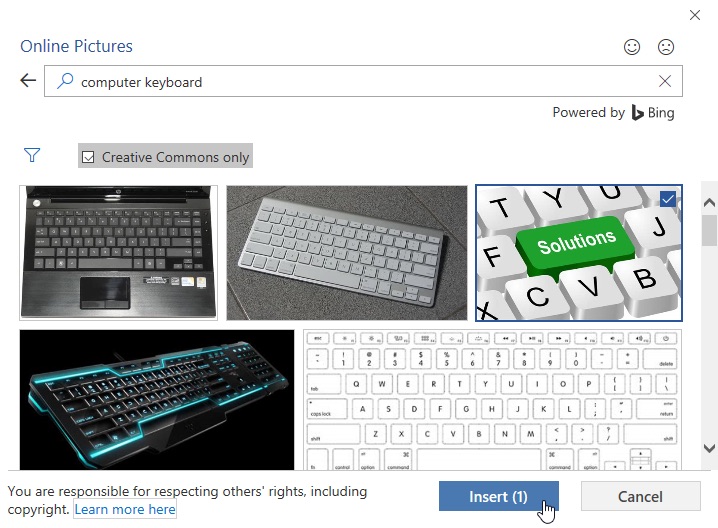
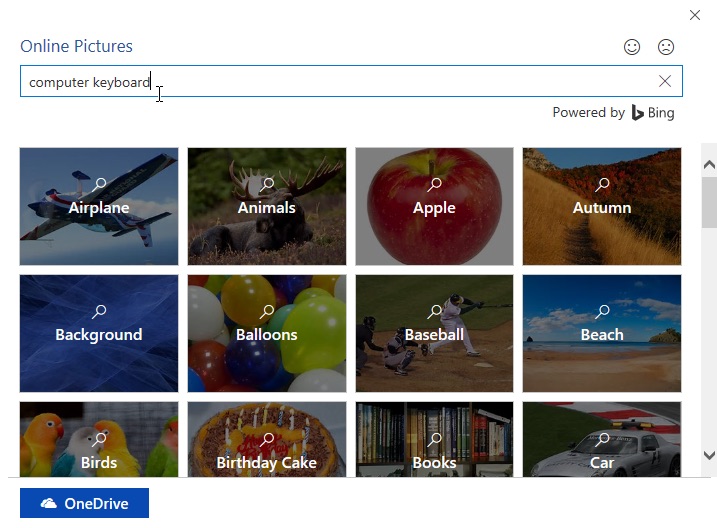
You can also insert images from online sources. Click Insert → Online Pictures, search for a keyword, select an image, and click Insert.

Resizing a Picture
To resize a picture, click the image and drag a corner handle. Dragging from the corner keeps the image proportional and prevents distortion.

Understanding Text Wrapping
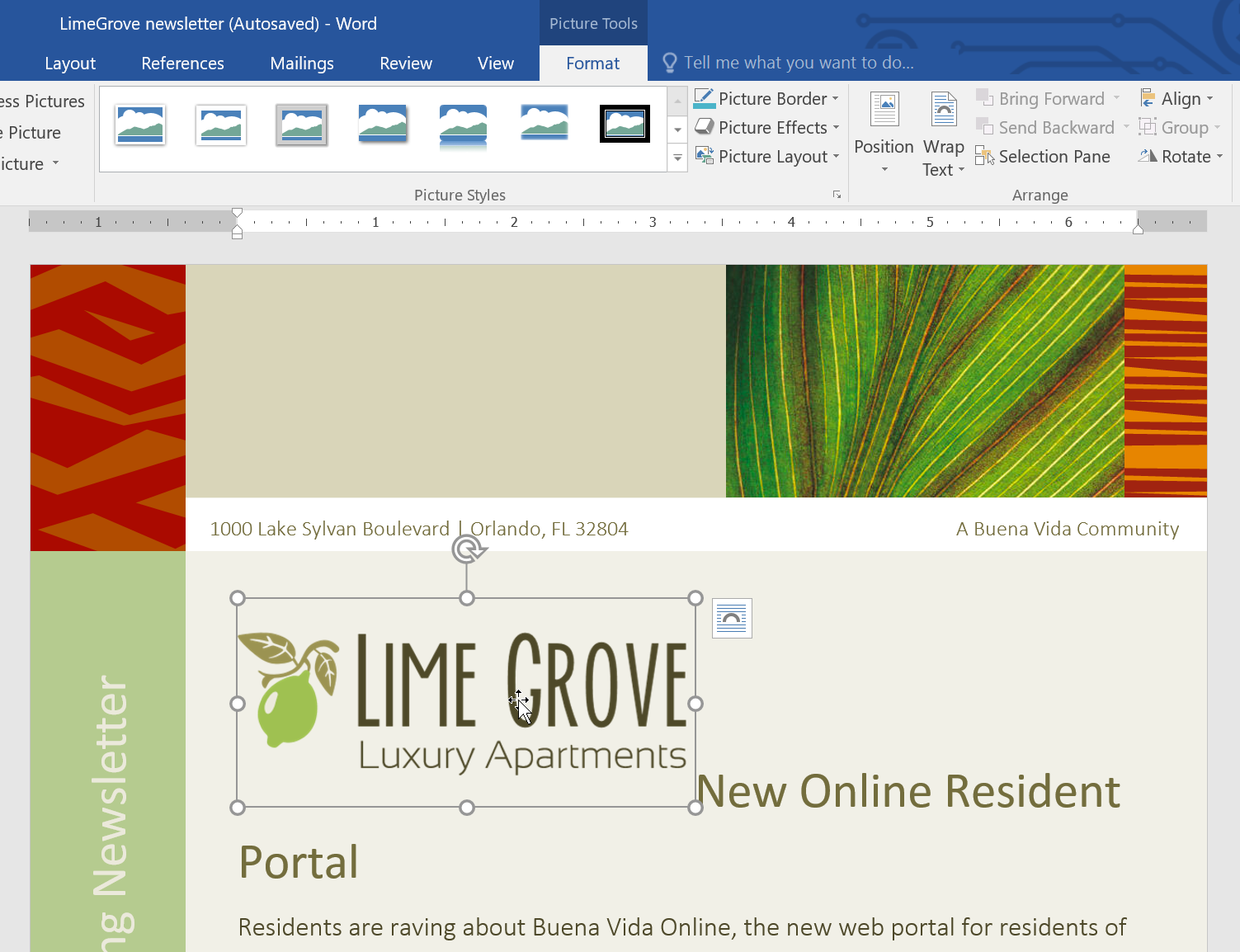
By default, pictures are inserted In Line with Text. To freely move and position a picture, you must change its wrapping style.
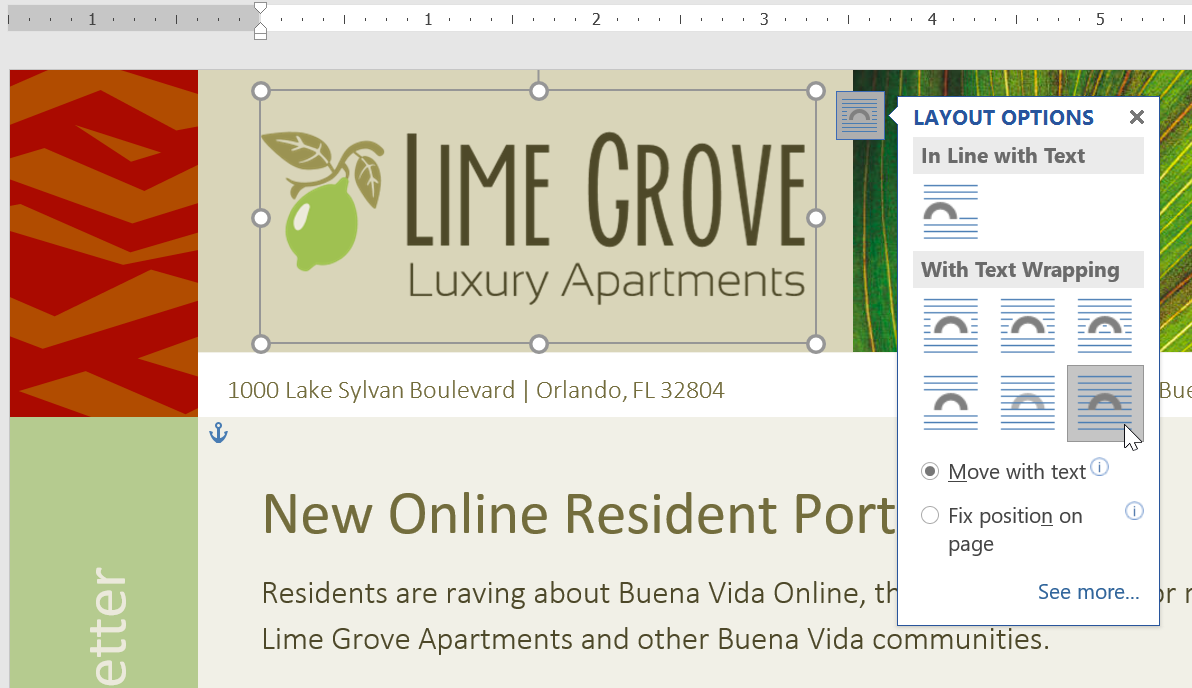
Select the image, then click the Layout Options icon or go to Picture Format → Wrap Text.
Wrap Text Options
Word provides several wrapping options: In Line with Text, Square, Tight, Through, Top and Bottom, Behind Text, and In Front of Text.
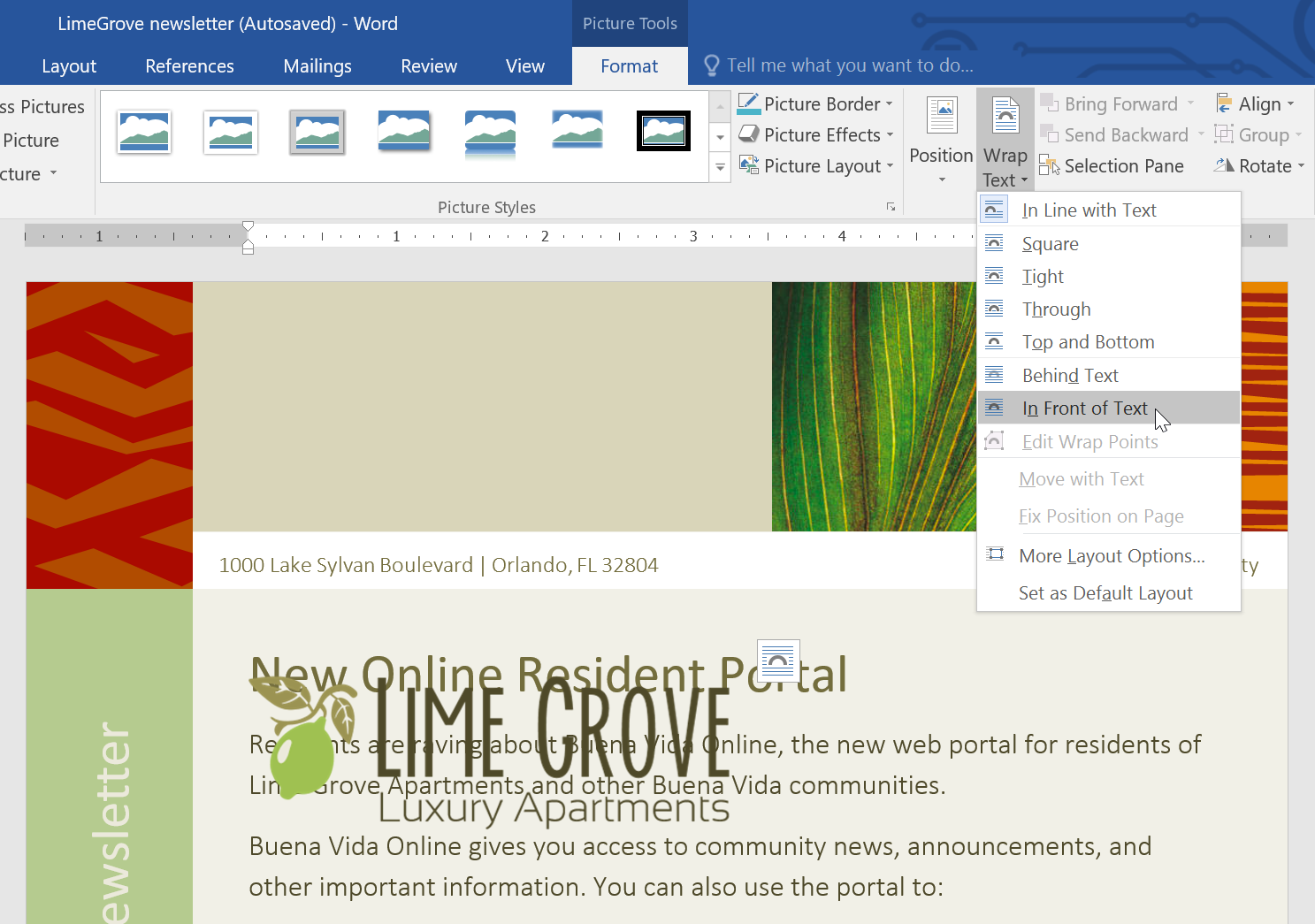
Square wrapping is commonly used in newsletters because it allows text to flow neatly around the image.
Using Square Text Wrapping
After selecting Square wrapping, drag the image to position it. The surrounding text will automatically adjust around the picture.
Using Top and Bottom Wrapping
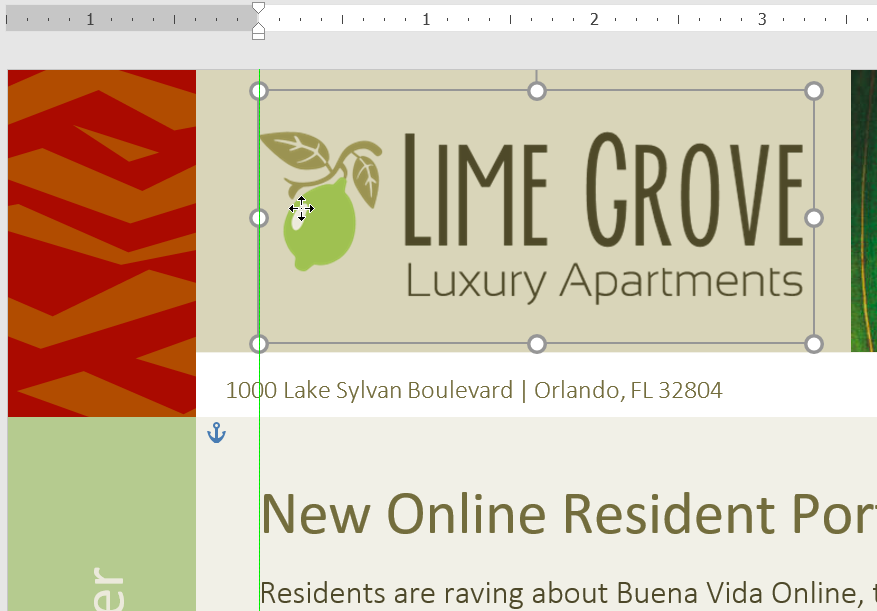
Top and Bottom wrapping places text above and below the image only. This is useful when separating content sections.
Move with Text vs Fix Position
When using wrapping styles, you can choose Move with Text or Fix Position on Page. Move with Text keeps the image connected to surrounding content.
Using Position Presets
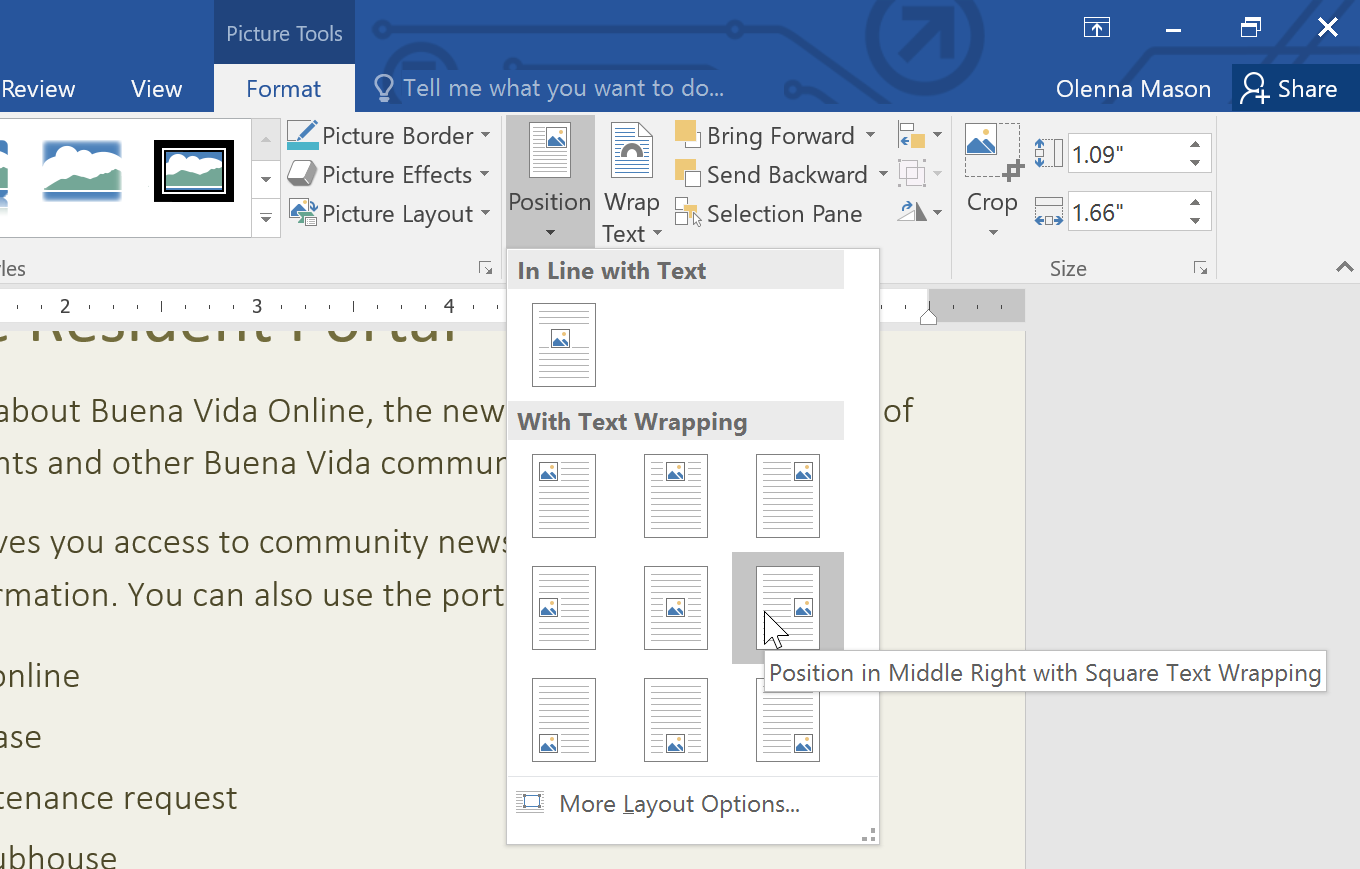
Instead of manually dragging images, use Picture Format → Position to choose preset layout options.
Aligning Images
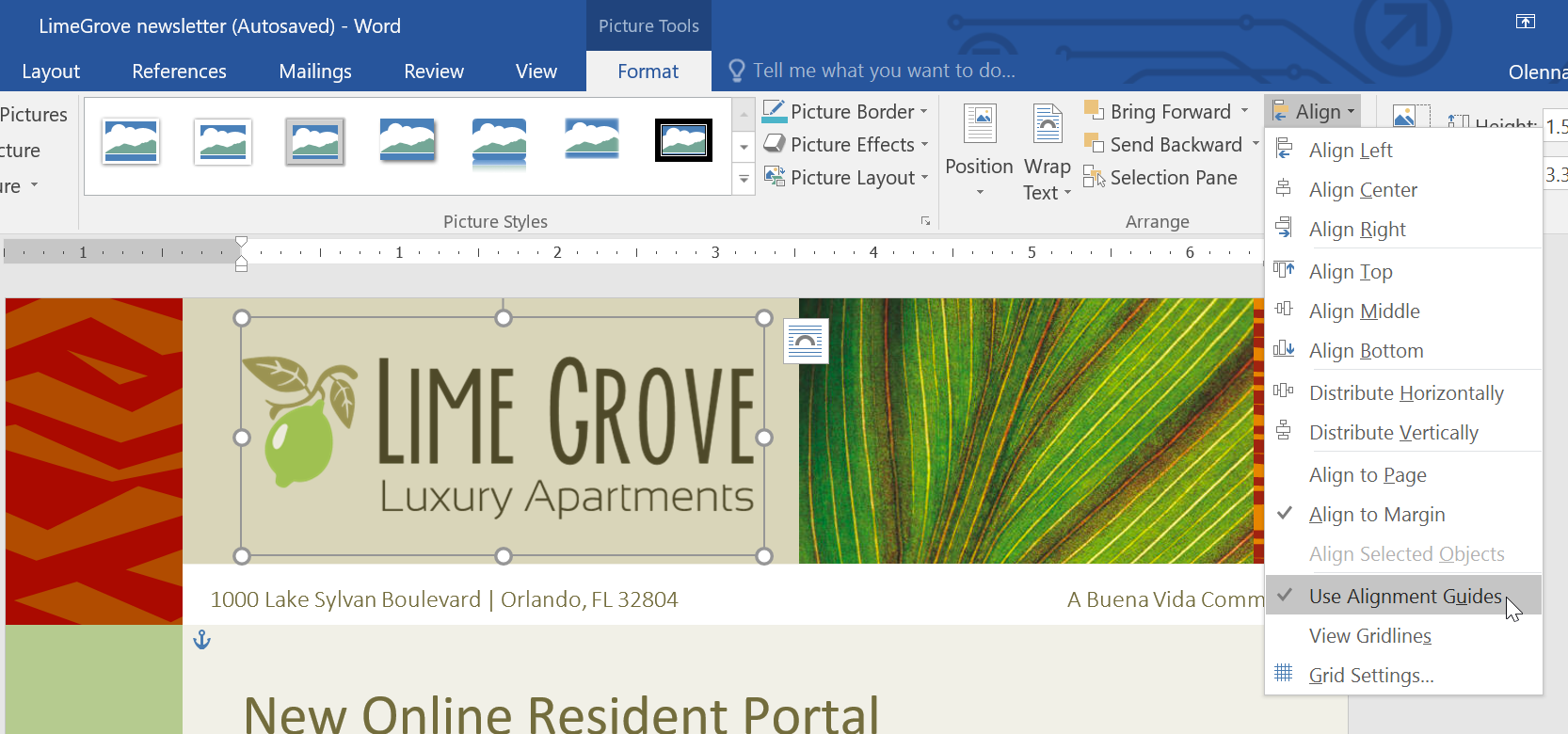
Use Picture Format → Align to align images precisely. Alignment guides help create professional layouts.
Final Result
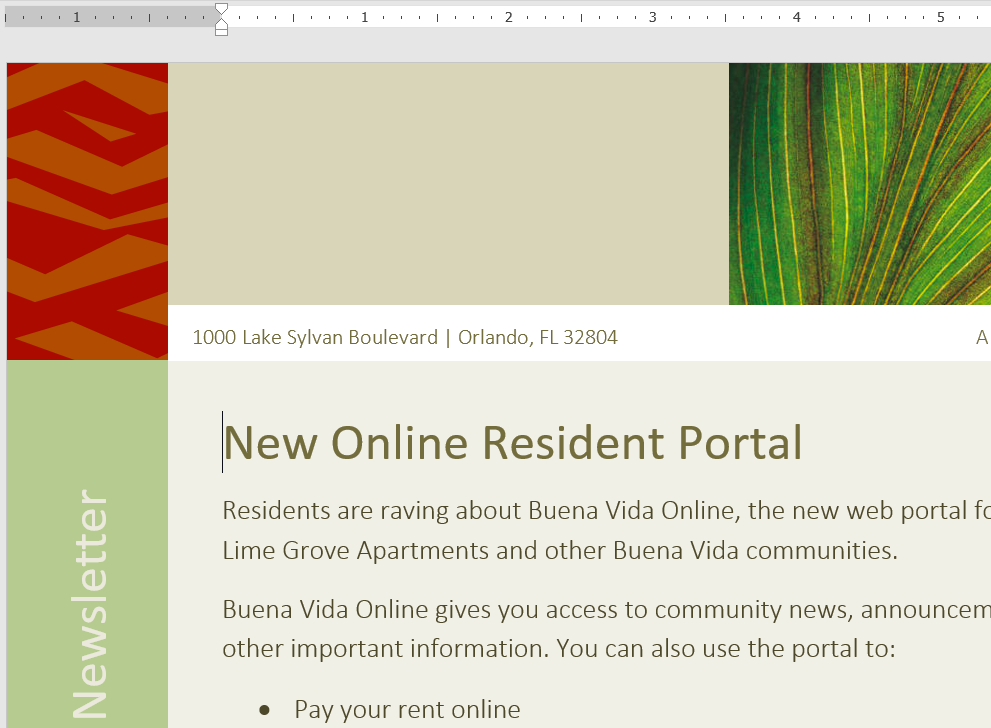
After inserting and wrapping images properly, your newsletter should have balanced spacing, clear structure, and professional image placement.

Knowledge Check
Which text wrapping style keeps an image on the same line as surrounding text?
Practice File
Download this file and follow along with the lesson.
Challenge
Apply what you've learned in this lesson.
Using the provided practice file, complete the following tasks:
- Insert a picture from your computer.
- Apply Square text wrapping.
- Insert an online image.
- Apply Top and Bottom wrapping to one image.
- Use Position presets to adjust layout.
- Align the image using alignment tools.
- Ensure images are set to Move with Text.
Finished this lesson?
Progress is saved in this browser only. It is not a grade — official progress lives in Brightspace.