Saving and Sharing Documents
Learn how to save documents, use AutoRecover, change file types, export to PDF, and share documents with others.
By the end of this lesson you can
- Distinguish Save from Save As and predict which one overwrites your original
- Choose a file format that matches how the document will be used
- Set AutoRecover to an interval that matches how much work you can afford to lose
- Share a document by link and choose an appropriate permission level
Video
Watch the lesson video, then complete the reading and challenge.
Lesson Notes
Read through the key concepts before you try the challenge.
Saving is a decision, not a reflex
You handle outgoing correspondence at Lakeside Medical Associates.
Your supervisor asks you to adapt last month's insurance appeal letter for a new patient. You open it, replace the names and dates, and press Ctrl+S. You have just destroyed the original letter — the one the practice may need if the first appeal is questioned. The keystroke was automatic. The decision behind it was never made.
Your task: Build the habit of asking one question before saving: am I updating this file, or creating a new one from it?
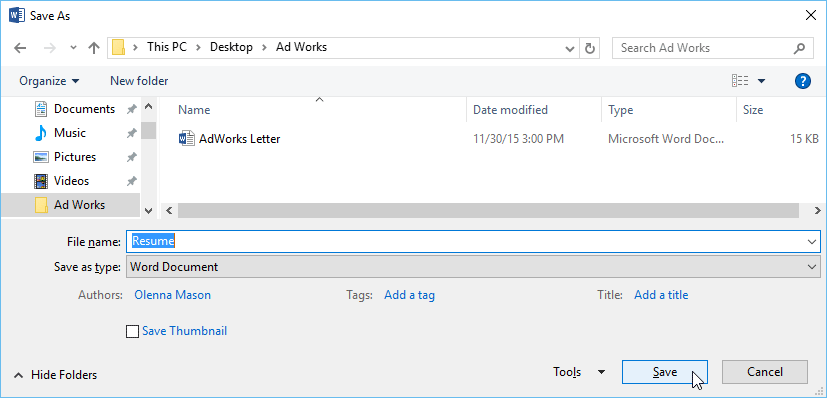
Save writes your changes back into the file you opened, replacing what was there. Save As creates a new file and leaves the original as it was. Whenever you open an existing document as the starting point for a new one, Save As is the first thing you do — before you type a single change, not after. Doing it first means a reflexive Ctrl+S later lands on the new file instead of the old one.
Format is the second decision. A .docx is the working format: editable, and what you keep for yourself. A PDF is the delivery format: it locks layout and fonts so the document looks the same on the recipient's machine, and it signals that the content is final. Send the PDF, keep the .docx. If you send the .docx, you have handed over an editable copy of your practice's letterhead.
| Format | Use it when | Watch out for |
|---|---|---|
| .docx | The document is still being written or someone must edit it | Recipients can change it, including your letterhead |
| Sending a final document outside the practice | Editing means going back to the .docx and re-exporting | |
| .dotx | You will produce this same kind of document repeatedly | Opening it creates a copy — edit the template itself through File > Open |
| .txt | You need raw text with no formatting at all | Every font, image, and table is discarded |
Saving a Document
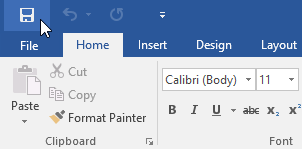
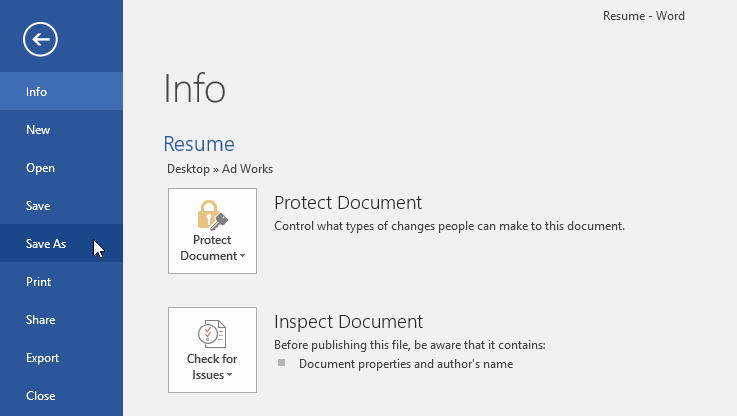
To save a document, click the File tab, then select Save or Save As. If it is your first time saving the file, you will be prompted to choose a location.
Using AutoRecover
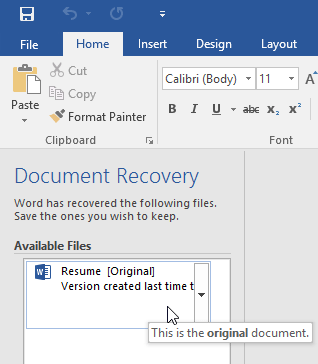
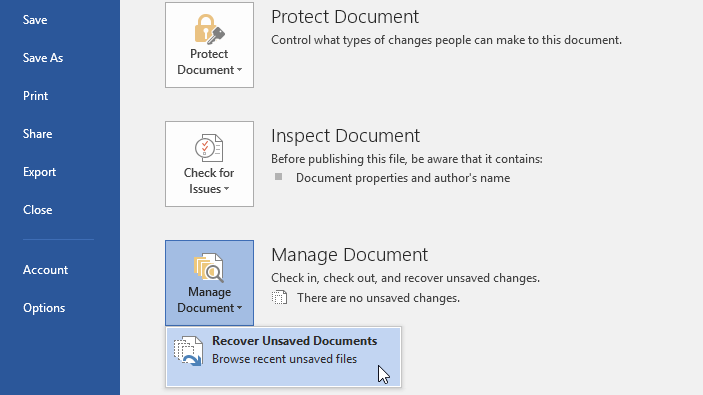
Word automatically saves temporary versions of your document using AutoRecover. If Word closes unexpectedly, you may see the Document Recovery pane when you reopen it.
Changing Default Save Options
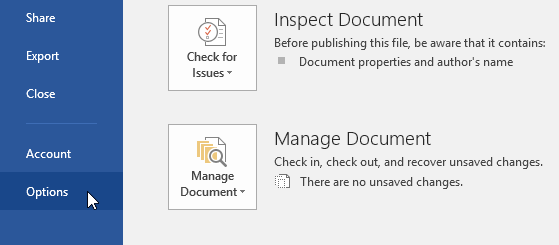
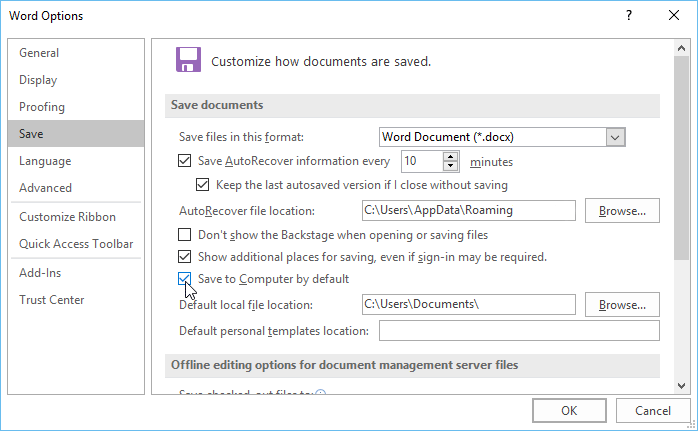
You can change how Word saves documents by going to File → Options → Save. From here, you can adjust AutoRecover timing and default save locations.
Using Save As and Browsing
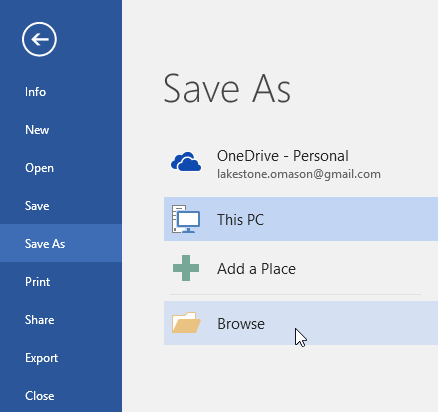
Select Save As to save a copy of your document in a different location or under a different name.
Changing File Types and Exporting
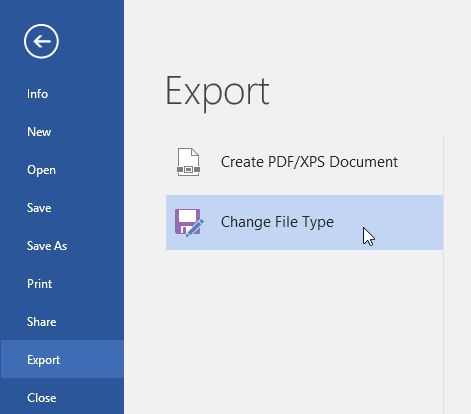
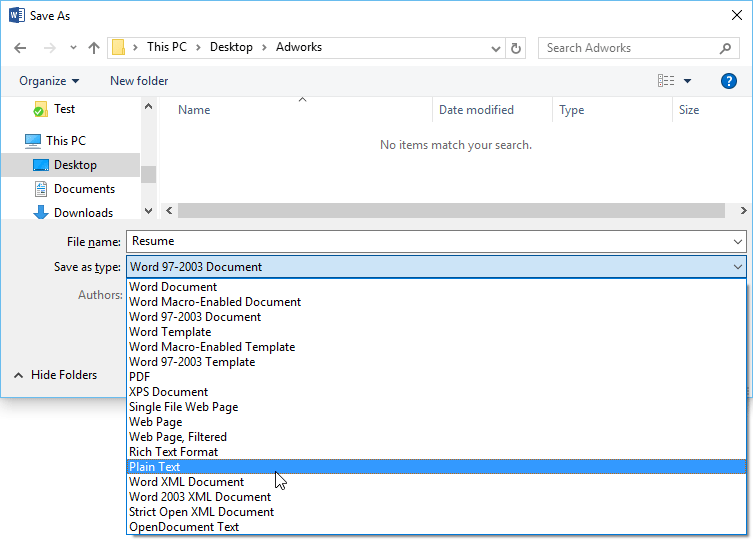
You can change the file type by selecting File → Export → Change File Type.
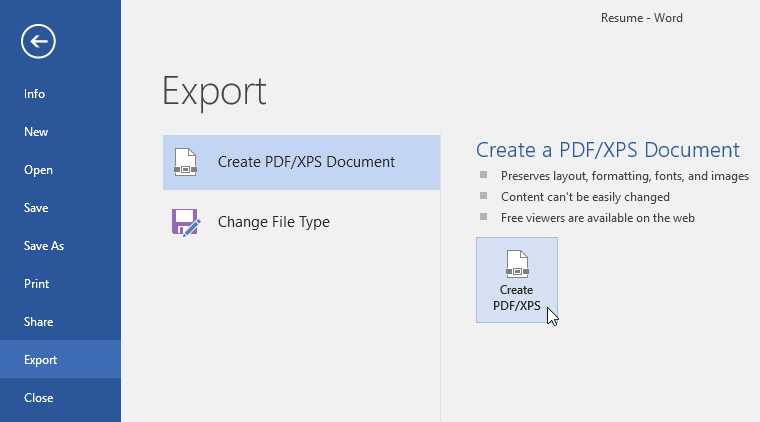
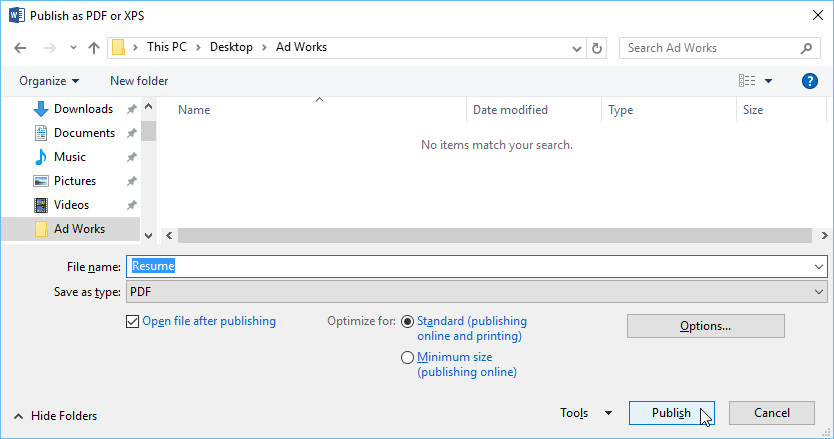
To create a PDF, choose File → Export → Create PDF/XPS Document.
Sharing a Document
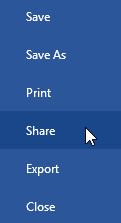
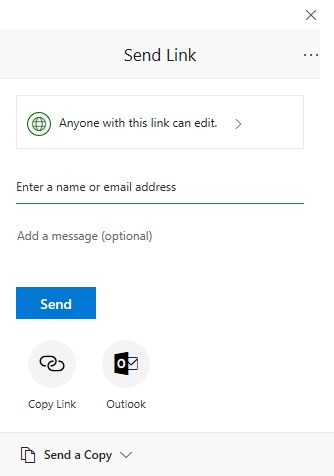
You can share documents directly from Word by selecting File → Share.
Reusing a letter without destroying it
Adapting an existing letter safely
Turn last month's insurance appeal letter into this month's, keeping the original intact and sending the new one in a format the insurer cannot alter.
- 1
Open the original, then immediately File > Save As with a new name.
Before editing, not after. Once the new file is the active document, every later Ctrl+S — including the automatic one you press without thinking — writes to the copy. Editing first and renaming afterwards leaves a window where one reflex overwrites the original.
- 2
Name it so a stranger could identify it: 'Appeal Letter - Ramirez - 2026-09.docx'.
Include the subject, the identifier, and the date in year-month order. Year-first dates sort chronologically in any file list, which 09-2026 does not. 'Letter2 final FINAL.docx' is the file nobody can find in March.
- 3
Edit the content, then check for anything left from the source document.
Reused letters are where the wrong patient name reaches an insurer. Read the whole letter, not just the parts you changed — Ctrl+F for last month's surname is a fast way to catch a reference you missed in a paragraph you did not touch.
- 4
File > Export > Create PDF/XPS to produce the version you send.
The PDF locks layout and fonts so the insurer sees exactly what you laid out, and it cannot be edited casually. You keep the .docx for your own records and for the next appeal.
Result: Two files: the original letter untouched, and a new correctly named .docx plus the PDF you actually send.
Save As before you edit, name for retrieval, and send the format that matches the purpose. The habit costs ten seconds and prevents the errors that are hardest to walk back.
Knowledge Check
Which file format should you use when sending a final document that others should not edit?
Practice File
Download this file and follow along with the lesson.
Challenge
Apply what you've learned in this lesson.
Download the practice file and complete the following steps:
- Open the practice file.
- Use Save As to save a copy to a new location.
- Change the file type to Word 97-2003 Document.
- Export the document as a PDF.
- Recover an unsaved document (if available).
- Open File → Options and review the Save settings.
- Use the Share feature to generate a share link (if signed in).
Finished this lesson?
Progress is saved in this browser only. It is not a grade — official progress lives in Brightspace.