What are Reference Styles?
Learn the difference between A1 and R1C1 reference styles in Excel and how to switch between them using the Excel Options menu.
By the end of this lesson you can
- Explain the difference between A1 and R1C1 reference styles
- Switch between reference styles in Excel Options
- Read an R1C1 formula and recognize relative offsets
- Recognize when R1C1 is genuinely useful
Lesson Notes
Read through the key concepts before you try the challenge.
The same cell, described two ways
You audit an inherited workbook at Lakeside Medical Associates.
You open a colleague's file and the column headers are numbers instead of letters. Formulas read =RC[-1]*R1C6. Nothing is broken — the workbook is simply using the other reference style, and R1C1 is not something most people ever see.
Your task: Recognize R1C1 notation, know how to switch it off, and understand why it exists.
A1 style names a cell by column letter and row number. R1C1 style names it by row and column number, so row 3 column 2 is R3C2 — the same cell A1 style calls B3. Both describe an identical grid; only the notation differs.
R1C1's real utility is that it makes relative references explicit. In R1C1, brackets mean an offset from the current cell: RC[-1] is 'the cell one column to my left,' whatever row it is in. Copy that formula anywhere and it still reads RC[-1] — which makes it obvious that every cell in a column holds the same logic, something A1 style hides behind changing addresses.
Understanding Reference Styles
Every Excel spreadsheet is organized into rows and columns. Rows are identified by numbers (1, 2, 3, etc.), while columns are typically identified by letters (A, B, C, etc.). This common labeling system is known as the A1 reference style.
In the A1 reference style, the column letter appears first and the row number appears second. For example, the cell located in column A and row 1 is called A1.
Excel also supports an alternative reference format called R1C1 reference style. In this format, both rows and columns are identified by numbers. The letter R represents the row number, while C represents the column number.
For example, the cell that would normally be called A1 becomes R1C1 when using this reference system.
A1 vs R1C1 Reference Styles
The A1 reference style is the default format used in Excel and is the style most people are familiar with. However, some advanced users prefer the R1C1 reference style when working with complex formulas because it makes relative references easier to understand in certain situations.
The image below shows the difference between the two reference styles.
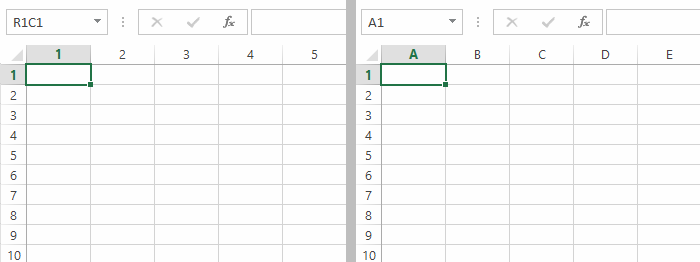
In the image on the left, the column headers are numbered instead of labeled with letters. This indicates that the worksheet is using the R1C1 reference style.
In the image on the right, the columns are labeled with letters such as A, B, and C. This is the standard A1 reference style that Excel uses by default.
In most situations you will want to use the A1 reference style because it is easier to read and matches the way Excel tutorials and documentation describe cell references.
Accessing Excel Options
If your spreadsheet is currently using the R1C1 reference style, you can switch back to the standard A1 style using Excel Options.
To access the Excel Options menu, begin by clicking the File tab located in the top-left corner of the Excel window.
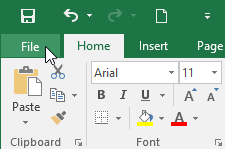
Clicking the File tab will open the Backstage view. This screen contains several options for managing your workbook, including saving, printing, exporting, and accessing account settings.

At the bottom of the Backstage view menu, click Options. This will open the Excel Options dialog box where you can customize many settings related to formulas, calculations, and interface preferences.
Turning Off R1C1 Reference Style
Once the Excel Options dialog box appears, select the Formulas category from the list on the left side of the window.
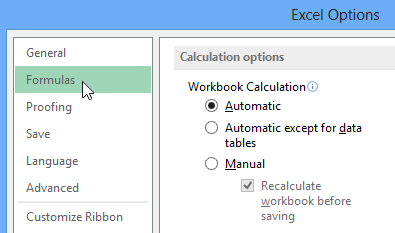
Inside the Formulas section, you will see an option labeled R1C1 reference style.
If this box is checked, Excel will display columns as numbers instead of letters. To switch back to the standard reference style, simply uncheck the R1C1 reference style box.
After unchecking the box, click OK. Excel will immediately return to the standard A1 reference style.
You will now see column letters again at the top of the worksheet, such as A, B, C, and D, instead of numbers.
Knowledge Check
In R1C1 reference style, how is the cell in row 3, column 2 identified?
Challenge
Apply what you've learned in this lesson.
- Open Excel and create a new blank workbook.
- Navigate to the File tab and open Excel Options.
- Click the Formulas category.
- Locate the R1C1 reference style checkbox.
- Toggle the checkbox on and off to observe how the column labels change.
- Return the setting to the standard A1 reference style.
Finished this lesson?
Progress is saved in this browser only. It is not a grade — official progress lives in Brightspace.