Conditional Formatting
Automatically highlight patterns, trends, and performance using Conditional Formatting rules, color scales, data bars, and icon sets.
By the end of this lesson you can
- Apply highlight rules, data bars, color scales, and icon sets
- Write a formula-based conditional formatting rule
- Manage rule precedence when several rules apply
- Use conditional formatting to surface data problems
Video
Watch the lesson video, then complete the reading and challenge.
Lesson Notes
Read through the key concepts before you try the challenge.
Formatting that keeps itself up to date
You monitor stock levels at Lakeside Medical Associates.
You highlight the below-reorder items in red by hand. A week later the quantities have all changed, but the red highlights have not — they are still marking the items that were low last week. The color is now actively misleading.
Your task: Make the formatting a rule about the data, so it can never go stale.
Conditional formatting applies formatting according to a rule evaluated continuously. Set 'highlight cells less than the value in the reorder column' and the highlights follow the data as it changes, with no maintenance at all.
| Type | Shows | Best for |
|---|---|---|
| Highlight Cells Rules | Formatting when a condition is met | Flagging exceptions — below reorder, over budget |
| Top/Bottom Rules | The highest or lowest values | Finding the ten largest expenses |
| Data Bars | An in-cell bar proportional to the value | Comparing magnitudes across a column at a glance |
| Color Scales | A color gradient across the range | Seeing the distribution — where the highs and lows cluster |
| Icon Sets | Arrows, flags, or traffic lights | Status at a glance, with a legend |
| Formula rule | Formatting driven by any formula | Highlighting a whole row based on one cell's value |
Highlighting an entire row when stock is low
Make the whole row turn amber when Quantity on Hand falls below Reorder Level, so a scan down the sheet shows what needs ordering.
- 1
Select the full data range, A2:F900, starting from the top-left data cell.
A formula rule is evaluated relative to the active cell in your selection, so where the selection starts determines how the formula is interpreted. Selecting from A2 means the rule is written as though it lives in A2.
- 2
New Rule > Use a formula to determine which cells to format, and enter =$D2<$E2.
The dollar signs before D and E lock the columns, so every cell in the row tests the same two columns. Leaving the row number relative lets it advance down the sheet. This mixed reference is precisely what makes whole-row formatting work.
- 3
Set the format to an amber fill, and confirm.
Amber rather than red leaves red available for something genuinely urgent, such as out of stock. Reserving intensity for severity keeps the sheet readable.
- 4
Add a status column reading 'Reorder' driven by the same condition.
Color alone fails in greyscale printing and for colorblind readers, and it cannot be filtered on. A text column can be filtered, sorted, and counted — the color becomes a helpful accent rather than the only signal.
Result: Rows that flag themselves as stock falls, with a text status that also works on paper and can be filtered.
Lock the column, leave the row relative, and always pair color with something non-visual.
Why Conditional Formatting Matters
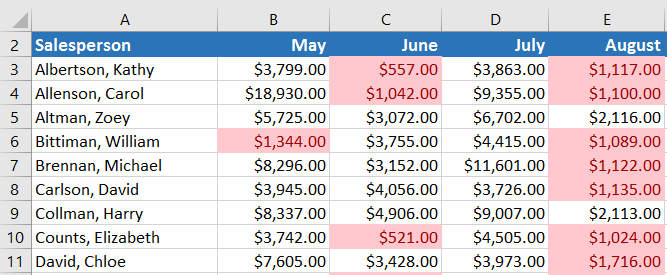
When working with large datasets, it can be difficult to identify trends and performance issues just by reading numbers. Conditional Formatting automatically applies visual styling based on cell values so patterns become instantly visible.
Step 1: Select the Desired Cells
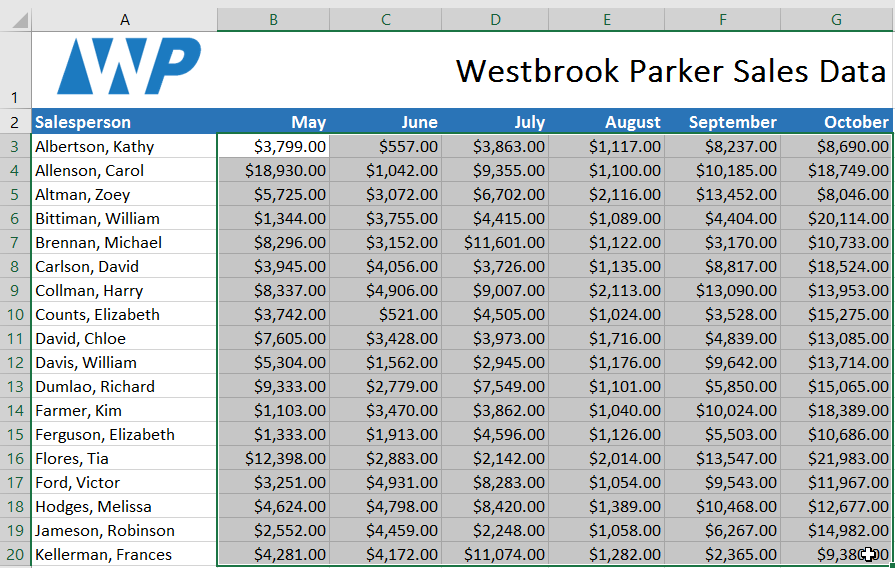
Before applying Conditional Formatting, select the range of cells you want to evaluate.
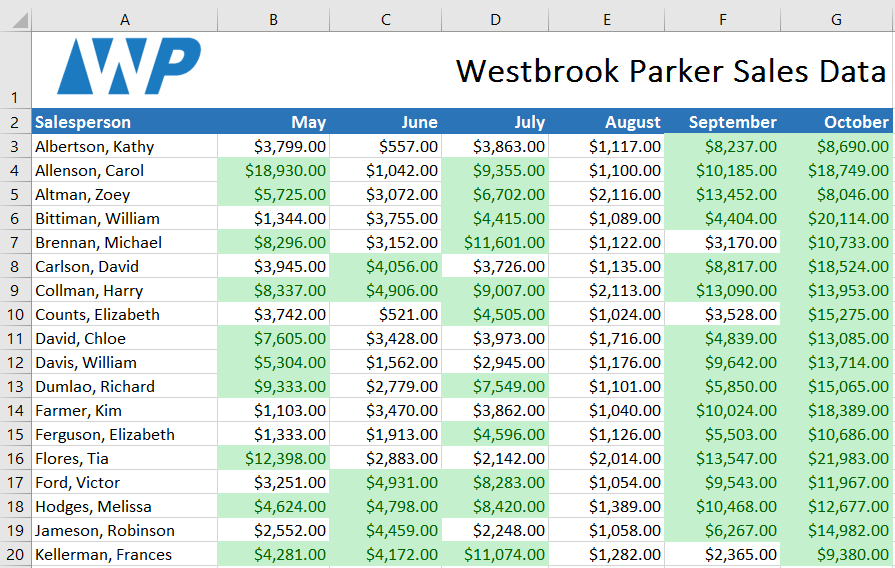
Highlight Cells Greater Than a Value
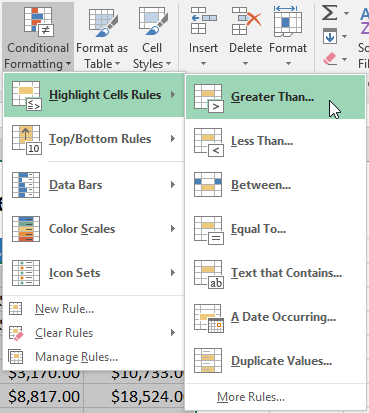
To highlight values greater than a specific number, use the Highlight Cells Rules option.
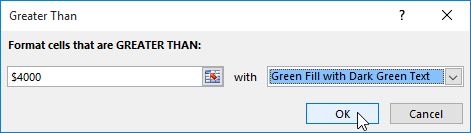
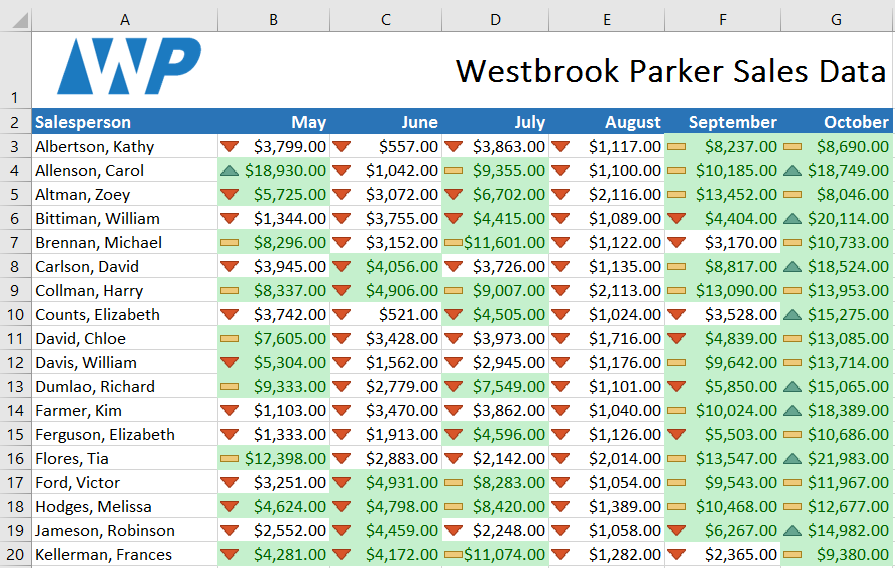
Enter the comparison value (e.g., 4000) and choose a preset style such as Green Fill with Dark Green Text.
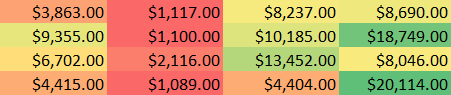
Using Color Scales
Color Scales apply a gradient based on cell values. Highest values receive one color, lowest receive another, and middle values are blended between them.
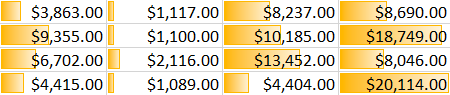
Using Data Bars
Data Bars visually represent values inside each cell using horizontal bars, similar to a mini bar chart.
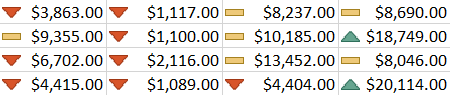
Using Icon Sets
Icon Sets add symbols such as arrows, circles, or indicators based on value ranges. These are useful for performance dashboards.
Managing and Editing Rules
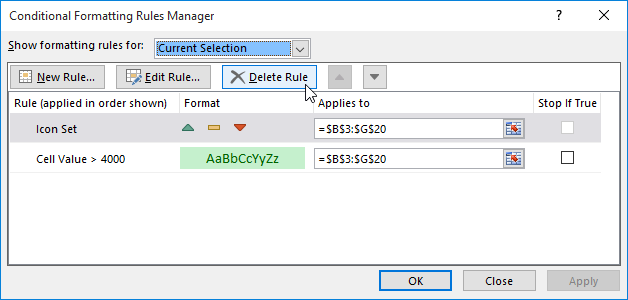
Use Manage Rules to edit, delete, or prioritize formatting rules applied to a worksheet.
Clearing Conditional Formatting
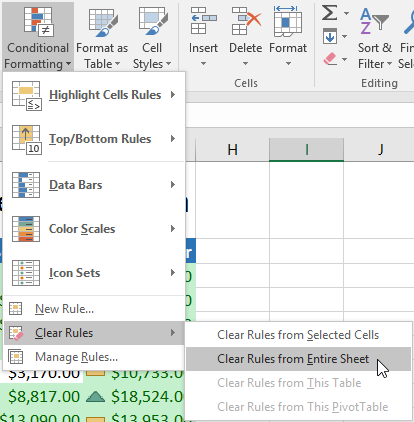
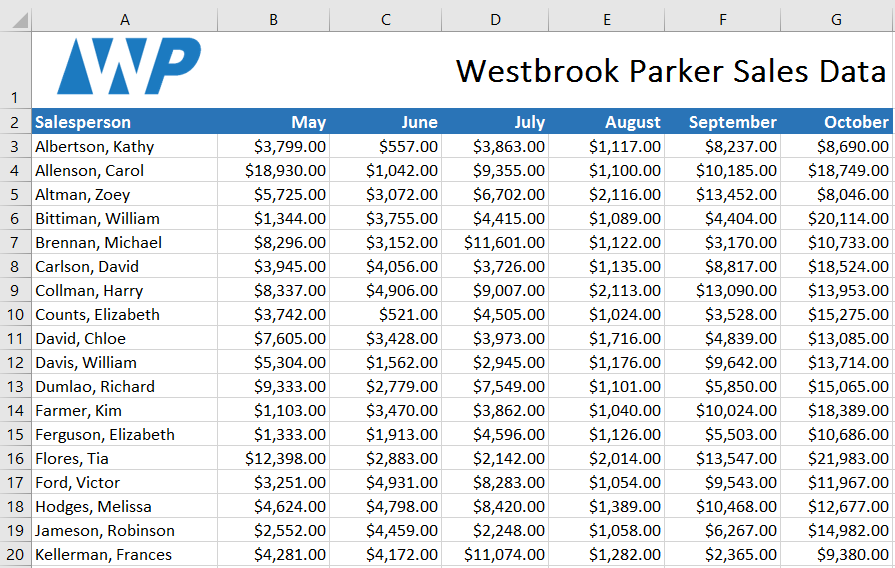
To remove formatting, click Conditional Formatting → Clear Rules, then choose whether to clear from selected cells or the entire sheet.
Knowledge Check
Which Conditional Formatting option fills cells with a color gradient based on their value?
Practice File
Download this file and follow along with the lesson.
Challenge
Apply what you've learned in this lesson.
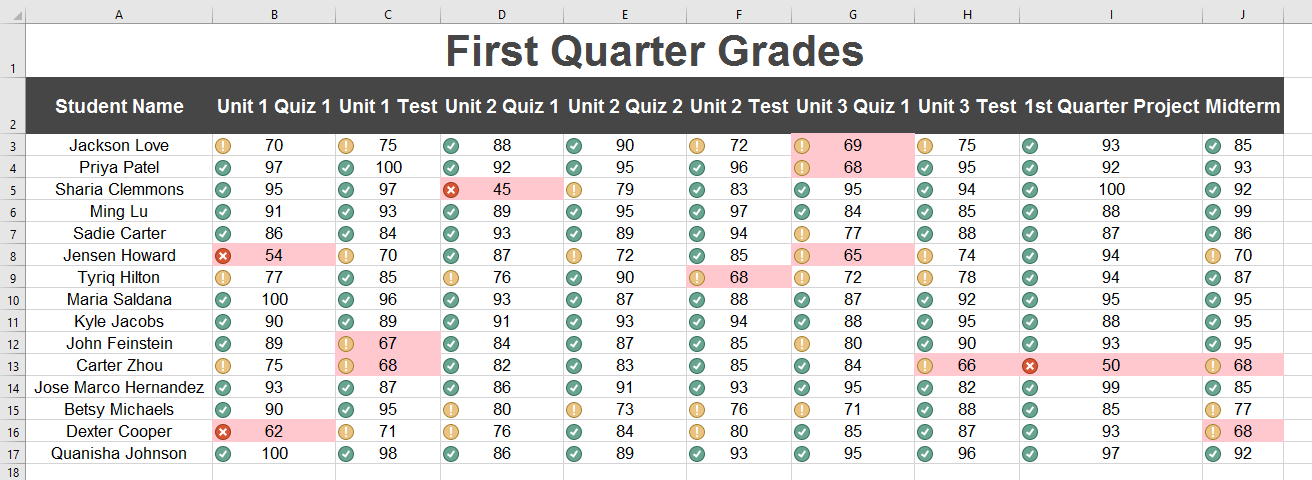
Download and open the practice workbook. Then complete the following:
- Click the Challenge worksheet tab.
- Select cells B3:J17.
- Apply Conditional Formatting to highlight values Less Than 70 using a light red fill.
- Apply the Icon Set called 3 Symbols (Circled).
- Use Manage Rules to remove the light red fill rule but keep the icon set.
- Your worksheet should match the example shown below.
Finished this lesson?
Progress is saved in this browser only. It is not a grade — official progress lives in Brightspace.