Working with Functions
Learn how to use Excel functions including SUM, AVERAGE, COUNT, MAX, MIN, COUNTA, and NETWORKDAYS. Understand syntax, arguments, and how to insert functions using AutoSum and the Function Library.
By the end of this lesson you can
- Use SUM, AVERAGE, COUNT, MIN, and MAX correctly
- Explain what COUNT counts and how COUNTA differs
- Use IF to return different values based on a condition
- Read a function's arguments from the ScreenTip while typing
Video
Watch the lesson video, then complete the reading and challenge.
Lesson Notes
Read through the key concepts before you try the challenge.
Functions are named calculations that survive editing
You total supply costs at Lakeside Medical Associates.
You write =E2+E3+E4+E5+E6 to total five items. A sixth item is added on a new row inside that range, and the total silently ignores it. The number looks entirely reasonable, so the omission is never questioned.
Your task: Use range-based functions, which absorb inserted rows instead of ignoring them.
=SUM(E2:E6) refers to a region rather than a list of cells. Insert a row inside that region and Excel expands the range automatically, so the new value is included. This is the practical reason to prefer functions over chains of arithmetic, quite apart from the typing they save.
| Function | Returns | Note |
|---|---|---|
| =SUM(A1:A10) | The total | Ignores text and empty cells |
| =AVERAGE(A1:A10) | The mean | Skips empty cells but includes zeros — these give different answers |
| =COUNT(A1:A10) | How many cells hold numbers | Text and blanks are not counted |
| =COUNTA(A1:A10) | How many cells are not empty | Counts text as well as numbers |
| =MIN / =MAX(A1:A10) | The smallest or largest value | Useful for range checks on entered data |
| =IF(A1>100,"Over","OK") | One of two values, by condition | The basis of every status column |
What Is a Function?
A function is a predefined formula that performs calculations using specific values in a particular order.
Excel includes many common functions that can quickly calculate totals, averages, counts, maximum values, and minimum values.
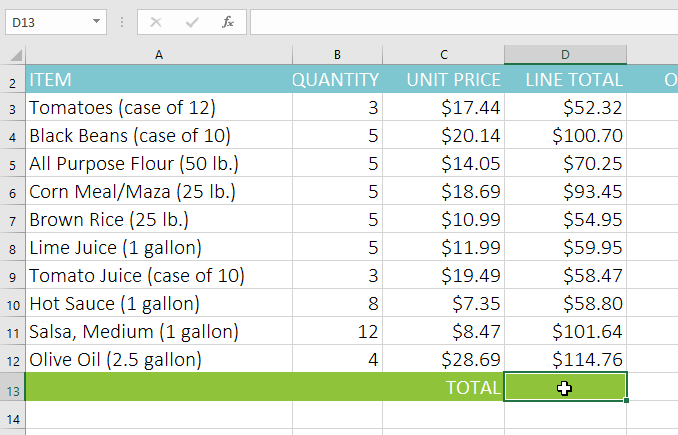
Understanding Function Syntax
Functions must follow proper syntax: an equals sign (=), the function name, and one or more arguments inside parentheses.
Example: =SUM(A1:A20)
Arguments can refer to individual cells or cell ranges. Multiple arguments are separated by commas.
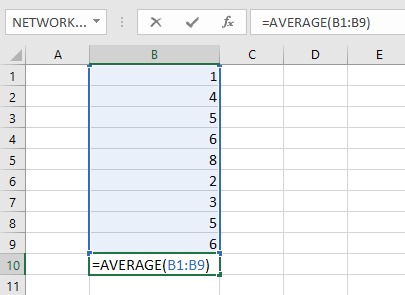
Using the AutoSum Command
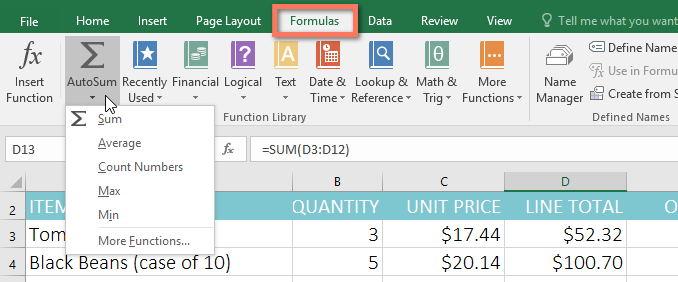
The AutoSum command automatically inserts common functions such as SUM, AVERAGE, COUNT, MAX, and MIN.
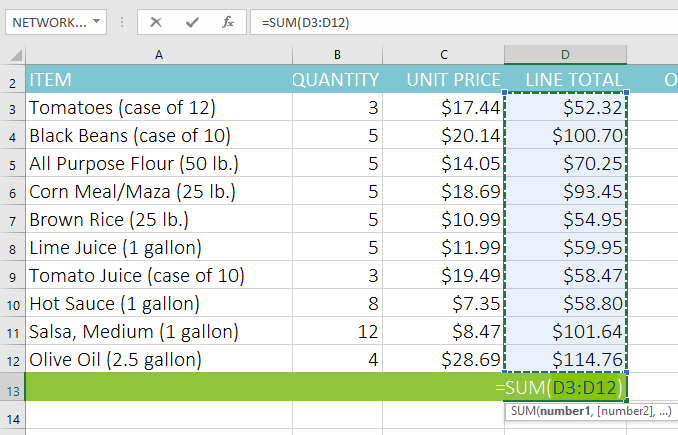
Select the cell that will contain the function, choose AutoSum, and Excel will automatically suggest a range.
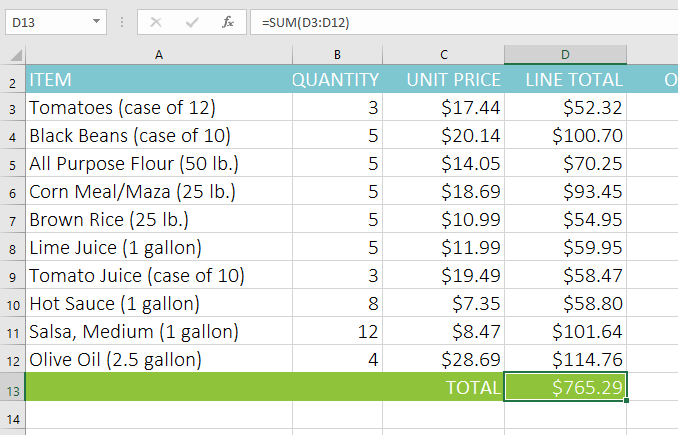
You can also press Alt + = as a shortcut to quickly insert AutoSum.
Entering a Function Manually
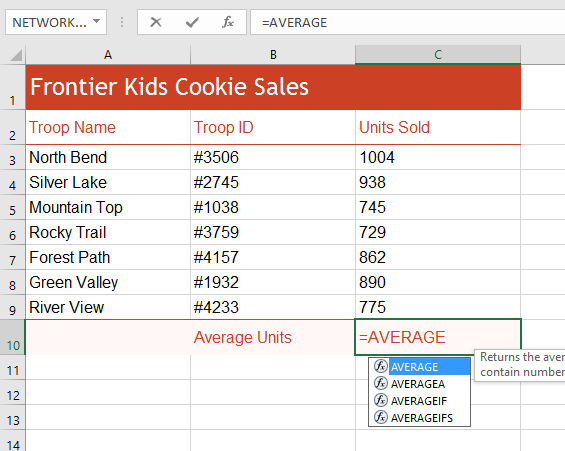
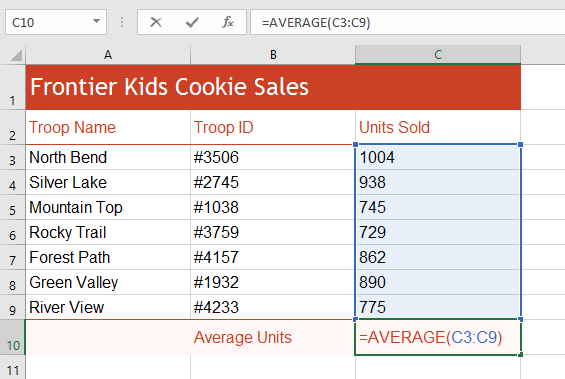
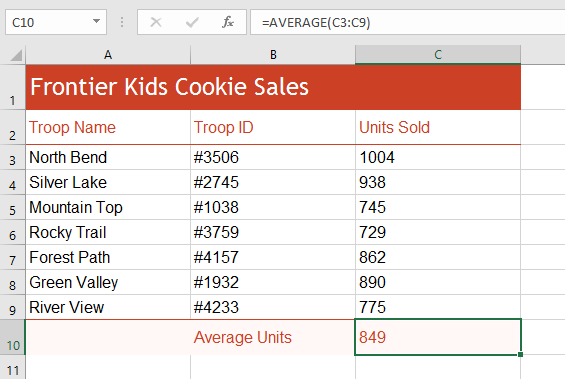
If you know the function name, you can type it directly.
Click a cell, type =AVERAGE, and enter the range inside parentheses.
The Function Library
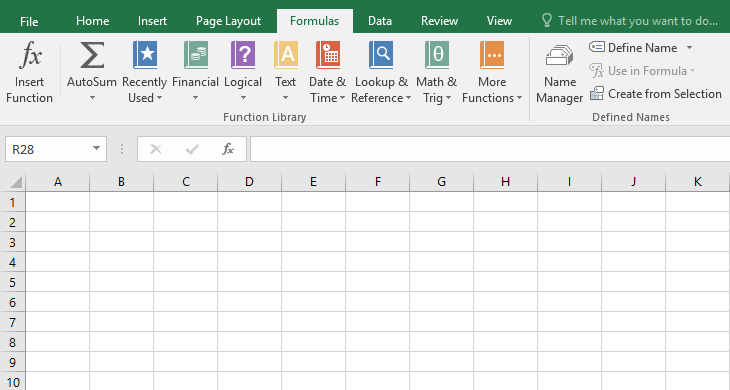
The Function Library on the Formulas tab organizes functions into categories such as Financial, Logical, Text, Date & Time, Lookup & Reference, and Math & Trig.
Using COUNTA
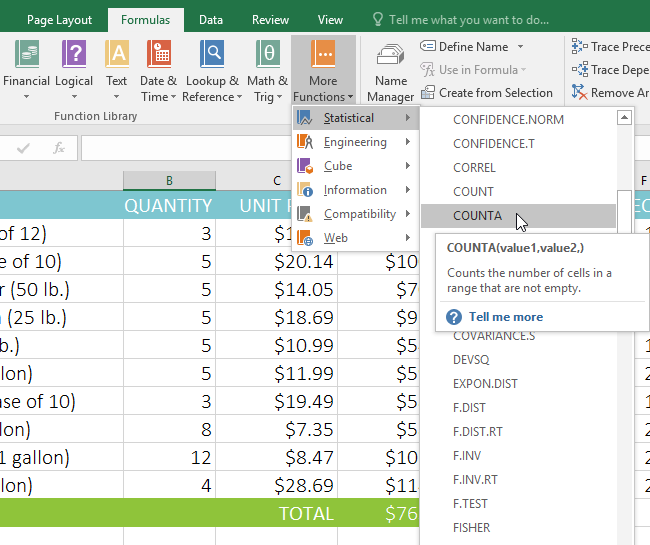
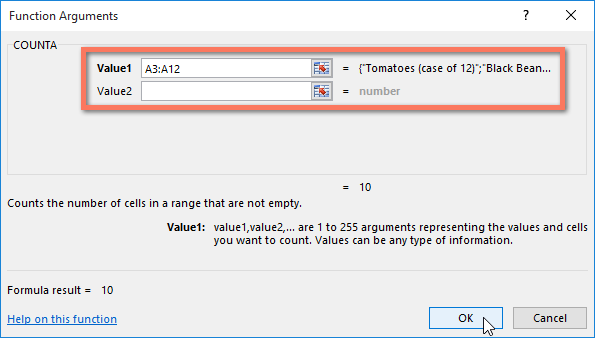
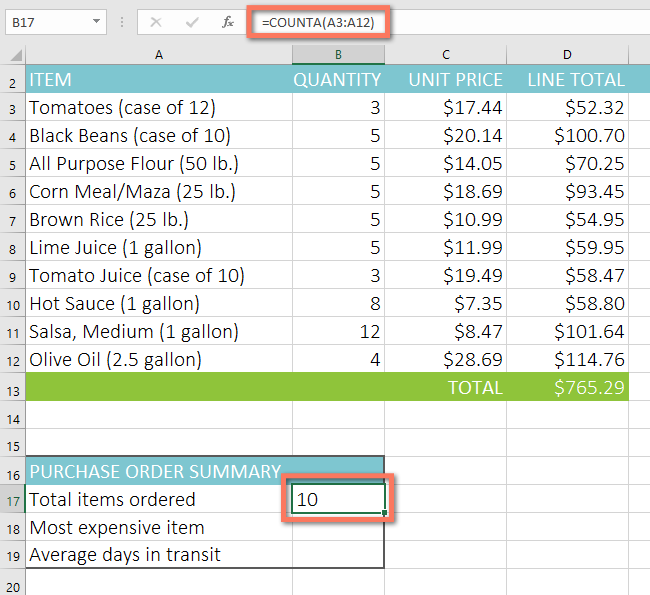
COUNTA counts the number of non-empty cells in a range. Unlike COUNT, it counts text as well as numbers.
Using Insert Function & NETWORKDAYS
The Insert Function command allows you to search for functions using keywords.
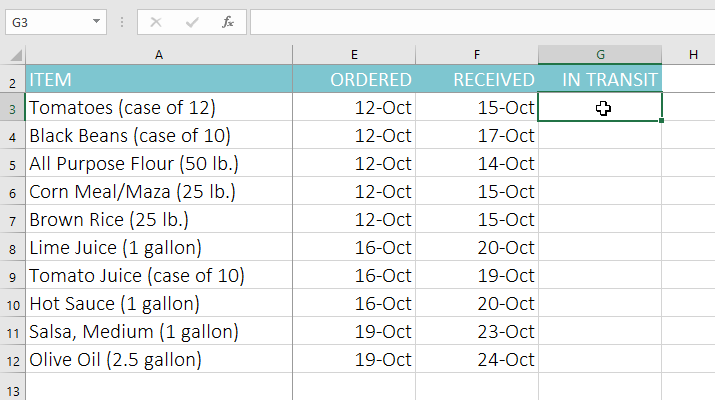
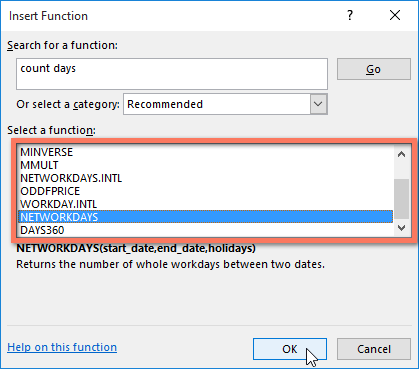
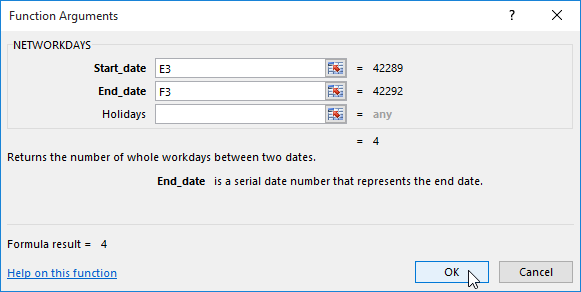
In this example, we use NETWORKDAYS to calculate business days between two dates.
Knowledge Check
Which function adds all values in the range A1:A10?
Practice File
Download this file and follow along with the lesson.
Challenge
Apply what you've learned in this lesson.
Complete the following tasks using the practice workbook:
- Download the Functions practice workbook.
- Click the Challenge worksheet tab.
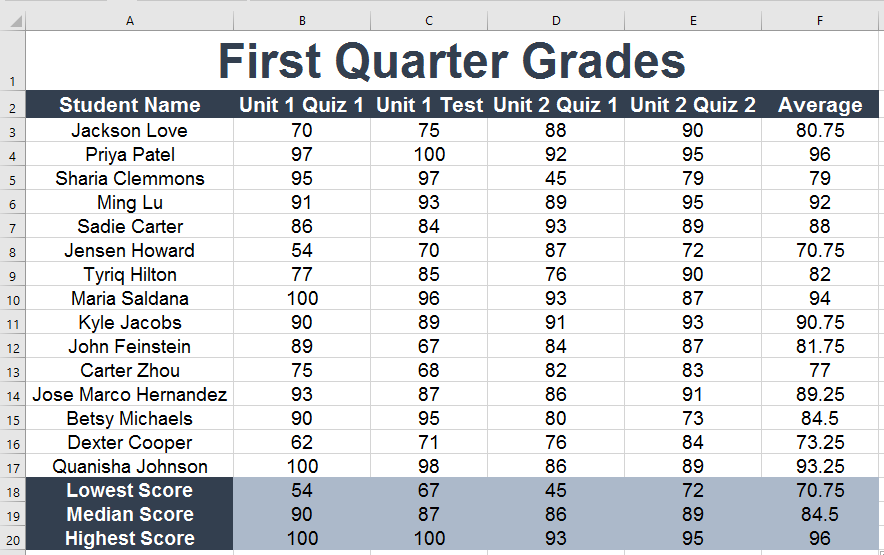
- In cell F3, insert a function to calculate the average of the four scores in cells B3:E3.
- Use the fill handle to copy the function from F3 to cells F4:F17.
- In cell B18, use AutoSum to calculate the lowest score in B3:B17.
- In cell B19, use the Function Library (More Functions > Statistical) to calculate the median of B3:B17.
- In cell B20, create a function to calculate the highest score in B3:B17.
- Copy the functions in B18:B20 across to C18:F20 using the fill handle.
Finished this lesson?
Progress is saved in this browser only. It is not a grade — official progress lives in Brightspace.