Complex Formulas & Order of Operations
Use PEMDAS and parentheses to control calculation order when building multi-step formulas such as subtotals and tax.
By the end of this lesson you can
- Predict the result of a formula using the order of operations
- Use parentheses to make evaluation order explicit
- Break a long formula into intermediate steps for auditability
- Use Evaluate Formula to see how Excel works through a calculation
Video
Watch the lesson video, then complete the reading and challenge.
Lesson Notes
Read through the key concepts before you try the challenge.
Excel follows precedence, not reading order
You calculate supply costs with tax at Lakeside Medical Associates.
You write =C2+D2*0.08 intending to add the item cost to the tax. Excel multiplies first, so it adds 8% of the shipping to the item price instead. Every line is wrong by a small amount, which is exactly the kind of error nobody notices for months.
Your task: Know the order Excel evaluates in, and use parentheses so intent is never ambiguous.
Excel evaluates in a fixed order regardless of how the formula reads left to right: parentheses first, then exponents, then multiplication and division, then addition and subtraction. Operators at the same level evaluate left to right. So =2+3*4 is 14, not 20 — the multiplication happens first.
| Order | Operators | Example |
|---|---|---|
| 1 | Parentheses ( ) | =(2+3)*4 gives 20 |
| 2 | Exponents ^ | =2^3*4 gives 32 |
| 3 | Multiplication and division * / | =2+3*4 gives 14 |
| 4 | Addition and subtraction + - | =2+3-1 gives 4 |
| 5 | Comparison = < > <= >= <> | =A1>B1 gives TRUE or FALSE |
Order of Operations (PEMDAS)
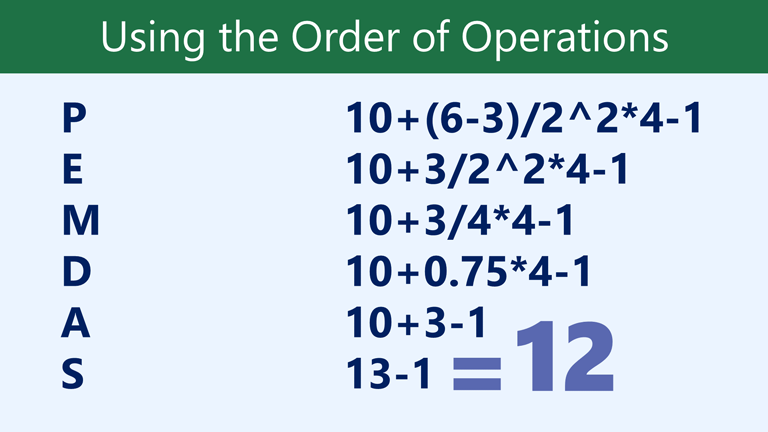
When a formula includes multiple operators, Excel follows an order of operations. PEMDAS stands for Parentheses, Exponents, Multiplication, Division, Addition, and Subtraction.
If a result looks incorrect, it is often because Excel evaluated a part of the formula in a different order than you expected.
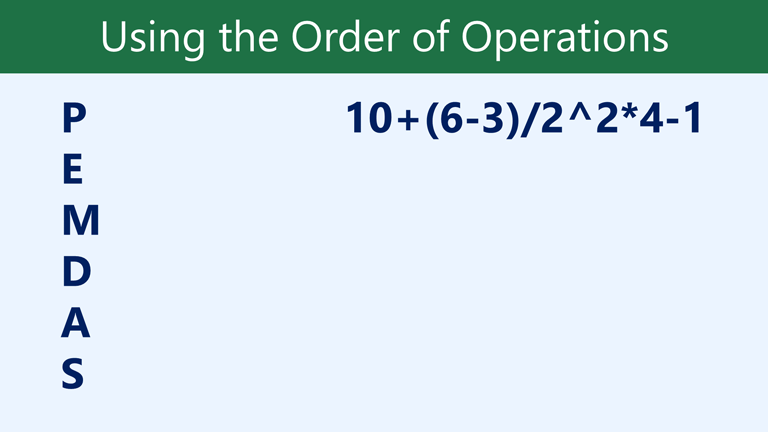
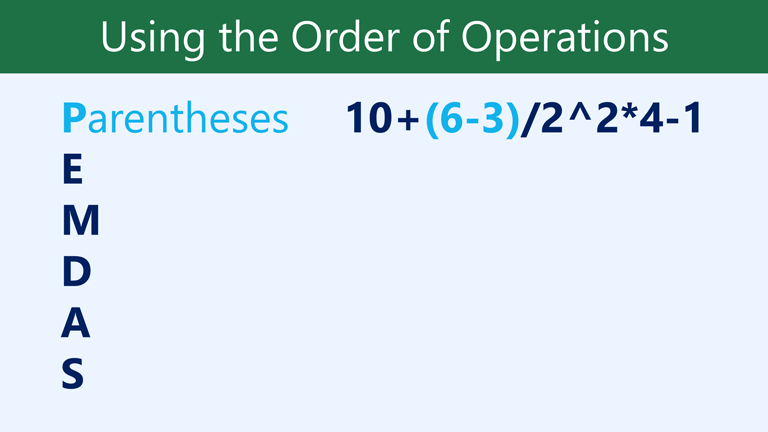
Excel evaluates expressions inside parentheses first before moving on to other operations.
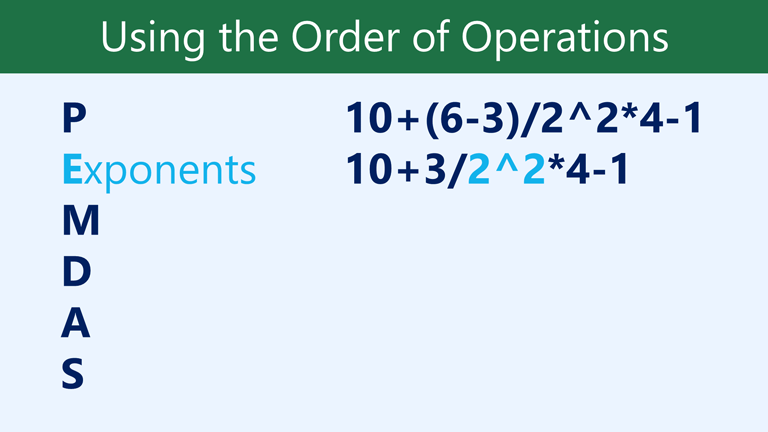
After parentheses, Excel evaluates exponents if present.
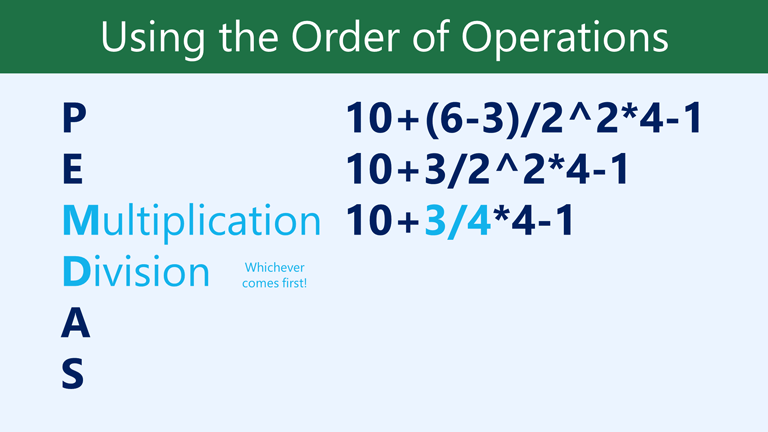
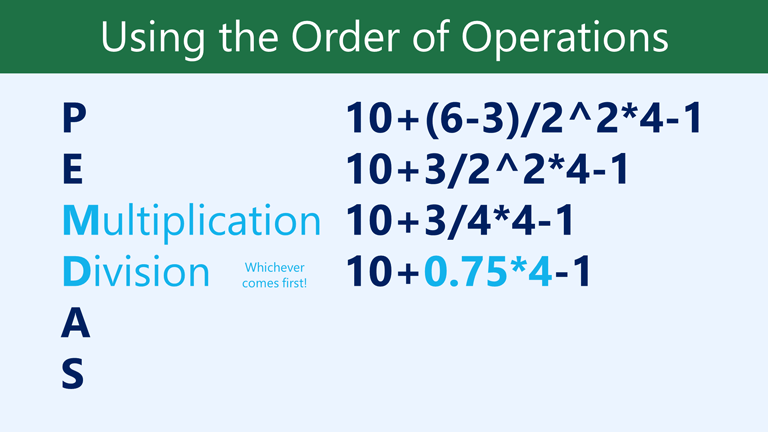
Multiplication and division are evaluated next, working from left to right.
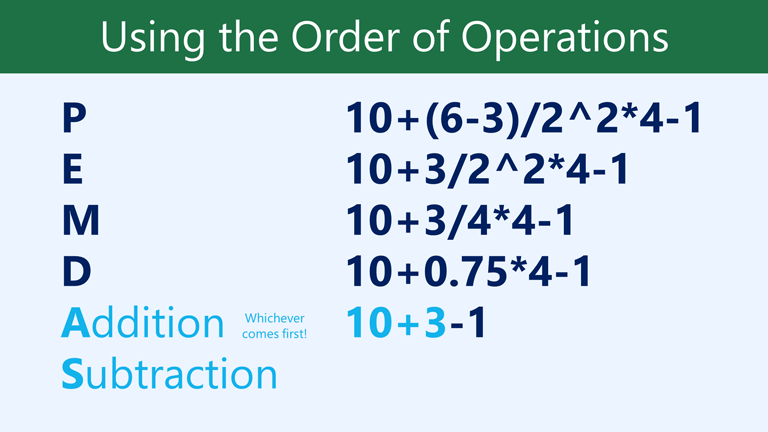
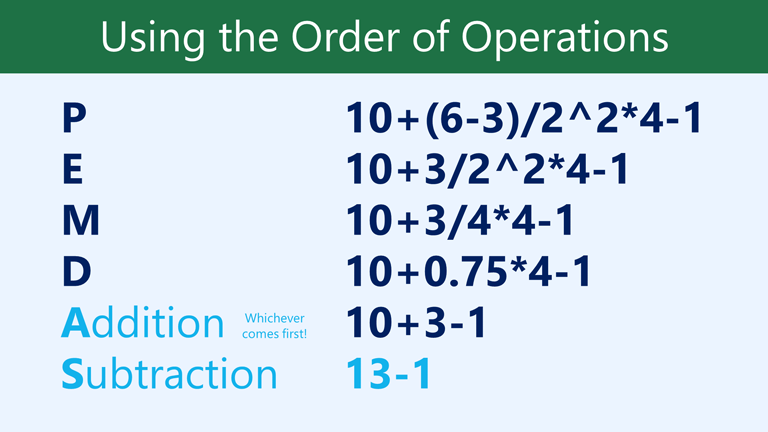
Finally, Excel performs addition and subtraction from left to right.
Building a Subtotal Formula
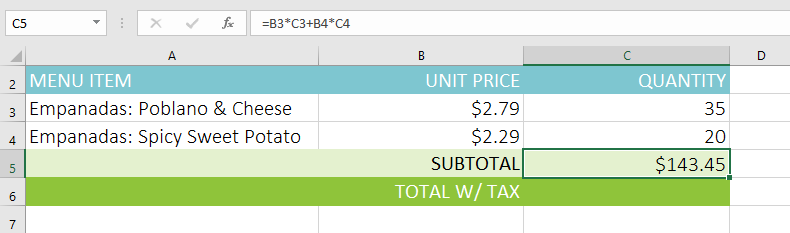
A subtotal often involves adding multiple calculations together. In this example, we multiply Unit Price by Quantity for each item, then add the results.
Click the subtotal cell first, then type an equals sign (=) to begin entering your formula.
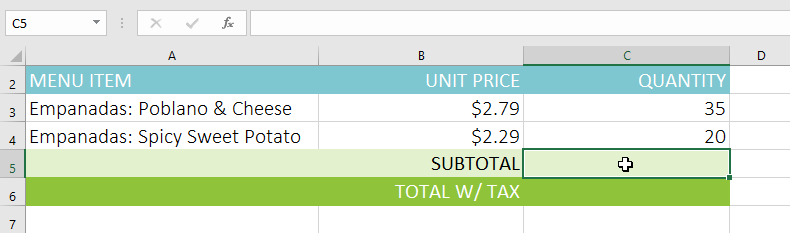
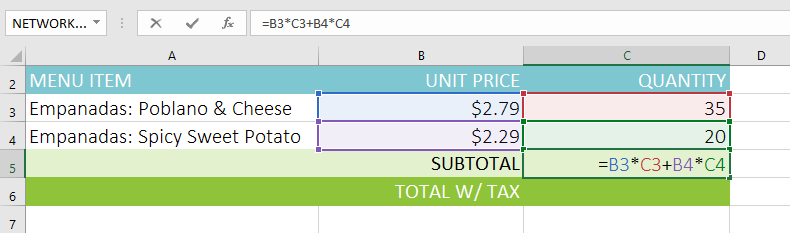
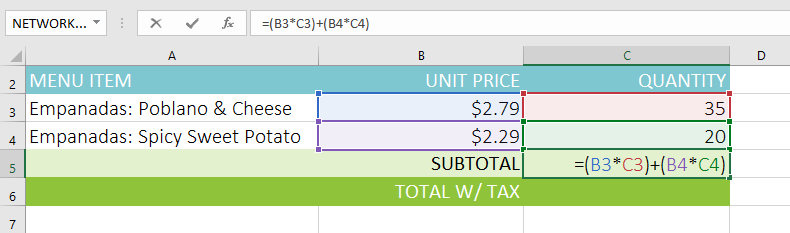
By adding parentheses, Excel performs the multiplication steps first before summing the results. If your subtotal seems too large or too small, check whether parentheses are controlling the order properly.
Calculating Tax Correctly
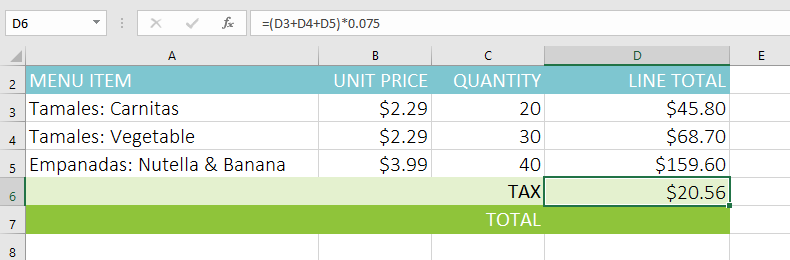
To calculate tax, you typically add totals first, then multiply by the tax rate. Parentheses ensure Excel performs the addition before multiplying.
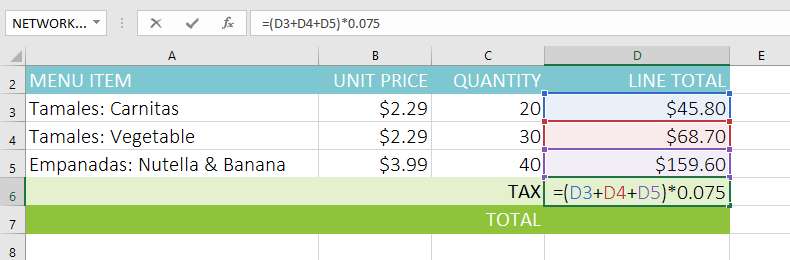
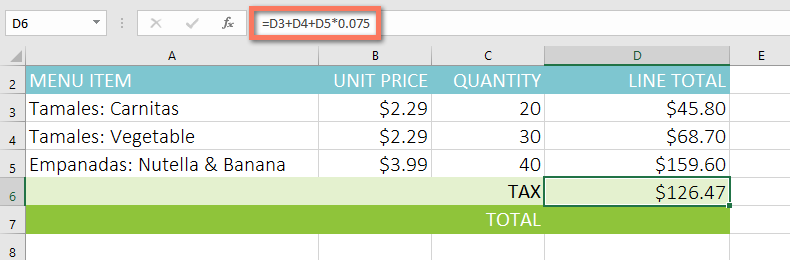
If your tax calculation is incorrect, check whether Excel multiplied something before completing the addition.
Key Takeaways
- Excel follows PEMDAS automatically.
- Use parentheses to control the order of calculations.
- Multiplication and division happen before addition and subtraction.
- If totals look wrong, check parentheses first.
Understanding Excel's Order of Operations (PEMDAS)
Excel calculates complex formulas using a specific hierarchy known as the Order of Operations. If you do not understand this hierarchy, your formulas may return unexpected results.
Excel follows PEMDAS: Parentheses, Exponents, Multiplication, Division, Addition, and Subtraction.
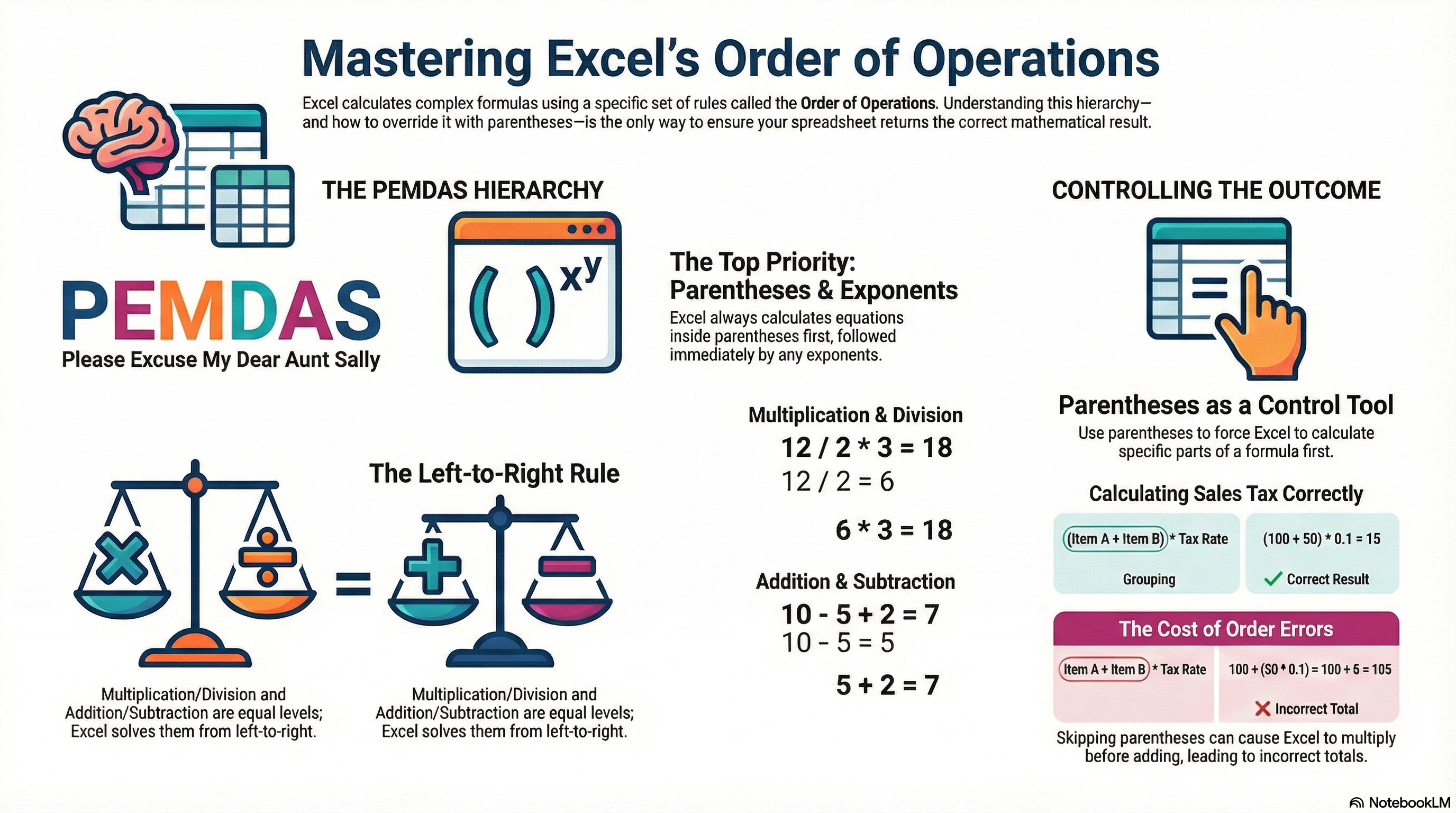
When operators share the same priority level—such as multiplication and division—Excel evaluates them from left to right.
Knowledge Check
In the formula =2+3*4, what is the result?
Practice File
Download this file and follow along with the lesson.
Challenge
Apply what you've learned in this lesson.
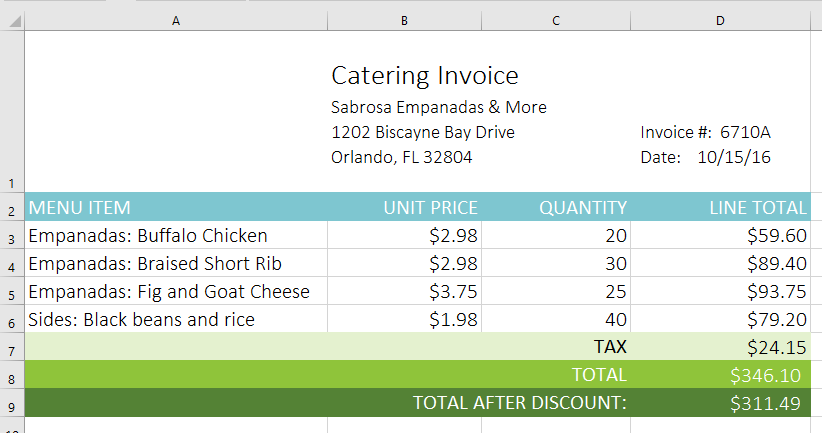
Complete the following tasks using the practice workbook:
- Download the practice file above.
- Click the Challenge worksheet tab in the bottom-left of the workbook.
Click cell D7 first. Type an equals sign (=) to begin your formula.
In cell D7, create a formula that calculates the tax for the invoice. Use a sales tax rate of 7.5%. (You can enter 7.5% directly, or use 0.075.)
In cell D8, calculate the total for the order. Use SUM to add cells D3:D7.
In cell D9, calculate the total after a 10% discount. A 10% discount means you pay 90% of the total.
If your totals look too high or too low, double-check your parentheses and percent formatting.
When you are finished, your spreadsheet should look like this:
Finished this lesson?
Progress is saved in this browser only. It is not a grade — official progress lives in Brightspace.