Saving, Exporting & Sharing Workbooks
Learn how to save workbooks, use AutoRecover, export to PDF, change file types, and share files using OneDrive.
By the end of this lesson you can
- Choose a save format that matches how the workbook will be used
- Export a worksheet to PDF with sensible page setup
- Share a workbook by link with appropriate permissions
- Explain what a recipient can still see in a shared workbook
Lesson Notes
Read through the key concepts before you try the challenge.
Sending a workbook sends more than you can see
You report supply spending to the practice manager at Lakeside Medical Associates.
You email the quarterly summary as an .xlsx. It also contains a hidden sheet with staff salary assumptions, a filtered-out set of rows, and the vendor's confidential pricing. All of it travels with the file, and the recipient can unhide it in two clicks.
Your task: Understand what actually leaves with a workbook, and choose a format that shares only what you intend.
A workbook carries everything: hidden sheets, hidden rows and columns, filtered-out data, comments, defined names, cell formulas revealing your method, and file metadata naming the author. Hiding is a display setting, not a security control — hidden data is fully present in the file.
This is the practical case for exporting to PDF. A PDF contains only what was visible when you exported it, and cannot be unhidden or reverse-engineered. Send the PDF when the recipient needs the numbers; send the workbook only when they genuinely need to work with the data.
Sending a quarterly summary safely
Share the supply spending summary with the practice manager without exposing hidden sheets, source pricing, or underlying formulas.
- 1
Run File > Info > Check for Issues > Inspect Document.
The Document Inspector reports hidden worksheets, hidden rows and columns, comments, and personal metadata. It surfaces things you have genuinely forgotten about — which is exactly the category of information that causes problems.
- 2
Decide what the recipient actually needs: numbers, or data to work with.
This determines the format, and it is a decision most people skip. A manager reading a summary needs a PDF. An analyst continuing the work needs the workbook. Sending the workbook by default is how source pricing reaches people who should not have it.
- 3
For numbers only, set the print area and export with File > Export > Create PDF/XPS.
Setting the print area first is what keeps the PDF to the summary rather than 900 rows of source data. The PDF then contains only what was visible — nothing hidden travels with it.
- 4
If you must send the workbook, save a copy and delete what should not travel.
Delete the hidden sheets in the copy rather than re-hiding them. Hiding is reversible by the recipient; deletion is not. Never edit the original for this — work on the copy so your own source data stays intact.
Result: The manager receives exactly the summary, with no hidden sheets, no vendor pricing, and no formulas exposing the method.
Inspect first, then match the format to the actual need. Hidden is not the same as removed.
Saving a Workbook
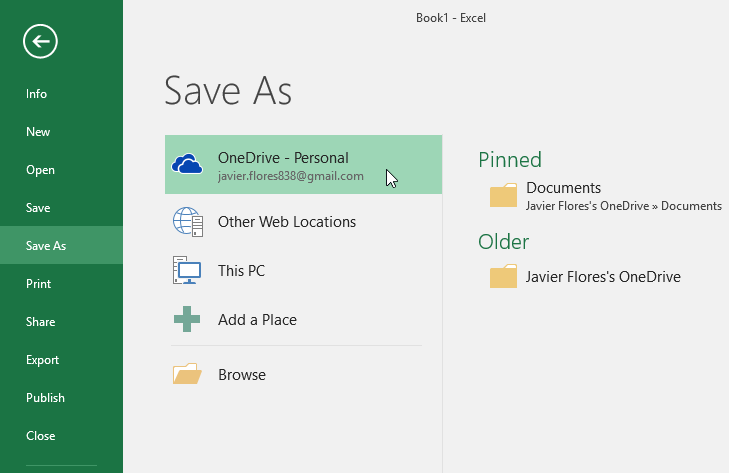
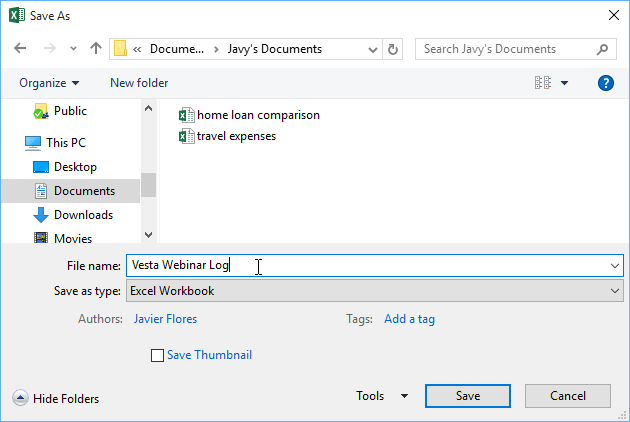
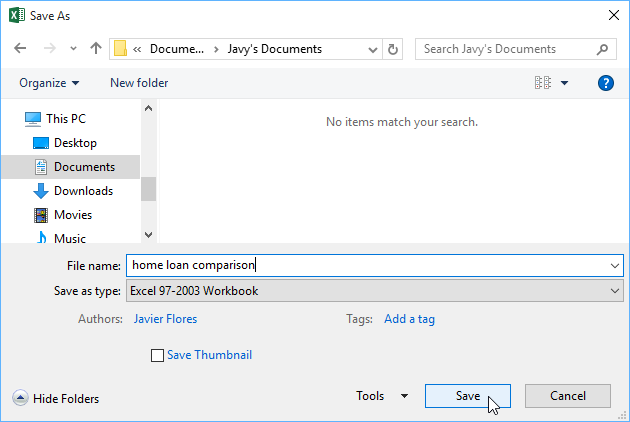
Click File → Save or Save As to store your workbook. You can save to OneDrive, your computer, or another location.

Changing Save Locations & Options
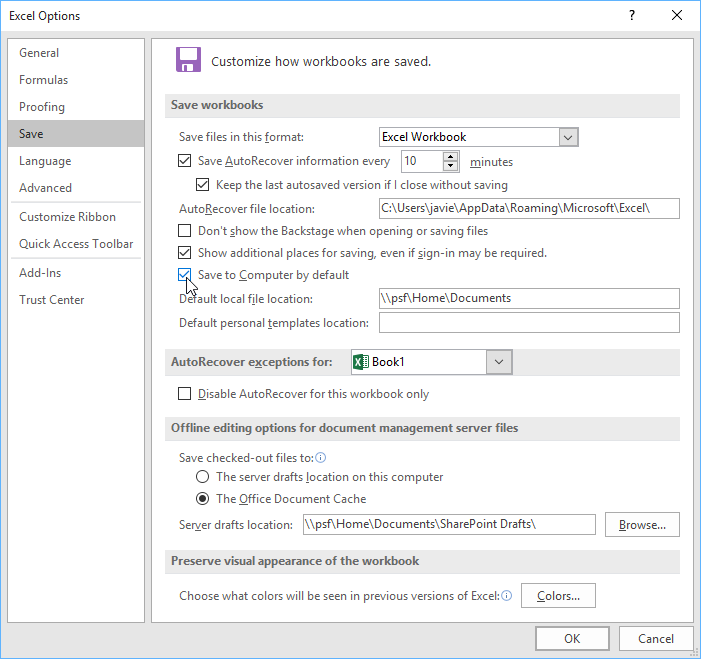
You can adjust default save locations and other settings in File → Options → Save.
Recovering Unsaved Workbooks
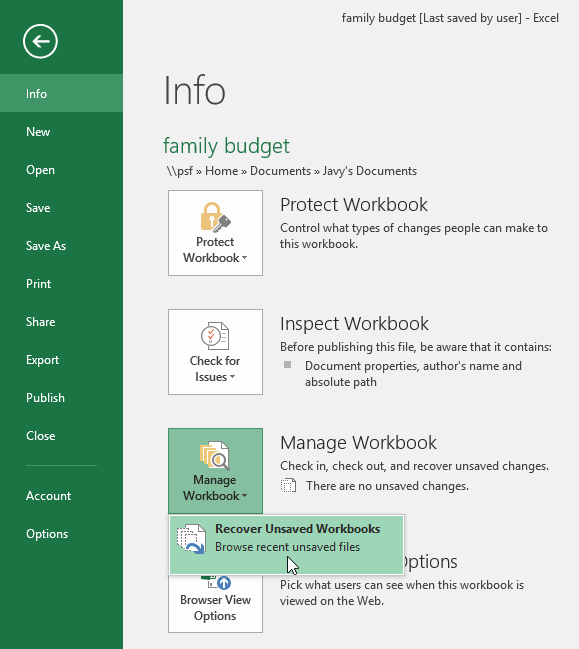
Excel uses AutoRecover to save temporary versions of your work. If Excel closes unexpectedly, you can recover unsaved files.
Exporting as PDF or Other File Types
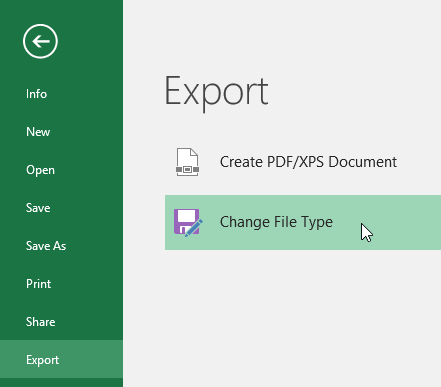
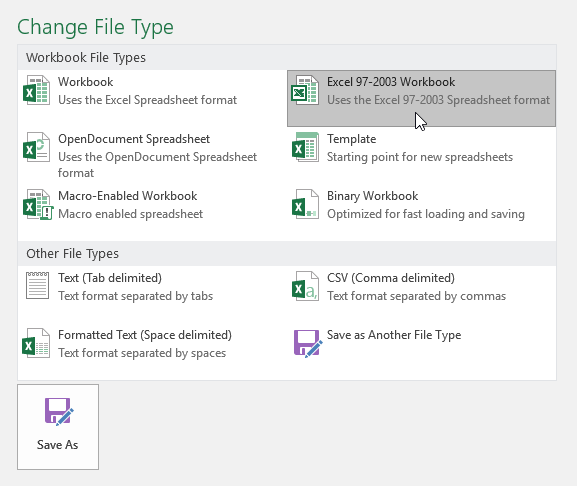
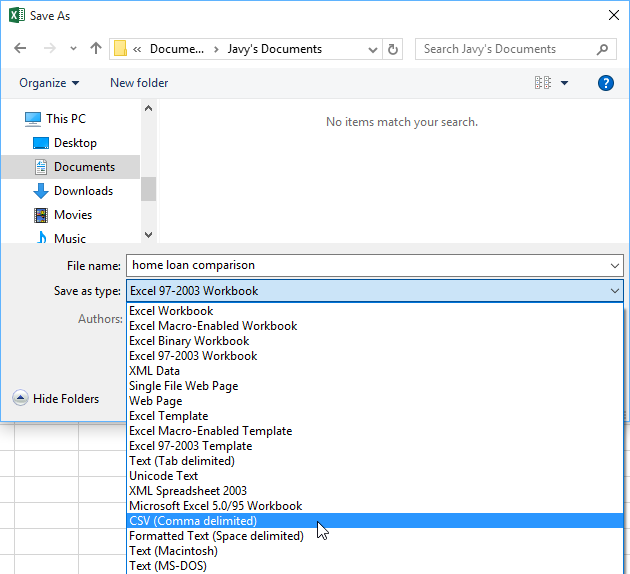
You can export your workbook as a PDF or change the file type using File → Export.
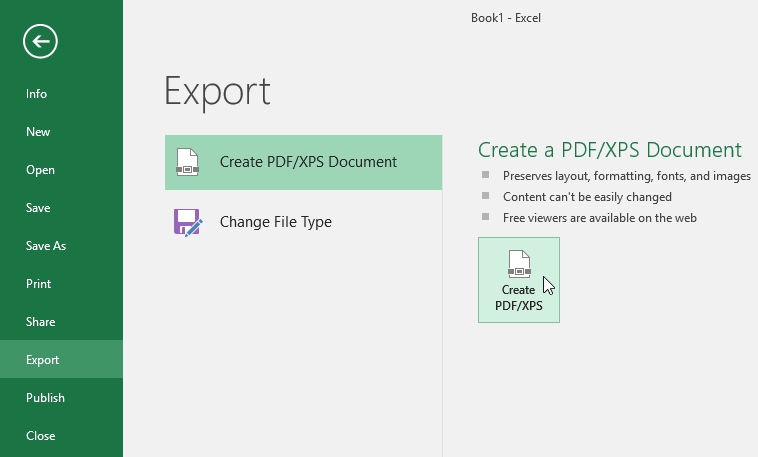
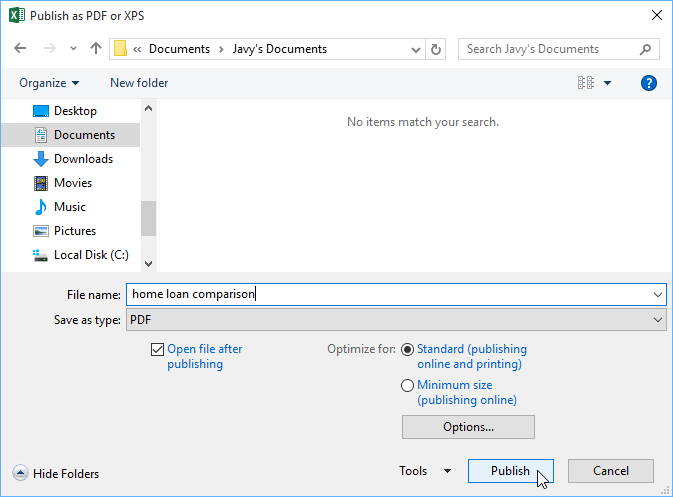
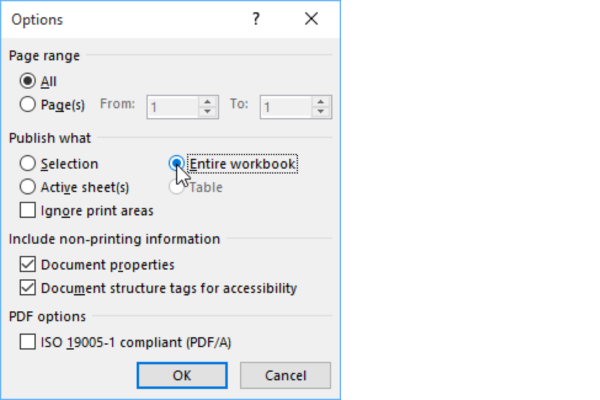
Excel by default will only export active worksheet. If you have multiple worksheets and want them saved to the same PDF file, click Options in the Save As dialog box. Select Entire Workbook, then click Ok
Sharing Workbooks
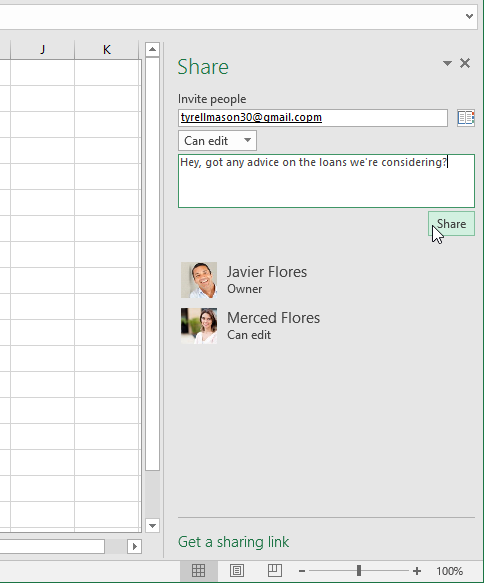
Use File → Share to send your workbook through OneDrive. You can generate links and control permissions.
Knowledge Check
What format should you use to share a workbook that others cannot edit?
Practice File
Download this file and follow along with the lesson.
Challenge
Apply what you've learned in this lesson.
Complete the following tasks:
- Save a workbook to OneDrive.
- Change the default save location in Options.
- Recover an unsaved workbook.
- Export a workbook as a PDF.
- Save a workbook as a CSV file.
- Share a workbook using OneDrive.
Finished this lesson?
Progress is saved in this browser only. It is not a grade — official progress lives in Brightspace.