Getting Started with Excel
Learn your way around the Excel interface, including the Ribbon, Backstage view, Quick Access Toolbar, workbook views, and zoom controls.
By the end of this lesson you can
- Identify the Ribbon, formula bar, Name Box, and status bar and say what each does
- Describe a cell address and how rows and columns are labeled
- Read the status bar's automatic sum, average, and count
- Move around a large worksheet efficiently with keyboard navigation
Video
Watch the lesson video, then complete the reading and challenge.
Lesson Notes
Read through the key concepts before you try the challenge.
A spreadsheet is a grid of addresses
You are taking over supply tracking at Lakeside Medical Associates.
Your predecessor left a workbook with four sheets and about 900 rows. Your supervisor asks a simple question: what did we spend on medical supplies last quarter? You can see all the numbers. You just have no way to make the file answer the question.
Your task: Learn how a worksheet is addressed and navigated, because every Excel skill after this depends on referring to cells precisely.
Excel's power rests on one idea: every cell has an address. Columns are lettered, rows are numbered, and their intersection names the cell — C7 is column C, row 7. Because each cell has a stable address, a formula can refer to it, and when the value at that address changes, everything referring to it recalculates. That is the whole basis of a spreadsheet.
The formula bar is the other thing to understand early. A cell shows you a result; the formula bar shows you what is actually in it. A cell displaying 1,240 might contain the number 1240 or the formula =SUM(C2:C15). Those are very different things, and only the formula bar tells you which. When a spreadsheet behaves unexpectedly, clicking a cell and reading the formula bar is nearly always the first diagnostic step.
Key terms
- Cell reference
- A cell's address, formed from its column letter and row number — C7. Formulas use references rather than values so they update when the data changes.
- Range
- A block of cells written with a colon. C2:C15 means every cell from C2 through C15.
- Formula bar
- The bar above the grid showing the actual contents of the selected cell, as opposed to its displayed result.
- Name Box
- The box left of the formula bar showing the selected cell's address. Type an address into it to jump straight there.
- Worksheet vs workbook
- A workbook is the file. A worksheet is one tab inside it. One workbook can hold many worksheets.
| Keys | Does | Why it matters |
|---|---|---|
| Ctrl + Arrow | Jumps to the edge of the current block of data | Reaches the end of 900 rows instantly |
| Ctrl + Home | Returns to A1 | Gets you back from anywhere |
| Ctrl + End | Jumps to the last used cell | Shows the true extent of a sheet, including stray data |
| Ctrl + Shift + Arrow | Selects to the edge of the block | Selects a whole column of data without dragging |
| F2 | Edits the active cell in place | Faster than double-clicking, and shows the formula |
The Excel Interface
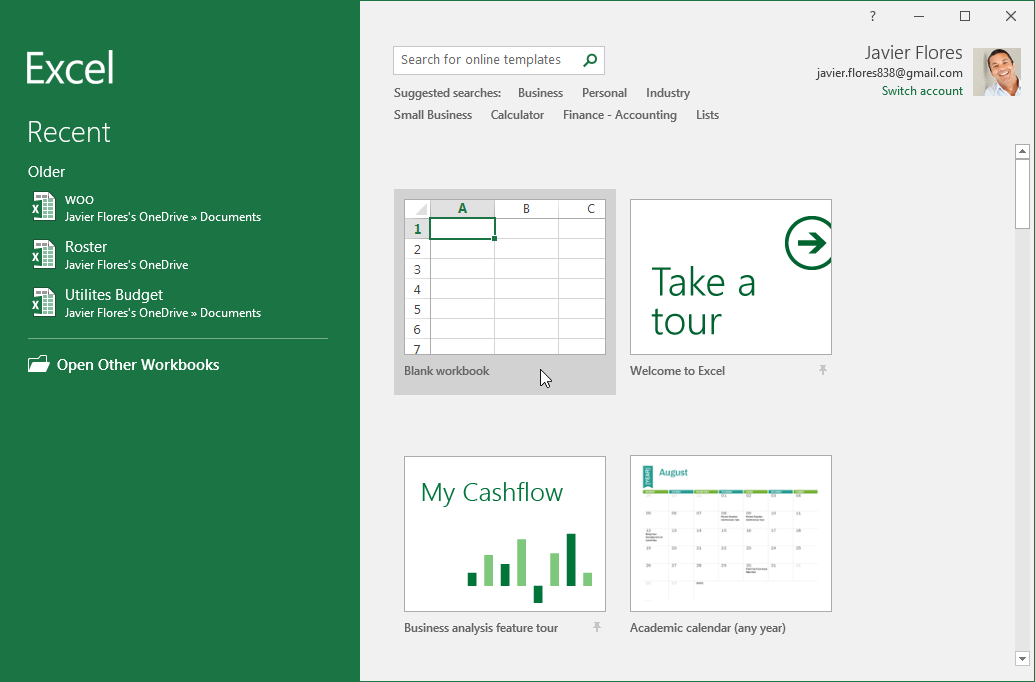
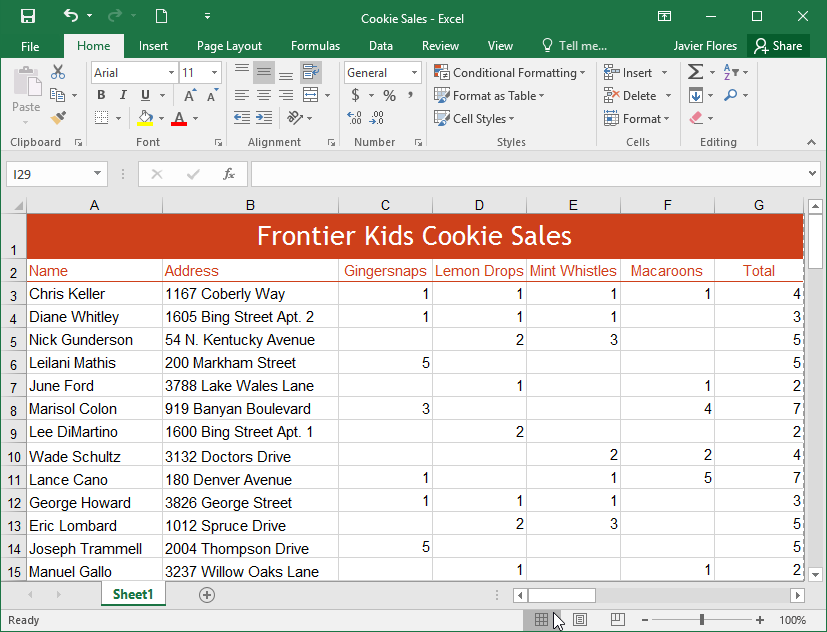
When you open Excel, you’ll see a workbook made up of rows, columns, and cells. The active cell is highlighted and ready for data entry.
Understanding the Ribbon
The Ribbon contains tabs like Home, Insert, Page Layout, Formulas, Data, Review, and View. Each tab contains groups of related commands.


Backstage View
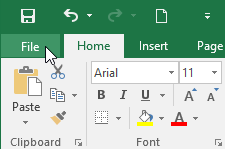
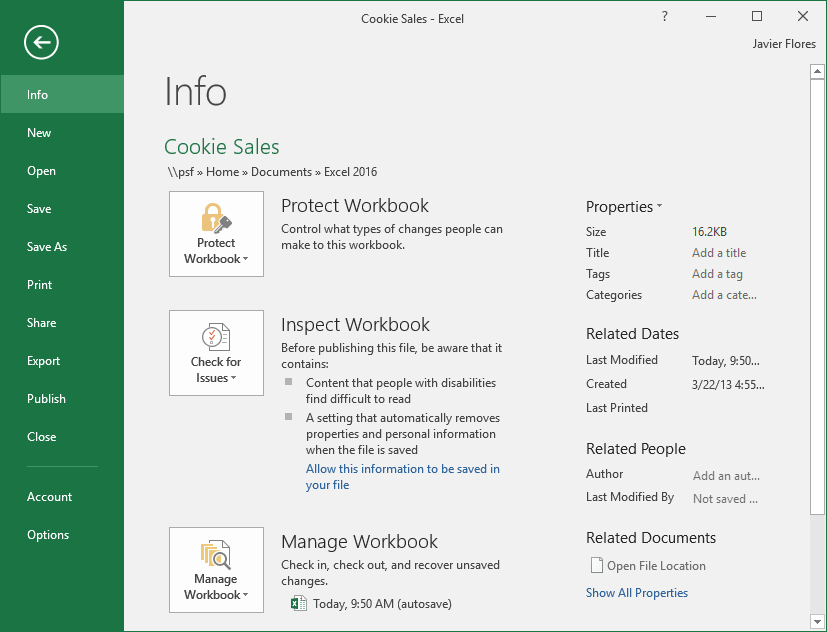
Click the File tab to open Backstage view. From here, you can save, open, print, share, and manage your workbook.
Quick Access Toolbar
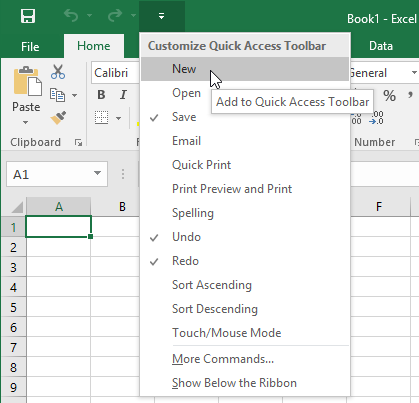
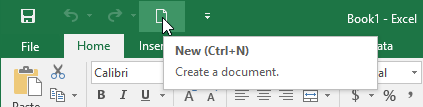
The Quick Access Toolbar lets you quickly access frequently used commands like Save, Undo, and Redo. You can customize it to add more tools.
Using the Tell Me Box
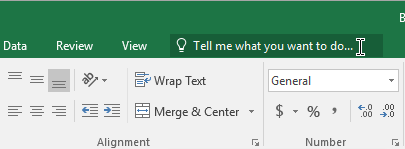
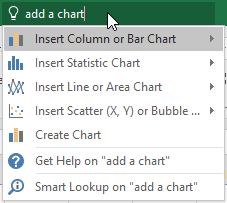
The Tell Me box helps you quickly find commands. Simply type what you want to do, and Excel will suggest tools and actions.
Workbook Views & Zoom
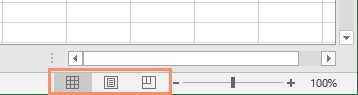
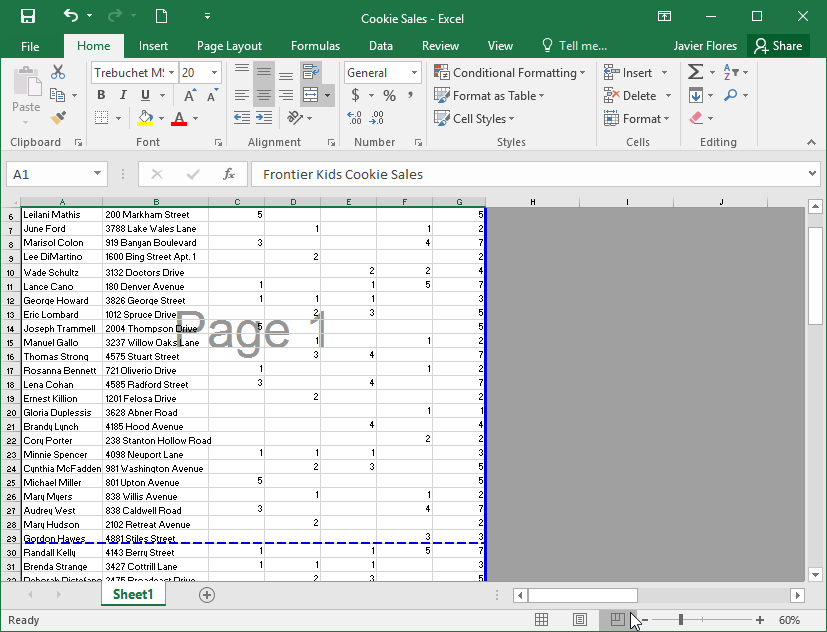
Excel includes different worksheet views, such as Normal view and Page Break view. You can also adjust zoom levels using the zoom slider.
Knowledge Check
Where are most Excel commands found?
Challenge
Apply what you've learned in this lesson.
Complete the following tasks:
- Identify the active cell in a new workbook.
- Switch between Ribbon tabs.
- Open Backstage view and return to the workbook.
- Add a command to the Quick Access Toolbar.
- Use the Tell Me box to find a command.
- Switch between Normal view and Page Break view.
- Adjust the zoom level.
Finished this lesson?
Progress is saved in this browser only. It is not a grade — official progress lives in Brightspace.